

Search.ricktab.com is a browser hijacker that turns cartoon's fame into profits via ads
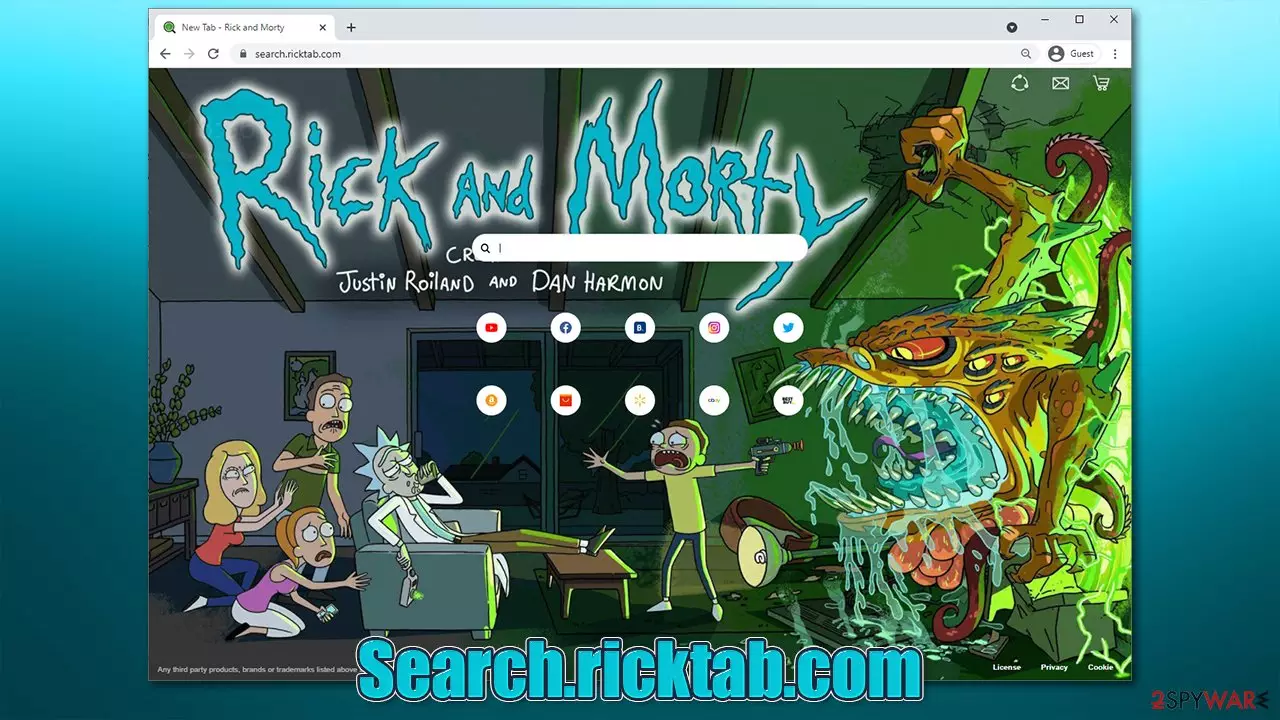
If your browser's homepage and new tab address are always being redirected to Search.ricktab.com, it means that there is a browser hijacker installed on your system. This particular hijack occurs as soon as an extension called Rick Tab gets attached to the browser. In most cases, however, these changes are not voluntary, as many users are tricked into installing this program due to its deceptive distribution technique known as software bundling.[1]
The app tries very hard to be attractive to users – it uses a very popular US cartoon Rick and Morty as its top-selling point. Images from the show are displayed at the homepage of the browser (be it Google Chrome, Mozilla Firefox, or MS Edge). They are constantly changing once the new tab is opened, making it seem like it's a fun experience to have. However, behind the fancy pictures hides quite a mess.
As soon as you enter your search query into the new search box, you will soon notice that your web browser no longer directs you to the default provider (likely, Google) but rather Bing, although this can also vary, depending on the region you reside in. However, this is just the start of all the issues that the hijacker might cause.
| Name | Search.ricktab.com |
|---|---|
| Type | Browser hijacker, potentially unwanted program |
| IP address | 104.21.22.186 |
| Distribution | Software bundle packages downloaded from third party websites |
| Symptoms | Rick Tab extension is installed on the browser; homepage and new tab address are set to something else; a customized search engine is appended to the homepage; search results are presented via alternative provider (Bing) and are filled with sponsored links and ads |
| Risks | Installation of other potentially unwanted programs, privacy risks due to information gathering practices, financial losses |
| Removal | You can uninstall potentially unwanted programs by following the manual guide below or by scanning the computer with powerful SpyHunterCombo Cleaner anti-malware |
| Optional steps | After you get rid of all the potentially unwanted programs or/and malware from your system, use FortectIntego tune-up utility to clean your web browsers and repair any damages system files |
The hidden traits of a potentially unwanted program and why you should remove it
Browser hijackers are considered to be minor infections that usually do not pose a risk to users. However, there is a big reason why these apps are categorized as potentially unwanted by many security experts, as well as antivirus software.
First of all, the distribution of such apps is commonly questionable. While some browser hijackers can be downloaded willingly, a large portion of users finds the altered browser settings seemingly out of nowhere. This is because they commonly download these apps along with the desired ones, making the infiltration of PUPs almost invisible. But more about that below.
One of the most disruptive traits of the browser hijacker is its changes to the browser and the way users interact with the search engine and search results. These apps are focused on altering the results by inserting sponsored content at the very top, making users more likely to click on these links, which are commonly described as “enhanced” search results.
In fact, these are simply ads, and every click benefits the creators of the app. This information might not always be accurate or lead to websites that might promote questionable software. Note that, while the results are presented using a legitimate provider like Bing, the ads are inserted by the hijacker.
Another issue is information tracking. While the Privacy Policy on search.ricktab.com explains that no personal data is being collected, some anonymous information can be collected and shared with third parties. It includes:
- Browser type and language
- Technical device details
- IP address
- Operating system information
- Searches, clicks, etc.

While this data is (mostly) considered anonymous, it is important to note that it will be used to provide you with ads based on your interests. This allows third-party advertisers to also use this data, hence you might see ads that or might not be relevant to you.
In any case, the less data is shared with random companies, the better. If you want to switch to more private searches, we recommend privacy-focused engines such as DuckDuckGo. Microsoft Edge also is a browser that comes with better privacy settings than Chrome, for example.
In any case, despite if the Rick and Morty wallpaper within the browser might seem fun, you should probably remove Search.ricktab.com from your browser, as it will continue delivering alternative search results, as well as track you while you are browsing. If you need help, proceed with the instructions below.
Google Chrome
- Open Google Chrome, click on the Menu (three vertical dots at the top-right corner) and select More tools > Extensions.
- In the newly opened window, you will see all the installed extensions. Uninstall all the suspicious plugins that might be related to the unwanted program by clicking Remove.


Mozilla Firefox
- Open Mozilla Firefox browser and click on the Menu (three horizontal lines at the top-right of the window).
- Select Add-ons.
- In here, select unwanted plugin and click Remove.


MS Edge
- Open Edge and click select Settings > Extensions.
- Delete unwanted extensions by clicking Remove.


After you delete the unwarned extension, we strongly recommend you check your system with SpyHunterCombo Cleaner or another powerful security software to remove any other potentially unwanted/malicious programs from your system automatically.
How hijackers are distributed and how to secure your system
We should talk a little about how this application appeared on your browser, as it is an important part of staying safe online (prevention). As we already mentioned, you could have installed the Rick Tab extension because you are a fan of the Rick and Morty show, or maybe you simply like links presented on the altered homepage.
Due to the reasons we mentioned above, these trains might be deceptive, as the full functionality of the hijacker is not immediately clear. Thus, we strongly suggest you never install apps that you have never heard of or were offered to install via an attractive/deceptive ad.
Another way how Search.ricktab.com could have gained access to your browser is via a software distribution technique known as software bundling. This method is extremely prevalent among third-party program distributors as they earn revenue for adding additional components into a single installation wizard.
The main goal is to hide these optional installs with the hope of users not paying enough attention when installing the desired application. And this works very well – people are impatient and simply click the “Next” button until the while in the installation process is finished.
Thus, never rush through these installation steps, as almost all third-party sites bundle software. Some of these optional components might be not only undesirable but also even dangerous. For example, scareware[2] is a well-known software that shows users fake results in order to frighten them and purchase a full version of the app to “remove the found threats.”
Always pick “Advanced/Custom” mode if such is provided, remove all the ticks from pre-checked boxes, and decline all the offers/deals. Pay special attention to the button placement, as they are commonly inserted into places where users would intuitively press to continue installation (for example, the “Accept offer” button would be placed on the right corner of the window, instead of the left one – users are used to having the “Back” button there).
Finishing Search.ricktab.com removal
Removing the extension from the web browser is not always enough to immediately terminate all the activities of a potentially unwanted program. Cookies, web beacons,[3] and other tracking technologies can still be used in order to collect data about your web browsing habits, even after the browser hijacker is eliminated. Therefore, it is vital to take care of your browsers after the removal is finished.
You can clean your browsers manually, as we explain below. If you want a quicker option, you can use FortectIntego instead.
Chrome
- Click on Menu and pick Settings.
- Under Privacy and security, select Clear browsing data.
- Select Browsing history, Cookies and other site data, as well as Cached images and files.
- Click Clear data.


Mozilla Firefox
- Click Menu and pick Options.
- Go to Privacy & Security section.
- Scroll down to locate Cookies and Site Data.
- Click on Clear Data…
- Select Cookies and Site Data, as well as Cached Web Content and press Clear.


MS Edge
- Click on Menu and go to Settings.
- Select Privacy and services.
- Under Clear browsing data, pick Choose what to clear.
- Under Time range, pick All time.
- Select Clear now.


You can find instructions for Safari and Internet Explorer below.
Delete from Safari
Remove dangerous extensions:
- Open Safari, click Safari in the menu at the top-left of the screen, and select Preferences.
- Go to the Extensions tab, look for any suspicious entries, and click Uninstall to remove them.


Clear history and website data:
- Click Safari in the menu and pick Clear History.
- Set Clear to all history and confirm with Clear History.


Reset Safari:
- Click Safari in the menu and select Preferences > Advanced.
- Enable Show Develop menu in menu bar.
- From the menu bar, click Develop and select Empty Caches.


Did this guide help?
Be the first to comment