

Stepik ransomware seeks to extort money from innocent victims
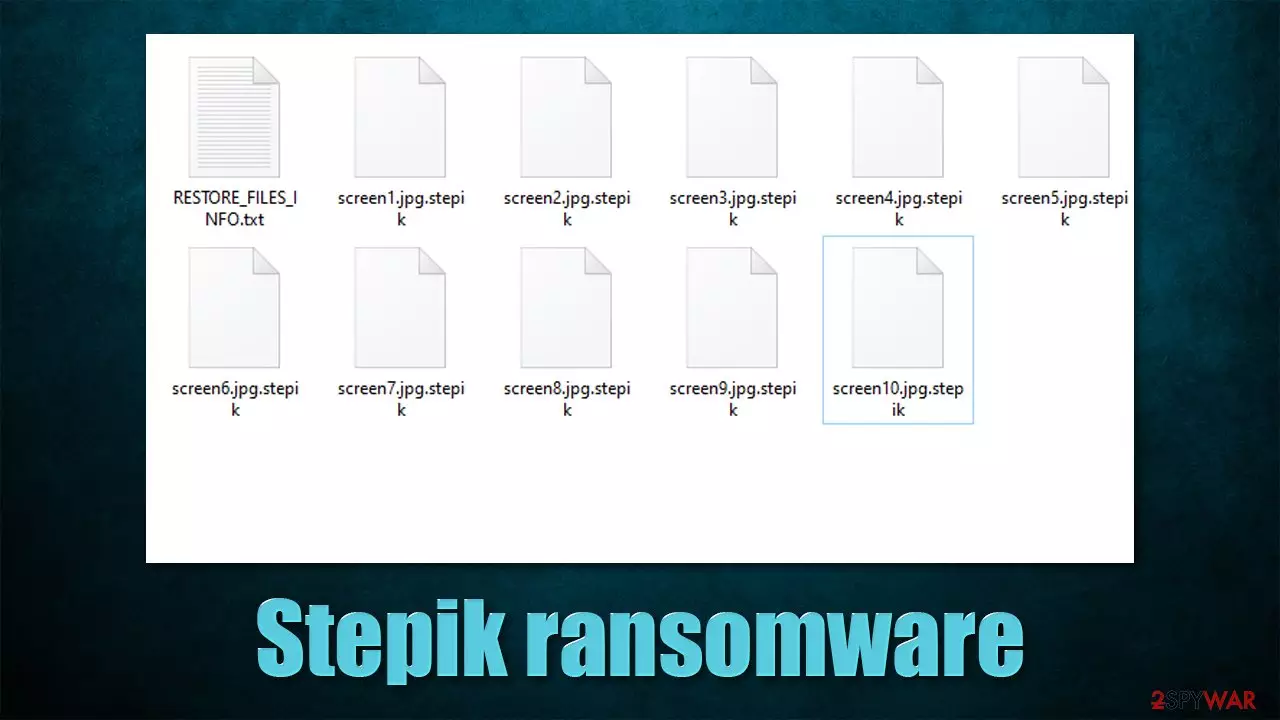
Stepik operates like any other typical ransomware virus – it is designed to encrypt all files on the system and then demand ransom for their return. It does not seem to belong to any currently known malware strain and was first spotted in the wild in the first half of November of 2021.
The virus attacks Windows computers exclusively, although the attack vectors are currently unknown. Typically cybercriminals use spam email attachments, software vulnerabilities,[1] or repacked/cracked software as the main distribution means. Regardless of the distribution methods, ransomware is never installed purposely by users, and they are tricked into doing so in one way or another.
Once installed, Stepik ransomware begins the infection process of a Windows machine and all networked devices connected to it. The system modifications are in place for malware to fulfill its main purpose of data encryption, which converts all pictures, videos, documents, databases, and other files into unusable ones. During this process, each of the files acquires a .stepik extension (note that they are not corrupted by rather locked with a strong encryption algorithm).
The virus creates a unique key and sends it off to a remote server controlled by attackers. This guarantees that the data is held hostage by the crooks, as the decryption key is required to restore all files to their original form, making them usable again. Of course, hackers are not willing to give it up for free and instead ask for a payment in Bitcoin – a cryptocurrency that ransomware authors use.[2]
In the ransom note RESTORE_FILES_INFO.txt, which is placed on the desktop and various folders on the system, it is claimed that the victims need to contact cybercriminals via steriok12132@tutanota.com or KukaJamba@tutanota.com emails. Users should also create an account via Tutanota – an email service commonly used by hackers for communication thanks to its end-to-end data encryption,[3] making them fully anonymous.
We strongly recommend you refrain from paying the attackers, as you might get scammed out of your money, all while never receiving the key needed for file deception. Keep in mind that this malware strain is relatively new and it is unknown whether the crooks behind it can be trusted with sending you the required tool after payment.
| Name | Stepik ransomware |
|---|---|
| Type | Ransomware, file-locking malware, cryptovirus |
| File extension | .stepik extension appears at the end of every file name |
| Ransom note | RESTORE_FILES_INFO.txt, placed on the desktop |
| Contact | steriok12132@tutanota.com or KukaJamba@tutanota.com |
| Data Recovery | If no backups are available, recovering data is almost impossible. Nonetheless, we suggest you try the alternative methods that could help you in some cases – we list them below |
| Malware removal | Manual virus removal is not recommended, as it might be difficult for regular users. Instead, SpyHunterCombo Cleaner or other anti-malware tools should be used |
| System fix | Malware can seriously tamper with Windows systems, causing errors, crashes, lag, and other stability issues after it is terminated. To remediate the system and avoid its complete corruption, we recommend scanning it with the FortectIntego repair tool |
Ransom note example
A ransom note is something that ransomware authors commonly use to provide contact information through. It is in the best interest of the attackers to do so, as it increases the chances of retrieving payment. This is why each of the victims is also assigned a unique key identifier, which is shown within the note itself – it is meant to be sent via the provided email to identify each of the victims. For example, ransomware like Palq or Efdc infects hundreds of users daily, and it would be rather difficult to identify each of the victims without it.
Stepik virus authors keep it relatively short and go straight to the point. Here's the writeup of the full message that victims receive after data encryption is finished:
all your important files are encrypted!
Any attempts to restore your files with the thrid-party software will be fatal for your files!
RESTORE YOU DATA POSIBLE ONLY BUYING private key from us.
There is only one way to get your files back:
WARNING: 1) install the tor browser (https://www.torproject.org/download)
2)Сreate new email on servis https://mail.tutanota.com/login for contact !
write me on steriok12132@tutanota.com or KukaJamba@tutanota.comKey Identifier:
The attackers claim that using alternative methods to restore your files would bring no results and that victims should instead contact them for a decryptor. Whether you decide to go for it or not, remember that cybercriminals behind ransomware are not your friends, and they don't care about you. You should never trust them.
Instead, we strongly recommend performing Stepik ransomware removal correctly and then employing alternative methods for data recovery. Follow the steps below.

1. Remove malware from the system
Most people who get infected with ransomware have never even heard of it and even if they did, they know very little about it in a general sense. It is common because none of the users initially believe they might be victims of the devastating computer infection.
Thus, once users find that they can no longer open any of the files on the computer, they might straight out panic. While it is true that ransomware is among the scariest infections out there, panicking will not result in anything positive. The first step you should take is taking care of ransomware removal.
Some ransomware strains are known to self-delete after they complete data encryption, while others continue running in the background. The latter kind can download additional modules, update itself, proliferate other malware, steal sensitive information, and continue encrypting all their incoming files.
Regardless of which category the Stepik virus belongs to, you should always employ SpyHunterCombo Cleaner, MalwarebytesMalwarebytes, or another reputable security software for its elimination. Manual removal is also possible but should be avoided due to numerous reasons. Security software can find and remove all the malicious files and stop the infection from functioning.
It is worth noting that security software can't repair damaged system files, as it is simply not designed for that. Damaged system files remain and can cause major operational disruptions in the future. Therefore, we recommend you employ a PC repair tool FortectIntego to fix all the corrupted system files instead of reinstalling the OS altogether.
Note: ransomware could interfere without the operation of security software. If that's the case, scroll down to the very bottom to find instructions on how to access Safe Mode and perform a scan from there.
2. Recover .stepik files without paying the ransom
Once malware is removed from the system, you can proceed with the next step – your file recovery. As evident, cybercriminals ask you to pay the ransom and recover your data in that way. As we already explained, it is far from an ideal scenario – you might get scammed and it would only prove to malicious actors that their illegal business scheme works as intended. Therefore, we recommend taking the alternative route instead, although its results can't be guaranteed.
If you have no backups for your encrypted files, it is vital that you copy the encrypted files onto another medium before you proceed. Otherwise, the files might get corrupted and would be irretrievable even with a working decryptor. It is also important to note that your antivirus software will not restore your files, as it is simply not designed for that. What it will do is remove all malicious files and processes from your infected machine – an absolutely necessary step.
1. Try recovery software
Data recovery software is your best bet at recovering files when no decryptor is available. It is not guaranteed to work, but you should definitely try this option.
- Download Data Recovery Pro.
- Double-click the installer to launch it.

- Follow on-screen instructions to install the software.
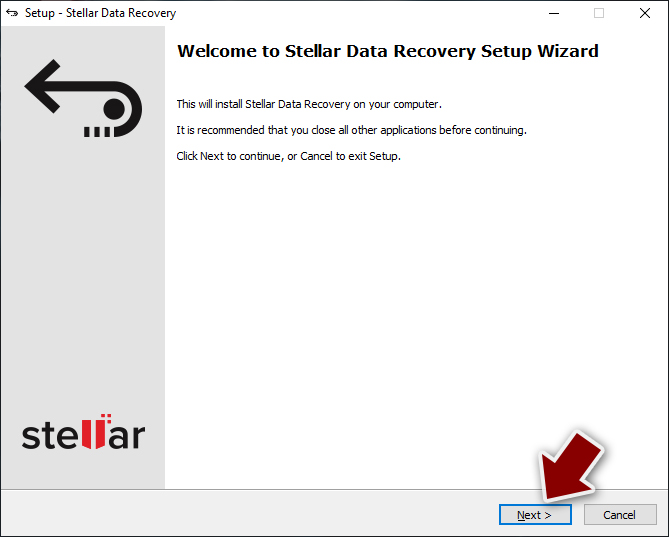
- As soon as you press Finish, you can use the app.
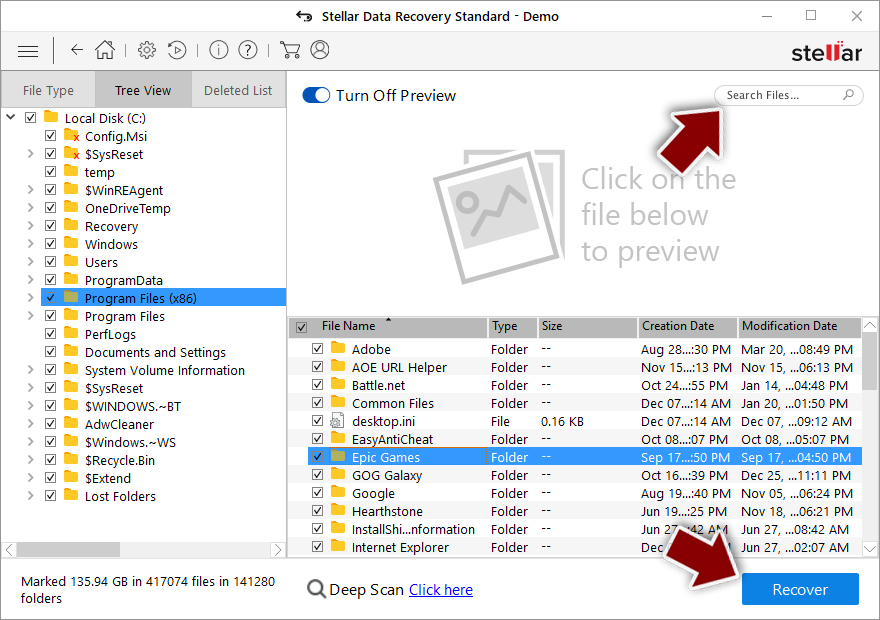
- Select Everything or pick individual folders where you want the files to be recovered from.
- Press Next.
- At the bottom, enable Deep scan and pick which Disks you want to be scanned.

- Press Scan and wait till it is complete.
- You can now pick which folders/files to recover – don't forget you also have the option to search by the file name!
- Press Recover to retrieve your files.


2. Wait for a decryptor
Security experts are known to work on decryption tools for major ransomware strains. In some cases, flaws within the encryption process can be found or criminals' servers seized by the lay authority agencies. In any case, you could look for decryptors on the following pages, although keep in mind it might take a while until there's a working one made.
- No More Ransom Project
- Free Ransomware Decryptors by Kaspersky
- Free Ransomware Decryption Tools from Emsisoft
- Avast decryptors
3. Bonus tips
There are two main things you should do to negate ransomware infection impact – backup your vital files (and keep them updated) and always run a protection software, such as SpyHunterCombo Cleaner, that would warn you about the incoming malware attacks. That being said, it is important you don't ignore warnings from security software and automatically add the newly-downloaded files to an exception list, especially if you frequent illegal websites that distribute pirated apps and games.
If you need help with data backups, please refer to the instructions below – we provide OneDrive and Google Drive guides. Another thing you could do is contact your local authorities that deal with fraud and cyber attacks. This could help catch the culprits, eventually releasing of keys used to encrypt victims' files.
Did this guide help?
Be the first to comment