

Phonestar.info does not perform any verifications and instead spams users with ads

Phonestar.info is a bogus site that is disguised as a captcha verification step. It asks users to click the “Allow” button to confirm that they are not robots. What the button does instead is grant permission for the site to send push notifications. Normally, push notifications provide some kind of benefits for the users like informing them about the latest news, updates, special offers.
However, this website starts spamming people with useless pop-up ads that may come from untrustworthy sources. Links embedded in the notification prompts may lead to dangerous websites that use social engineering techniques to fool people into providing their personal information, downloading PUPs (potentially unwanted programs),[1] or even malware.
| NAME | Phonestar.info |
| TYPE | Push notification spam; adware |
| SYMPTOMS | Pop-up ads start appearing in the corner of the screen when people click the “Allow” button |
| DISTRIBUTION | Shady websites, deceptive ads, freeware installations |
| DANGERS | Links embedded in the notification prompts can lead to dangerous websites that trick people into providing personal information, downloading PUPs or malware |
| ELIMINATION | Disable push notifications in your browser settings |
| FURTHER STEPS | Use a maintenance tool FortectIntego to fix any remaining damage and optimize the system |
There are many websites that are created for the sole purpose of generating revenue from PPC advertising. These kinds of pages are easy to recreate as they do not require much effort. All the fraudsters have to do is insert the same image and get a different domain. We have previously written about very similar pages like CaptchaResolverHere.top, News-dimawi.cc, and Educationakasulba.xyz.
Why are you seeing this page?
There are many things that could have led you to Phonestar.info. The most common way these kinds of pages are distributed is through advertisements on shady pages. For example, illegal streaming services[2] are full of deceptive ads and sneaky redirects. Sometimes you do not even have to click on an ad for a new tab to open.
Even though Google said that it would get rid of fake “Download” and “Play” buttons,[3] they still exist and fool users every day. If a person clicks on one of these buttons and this page opens, he might think that he has to complete this verification and then he will be able to watch the movie or TV show.
Another reason why this page might have appeared is because adware is hiding in your system. It is a specific type of program which generates revenue for creators by injecting ads into the search results, causing pop-ups, banners, and redirects to suspicious pages.

Freeware[4] distribution sites are the main spreaders of PUPs like adware. Because they do not earn any money from the programs they provide, they include additional ones in the installers without disclosing them on their pages. Most people rush through the installation process and do not notice anything wrong.
We always suggest installing software only from official sources because it is the safest way. But you can also implement some habits in your routine when downloading apps. Always choose the “Custom” or “Advanced” installation method, read the privacy policy and terms of use to find out more about how your information will be used. The most important part is to inspect the file list and untick the boxes next to any programs that are unrelated.
Start the removal by going to your browser settings
Because push notifications are based on a subscription model, only you can disable them. Follow the guide:
Google Chrome (desktop):
- Open Google Chrome browser and go to Menu > Settings.
- Scroll down and click on Advanced.
- Locate Privacy and security section and pick Site Settings > Notifications.

- Look at the Allow section and look for a suspicious URL.
- Click the three vertical dots next to it and pick Block. This should remove unwanted notifications from Google Chrome.



Google Chrome (Android):
- Open Google Chrome and tap on Settings (three vertical dots).
- Select Notifications.
- Scroll down to the Sites section.
- Locate the unwanted URL and toggle the button to the left (Off setting).


Mozilla Firefox:
- Open Mozilla Firefox and go to Menu > Options.
- Click on Privacy & Security section.
- Under Permissions, you should be able to see Notifications. Click the Settings button next to it.

- In the Settings – Notification Permissions window, click on the drop-down menu by the URL in question.
- Select Block and then click on Save Changes. This should remove unwanted notifications from Mozilla Firefox.



Safari:
- Click on Safari > Preferences…
- Go to the Websites tab and, under General, select Notifications.
- Select the web address in question, click the drop-down menu and select Deny.


MS Edge:
- Open Microsoft Edge, and click the Settings and more button (three horizontal dots) at the top-right of the window.
- Select Settings and then go to Advanced.
- Under Website permissions, pick Manage permissions and select the URL in question.
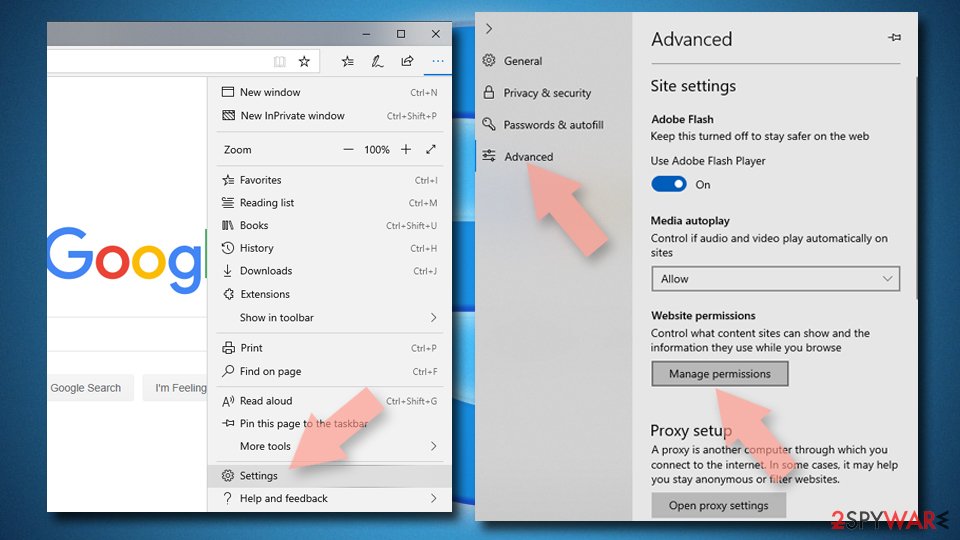
- Toggle the switch to the left to turn notifications off on Microsoft Edge.

MS Edge (Chromium):
- Open Microsoft Edge, and go to Settings.
- Select Site permissions.
- Go to Notifications on the right.
- Under Allow, you will find the unwanted entry.
- Click on More actions and select Block.
Internet Explorer:
- Open Internet Explorer, and click on the Gear icon at the top-right of the window.
- Select Internet options and go to the Privacy tab.
- In the Pop-up Blocker section, click on Settings.
- Locate web address in question under Allowed sites and pick Remove.


All of the pages that you visit use cookies to track your browsing activities. Generally, this is not a bad thing as it helps websites to personalize the user experience but in some cases, it can cause a lot of issues. If the pages you visit do not have strong security, cookies can be hacked and stolen which has happened in the past. Untrustworthy pages can also sell them to advertising networks that use them to target you with ads more.
That is why it is important to clear your browser regularly. This can be automated with a maintenance tool like FortectIntego. It does not only delete all cookies and cache but can also fix system damage, errors, registry issues which is especially helpful after virus infections.
Scan the machine for adware
Once you block the notifications, there is still a chance that there is adware hiding in your system. If you have any other symptoms, we strongly suggest deploying professional security tools like SpyHunterCombo Cleaner or MalwarebytesMalwarebytes to scan your machine.
They can detect suspicious processes happening in your machine and eliminate all the files causing it. What is more, it can prevent such infections in the future by warning you about a dangerous download. Of course, you can remove programs manually, but it can be difficult to identify PUPs as they can be disguised as handy tools that you use every day and would not suspect anything bad about them.
If you want to perform manual removal, you can follow the instructions posted below for Windows and Mac systems:
Windows 10/8:
- Enter Control Panel into Windows search box and hit Enter or click on the search result.
- Under Programs, select Uninstall a program.

- From the list, find the entry of the suspicious program.
- Right-click on the application and select Uninstall.
- If User Account Control shows up, click Yes.
- Wait till uninstallation process is complete and click OK.



Windows 7/XP:
- Click on Windows Start > Control Panel located on the right pane (if you are Windows XP user, click on Add/Remove Programs).
- In Control Panel, select Programs > Uninstall a program.

- Pick the unwanted application by clicking on it once.
- At the top, click Uninstall/Change.
- In the confirmation prompt, pick Yes.
- Click OK once the removal process is finished.

Mac:
- From the menu bar, select Go > Applications.
- In the Applications folder, look for all related entries.
- Click on the app and drag it to Trash (or right-click and pick Move to Trash)


To fully remove an unwanted app, you need to access Application Support, LaunchAgents, and LaunchDaemons folders and delete relevant files:
- Select Go > Go to Folder.
- Enter /Library/Application Support and click Go or press Enter.
- In the Application Support folder, look for any dubious entries and then delete them.
- Now enter /Library/LaunchAgents and /Library/LaunchDaemons folders the same way and terminate all the related .plist files.


Did this guide help?
Be the first to comment