

Pyphyfe ransomware tries to extort money from users by locking their files
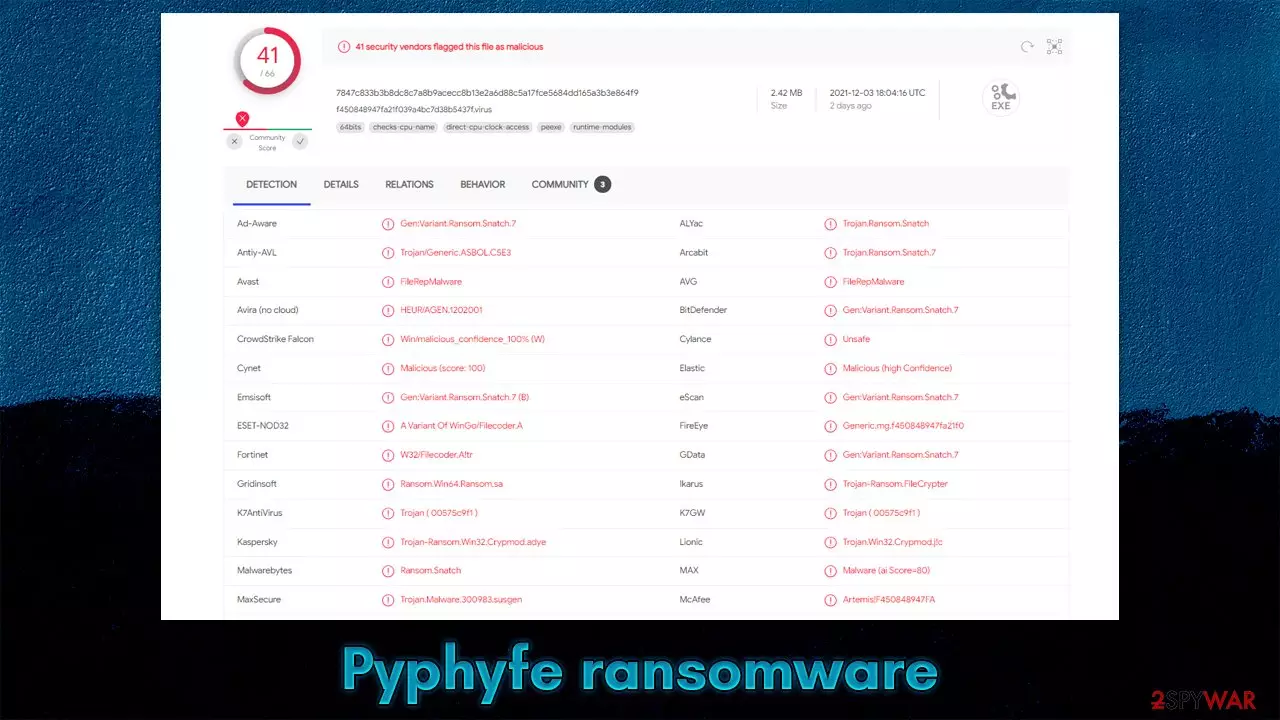
Pyphyfe is a ransomware-type virus that stems from a well-established family known as Snatch. While the main target of this threat is corporate environments, regular computer users might also be affected by it due to the distribution method chosen by cybercriminals.
The ransomware damage can be particularly significant, as its impact on personal files might be permanent. Once installed on the system, it locks pictures, documents, videos, databases, and other most commonly used files on the computer and the connected network, if such exists. With the help of the powerful encryption algorithm AES,[1] it locks all non-system files – a process during which each of the files receives a “.pyphyfe” extension. While the data does not become corrupted, its contents can no longer be accessed or modified, rendering it useless.
Even though locked files are one of the first symptoms of ransomware infection, there's plenty that's going on in the background. Malware closes down several important processes, changes booting sequence, imports its own malicious and establishes a connection with a remote C&C server[2] that is used by attackers to send commands.
As soon as all the background operations are complete, the malware drops a ransom note HOW TO RESTORE YOUR FILES.txt, which is placed on the desktop and other locations on the PC. To redeem access to the locked data, victims of the Pyphyfe virus are asked to contact cybercriminals via one of the two provided email addresses:
- JohnDealinger@seznam.cz
- JohnasassistantIT@seznam.cz
While it may seem like there is no other choice, it is not recommended to contact the attackers, as the possibility of getting scammed remains. There have been plenty of instances where the ransom demand was indeed fulfilled but threat actors simply didn't respond or sent a defective decryptor. Instead, we recommend you follow the guide below to remove malware from the system and remediate files safely.
| Name | Pyphyfe ransomware |
|---|---|
| Malware family | Snatch |
| File extension | .pyphyfe appended to each of the personal files on the system |
| Encryption method | AES |
| Related files | HOW TO RESTORE YOUR FILES.txt |
| Contact | JohnDealinger@seznam.cz or JohnasassistantIT@seznam.cz are used as a primary communication method between the attackers and victims |
| File Recovery | The only secure way to restore files is by using data backups. If such is not available or were encrypted as well, options for recovery are very limited – we provide all possible solutions below |
| Malware removal | Disconnect the computer from the network and internet and then perform a full system scan with SpyHunterCombo Cleaner |
| System fix | Malware can seriously tamper with Windows systems, causing errors, crashes, lag, and other stability issues after it is terminated. To remediate the OS and avoid its reinstallation, we recommend scanning it with the FortectIntego repair tool |
Malware family operation
Snatch is a relatively old ransomware strain that was first spotted back in 2018. Since that time, hundreds of versions were released by the cybercriminal gang behind it, including Ufymmtjonc, Cwkkbzomdxj, Yulnedxmo, and many others. Evidently, the crooks do not waste much time coming up with extension names, as they seem to be randomly generated.
Malicious actors scan the internet for vulnerable RDP[3] connections and then use brute-force techniques to enter and compromise the computer network. Targets are usually picked based on availability, although crooks are known to prefer corporations rather than home users.
Just as many other ransomware strains, Pyphyfe delivers a ransom note right upon finishing data encryption. This note commonly serves as means for communication and increases the probability of payment by the victim. This is also one of the reasons why there are many copies of it scattered all over the directories. Here's the note malware delivers:
Hello!
All your files are encrypted!
Email me if you want to get your files back – I will do it very quickly!
Contact me by email:JohnDealinger@seznam.cz or JohnasassistantIT@seznam.cz
The subject line must contain an encryption extension or the name of your company!
Do not rename encrypted files, you may lose them forever.
You may be a victim of fraud. Free decryption as a guarantee.
Send us up to 3 files for free decryption.
The total file size should be no more than 1 MB! (not in the archive), and the files should not contain valuable information. (databases, backups, large Excel spreadsheets, etc.)
!!! Do not turn off or restart the NAS equipment. This will lead to data loss !!!To contact us, we recommend that you create an email address at protonmail.com or tutanota.com
Because gmail and other public email programs can block our messages!If you do not receive a response from us for a long time, check your spam folder.
Do not get deceived by the seemingly friendly demeanor of the message, keep in mind that cybercriminals are not your friends. As it is common, they offer test decryption before paying money to prove the data recovery is possible, although by no means does that guarantee that they will keep their word and deliver a working decryptor.

Instead of cooperating, we recommend you remove Pyphyfe ransomware from your system, as we explain above, and use backups to restore your files. We also provide a few alternative methods that might sometimes help with data recovery.
Step 1. Disconnect the affected PC from the network
As soon as malware is installed, it establishes a connection to a remote server. From there, it can receive various commands, such as importing other modules or performing additional encryption processes. Therefore, before you proceed with anything else, you should disconnect your PC from the network and the internet. This is easy to do by simply plugging the ethernet cable out of the machine or disconnecting the WiFi.
However, if there are many computers connected to the network, it is easier to do as follows:
- Type in Control Panel in Windows search and press Enter
- Go to Network and Internet
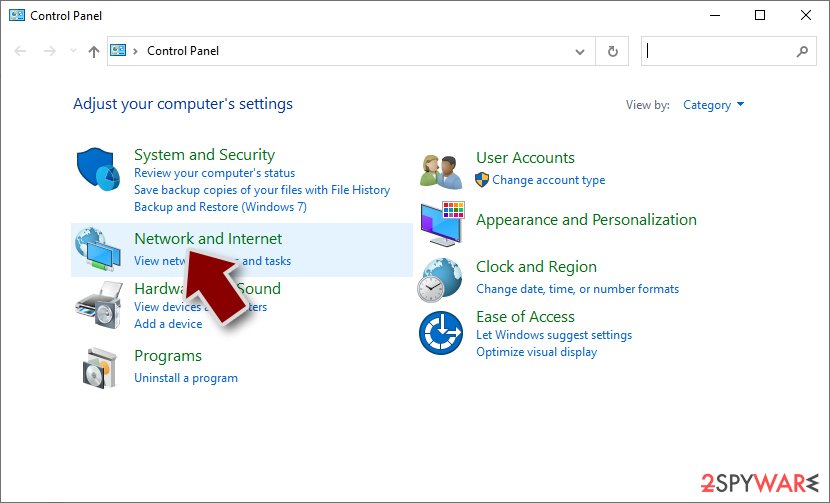
- Click Network and Sharing Center
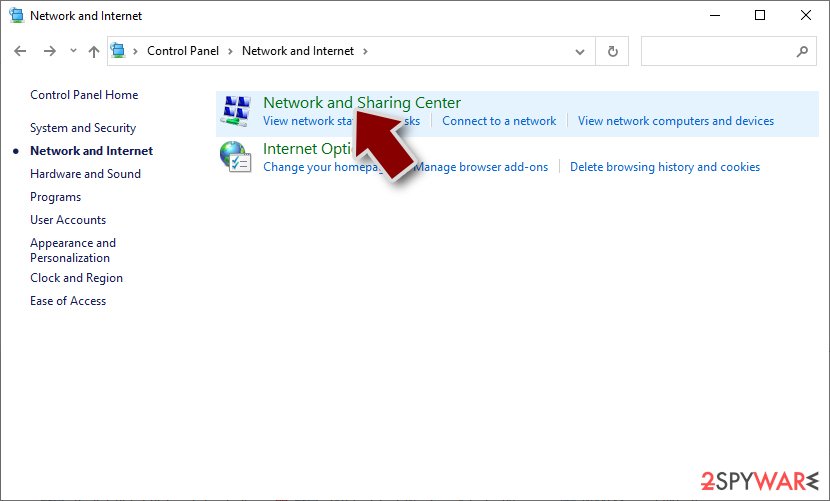
- On the left, pick Change adapter settings
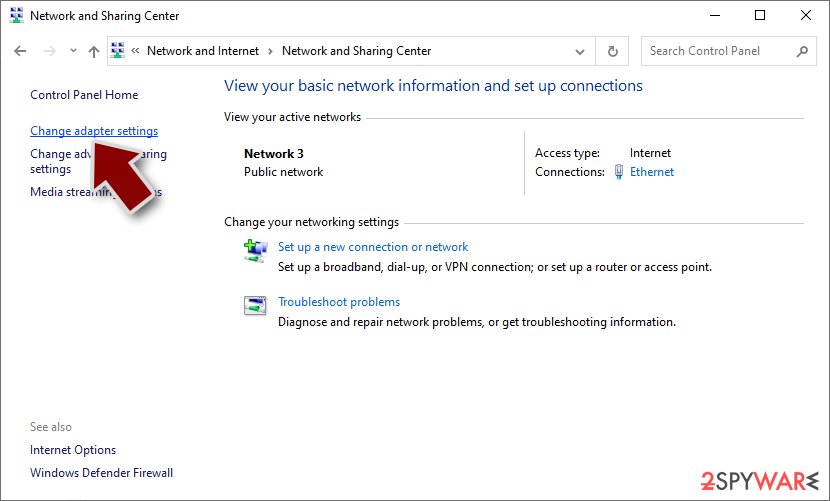
- Right-click on your connection (for example, Ethernet), and select Disable
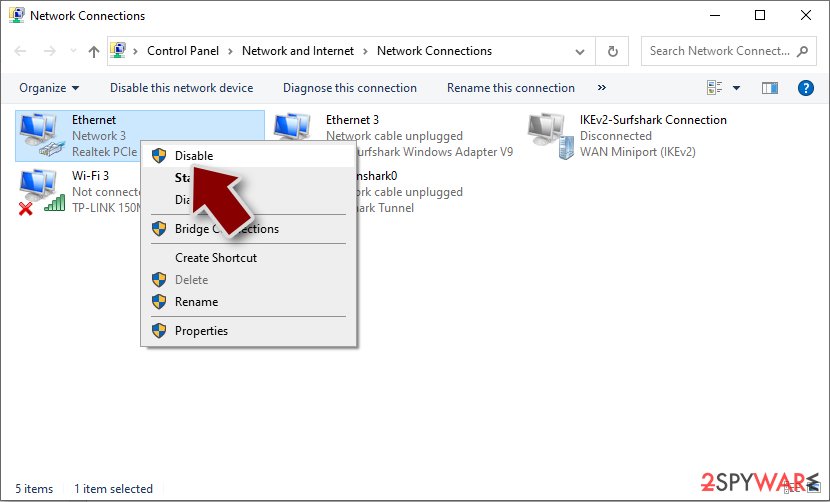
- Confirm with Yes.


Step 2. Remove malware and its components from the device
While some malware might self-delete after performing the encryption of data, it might not be the case for Pyphyfe ransomware. Thus, after you disconnect the device from the network, you should remove the infection by scanning the PC with powerful security software, such as SpyHunterCombo Cleaner or MalwarebytesMalwarebytes.
In some cases, ransomware is programmed to interfere with its removal. If that happens, you can access Safe Mode and perform the elimination from there (don't forget to have an antivirus installer on a thumb drive or similar):
Windows 7 / Vista / XP
- Click Start > Shutdown > Restart > OK.
- When your computer becomes active, start pressing the F8 button (if that does not work, try F2, F12, Del, etc. – it all depends on your motherboard model) multiple times until you see the Advanced Boot Options window.
- Select Safe Mode with Networking from the list.


Windows 10 / Windows 8
- Right-click on the Start button and select Settings.
- Scroll down to pick Update & Security.
- On the left side of the window, pick Recovery.
- Now scroll down to find the Advanced Startup section.
- Click Restart now.
- Select Troubleshoot.
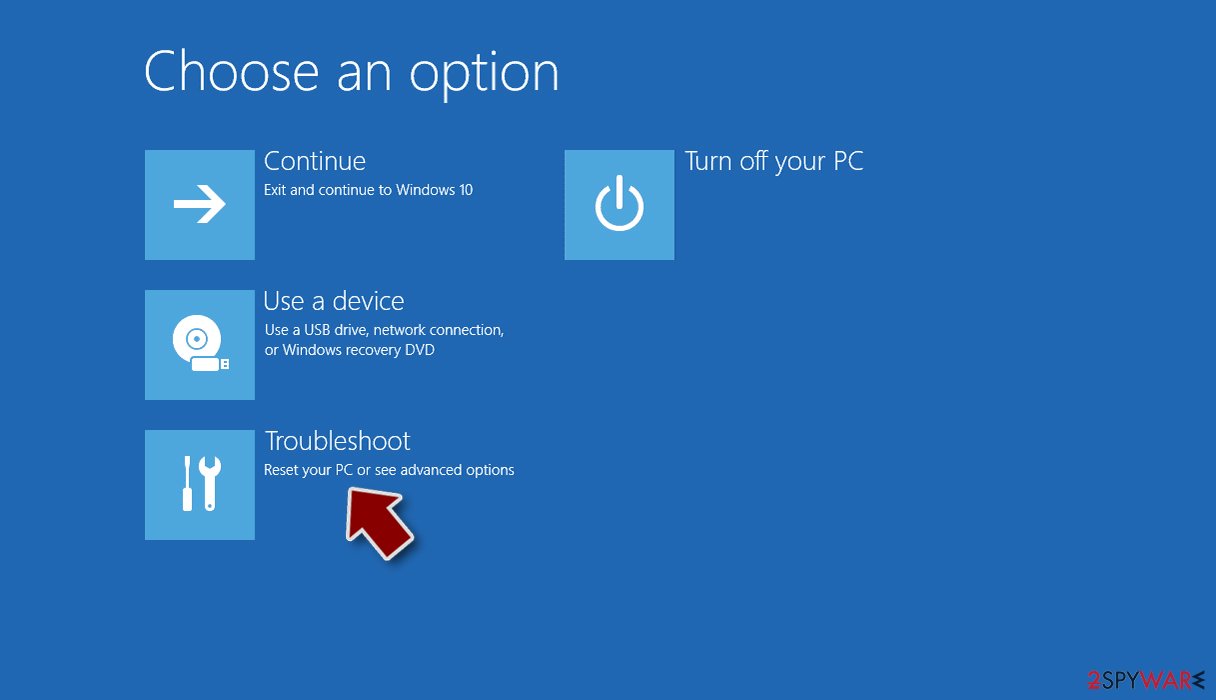
- Go to Advanced options.
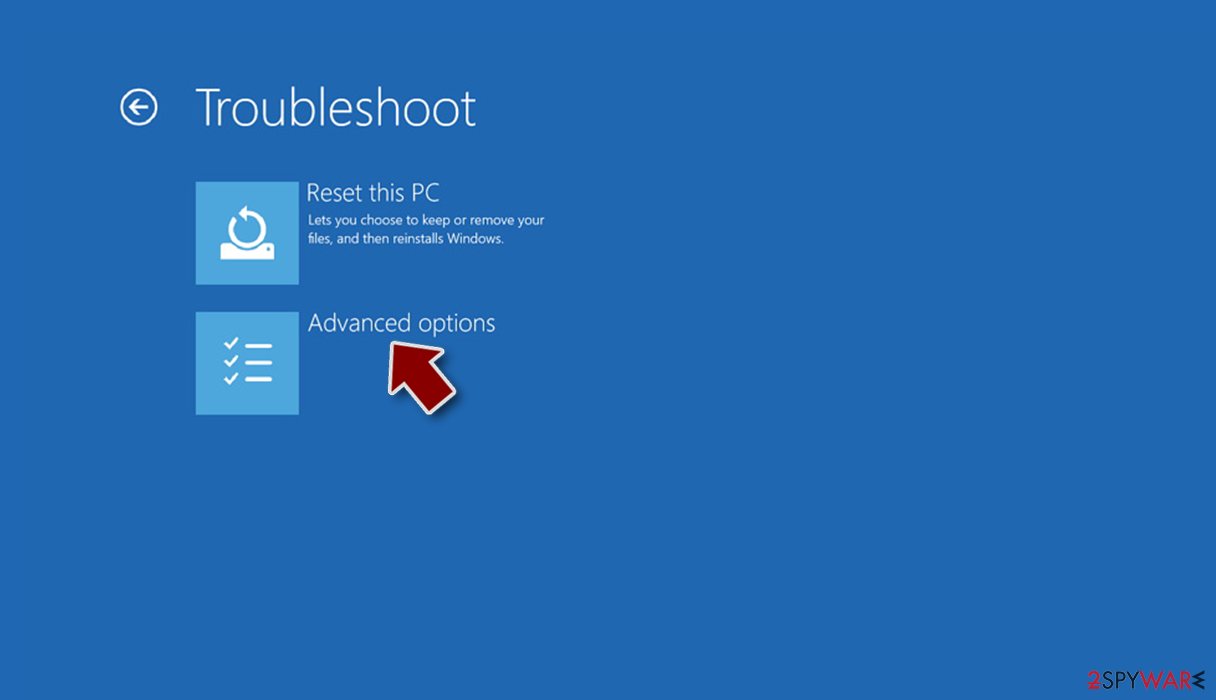
- Select Startup Settings.
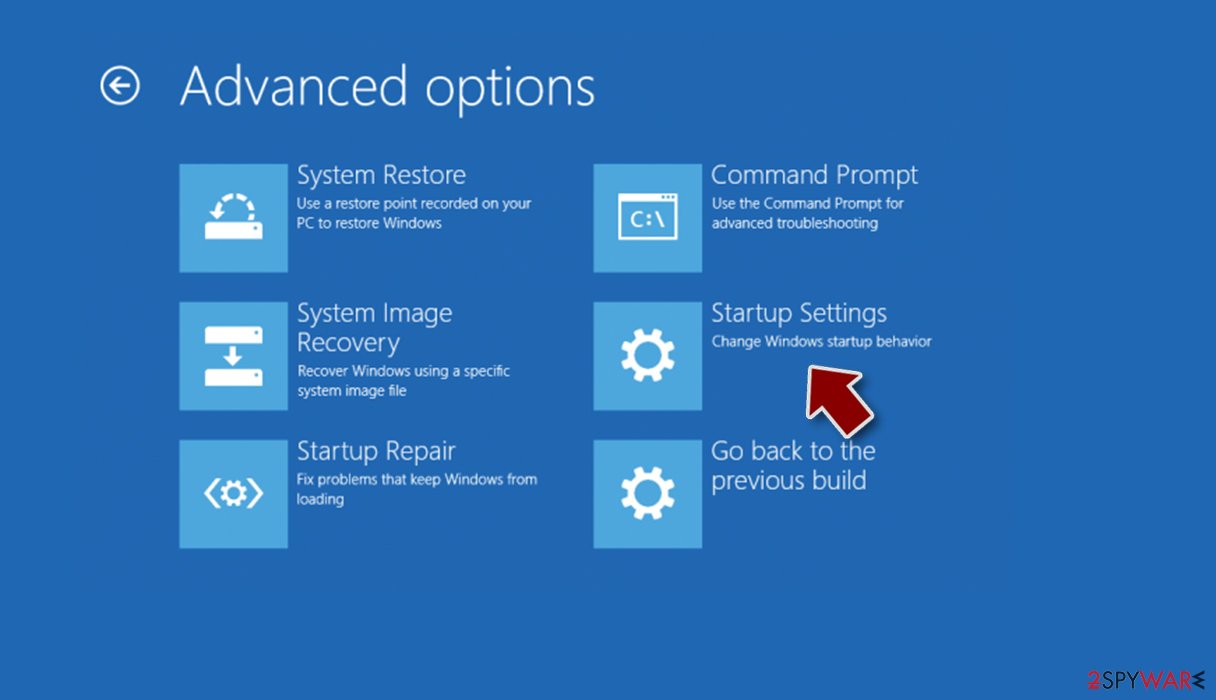
- Click Restart.
- Press 5 or click 5) Enable Safe Mode with Networking.


Step 3. Attempt to recover your files
Secure data backups are equally as important for a large corporation and a small business. Typically, home users tend to neglect data backups because they are unaware of ransomware infection dangers and have the “it's not going to be me” mentality. Unfortunately, once the infection happens, this can complicate data recovery a lot.
Not all companies prepare adequate backups. For example, they are accessible via the initial network, they might also get encrypted or deleted. Pyphyfe ransomware was observed doing precisely that in some cases, hence complete damage control can only be achieved with adequate backup systems in place.
In case your backups were encrypted or there are none prepared, there are a few alternative methods that could sometimes work. While full data recovery is not guaranteed, we recommend trying the methods we provide below.
Before you proceed, make sure that you performed all the steps we explain above in the correct order or you might destroy the locked data and make it irreversibly damaged.
1. Use data recovery software
There is a general misconception about ransomware – it is believed that its removal would restore files back to normal (this theory is popular among regular computer users). Unfortunately, this is not the case, and the files will remain locked after the malware is gone.
- Download Data Recovery Pro.
- Double-click the installer to launch it.

- Follow on-screen instructions to install the software.
- As soon as you press Finish, you can use the app.
- Select Everything or pick individual folders where you want the files to be recovered from.
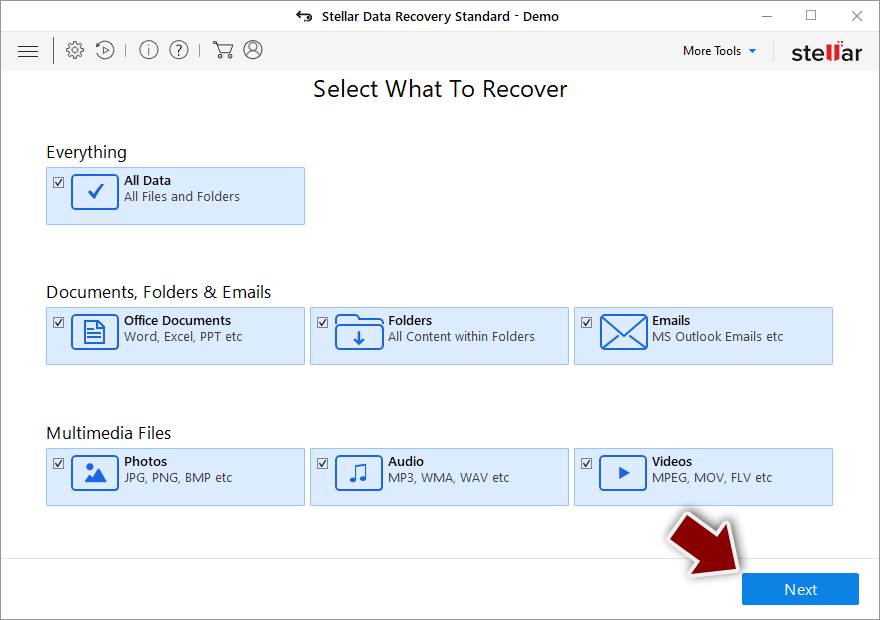
- Press Next.
- At the bottom, enable Deep scan and pick which Disks you want to be scanned.

- Press Scan and wait till it is complete.
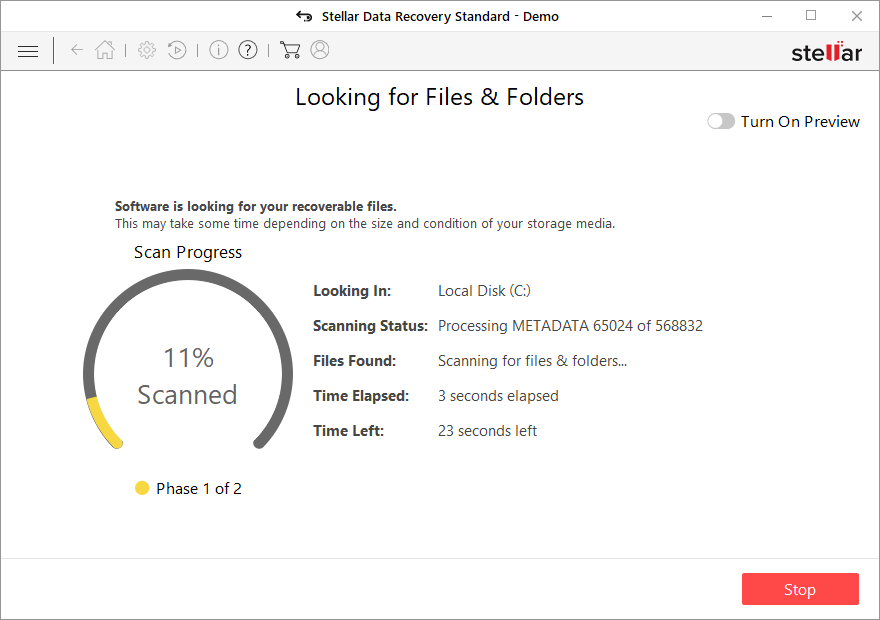
- You can now pick which folders/files to recover – don't forget you also have the option to search by the file name!
- Press Recover to retrieve your files.


2. Search for a decryptor
Ransomware's encryption code, if not bugged, is extremely secure, and even the most sophisticated computers would not be able to calculate the decryption key for each of the victims successfully. Without the decryptor from cybercriminals, restoring files might be impossible, especially if data recovery software was of no help.
However, not all malware are created equally – some are simply programmed much worse than others and contain several bugs. By finding them, cybersecurity experts can sometimes create a working decryptor that victims can use for free. Keep in mind that this might or might not happen and that it might take a while. We recommend checking the following sources for the decryptors from time to time:
- No More Ransom Project
- Free Ransomware Decryptors by Kaspersky
- Free Ransomware Decryption Tools from Emsisoft
- Avast decryptors

Step 4. Repair damaged system files
After malware infection, Windows is no longer the same, as some system files might get damaged or even destroyed. This can result in system instability – crashes, failure to launch programs, BSODs, and many other issues. If you are suffering from these problems after eliminating the infection, use data recovery software as explained below.
- Download FortectIntego
- Click on the ReimageRepair.exe

- If User Account Control (UAC) shows up, select Yes
- Press Install and wait till the program finishes the installation process
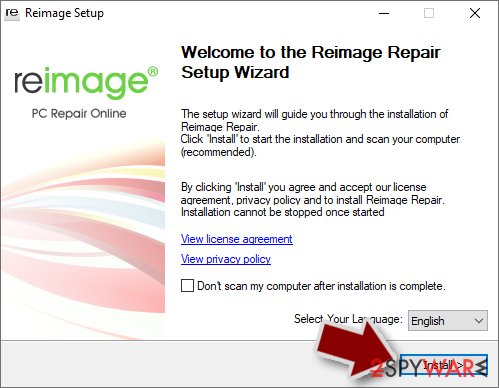
- The analysis of your machine will begin immediately
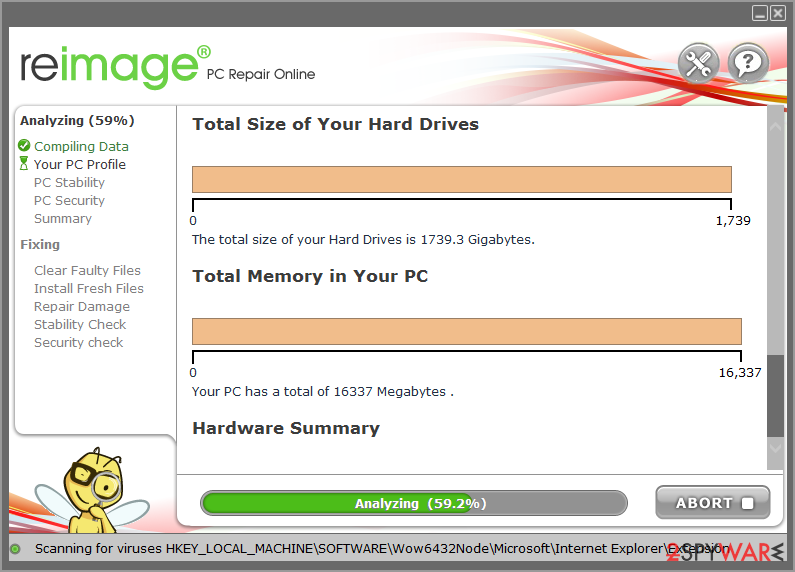
- Once complete, check the results – they will be listed in the Summary
- You can now click on each of the issues and fix them manually
- If you see many problems that you find difficult to fix, we recommend you purchase the license and fix them automatically.



After all these steps are completed, you should ensure to prepare backups of your personal files to avoid devastating ransomware attack consequences. Likewise, reporting the incident to the authorities can help it to tackle cybercrime and increase the probability of cybercriminals' server seizures.
Did this guide help?
Be the first to comment