

Desktopnotificationsnews.com ads might reroute you to malicious websites
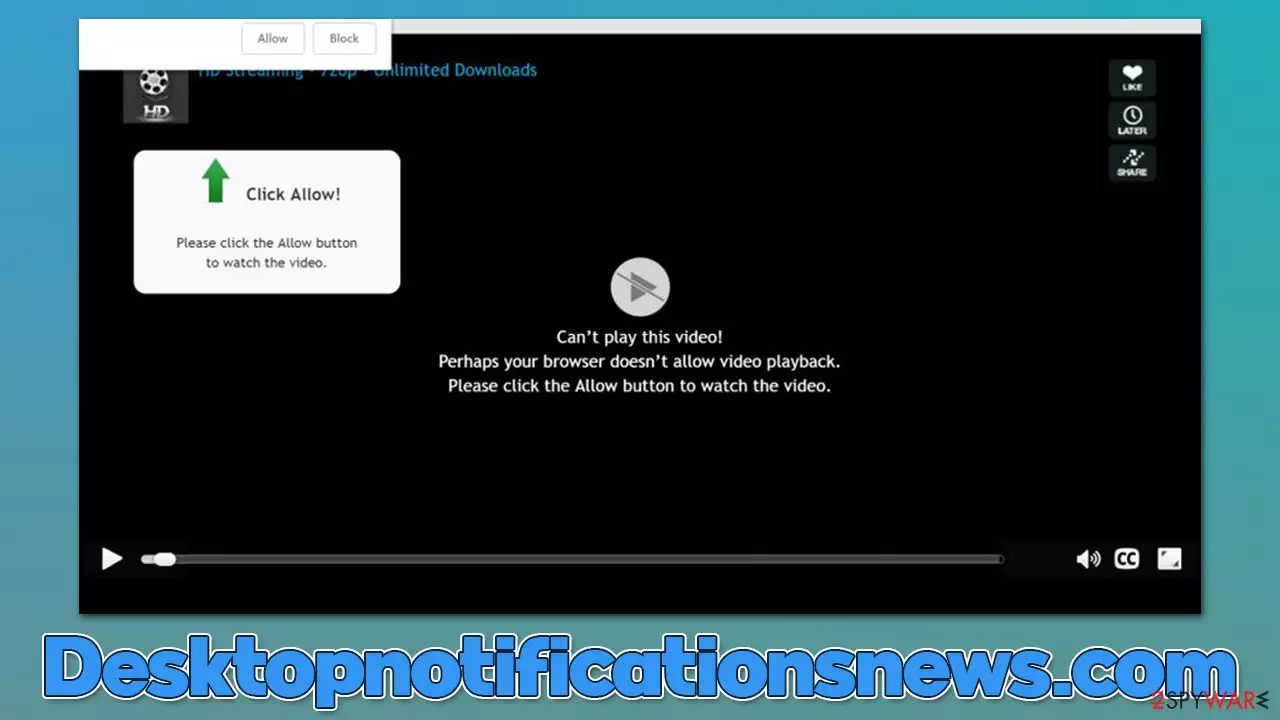
Desktopnotificationsnews.com is a malicious website that was designed by crooks to trick users into subscribing to push notifications. Misleading messages along with correlating pictures are used to make users accept the notifications offer, so many people get quite surprised after they see that intrusive pop-ups are showing on their desktops at random times, regardless of whether they use Google Chrome, Mozilla Firefox, MS Edge or Safari – all browsers can be affected.
This happens because any modern web browser has the built-in push notification feature that is implemented as an API – Application Programming Interface.[1] This feature is commonly used by push notification scam websites like Desktopnotificationsnews.com to promote various insecure and malicious material.
While some push notifications from the site might be your regular advertisements that promote legitimate apps or products, malicious ads that include phishing and other scam content. This way, if the ads are clicked, people might be rerouted to other malicious pages and end up tricked into downloading malicious software or disclosing their personal details.
| Name | Desktopnotificationsnews.com |
| Type | Push notifications, ads, pop-ups, scam |
| Distribution | The unwanted activity starts as soon as the “Allow” button is pressed via the notification prompt |
| Symptoms | Pop-up notifications show up at any time at the bottom right or top right corner of the screen |
| Related risks | Installation of PUPs/malware, financial losses, data disclosure to malicious parties |
| Removal | Notifications can be disabled via the browser settings; in case you experience more ads and redirects to suspicious sites, you should also get rid of adware – use SpyHunterCombo Cleaner antivirus for quick removal |
| Tips | Delete browser caches, clean the device from junk, and repair virus damage quickly and efficiently with FortectIntego |
Is Desktopnotificationsnews.com a virus?
If you have encountered a scam website, it does not automatically mean that it is a virus of some sort. In fact, the most likely scenario is that you clicked on a booby-trapped link somewhere else. It is important to note that this occurrence is more likely during visits to high-risk websites such as pirated software distribution ones.
Push notifications themselves are not malicious, as they are an integrated part of any web browser. You have probably seen many legitimate websites asking for the exact same permission (although most people automatically decline and others simply block notifications to not be bothered by these requests in the future).
That being said, if you are frequently seeing suspicious ads and are suffering from redirects to potentially dangerous websites, there is a high chance that your system is infected with a potentially unwanted or malicious program. In most cases, such behavior is typical of adware,[2] although all sorts of malware might tamper with user browsers.

To ensure that no such malware or adware is present on the device, you should perform a full system scan with powerful anti-malware software, such as SpyHunterCombo Cleaner or MalwarebytesMalwarebytes. This way, you can be sure that no malicious processes or files are present on your system. After the unwanted and malicious programs are eliminated, you should also clean your browser caches to avoid unwanted data tracking by third parties. We recommend employing FortectIntego maintenance system tool for this job.
How people get tricked
Push notification scams are among the most common forms of online fraud out there and, while they are not the most dangerous ones, the endless loop of malicious links that are incorporated in the scheme might result in various damaging consequences to the affected victims – financial losses and data disclosure to unsafe parties to name the few.
Once the fake website is accessed, users are suddenly asked to confirm that they are not robots, or that there's a video about to be played. Sometimes, these scam authors go one step further and fake the video playback of a well-known Hollywood movie or employ other convincing methods. They might also be told that the page can not be closed unless the “Allow” button within the prompt is clicked. These methods are not unique and have been used for years by now.
Removal of Desktopnotificationsnews.com pop-ups
It is not that difficult to stop the intrusive ads from being shown. Without a doubt, this should be done in order to increase the security of the device and reduce the risk of accidental ad clicks. Also, it would get rid of the annoyance that people feel when they have to deal with continuous pop-ups spamming them during their online time. Please follow these steps:
Google Chrome
- Open Google Chrome browser and go to Menu > Settings.
- Scroll down and click on Advanced.
- Locate the Privacy and security section and pick Site Settings > Notifications.
- Look at the Allow section and look for a suspicious URL.
- Click the three vertical dots next to it and pick Block. This should remove unwanted notifications from Google Chrome.


Google Chrome (Android)
- Open Google Chrome and tap on Settings (three vertical dots).
- Select Notifications.
- Scroll down to the Sites section.
- Locate the unwanted URL and toggle the button to the left (Off setting).


Mozilla Firefox
- Open Mozilla Firefox and go to Menu > Options.
- Click on Privacy & Security section.
- Under Permissions, you should be able to see Notifications. Click the Settings button next to it.
- In the Settings – Notification Permissions window, click on the drop-down menu by the URL in question.
- Select Block and then click on Save Changes. This should remove unwanted notifications from Mozilla Firefox.


MS Edge
- Open Microsoft Edge, and go to Settings.
- Select Site permissions.
- Go to Notifications on the right.
- Under Allow, you will find the unwanted entry.
- Click on More actions and select Block.


MS Edge (legacy)
- Open Microsoft Edge, and click the Settings and more button (three horizontal dots) at the top-right of the window.
- Select Settings and then go to Advanced.
- Under Website permissions, pick Manage permissions and select the URL in question.
- Toggle the switch to the left to turn notifications off on Microsoft Edge.


Safari
- Click on Safari > Preferences…
- Go to the Websites tab and, under General, select Notifications.
- Select the web address in question, click the drop-down menu and select Deny.


Don't accept push notifications from malicious websites
As we already mentioned, the push notification feature in itself is not malicious and can be used by many legitimate websites to offer users to receive information at certain times. Indeed, some users might find it useful, although, in practice, it seems like most simply find it useless and annoying.
According to research done by Mozilla a few years ago,[3] as many as 99% of users did not accept push notifications when the prompt was present to them on various websites. This is probably where that unfamiliarity of the feature is coming from, and since people get deceived to enable notifications on Desktopnotificationsnews.com, Mous6.biz, Profitsurvey.top, or similar sites, they commonly don't even know where the suspicious activity is coming from.
Keep in mind that these fake push notification websites are very common, and they all use similar or even identical images and phrases that are meant to convince users to press the “Allow” button within the prompt upon site entry. No reputable website would hold its content away behind requests to enable notifications and this prompt has simply no other function than allow that particular website to send information via the API without restrictions.
If you get tricked in the future for you click the button by accident, remember that you can easily prevent any website from continuing to send you intrusive or malicious notifications by following the guide provided in the previous section.
Did this guide help?
Be the first to comment