

MajorLauncher is a malicious application that can steal your passwords and other data
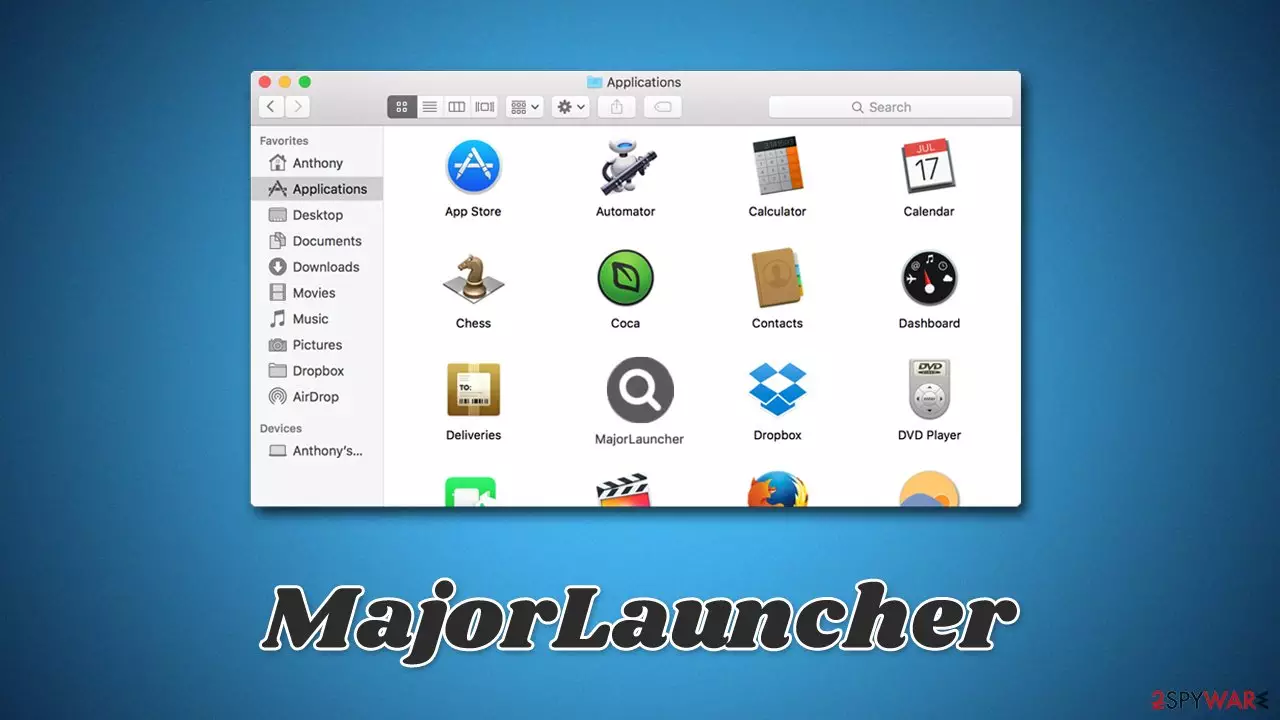
MajorLauncher is a Mac virus developed and spread by unknown cybercriminals. It belongs to a widespread adware family known as Adload, which has been around for at least half a decade. While many security researchers categorize it as adware, its data-stealing traits and the ability to reroute traffic to predetermined services put it at a much higher danger level. Versions of the malware family are usually spread via fake Flash Player updates or pirated software installers.
Once installed, the MajorLauncher virus would install an app and the extension of the same name, quickly establishing elevated permission on the system level. This would allow the malicious app to send intrusive advertisements via the browser without restrictions. With the help of established Login items, new profiles, and other preferences, malware would prevent victims from removing it easily.
If you have been infected with Mac malware, you should not panic. It is important to not disclose any personal data or install other malicious software while the virus is active. We explain how to deal with the situation more precisely below.
| Name | MajorLauncher |
|---|---|
| Type | Mac virus, adware, browser hijacker |
| Family | Adload |
| Distribution | Third-party sites distributing pirated software, software bundles, fake Flash Player updates |
| Symptoms | An extension installed on the browser with elevated permissions, along with an application of the same name; new profiles and login items set up on the account; malicious ads shown during web browsing activities; search and browsing settings altered to an alternative provider |
| Dangers | Personal information disclosure to cybercriminals, installation of other adware/malware, monetary losses |
| Removal | Manual malware removal is possible but not recommended, as it may fail. Performing a scan with SpyHunterCombo Cleaner can quickly and easily remove the virus for you |
| Other tips | To stop unwanted data tracking, you should clean your browsers from cookies and other data. Use FortectIntego to do this quickly |
Distribution
Just as is typical with other malware, Adload variants are delivered using deceptive distribution methods. In most cases, users believe that what they are installing is harmless, which is a known trait of Trojans – the malware is commonly marked as such by multiple security vendors.
There are a few ways this can happen, although most commonly, users get tricked by fake Flash Player update prompts encountered on various malicious websites. Upon entry, users are told that they need to either install or update Flash in order to proceed or view the content of the page.
Once they select to install it, they might actually install MajorLauncher, CapacityMegabyte, NetConnection, or any other version of Adload, as well as other malware strains. It was also determined that some fake Flash Player versions would actually install the plugin with a malicious addition to it. Regardless, please do not install anything related to Flash, as the original plugin has been discontinued a few years ago by Adobe.[1]
Alternatively, users might install the virus when looking for pirated applications on high-risk websites. Torrents, warez, and similar websites are a well-known source for all sorts of computer nasties, so it is recommended to stay away from these places as much as possible.

Operation
The MajorLauncher virus consists of two distinctive parts – an application installed on the system level and the extension that is attached to Safari or another web browser as soon as it is installed. While the app establishes various persistence mechanisms on the device (Login items, new profiles, run background processes, etc.), a browser extension is mainly used to reroute user traffic to predetermined websites, which could be malicious.
The worst part is that the browser extension is installed with elevated permissions, which often makes it impossible to remove in a regular way, as the app's entry is simply grayed out. Likewise, the extension grants itself permissions that should not be allowed for a random extension:
Permissions for “MajorLauncher”:
Webpage contents
Can read sensitive information from webpages, including passwords, phone numbers, and credit cards on all webpagesBrowsing history
Can see when you visit all webpages
By acquiring these permissions, the virus might steal your passwords and other sensitive information, which would be sent directly to cybercriminals' hands, making it a huge privacy risk. We recommend you do not use the infected browser to access your personal accounts or online banking services before you remove malware and clean the browser properly.
Removal explained
Whenever users enter their AppleID, they permit the app to perform various malicious actions on the affected system; unfortunately, they do that inadvertently because they are convinced that it's not the virus they are installed on the device. Upon installation, the virus uses the built-in AppleScript to avoid detection of built-in Mac defenses, including Gatekeeper and XProtect,[2] allowing it to stay on the system as long as possible.
Therefore, we recommend you use a third-party security application, such as SpyHunterCombo Cleaner or MalwarebytesMalwarebytes, to find and remove the virus automatically for you. Manual elimination is also possible, although, due to various persistence mechanisms, it might be difficult to find and remove all malicious files effectively.
The best outcome is to combine both manual and automatic removal methods, as it is important to remove all components of the virus and clean web browsers as necessary.
Step 1. Remove the main app
Before you proceed, you must ensure that all malware-related background processes are shut down. Then, you should eliminate the main application:
- Open Applications folder
- Select Utilities
- Double-click Activity Monitor
- Here, look for suspicious processes and use the Force Quit command to shut them down
- Go back to the Applications folder
- Find the malicious entry and place it in Trash.
Step 2. Remove leftover files and persistence mechanisms
If the previous step has failed, it means that malware's persistence mechanisms are working as intended. You could bypass them by removing Login items and unwanted Profiles:
- Go to Preferences and pick Accounts
- Click Login items and delete everything suspicious
- Next, pick System Preferences > Users & Groups
- Find Profiles and remove unwanted profiles from the list.
Once you have removed the main app, you should then take care of leftover components. Plist files especially are important to eliminate correctly, as they can help reinstate the virus afterward.
- Select Go > Go to Folder.
- Enter /Library/Application Support and click Go or press Enter.
- In the Application Support folder, look for any dubious entries and then delete them.
- Now enter /Library/LaunchAgents and /Library/LaunchDaemons folders the same way and delete all the related .plist files.


Remove the extension and clean your browser
When the main components of the virus are removed, you are likely to be able to remove the unwanted browser extension as well. Proceed with the following steps:
- Click Safari > Preferences…
- In the new window, pick Extensions.
- Select the unwanted extension and select Uninstall.


Next, make sure you delete browser cookies[3] and other components in order to prevent data trackers to continue their job. You can easily perform this task automatically with FortectIntego, a maintenance utility that can clean your system from all the leftover files.
- Click Safari > Clear History…
- From the drop-down menu under Clear, pick all history.
- Confirm with Clear History.


If you are unable to remove the extension still, you should opt for a browser reset. It is not that difficult to do, and your preferences will be saved as soon as you log in with your credentials.
- Click Safari > Preferences…
- Go to the Advanced tab.
- Tick the Show Develop menu in the menu bar.
- From the menu bar, click Develop, and then select Empty Caches.


Check the instructions below if you are using Google Chrome or another web browser.
Remove from Microsoft Edge
Delete unwanted extensions from MS Edge:
- Select Menu (three horizontal dots at the top-right of the browser window) and pick Extensions.
- From the list, pick the extension and click on the Gear icon.
- Click Remove.


Clear cookies and other browser data:
- Click on the Menu (three horizontal dots at the top-right of the browser window) and select Settings > Privacy, search, and services..
- Under Clear browsing data, pick Choose what to clear.
- Select Cookies and other site data and Cached images and files. (apart from passwords, although you might want to include Media licenses as well, if applicable) and click on Clear.


Restore new tab and homepage settings:
- Click the menu icon and choose Settings.
- Then find On startup section.
- Click Remove next to any suspicious startup page.
Reset MS Edge if the above steps did not work:
- Press on Ctrl + Shift + Esc to open Task Manager.
- Click on More details arrow at the bottom of the window.
- Select Details tab.
- Now scroll down and locate every entry with Microsoft Edge name in it. Right-click on each of them and select End Task to stop MS Edge from running.


Instructions for Chromium-based Edge
Delete extensions from MS Edge (Chromium):
- Open Edge and click select Settings > Extensions.
- Delete unwanted extensions by clicking Remove.


Clear cache and site data:
- Click on Menu and go to Settings.
- Select Privacy, search and services.
- Under Clear browsing data, pick Choose what to clear.
- Under Time range, pick All time.
- Select Clear now.


Reset Chromium-based MS Edge:
- Click on Menu and select Settings.
- On the left side, pick Reset settings.
- Select Restore settings to their default values.
- Confirm with Reset.
- This will disable extensions and reset startup pages but will not delete bookmarks, saved passwords, or browsing history.


Remove from Mozilla Firefox (FF)
Remove dangerous extensions:
- Open Mozilla Firefox browser and click on the Menu (three horizontal lines at the top-right of the window).
- Select Add-ons.
- In here, select the unwanted extension and click Remove.


Reset the homepage:
- Click three horizontal lines at the top right corner to open the menu.
- Choose Settings.
- Under Home, set your preferred homepage and new tab settings.
Clear cookies and site data:
- Click Menu and pick Settings.
- Go to Privacy & Security section.
- Scroll down to locate Cookies and Site Data.
- Click on Clear Data...
- Select Cookies and Site Data and Temporary cached files and pages, then click Clear.


Reset Mozilla Firefox
If clearing the browser as explained above did not help, reset Mozilla Firefox:
- Open Mozilla Firefox browser and click the Menu.
- Go to Help and then choose Troubleshooting Information.

- Under Give Firefox a tune up section, click on Refresh Firefox...
- Once the pop-up shows up, confirm the action by pressing on Refresh Firefox.



Remove from Google Chrome
Delete malicious extensions from Google Chrome:
- Open Google Chrome, click on the Menu (three vertical dots at the top-right corner) and select More tools > Extensions.
- In the newly opened window, you will see all the installed extensions. Uninstall all suspicious extensions related to the unwanted program by clicking Remove.


Clear cache and web data from Chrome:
- Click on Menu and pick Settings.
- Under Privacy and security, select Clear browsing data.
- Select Browsing history, Cookies and other site data, as well as Cached images and files.
- Click Clear data.


Change your homepage:
- Click menu and choose Settings.
- Look for a suspicious site in the On startup section.
- Click on Open a specific or set of pages and click on three dots to find the Remove option.
Reset Google Chrome:
If the previous methods did not help you, reset Google Chrome to eliminate all the unwanted components:
- Click on Menu and select Settings.
- In the Settings, scroll down and click Advanced.
- Scroll down and locate Reset and clean up section.
- Now click Restore settings to their original defaults.
- Confirm with Reset settings.


Did this guide help?
Be the first to comment