

SystemsOffer is a dangerous Mac application capable of evading built-in protection systems
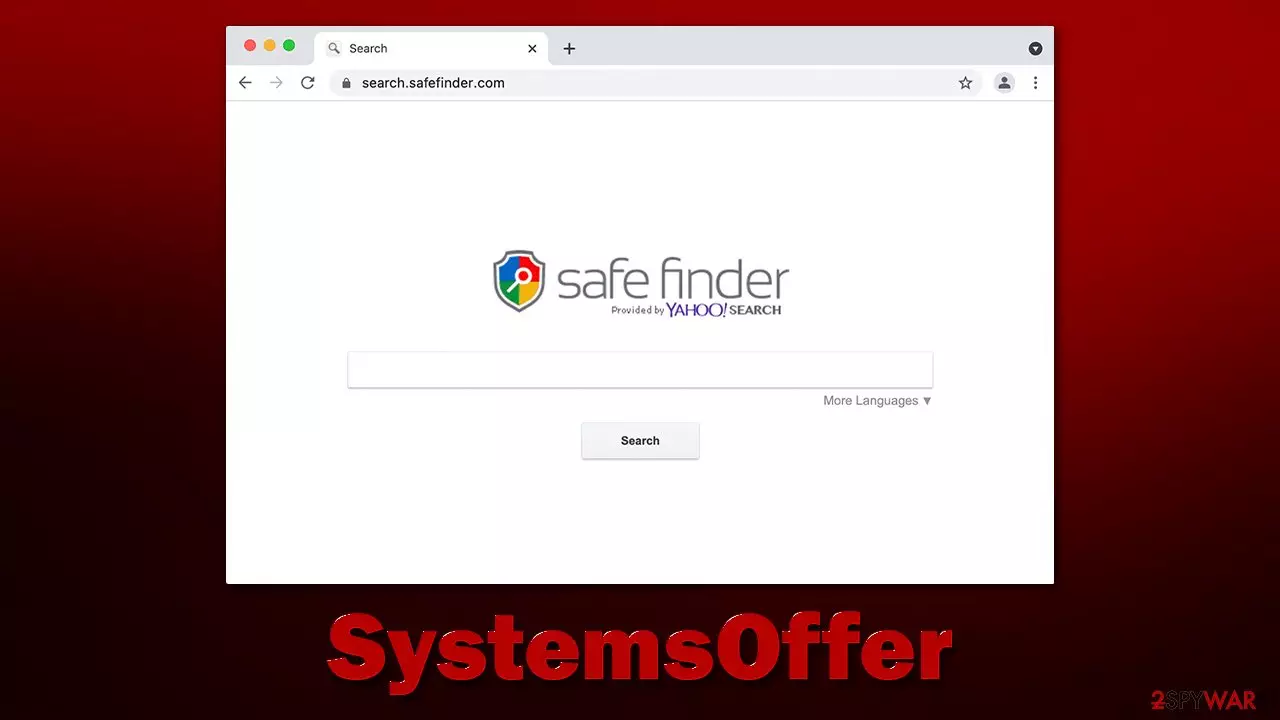
SystemsOffer is Mac malware that you most likely installed yourself by accident – you were either tricked by a fake Flash Player update or implemented it along with illegal software downloaded from high-risk websites. Those affected by the virus are more likely to encounter malicious ads, redirects, sponsored links, and other intrusive material while browsing the web. The app may prove rather difficult to remove due to various malicious files it drops during the infiltration.
SystemsOffer is a member of the Adload malware family, which uses a distinctive icon consisting of a magnifying glass and colored background (usually blue, teal, green, or, most recently, gray). It is known for its ability to hijack browsers, steal user data, and avoid detection by built-in Mac defenses. If you suspect you are affected by this virus, we recommend you follow thorough instructions on how to remove it effectively from your Mac.
| Name | SystemsOffer |
| Type | Mac virus, adware, browser hijacker |
| Malware family | Adload |
| Distribution | Third-party websites distributing pirated software, software bundles, fake Flash Player updates |
| Symptoms | Installs an extension to the browser that can not be deleted easily; changes homepage/new tab to Safe Finder, Akamaihd, or something else; redirects lead to potentially malicious or scam sites, promotes suspicious software, etc. |
| Removal | The easiest way to remove Mac malware is to perform a full system scan with SpyHunterCombo Cleaner security software. We also provide a manual guide below |
| System optimization | You should remove caches and other web data to prevent data tracking – use the FortectIntego repair and maintenance tool |
Distribution and avoidance
There are two main methods SystemsOffer is distributed – fake Flash Player updates and pirated application installers. It is self-explanatory that you should not pirate software, as it is illegal and might result in various malware infections. Pirated app distribution sites are well-known for their lackluster security measures, with some of these sites being purposely created to spread malware and malicious scripts.[1]
In order to avoid this infiltration method, simply never visit illegal software distribution websites. Malicious apps may also be bundled with freeware and other illegal software – you might agree to install it when not paying attention to the installation process.
Flash Player is one of the most notorious plugins out there. While the plugin has already been discontinued by Adobe at the end of 2020, many users still remember it well, as it used to be the primary tool used by website developers to play multimedia content online. The truth is, its technology has been long outdated, and its functionality is already embedded within the most modern browsers such as Safari, Chrome, or Firefox. If you see requests to install it, know that it's fake.

Traits and functions of SystemsOffer
Adload is a Mac malware strain that has been around since at least 2017, with hundreds of variants released during this time – we have already converted numerous other viruses from it, such as RelianceTask, VirtualHybrid, LogLibrary, TheorySeek, and many others.
While the strain is considered adware based on its main goal, plenty of other malicious components earn it a spot in a Trojan or simply malware category. It also has browser-hijacking[2] capabilities that help it to fulfill its duties when running on the infected system. These are the main traits of SystemsOffer:
- Produces alternative search results with plenty of sponsored links and ads
- Changes browser settings such as homepage and new tab address
- Harvests sensitive user information, including passwords
- Establishes persistence mechanisms to prevent removal
- Shows intrusive ads on most websites users visit
- Makes users more prone to encountering phishing[3] or malware-laden websites.
How to remove the infection correctly
When installed on the device, SystemsOffer consists of two main parts – a browser extension and the application running on the system level. With the help of various evasion mechanisms, both of these components feed into each other, supporting the function of malware as a whole. Therefore, in order to remove the virus, both the browser extension and the main application need to be removed from the system, or reinfection might occur.
To avoid SystemsOffer removal mistakes and ensure the device is properly cleaned, we recommend relying on SpyHunterCombo Cleaner, MalwarebytesMalwarebytes, or another powerful anti-malware software. Third-party security software is not affected by evading systems used by the virus, so it can easily find all the malicious components and eliminate them at once.
Alternatively, you can try to delete it yourself, although keep in mind that you might leave some important components. We recommend checking the browser cleaning process for all users, however.
1. Remove the main app
Background processes could hinder the elimination of the malicious application. Therefore, before you do anything, force-close all the suspicious processes running in the background:
- Open Applications folder
- Select Utilities
- Double-click Activity Monitor
- Here, look for suspicious processes related to adware and use the Force Quit command to shut them down
- Go back to the Applications folder
- Find the malicious in the list and move it to Trash.
2. Get rid of Login Items and unwanted Profiles
Remove suspicious Profiles and Login Items from your system as follows:
- Go to Preferences and select Accounts
- Click Login items and delete everything suspicious
- Next, pick System Preferences > Users & Groups
- Find Profiles and remove unwanted profiles from the list.
3. Get rid of leftover files
The PLIST files are small config files, also known as “Properly list.” They hold various user settings and hold information about certain applications. In order to remove the virus, you have to find the related PLIST files and remove them.
- Select Go > Go to Folder.
- Enter /Library/Application Support and click Go or press Enter.
- In the Application Support folder, look for any suspicious entries and then delete them.
- Now enter /Library/LaunchAgents and /Library/LaunchDaemons folders the same way and delete all the related .plist files.


Clean Safari, Chrome, or another browser
As already mentioned, Adload variants consist of the main component and the browser extension. If you have chosen the manual removal method, you should remove the extension manually. The add-on is used for personal data tracking, such as credit card details or passwords, so you need to make sure this component is removed as soon as possible.
- Click Safari > Preferences…
- In the new window, pick Extensions.
- Select the unwanted extension and select Uninstall.


In some cases, the malicious extension might be grayed out, which would make deleting it in a regular way impossible. You can choose to reset your browser in this situation – it would eliminate all your add-ons, although you can reinstate the trustworthy ones later:
- Click Safari > Preferences…
- Go to the Advanced tab.
- Tick the Show Develop menu in the menu bar.
- From the menu bar, click Develop, and then select Empty Caches.


Make sure leftover browser components are deleted as well. Otherwise, the data tracking might continue or ads return. If you wish not to bother with manual steps, we recommend using FortectIntego for the job instead.
- Click Safari > Clear History…
- From the drop-down menu under Clear, pick all history.
- Confirm with Clear History.


If you use Firefox or Chrome, check the below instructions.
Remove from Mozilla Firefox (FF)
Remove dangerous extensions:
- Open Mozilla Firefox browser and click on the Menu (three horizontal lines at the top-right of the window).
- Select Add-ons.
- In here, select the unwanted extension and click Remove.


Reset the homepage:
- Click three horizontal lines at the top right corner to open the menu.
- Choose Settings.
- Under Home, set your preferred homepage and new tab settings.
Clear cookies and site data:
- Click Menu and pick Settings.
- Go to Privacy & Security section.
- Scroll down to locate Cookies and Site Data.
- Click on Clear Data...
- Select Cookies and Site Data and Temporary cached files and pages, then click Clear.


Reset Mozilla Firefox
If clearing the browser as explained above did not help, reset Mozilla Firefox:
- Open Mozilla Firefox browser and click the Menu.
- Go to Help and then choose Troubleshooting Information.

- Under Give Firefox a tune up section, click on Refresh Firefox...
- Once the pop-up shows up, confirm the action by pressing on Refresh Firefox.



Remove from Google Chrome
Delete malicious extensions from Google Chrome:
- Open Google Chrome, click on the Menu (three vertical dots at the top-right corner) and select More tools > Extensions.
- In the newly opened window, you will see all the installed extensions. Uninstall all suspicious extensions related to the unwanted program by clicking Remove.


Clear cache and web data from Chrome:
- Click on Menu and pick Settings.
- Under Privacy and security, select Clear browsing data.
- Select Browsing history, Cookies and other site data, as well as Cached images and files.
- Click Clear data.


Change your homepage:
- Click menu and choose Settings.
- Look for a suspicious site in the On startup section.
- Click on Open a specific or set of pages and click on three dots to find the Remove option.
Reset Google Chrome:
If the previous methods did not help you, reset Google Chrome to eliminate all the unwanted components:
- Click on Menu and select Settings.
- In the Settings, scroll down and click Advanced.
- Scroll down and locate Reset and clean up section.
- Now click Restore settings to their original defaults.
- Confirm with Reset settings.


Did this guide help?
Be the first to comment