

HerculesLookup is a type of malware that delivers intrusive ads and spies on users' online activities
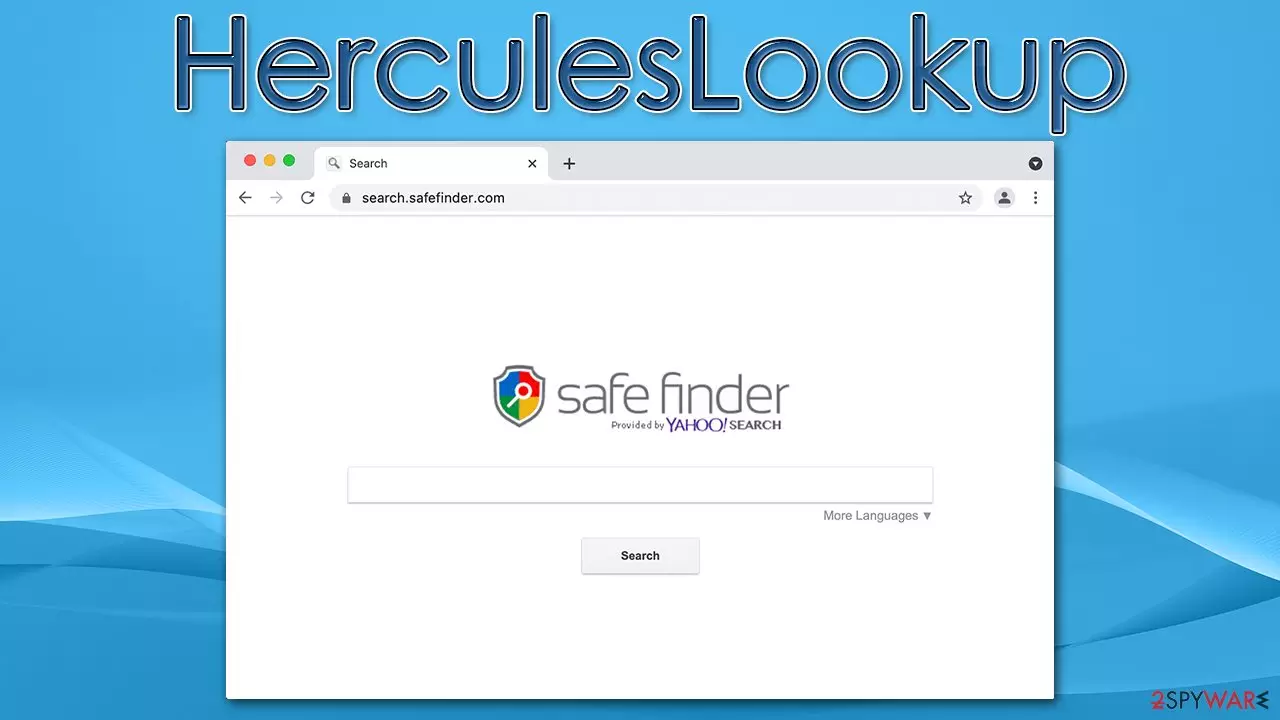
HerculesLookup is a member of a widespread Mac malware strain known as Adload, which has been spreading around since at least 2017. The infiltration of the virus usually begins with a fake Flash Player update, when people are tricked that they require the plugin for one reason or another. Alternatively, users may also get infected via illegal software bundled together with the malware installer.
Upon infiltration, the HerculesLookup virus installs plenty of components on the system, completely evading detection of Mac's built-in defenses. This allows it to dig deep into the system and take over some of its aspects. For example, those infected would notice that a browser add-on is now appended to Safari, Chrome, or another web browser, which becomes hijacked. Because of this, people would see plenty of ads and experience browser redirects to malicious sites.
The consequences of the HerculesLookup infection can be rather harsh, and not only because of a ruined browsing experience. Malware may also, in some cases, be capable of installing its other versions without user permission, tracking personal user information, and exposing them to malicious content online.
| Name | HerculesLookup |
| Type | Mac virus, adware, browser hijacker |
| Malware family | Adload |
| Distribution | Third-party websites distributing pirated software, software bundles, fake Flash Player updates |
| Symptoms | An extension installed on the browser with elevated permissions, along with an application of the same name; new profiles and login items set up on the account; malicious ads shown during web browsing activities; search and browsing settings altered to Safe Finder or another search provider |
| Removal | Although not recommended to novice users, manual elimination of Mac malware is possible. We recommend performing a full system scan with SpyHunterCombo Cleaner and removing all the malicious components automatically |
| Security tips | Malware and adware can meddle with your system, reducing its performance. If you want to quickly fix various issues, we recommend you try using automated tools like FortectIntego |
The impact
Adload has been around for many years now, and its developers are hard at work – hundreds of versions of the virus have surfaced since then – AnalyzerSystem, ComputingInvolve, and AllocateClassics are just a few ones we've covered recently. Malware uses a particular naming pattern, where a few predetermined words are combined into a single name, it usually uses two and sometimes three words.
Users may notice the infection symptoms after they open their web browsers, as the HerculesLookup extension would be appended to the browser. This may also result in homepage changes, as well as search provider alterations. For example, previous versions were seen redirecting users to Safe Finder and similar unreliable providers.
Malware also installs the man-in-the-middle[1] proxy, which allows traffic to be rerouted through cybercriminals' servers. This is yet another way of monetizing traffic, all while exposing users to potentially dangerous websites and ads.
To make matters worse, malware is known to be able to track user information via the installed browser add-on. If you check the information about the app via your browser settings, it will show the following:
Permissions for “HerculesLookup”:
Webpage contents
Can read sensitive information from webpages, including passwords, phone numbers, and credit cards on: all pagesBrowsing History
Can see when you visit: all pages
Thus, the infection of Adload can pose a serious threat to one's privacy, and with the details mentioned above stolen, users may suffer from financial losses or even identity theft. Do not delay and remove the virus from your Mac ASAP.

Removal of HerculesLookup
Upon installation, malware implements various components into the device, preventing its easy removal. For example, its usage of AppleScript allows it to completely bypass the detection of XProtect and GateKeeper[2] and continue its operations undisturbed. Thus, we recommend employing automatic solutions instead – using SpyHunterCombo Cleaner or MalwarebytesMalwarebytes is an excellent choice.
If you rather do the cleaning process yourself, you can rely on the instructions below, although keep in mind that manual elimination might not be as effective.
Remove the app and get rid of its files
Upon installation, malware would start running background processes in order to keep it running. Therefore, before proceeding with the removal of the main app, you should access Activity Monitor and shut down related processes.
- Open Applications folder
- Select Utilities
- Double-click Activity Monitor
- Here, look for suspicious processes related to the virus and use the Force Quit command to shut them down
- Go back to the Applications folder
- Find the malicious app in the list and move it to Trash.
Login Items ensure that the malicious app is started every time the Mac is booted – this entry is essential to remove. Profiles belonging to the virus should also be eliminated.
- Go to Preferences and pick Accounts
- Click Login items and delete everything suspicious
- Next, pick System Preferences > Users & Groups
- Find Profiles and remove unwanted profiles from the list.
The PLIST files are small config files, also known as “Properly list.” They hold various user settings and hold information about certain applications. In order to remove the virus, you have to find the related PLIST files and remove them.
- Select Go > Go to Folder.
- Enter /Library/Application Support and click Go or press Enter.
- In the Application Support folder, look for any dubious entries and then delete them.
- Now enter /Library/LaunchAgents and /Library/LaunchDaemons folders the same way and terminate all the related .plist files.


Get rid of the extension
Typically, Adload versions install a browser extension with elevated permissions by dropping malicious files on the system. If you managed to delete them successfully, as explained in the previous section, you should be able to eliminate the extension without any issues.
Safari
- Click Safari > Preferences…
- In the new window, pick Extensions.
- Select the unwanted extension and select Uninstall.


Google Chrome
- Open Google Chrome, click on the Menu (three vertical dots at the top-right corner) and select More tools > Extensions.
- In the newly opened window, you will see all the installed extensions. Uninstall all the suspicious plugins that might be related to the unwanted program by clicking Remove.


If you still can't remove the HerculesLookup extension from the browser, you should simply reset it. Follow these steps:
Safari
- Click Safari > Preferences…
- Go to the Advanced tab.
- Tick the Show Develop menu in the menu bar.
- From the menu bar, click Develop, and then select Empty Caches.


Google Chrome
- Click on Menu and select Settings.
- In the Settings, scroll down and click Advanced.
- Scroll down and locate Reset and clean up section.
- Now click Restore settings to their original defaults.
- Confirm with Reset settings.


Delete trackers and other leftover files for better privacy
Data tracking is, in general, a huge business in the internet sphere, and all potentially unwanted applications tend to track users to some extent, as it generates passive income. Therefore, it is advisable removing data trackers such as cookies[3] after the removal of adware. The quickest way of doing that is by employing FortectIntego, although you can check out the manual steps below if you prefer this option.
Safari
- Click Safari > Clear History…
- From the drop-down menu under Clear, pick all history.
- Confirm with Clear History.


Google Chrome
- Click on Menu and pick Settings.
- Under Privacy and security, select Clear browsing data.
- Select Browsing history, Cookies and other site data, as well as Cached images and files.
- Click Clear data.


Did this guide help?
Be the first to comment