

ExpandedSystem is a malicious application that avoids the built-in Mac defenses
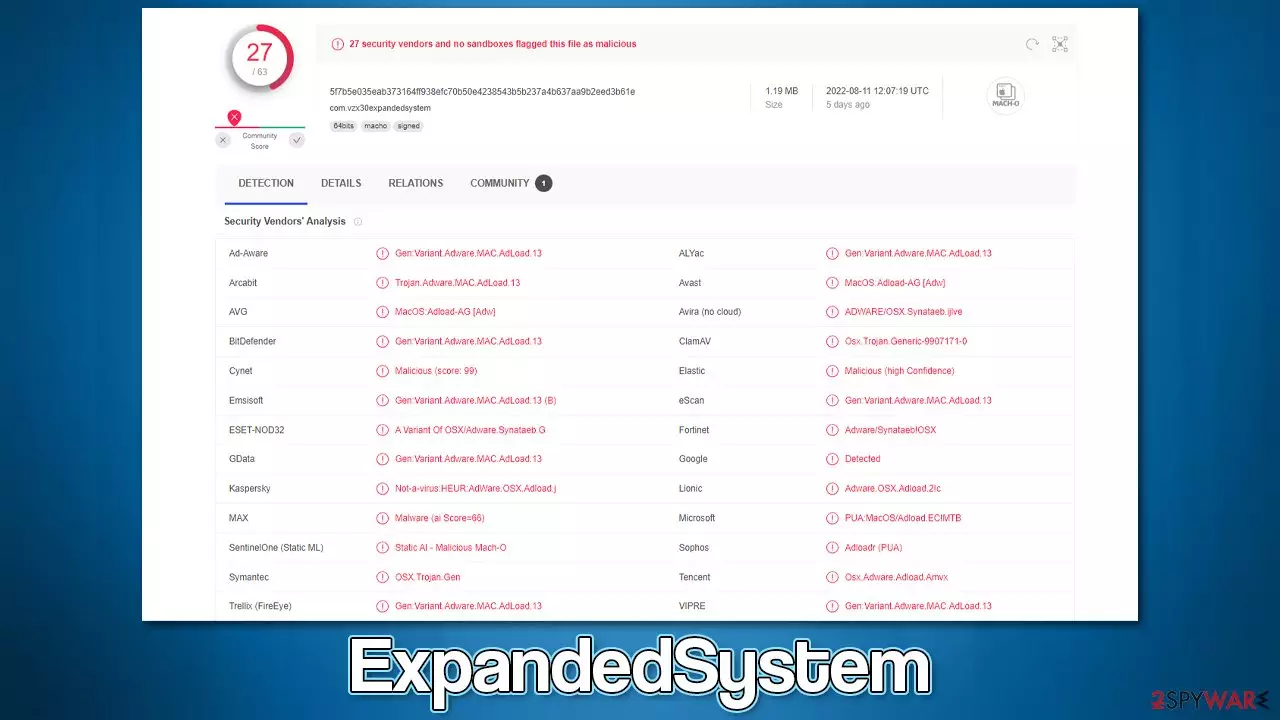
ExpandedSystem is a malicious Mac app created by cybercriminals, which you could get infected with when downloading malware-laced pirated software installers or dealing with fake Flash Player updates. Once in the system, the virus alters a variety of aspects in order to operate without being disturbed. It also manages to completely bypass Apple's Xprotect during the entry, as users provide their credentials to allow these changes to take place.
Probably the very first sign people would notice is the changed behavior of Safari, Chrome, Firefox, or another used browser. The installed ExpandedSystem extension might change the homepage and new tab settings so that users would not be able to use their default settings. Alternative search providers and search results can also be set, which would bring an array of issues, including data tracking from various third parties and excessive sponsored links during sessions.
To make matters worse, the ExpandedSystem virus is capable of spying on users' browsers and harvesting their private information typed in, for example, account passwords or credit card details. It is also not uncommon for malware to be able to install additional payloads, including Adload other versions like CentralGeo, VibeProfile, or HerculesLookup.
| Name | ExpandedSystem |
| Type | Mac virus, adware, browser hijacker |
| Malware family | Adload |
| Distribution | Third-party websites distributing pirated software, software bundles, fake Flash Player updates |
| Symptoms | A new extension is installed on the browser, along with an application of the same name; search and browsing settings altered to an alternative search provider; new profiles and login items set up on the account; intrusive ads and redirects |
| Removal | You can employ powerful security software to check your system for infections, for example, SpyHunterCombo Cleaner. The manual PUA uninstall guide is also available below |
| System optimization | You should remove caches and other web data to prevent data tracking – use the FortectIntego repair and maintenance tool |
Spreading mechanisms
Adload variants are known to be extremely successful, and one of the main reasons why lies within their distribution methods. There are two main ways how one could infect the system with the ExpandedSystem virus (or any other malware variant), and these are fake Flash Player Updates and pirated software installers.
Whenever you encounter a message online that claims that your system needs to install Flash Player, it is fake, and you should never interact with it. Flash has been discontinued and is no longer supported by its developer. Besides, the technology behind it is flawed, and alternatives have existed for years now, e.g., HTML 5.[1]
Alternatively, you may install malware along with illegal software. Torrents and alike are known to be used by cybercriminals to spread the most dangerous malware out there, including ransomware.[2] Therefore, we recommend staying away from such installers in the first place.

How to get rid of the ExpandedSystem virus?
It is evident that you should not keep a malicious application installed on your system – the more you delay the ExpandedSystem virus removal, the more security and privacy issues it could bring to you.
It is important to note that malware uses the built-in AppleScript in order to completely avoid the default defenses provided by Apple, so it may be difficult to remove unless you employ a third-party solution such as MalwarebytesMalwarebytes or SpyHunterCombo Cleaner. If you prefer the manual removal method, please follow the instructions provided below and make sure you clean your browser caches.
Remove the main app
Removal of Mac malware could be difficult if background processes are still running. Thus, access the Activity Monitor and shut them down before getting rid of the main app.
- Open Applications folder
- Select Utilities
- Double-click Activity Monitor
- Here, look for suspicious processes related to adware and use the Force Quit command to shut them down
- Go back to the Applications folder
- Find the malicious app in the list and move it to Trash.


Get rid of Login Items and unwanted Profiles
Remove suspicious Profiles and Login Items from your system as follows:
- Go to Preferences and select Accounts
- Click Login items and delete everything suspicious
- Next, pick System Preferences > Users & Groups
- Find Profiles and remove unwanted profiles from the list.
Remove leftover files
The PLIST files are small config files, also known as “Properly list.” They hold various user settings and hold information about certain applications. To remove the infection, you have to find these files and remove them.
- Select Go > Go to Folder.
- Enter /Library/Application Support and click Go or press Enter.
- In the Application Support folder, look for any suspicious entries and then delete them.
- Now enter /Library/LaunchAgents and /Library/LaunchDaemons folders the same way and delete all the related .plist files.


Get rid of the extension
ExpandedSystem virus drops hundreds of files upon infiltration and consists of two main components – the main app and the extension, which is attached to all the installed browsers on the system. With the help of the extension, users' web browsing sessions are significantly altered and can be considered to be a privacy hazard. Here's the permission for the extension that can be viewed by accessing browser settings:
Permissions for “ExpandedSystem”:
Webpage contents
Can read sensitive information from webpages, including passwords, phone numbers, and credit cards on: all pagesBrowsing History
Can see when you visit: all pages
Therefore, if you chose the manual elimination process, you should remove the browser extension as well. If this process still fails after performing the other steps shown above, we recommend you instead reset your browser.
Safari
- Click Safari > Preferences…
- In the new window, pick Extensions.
- Select the unwanted extension and select Uninstall.


Reset Safari:
- Click Safari > Preferences…
- Go to the Advanced tab.
- Tick the Show Develop menu in the menu bar.
- From the menu bar, click Develop, and then select Empty Caches.


Google Chrome
- Open Google Chrome, click on the Menu (three vertical dots at the top-right corner) and select More tools > Extensions.
- In the newly opened window, you will see all the installed extensions. Uninstall all the suspicious plugins that might be related to the unwanted program by clicking Remove.


Reset Chrome:
- Click on Menu and select Settings.
- In the Settings, scroll down and click Advanced.
- Scroll down and locate Reset and clean up section.
- Now click Restore settings to their original defaults.
- Confirm with Reset settings.


Take care of your privacy
The next step is to ensure that all trackers are deleted from the device. Adware and malware insert cookies[3] and other tracking elements on your machine locally. If not removed, they might remain on the system for years, so it is vital to clean browser caches from time to time.
The easiest way to clean your browsers and the system from leftover files is by employing the FortectIntego maintenance utility. A manual solution is also available – follow these steps:
- Click Safari > Clear History…
- From the drop-down menu under Clear, pick all history.
- Confirm with Clear History.


Google Chrome
- Click on Menu and pick Settings.
- Under Privacy and security, select Clear browsing data.
- Select Browsing history, Cookies and other site data, as well as Cached images and files.
- Click Clear data.


In case Mozilla Firefox is the browser you are using, please follow the instructions below.
Remove from Mozilla Firefox (FF)
Remove dangerous extensions:
- Open Mozilla Firefox browser and click on the Menu (three horizontal lines at the top-right of the window).
- Select Add-ons.
- In here, select the unwanted extension and click Remove.


Reset the homepage:
- Click three horizontal lines at the top right corner to open the menu.
- Choose Settings.
- Under Home, set your preferred homepage and new tab settings.
Clear cookies and site data:
- Click Menu and pick Settings.
- Go to Privacy & Security section.
- Scroll down to locate Cookies and Site Data.
- Click on Clear Data...
- Select Cookies and Site Data and Temporary cached files and pages, then click Clear.


Reset Mozilla Firefox
If clearing the browser as explained above did not help, reset Mozilla Firefox:
- Open Mozilla Firefox browser and click the Menu.
- Go to Help and then choose Troubleshooting Information.

- Under Give Firefox a tune up section, click on Refresh Firefox...
- Once the pop-up shows up, confirm the action by pressing on Refresh Firefox.



Did this guide help?
Be the first to comment