

UniversalSearchConsole is a malicious Mac application mainly distributed via fake Flash Player installers
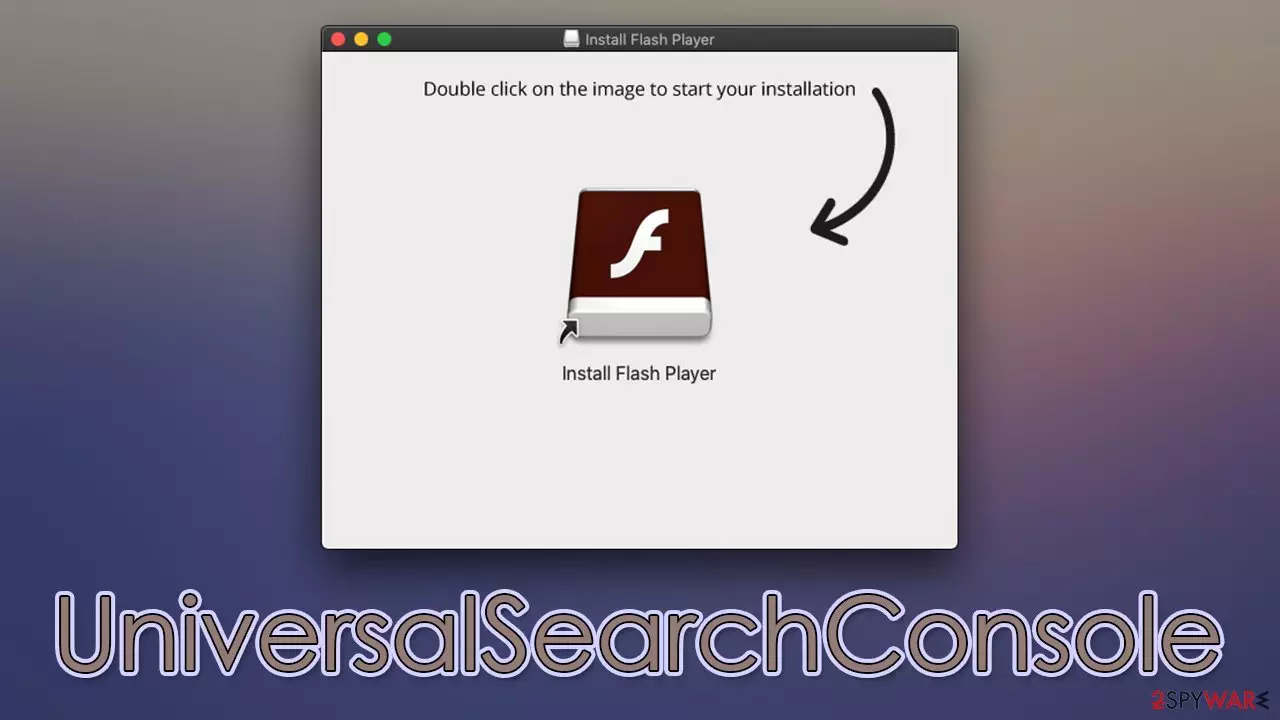
UniversalSearchConsole is a malicious application that belongs to one of the broader malware families known as Adload, which targets Mac users exclusively. Malware is always installed by users themselves, even though they are tricked into doing so: they either install it along with pirated applications from insecure websites or get tricked by a fake Flash Player update prompt.
Once installed, the UniversalSearchConsole virus changes the way the system operates in various ways, initially invisible to the affected users. However, the signs of infection are almost immediately noticeable whenever Safari, Chrome, or another browser is opened – there's a new extension of the same name attached to it, which also comes with a myriad of other issues. For example, the homepage and search provider might be altered, and users may be more likely to encounter intrusive ads or phishing[1] material while browsing the internet.
The underlying issues of the UniversalSearchConsole infection might include the inability to remove the browser extension, virus components returning after removal, and persistent personal information tracking. We recommend you take your time to get rid of this dangerous threat as soon as possible, as it may compromise your personal safety and be a great danger to your computer.
| Name | UniversalSearchConsole |
| Type | Mac virus, adware |
| Malware family | Adload adware strain, which targets macOS devices |
| Installation | Usually spread via fake Flash Player installers or bundled along illegal software downloaded from peer-to-peer networks |
| Symptoms | Installs an extension to the browser that can not be deleted easily; changes homepage/new tab to Safe Finder, Akamaihd, or something else; redirects lead to potentially malicious or scam sites, promotes suspicious software, etc. |
| Removal | The easiest way to eliminate unwarned and malicious software on Macs is by performing a full system scan with SpyHunterCombo Cleaner security software. Alternatively, you can attempt to terminate the infection by using the instructions below |
| Other tips | For best performance and system remediation, employ FortectIntego. Also, cleaning web browser caches is highly advised after the elimination of malware for better privacy and security |
Adload shouldn't be taken lightly
First appearing in 2017, the Adload malware strain managed to accumulate hundreds of versions over the years. Just recently alone, we have covered VictorSurge, LivingAware, PlatformFormat, and AssistSample, all of which were released in the spawn of days between each other. Indeed, malware authors are very active and continue to infect more users worldwide.
UniversalSearchConsole does not differ much from its predecessors: it uses an identical icon (includes the magnifying glass in a teal background this time, although this may vary from version to version) and operates in a very similar manner.
As mentioned, the distribution methods are always the same – Flash Player updates and pirated software installers, which proved to be extremely effective over the years. Once installed, malware would make use of the built-in AppleScript to change numerous features of the computer of how it operates.

While it can be easily categorized as adware when it comes to its main monetization scheme, it is far from that. There is a browser hijacking[2] component that may change users' homepage and show tons of composed links and ads, all while showing alternative search results.
Because the app is capable of avoiding detection, spying on users' personal details, and installing other viruses without the user's knowledge, many security vendors simply categorize it as malware, something that it definitely deserves to be called. The consequences of letting it run on the system can be devastating, so you should waste no time and remove it.
How to get rid of UniversalSearchConsole effectively
Apple products are considered relatively safe, although this does not mean that they are completely secure from any type of infection. In fact, adware is one of the biggest Mac problems when it comes to security, as all the security measures might be bypassed if the user is convinced they aren't installing something malicious.
Before UniversalSearchConsole can be installed, users need to enter their Apple ID credentials, which immediately allows the virus to perform actions as programmed by the hackers. With this simple trick, malware can create new Login items, bypass the removal of XProtext and Gatekeeper, and continue operating even if some of the components are removed.
Therefore, we highly suggest you rely on automatic virus elimination with the help of SpyHunterCombo Cleaner or MalwarebytesMalwarebytes security software. If you would rather get rid of malware yourself, you can follow the steps below, although keep in mind that this method might not always result in full removal of the virus, and symptoms may come back. Regardless of whether you choose manual or automatic removal, you should always clean your web browsers for the best results.
Remove the main app components
In order to operate continuously, the malware launches its processes as soon as the system is launched. This may hinder an easy removal of malware components, so make sure you should the malicious processes down via the Activity Monitor:
- Open Applications folder
- Select Utilities
- Double-click Activity Monitor
- Here, look for suspicious processes related to adware and use the Force Quit command to shut them down
- Go back to the Applications folder
- Find the malicious app from the list and move it to Trash.
The PLIST files are small config files, also known as “Properly list.” They hold various user settings and hold information about certain applications. To remove the virus, you have to find the related PLIST files and remove them.
- Select Go > Go to Folder.
- Enter /Library/Application Support and click Go or press Enter.
- In the Application Support folder, look for any dubious entries and then delete them.
- Now enter /Library/LaunchAgents and /Library/LaunchDaemons folders the same way and terminate all the related .plist files.


Login items and Profiles can also be used to increase persistence. Hence, if you see any of the unknown ones, remove them as follows:
- Go to Preferences and pick Accounts
- Click Login items and delete everything suspicious
- Next, pick System Preferences > Users & Groups
- Find Profiles and remove unwanted profiles from the list.
Take care of your browsers
Upon installation, the UniversalSearchConsole extension would be granted permission to gather various sensitive information, including credit card details or passwords of your accounts. Therefore, it is extremely important to remove this component from your browser as soon as possible.
It is important to note that it might not be possible for you to uninstall the extension, as the option might be grayed out. In this case, we recommend you simply reset your browser – this will get rid of all the unwanted extensions for you.
Finally, make sure you clean your browsers from cookies[3] and other trackers. You can either choose the automatic option with FortectIntego (which can also help you clean the system from other junk and improve its performance) or follow the manual instructions below appropriate for your browser.
Remove from Mozilla Firefox (FF)
Remove dangerous extensions:
- Open Mozilla Firefox browser and click on the Menu (three horizontal lines at the top-right of the window).
- Select Add-ons.
- In here, select the unwanted extension and click Remove.


Reset the homepage:
- Click three horizontal lines at the top right corner to open the menu.
- Choose Settings.
- Under Home, set your preferred homepage and new tab settings.
Clear cookies and site data:
- Click Menu and pick Settings.
- Go to Privacy & Security section.
- Scroll down to locate Cookies and Site Data.
- Click on Clear Data...
- Select Cookies and Site Data and Temporary cached files and pages, then click Clear.


Reset Mozilla Firefox
If clearing the browser as explained above did not help, reset Mozilla Firefox:
- Open Mozilla Firefox browser and click the Menu.
- Go to Help and then choose Troubleshooting Information.

- Under Give Firefox a tune up section, click on Refresh Firefox...
- Once the pop-up shows up, confirm the action by pressing on Refresh Firefox.



Remove from Google Chrome
Delete malicious extensions from Google Chrome:
- Open Google Chrome, click on the Menu (three vertical dots at the top-right corner) and select More tools > Extensions.
- In the newly opened window, you will see all the installed extensions. Uninstall all suspicious extensions related to the unwanted program by clicking Remove.


Clear cache and web data from Chrome:
- Click on Menu and pick Settings.
- Under Privacy and security, select Clear browsing data.
- Select Browsing history, Cookies and other site data, as well as Cached images and files.
- Click Clear data.


Change your homepage:
- Click menu and choose Settings.
- Look for a suspicious site in the On startup section.
- Click on Open a specific or set of pages and click on three dots to find the Remove option.
Reset Google Chrome:
If the previous methods did not help you, reset Google Chrome to eliminate all the unwanted components:
- Click on Menu and select Settings.
- In the Settings, scroll down and click Advanced.
- Scroll down and locate Reset and clean up section.
- Now click Restore settings to their original defaults.
- Confirm with Reset settings.


Delete from Safari
Remove dangerous extensions:
- Open Safari, click Safari in the menu at the top-left of the screen, and select Preferences.
- Go to the Extensions tab, look for any suspicious entries, and click Uninstall to remove them.


Clear history and website data:
- Click Safari in the menu and pick Clear History.
- Set Clear to all history and confirm with Clear History.


Reset Safari:
- Click Safari in the menu and select Preferences > Advanced.
- Enable Show Develop menu in menu bar.
- From the menu bar, click Develop and select Empty Caches.


Did this guide help?
Be the first to comment