

TigerRAT malware can give cybercriminals remote access to an infected machine

TigerRAT is a malicious program with a wide variety of capabilities. RATs (Remote Access Trojans) allow cyber criminals to remotely access and control infected devices. It is suspected that this malware was developed and is used by the Lazarus group which is considered to be sponsored by the North Korean state.
| NAME | TigerRAT |
| TYPE | Remote Access Trojan; Malware |
| SYMPTOMS | Erratic device behavior, encrypted files, various malfunctions |
| DISTRIBUTION | P2P networks; software “cracks”; malicious links; social engineering |
| DANGERS | This RAT has a keylogger feature so users' personal data may be stolen and cause monetary losses or even identity theft |
| ELIMINATION | Use professional security tools for complete malware removal |
| FURTHER STEPS | Fix damaged system files with a maintenance tool like FortectIntego |
TigerRAT functionality
When it infiltrates the system, TigerRAT begins collecting various data, such as device name, operating system version, account username, information related to the network interface, etc. It can also manage files – read, create, write, delete, and download. The RAT may also be capable of screen recording and keylogging which means it can read the keystroke inputs.
Security researchers found that the malicious program's code tries to implement video recording features that let capture footage from connected or integrated webcams. Currently, there are no versions of this malware where this function is fully working.
The Lazarus group is known to add, remove and modify features of their malicious programs. So there is a possibility that different versions of TigerRAT will have different functions. This type of infection can lead to privacy and security issues, monetary losses, identity theft, and operating system damage.

Distribution methods
TigerRAT has been observed being injected into systems by MagicRAT, which is another program from the Lazarus group. We previously wrote about other Trojans, like Borat RAT, Woody RAT, ZuoRAT, etc. Many of them have the ability to install other malware. That is why it is best to avoid malicious programs as much as possible.
Most of the time, people get infected with malware by installing “cracked” software[1] from Torrent websites, and peer-to-peer file-sharing platforms.[2] They are unregulated, so they are the perfect breeding ground for all kinds of malware. It is impossible to know if the package you are downloading does not contain any malicious files.
Another popular method used to spread RATs and other malware is email. Threat actors can even target specific companies or individuals by using social engineering to create convincing letters. They include malicious links or infected attachments and convince people to open them.
Most importantly, you should keep your operating system and software updated. Cybercriminals can use software vulnerabilities[3] to deliver malware. Software developers regularly release security patches[4] to prevent that from happening. They should be installed as soon as they come out to ensure the security of the system.
Removal of TigerRAT malware
Removal of remote access trojans can be a complicated task. The minute such an infection enters a machine, it does heavy modifications to system files and settings to establish persistence and becomes extremely hard to detect. Usually, it is best to allow antivirus or anti-malware programs to do this automatically.
However, in some cases, the malware might disable your anti-malware tools and camouflage its processes as legitimate Windows tasks. If malware is not letting you use antivirus in normal mode, access Safe Mode and perform a full system scan from there.
Windows 7 / Vista / XP
- Click Start > Shutdown > Restart > OK.
- When your computer becomes active, start pressing F8 button (if that does not work, try F2, F12, Del, etc. – it all depends on your motherboard model) multiple times until you see the Advanced Boot Options window.
- Select Safe Mode with Networking from the list.


Windows 10 / Windows 8
- Right-click on Start button and select Settings.
- Scroll down to pick Update & Security.
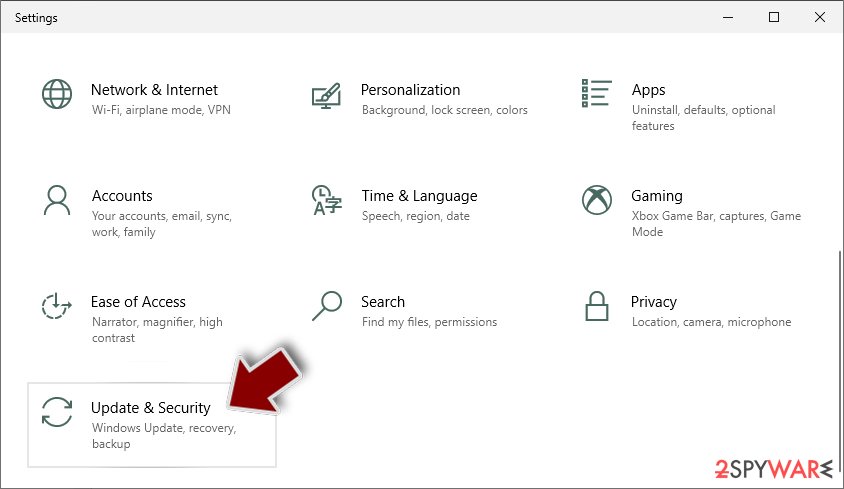
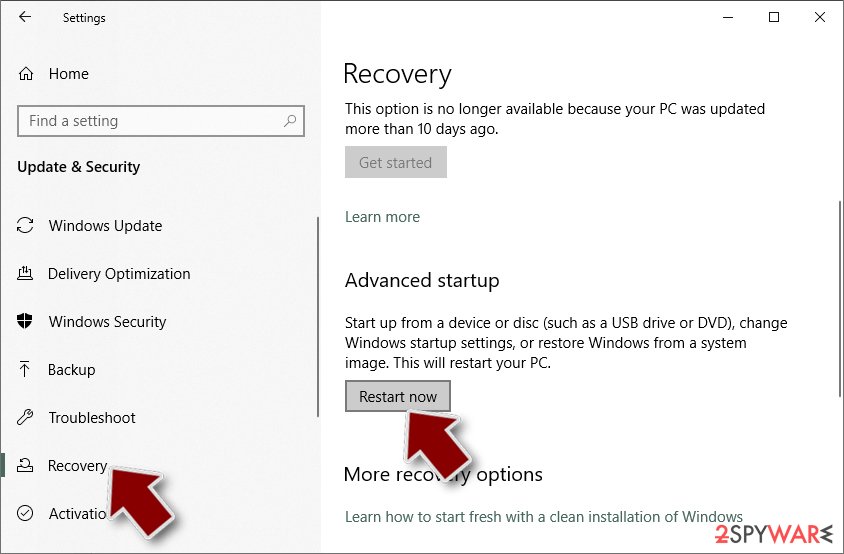
- On the left side of the window, pick Recovery.
- Now scroll down to find Advanced Startup section.
- Click Restart now.
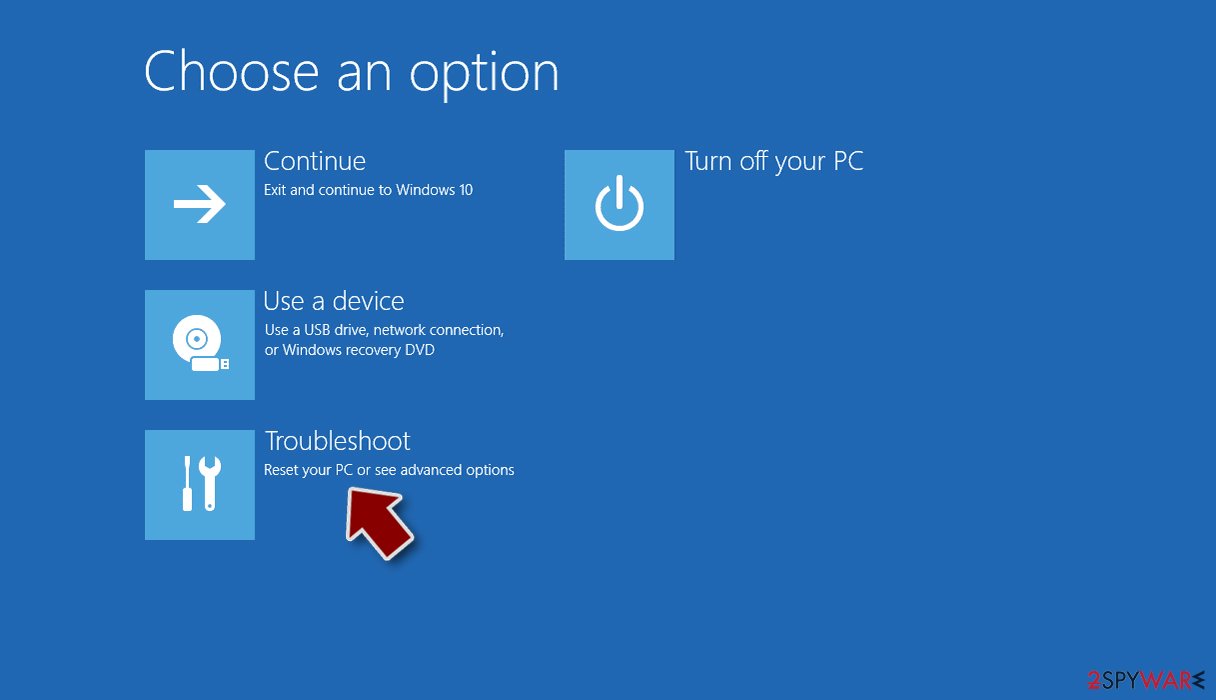
- Select Troubleshoot.
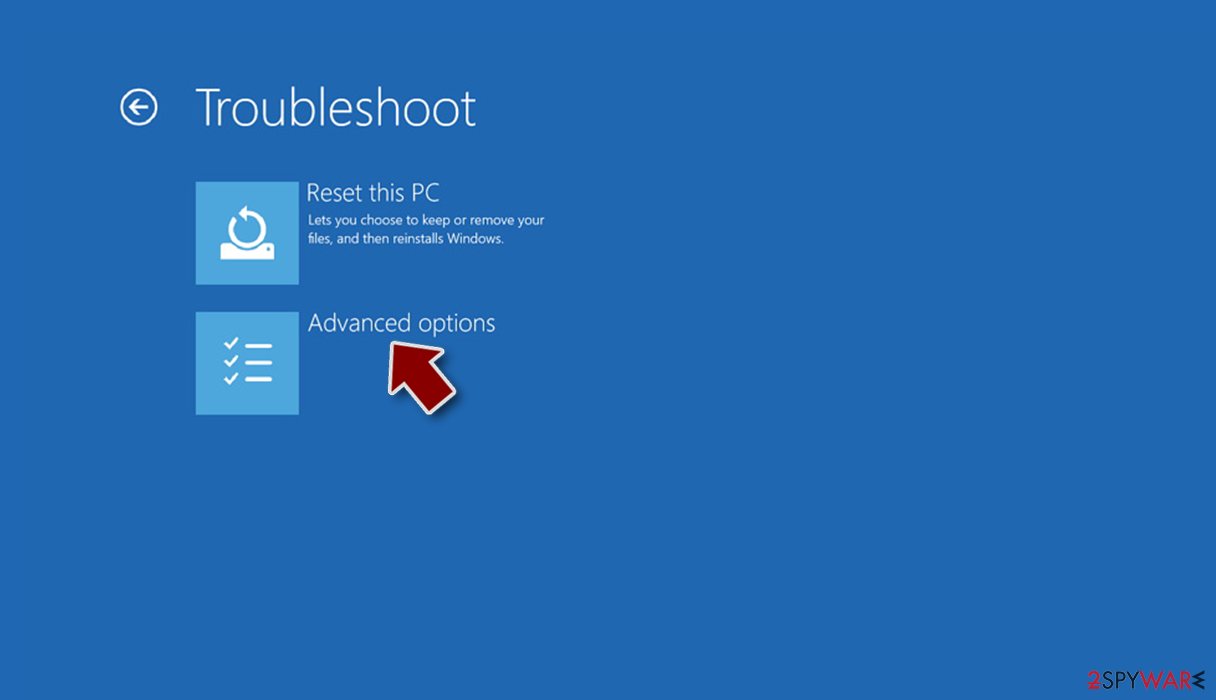
- Go to Advanced options.
- Select Startup Settings.
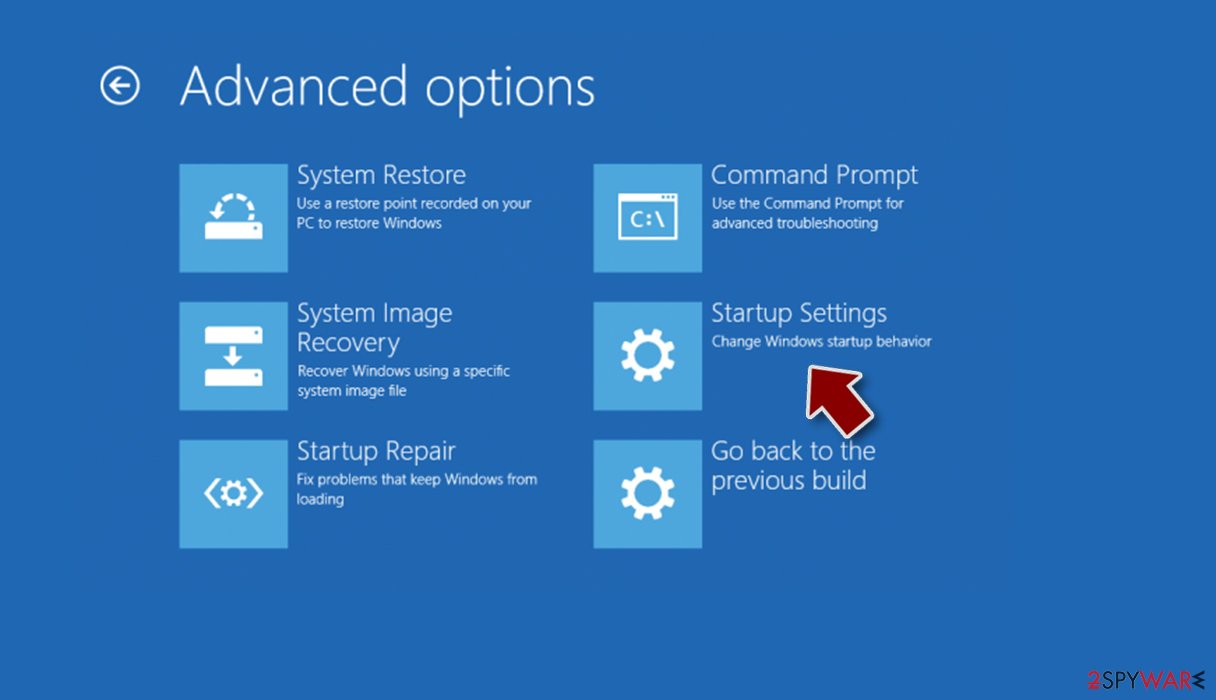
- Click Restart.
- Press 5 or click 5) Enable Safe Mode with Networking.
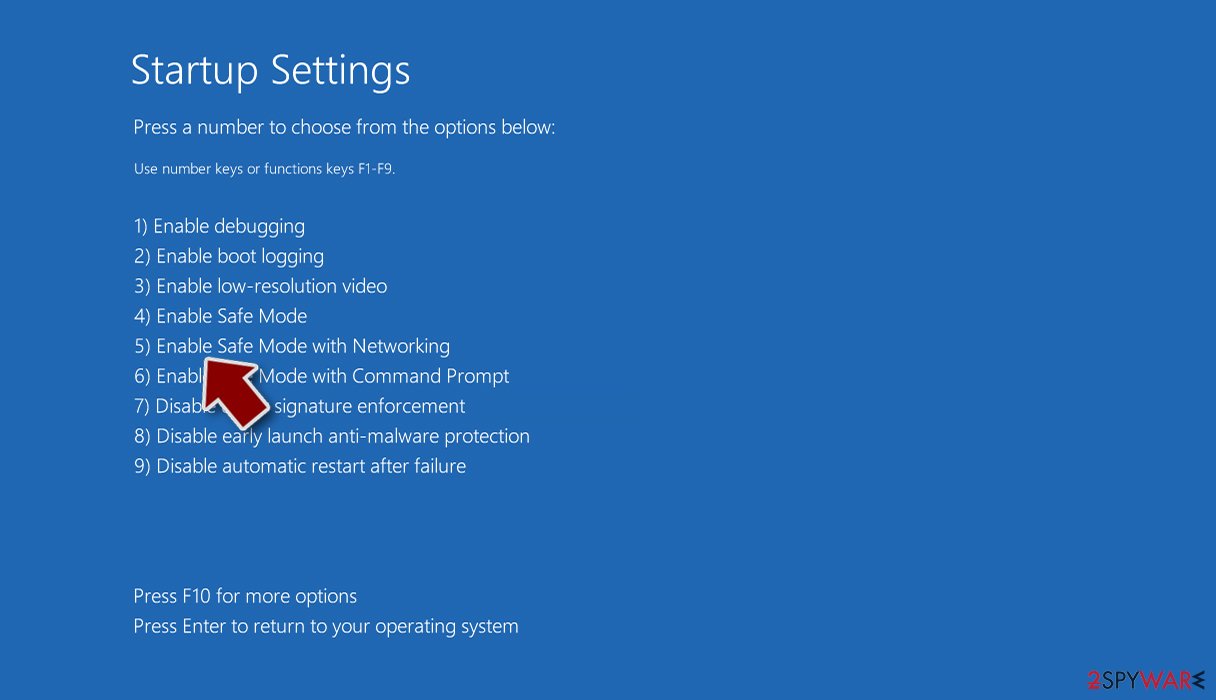


Once you reach Safe Mode, you can launch a reputable antivirus program. We recommend using SpyHunterCombo Cleaner or MalwarebytesMalwarebyteswhich are trusted professional security tools. You should update the security program of your choice with the latest definitions, and perform a full system scan to eradicate malware and all its malicious components.
A scan should reveal all malicious files hiding in your device, isolate them, and give the option of removal to you. Trustworthy anti-malware software is a must-have for every individual who spends at least a few minutes on the internet each day. Cybercriminals are getting more creative with how they distribute their dangerous creations. Anti-malware tools are the main instruments of defense.
Fix the damaged operating system
Once a computer is infected with malware, its system is changed to operate differently. For example, an infection can alter the Windows registry database, damage vital bootup, and other sections, delete or corrupt DLL files, etc. Once a system file is damaged by malware, antivirus software is not capable of doing anything about it, leaving it just the way it is. Consequently, users might experience performance, stability, and usability issues, to the point where a full Windows reinstallation is required.
Therefore, we highly recommend using a one-of-a-kind, patented technology of FortectIntego repair. Not only can it fix virus damage after the infection, but it is also capable of removing malware that has already broken into the system thanks to several engines used by the program. Besides, the application is also capable of fixing various Windows-related issues that are not caused by malware infections, for example, Blue Screen errors,[5] freezes, registry errors, damaged DLLs, etc.
- Download the application by clicking on the link above
- Click on the ReimageRepair.exe
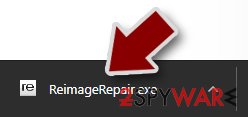
- If User Account Control (UAC) shows up, select Yes
- Press Install and wait till the program finishes the installation process
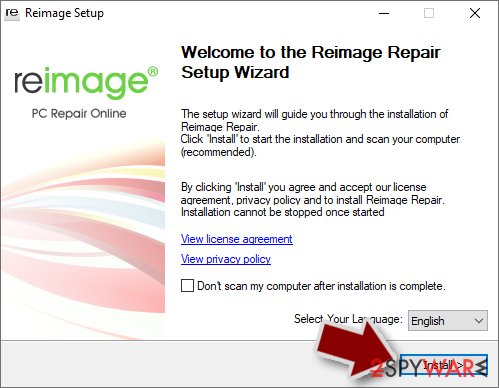
- The analysis of your machine will begin immediately
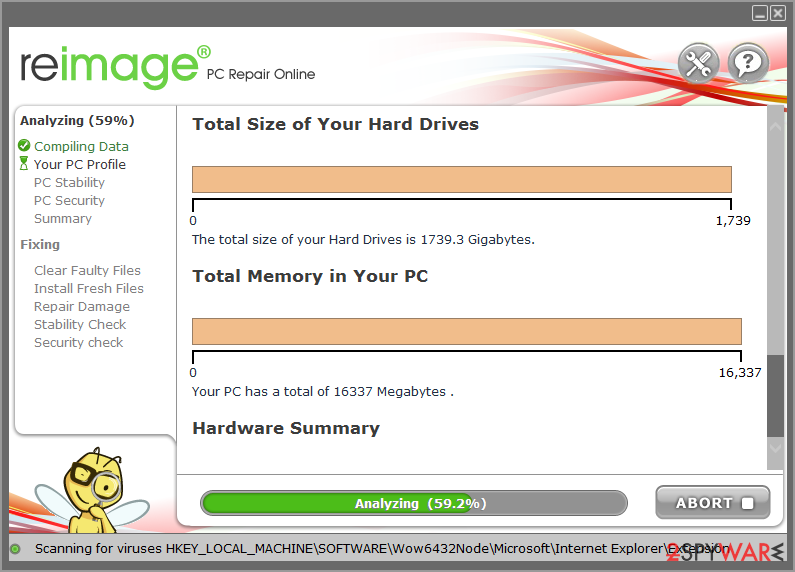
- Once complete, check the results – they will be listed in the Summary
- You can now click on each of the issues and fix them manually
- If you see many problems that you find difficult to fix, we recommend you purchase the license and fix them automatically.



By employing FortectIntego, you would not have to worry about future computer issues, as most of them could be fixed quickly by performing a full system scan at any time. Most importantly, you could avoid the tedious process of Windows reinstallation in case things go very wrong due to one reason or another.
Did this guide help?
Be the first to comment