

Scam ransomware is a type of malware that could be detrimental to personal user files

Scam is a potent virus that attacks users' PCs, encrypting all their personal files with sophisticated encryption[1] algorithm. This renders photos, videos, documents, databases, and other data unusable – each file appended with the .scam extension (which also deletes regular file icons and replaces them with blanks). For people who haven't backed up their system or held important files on a separate storage device, this damage can be significant, as none of the data can be used anymore.
The most devastating effect of Scam ransomware is that it locks all files under a unique password, which is retrieved by cybercriminals immediately. It is not surprising that they are not willing to give the decryptor for free, as it gives them a pretext for money extortion. According to the ransom note read_it.txt, users are prompted to pay $500 worth of bitcoin to provided address (17CqMQFeuB3NTzJ2X28tfRmWaPyPQgvoHV or bc1qn8dv5sjfpwrx6uapgf64hgux785jytql39zevw).
The Scam virus also changes the background of the desktop, which shows your typical, short version of the ransom note; it also claims that all personal files would be deleted within 12 hours of infection. Between both ransom notes, there are two contact emails provided – whatsgood@protonmail.com and whats.good@protonmail.com.
| Name | Scam virus |
|---|---|
| Type | Ransomware, file-locking malware |
| File extension | .scam extension is appended to every personal file on the system |
| Ransom note | read_it.txt |
| Malware family | Chaos |
| File Recovery | The only method to recover files is through data backups. If such is not accessible, or if it has also been encrypted, your options for recovery are extremely limited, although we recommend trying them |
| Malware removal | Disconnect the computer from the network and internet and then perform a full system scan with SpyHunterCombo Cleaner security software |
| System fix | After malware infects a system, it can corrupt several important files, which often leads to crashes, errors, and other issues. FortectIntego PC repair is an effective solution to automatically replacing any corrupted system files |
The message from cybercriminals
While much other malware tries to act as sneaky as possible, ransomware tries its best to make it a known fact that the system has been breached and files encrypted. Ransom notes, in particular, are an important part of the whole money extortion business, as they provide vital information to victims on how to pay and possibly recover their data.
The way the message from malware authors is provided varies from virus to virus, as well as the variant. For example, Djvu variants are known to have identical ransom notes, while Chaos, to which Scam ransomware belongs, constantly keeps changing how it presents its notes. In this case, the affected users would immediately see the change on the desktop wallpaper, as well as the typical text file viewable in Notepad. It reads:
RANSOMWARE ALERT !
You are a victim of ransomware, all your files are encrypted in a military way, don't panic you can recover them by sending $500 to the bitcoin address once the payment has been made, just send an email with proof of payment and you will receive the decryption software and you will recover all your files as well as control of your computers.
Last thing you have 6 hours before the complete and definitive destruction of your files and 3 hours before the destruction of 50 random files
if you notify the police, destruction of all files.good luck !!!
How to buy a Bitcoin :
How to Pay with Bitcoin :
BITCOIN ADDRESS :
17CqMQFeuB3NTzJ2X28tfRmWaPyPQgvoHV
EMAIL CONTACT :
whatsgood@protonmail.com
While some attackers attempt to seem rather friendly and promise to deliver the decryption key, others still choose to portray themselves as a menace. To be more precise, we see the usage of skulls, the “disturbing” font, and the typical threat of complete file deletion within a certain amount of time.

Cybercriminals attempt to frighten users and make them pay as soon as possible – it is just one of many extortion tactics. In reality, this can be easily avoided (even if it is true, as ransomware developers lie all the time) by accessing Safe Mode and safeguarding all personal files, even though they would remain encrypted.
Below we provide a detailed guide on how to remove Scam ransomware and attempt to restore at least some of the lost files without paying cybercriminals – follow the steps attentively.
Remove malware from the system correctly
While some ransomware tends to self-destruct after completing its main job of data encryption, it may not always be the case. Considering that Scam virus authors are threatening to delete files after a certain amount of time, they need to ensure that malware is still running on the system.
As soon as ransomware enters the system, it immediately establishes a connection with a remote Command & Control[2] server, which crooks can use as their hub for storing encryption and decrytpion keys. It can also be used by them to send commands remotely, such as stealing user information or even sending additional malicious payloads.
Thus, your first task is to sever this connection by disconnecting your system from the network and internet. You can do so by disconnecting your Ethernet cable or by using the WiFi icon in the taskbar – depending on which one you use.
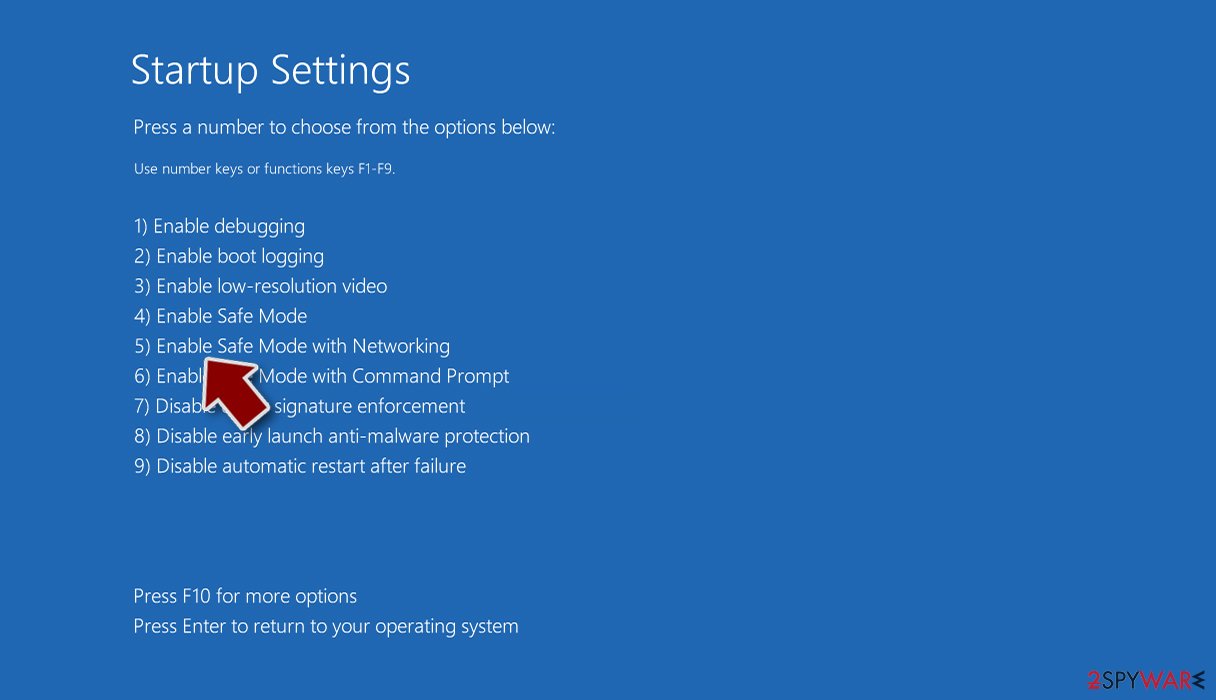
Once this is done, it is time to access Safe Mode and copy all the encrypted files that you value. This is, of course, not necessary if you already have backups of working files available. If you need help accessing Safe Mode, follow these steps:
Windows 7 / Vista / XP
- Click Start > Shutdown > Restart > OK.
- When your computer becomes active, start pressing the F8 button (if that does not work, try F2, F12, Del, etc. – it all depends on your motherboard model) multiple times until you see the Advanced Boot Options window.
- Select Safe Mode with Networking from the list.


Windows 10 / Windows 8
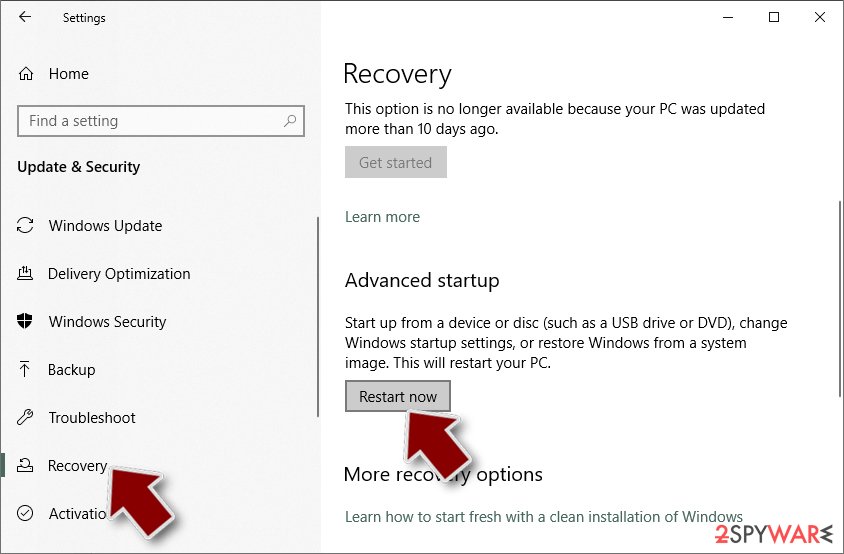
- Right-click on the Start button and select Settings.
- Scroll down to pick Update & Security.
- On the left side of the window, pick Recovery.
- Now scroll down to find the Advanced Startup section.
- Click Restart now.
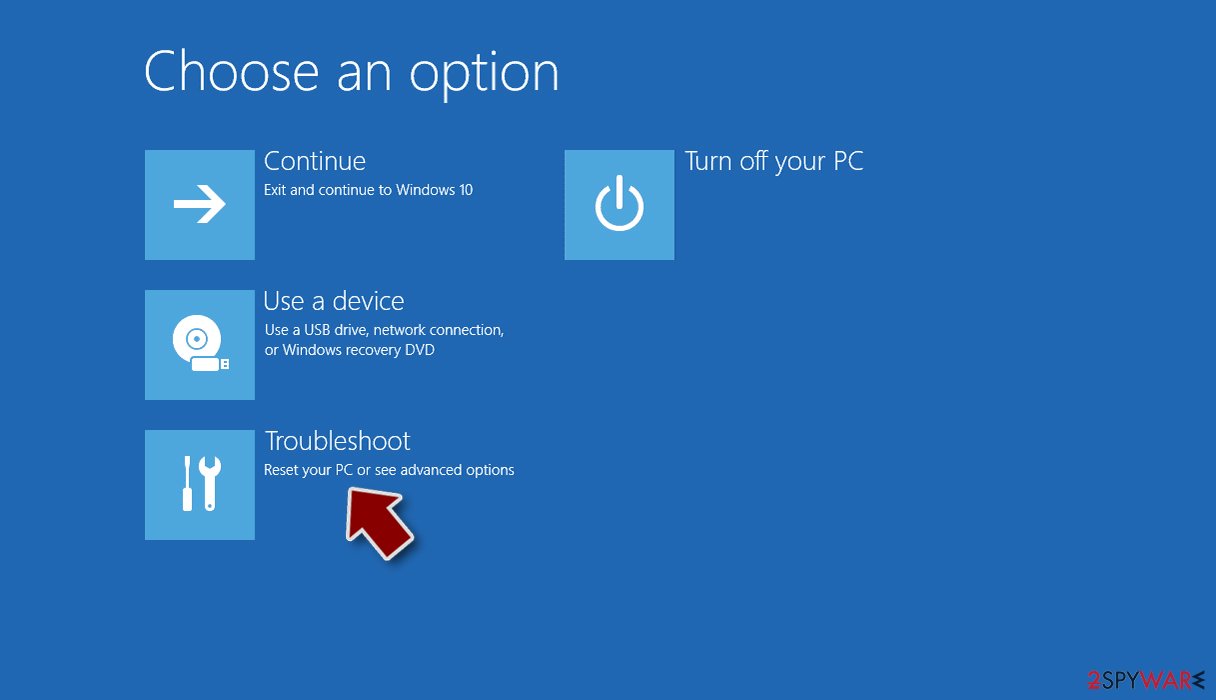
- Select Troubleshoot.
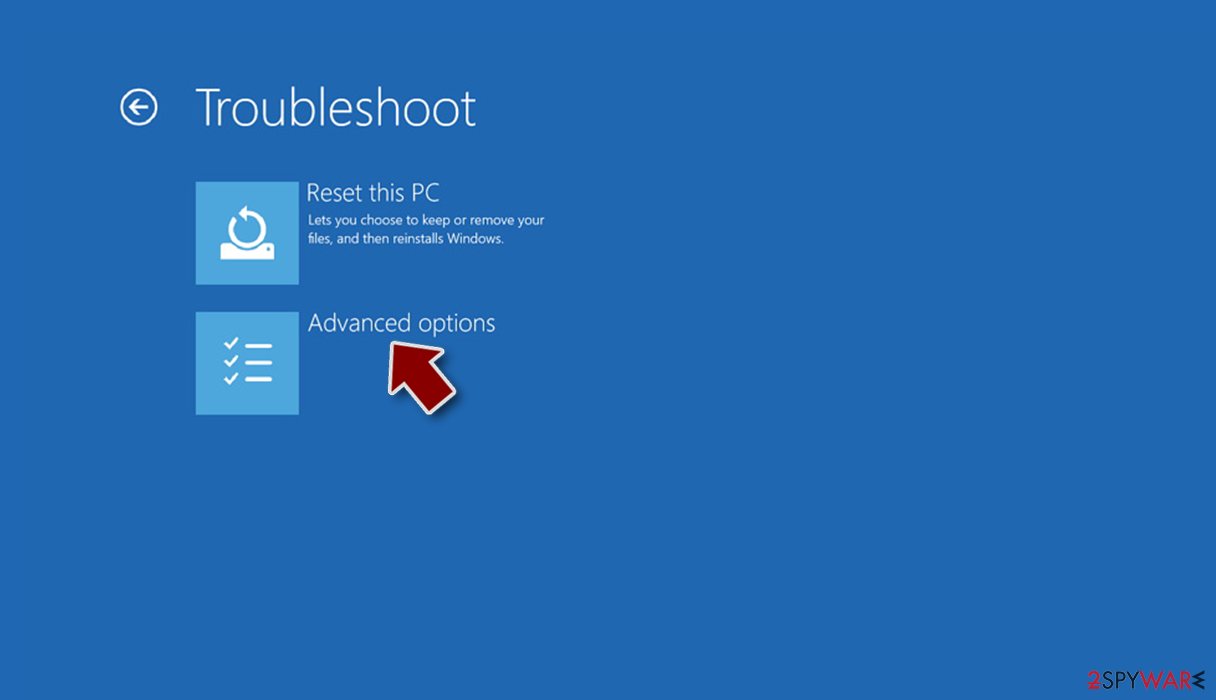
- Go to Advanced options.
- Select Startup Settings.
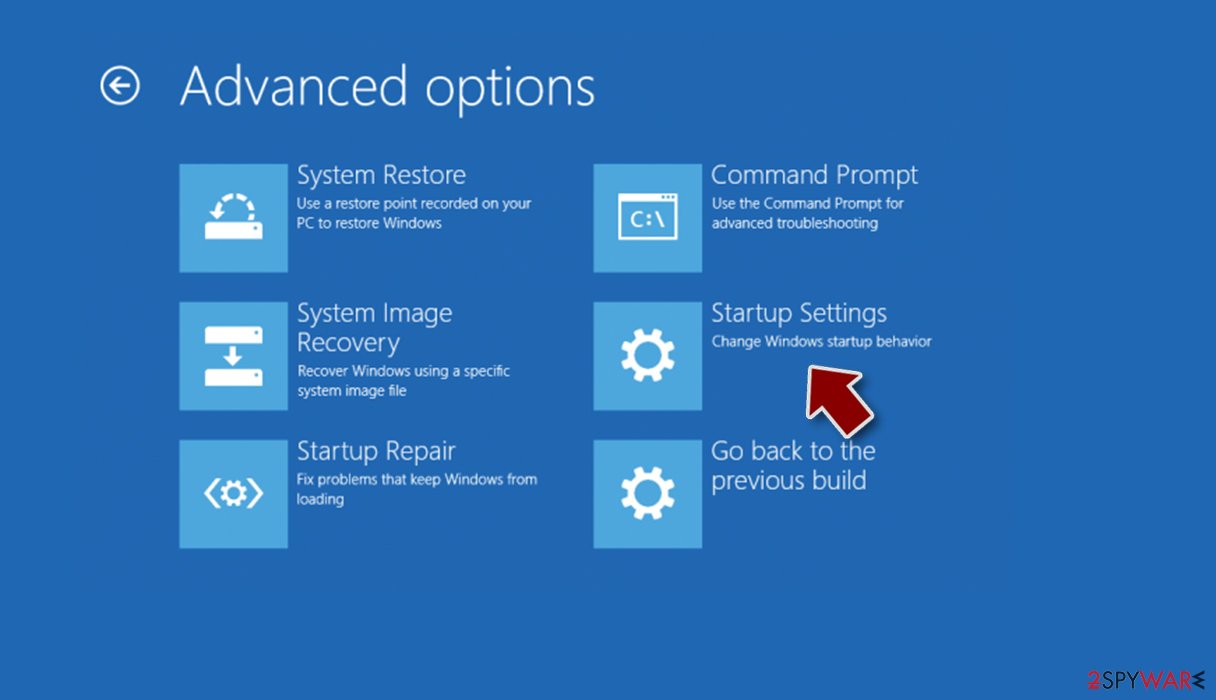
- Click Restart.
- Press 5 or click 5) Enable Safe Mode with Networking.


Data recovery
There are two sorts of ransomware victims: some become frightened and believe their data have been permanently damaged, while others believe they can recover the Scam ransomware-encrypted files using security software. Unfortunately, none of these beliefs is true.
Ransomware encrypts all data on the computer, making it inaccessible to anyone without decryption software/key. People are unable to decrypt the data without it, which should be kept in mind since files are not damaged in any way; rather, they are simply inaccessible due to encryption. Security software isn't intended to recover encrypted files, so while an infection cleanup will get rid of the virus, personal files will not be restored.
Luckily, there are a few alternative options available, although the success rate is relatively low. You can try using data recovery software or waiting for a decryptor. Start with the former:
- Download Data Recovery Pro.
- Double-click the installer to launch it.

- Follow on-screen instructions to install the software.
- As soon as you press Finish, you can use the app.
- Select Everything or pick individual folders which you want the files to be recovered from.
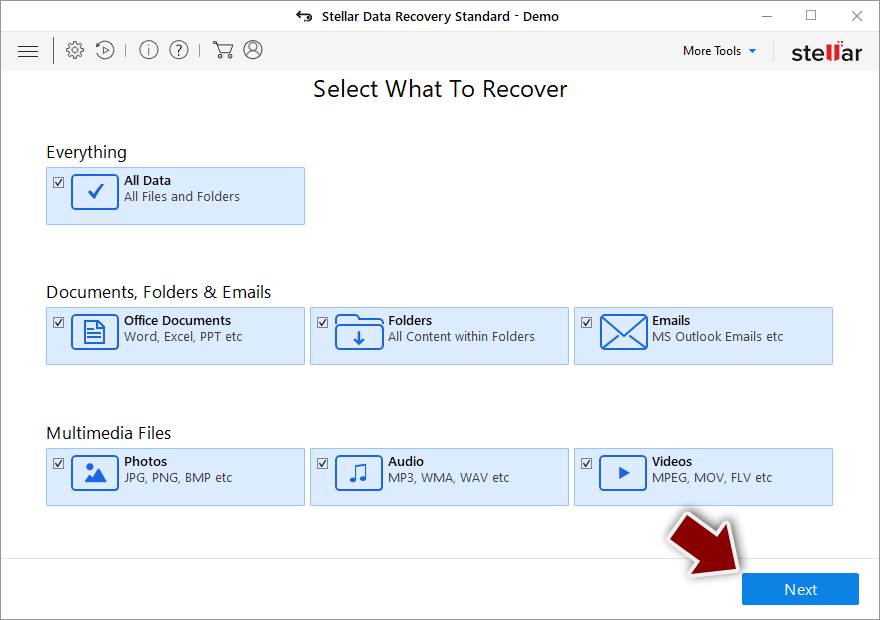
- Press Next.
- At the bottom, enable Deep scan and pick which Disks you want to be scanned.

- Press Scan and wait till it is complete.
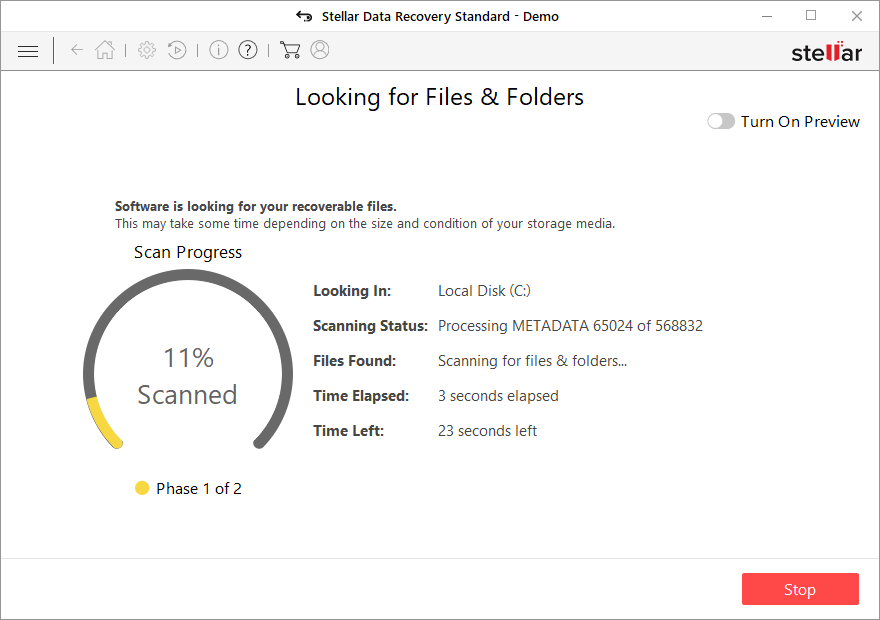
- You can now pick which folders/files to recover – don't forget you also have the option to search by the file name!
- Press Recover to retrieve your files.


There is some ransomware that contains several programming bugs, which can be helpful to researchers trying to create a decryptor. While it's not guaranteed that this will happen or that it will happen quickly, checking the following links regularly for decryptors is recommended:
- No More Ransom Project
- Free Ransomware Decryptors by Kaspersky
- Free Ransomware Decryption Tools from Emsisoft
- Avast decryptors

System remediation
Ransomware is quite possibly the most destructive infection out there, which is then reflected in its severe consequences for the compromised system. Not only might this malware spread via the networks and come along with other infections, but it might also insert illegitimate code or damage existing Windows files, resulting in BSOD[3] crashes or other stability issues. Therefore, we recommend fixing any such inconsistencies using a sophisticated PC repair tool.
- Download FortectIntego
- Click on the ReimageRepair.exe

- If User Account Control (UAC) shows up, select Yes
- Press Install and wait till the program finishes the installation process
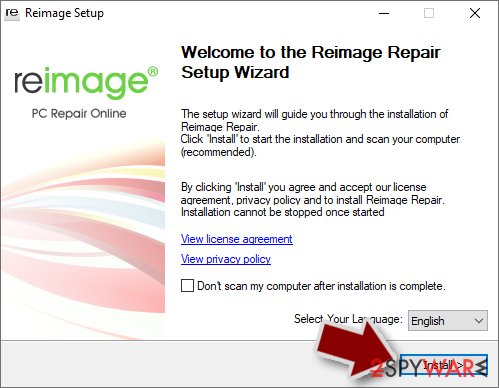
- The analysis of your machine will begin immediately
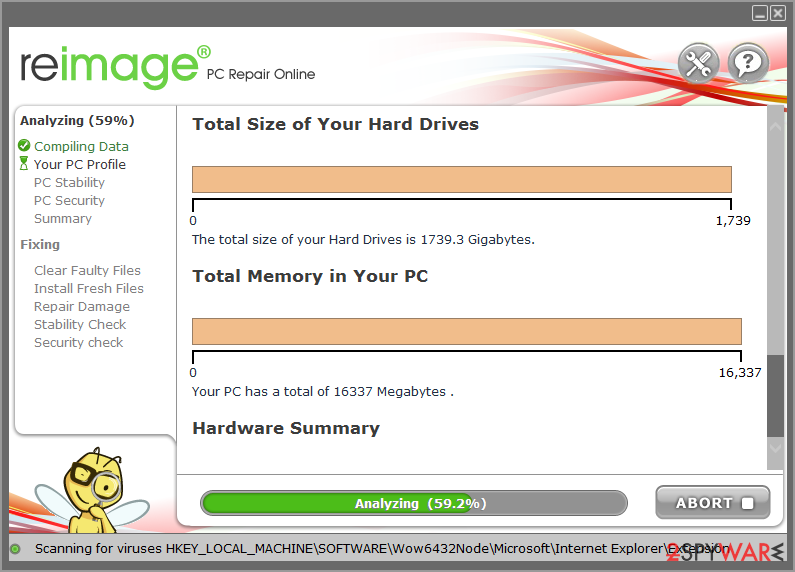
- Once complete, check the results – they will be listed in the Summary
- You can now click on each of the issues and fix them manually
- If you see many problems that you find difficult to fix, we recommend you purchase the license and fix them automatically.



We also recommend you learn how to prepare working backups for your files to avoid a similar situation when affected by ransomware in the future. Of course, the best would be not to be infected in the first place.
Did this guide help?
Be the first to comment