

RankBet is a malicious Mac application that can avoid built-in security measures
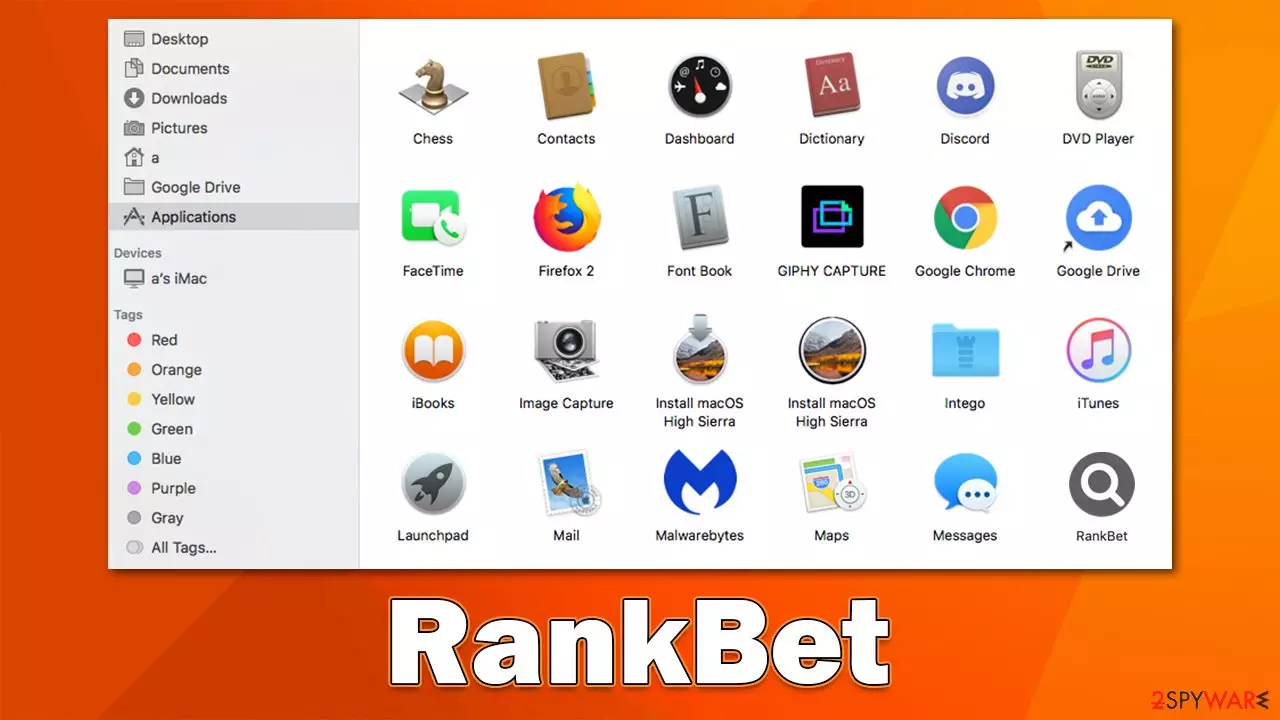
RankBet is Mac malware that can be installed accidentally – often by users tricked into clicking on a fake Flash Player update or downloading illegal software from high-risk websites. Those affected by the virus may see malicious ads, redirects, sponsored links, and other intrusive material while browsing the web. Because the app drops many malicious files infiltration, removing the virus may be difficult.
The first sign of infection people would notice is the changed behavior of their browser, whether that be Safari, Chrome, Firefox, etc. The RankBet extension installed might change the homepage and new tab settings so that users wouldn't be able to use their default settings. This could also include setting alternative search providers and results, which would bring plenty of issues along with it, such as data tracking from various third parties and excessive ads while browsing.
Malware can spy on users' personal information and even install its other versions, such as PowerSet, IntranetLookup, PhantomRich, and others, without users' permission. Besides, RankBet is a version of the Adload malware family designed for Macs, which has close relations to notorious strains like Shlayer Trojan.
| Name | RankBet |
| Type | Mac virus, adware, browser hijacker |
| Family | Adload |
| Installation | Fake Flash Player updates, third-party domains distributing pirated software, software bundles |
| Symptoms | Installs a new extension and application on the system; changes homepage and new tab of the browser; inserts ads and malicious links; tracks sensitive user data via extension |
| Removal | You can employ powerful security software to check your system for infections – SpyHunterCombo Cleaner is one of the suggestions. The manual PUA uninstall guide is also available below |
| System optimization | Malware and adware can meddle with your system, reducing its performance. If you want to quickly fix various issues, we recommend you try using automated tools like FortectIntego |
Adload is an expansive Mac virus family
Although Adload is often categorized as adware or potentially unwanted applications, it is frequently identified as a Trojan or malware by security solutions. There are many reasons for this, including the fact that RankBet has numerous characteristics associated with a malware infection. Adload authors release numerous variants a week, which is a rather alarming rate. The worst part is that each of them manages to be quite successful and infect hundreds of users worldwide.
All virus versions have specific common characteristics. For example, all of them use an identical application icon, which manifests as a magnifying glass, usually placed on a green, teal, gray, or sometimes red background. The naming pattern of these apps is also identical, as several pre-determined words are used and piled into a single one.
How it spreads
Adload variants are notoriously successful, and one of the primary reasons is their distribution methods. There are two main ways to infect a system with the RankBet virus (or any other malware variant) – fake Flash Player Updates and pirated software installers.
If you come across a message that states your system requires Flash Player, it is fake, and you should not engage with it. Adobe no longer supports Flash[1] because the technology is outdated and has been replaced by more secure options, like HTML 5.[2] The plugin is highly exploited in various phishing attacks online, so please be careful when you see them.
Alternatively, you may install malware along with illegal software. Torrents and peer-to-peer networks are known to be used by cybercriminals to spread the most dangerous malware out there, including ransomware. Therefore, we recommend staying away from such platforms in the first place.

Virus removal explained
RankBet is made up of two parts: a browser extension and an application that runs on the system level. Both work together to support the malware's function, so both need to be removed from your device to get rid of it completely. Otherwise, it might come back.
Because users provide their permission for the installation of the app, they automatically allow it to run on the system with elevated permissions. From here, it uses AppleScript to drop malicious files, create new profiles and login items, and completely exclude itself from being detected by the built-in Mac protection suites.
Due to this extensive damage to the system, we recommend removing the infection automatically with SpyHunterCombo Cleaner or MalwarebytesMalwarebytes security software. This way, you can be sure that none of the remnants are left on your device, and malware or its variants won't return. Nevertheless, we provide a manual solution for you below if you choose to go that way (we recommend resetting or cleaning browsers properly regardless of which method you choose).
Background processes could hinder the elimination of malicious applications. Therefore, before you do anything, force-close all the suspicious processes running in the background:
- Open Applications folder
- Select Utilities
- Double-click Activity Monitor
- Here, look for suspicious processes related to adware and use the Force Quit command to shut them down
- Go back to the Applications folder
- Find the malicious in the list and move it to Trash.


Remove suspicious Profiles and Login Items from your system:
- Go to Preferences and select Accounts
- Click Login items and delete everything suspicious
- Next, pick System Preferences > Users & Groups
- Find Profiles and remove unwanted profiles from the list.
The PLIST files are small config files, also known as the “Properly list.” They hold various user settings and store information about certain applications. In order to remove the virus, you have to find the related PLIST files and remove them.
- Select Go > Go to Folder.
- Enter /Library/Application Support and click Go or press Enter.
- In the Application Support folder, look for any suspicious entries and then delete them.
- Now enter /Library/LaunchAgents and /Library/LaunchDaemons folders the same way and delete all the related .plist files.


By installing the RankBet extension, you're essentially allowing it access to any personal information typed into your browser – this includes credit card details or passwords to various accounts. As you can probably tell, this is a serious violation of privacy and could result in financial losses, being susceptible to future phishing[3] campaigns, or even identity theft. Therefore, removing the browser extension component from your device is vital.
- Click Safari > Preferences…
- In the new window, pick Extensions.
- Select the unwanted extension and select Uninstall.


If you are unable to eliminate the browser add-on because it is grayed out, you have two options: either scan your system with security software or reset your browser. Here are the instructions for the latter:
- Click Safari > Preferences…
- Go to the Advanced tab.
- Tick the Show Develop menu in the menu bar.
- From the menu bar, click Develop, and then select Empty Caches.


Next, clear browser cookies and other cached files from your computer. FortectIntego may be used to clean up trash and virus remnants for you and ensure that the system is functioning properly. Alternatively, you can always rely on the manual option:
- Click Safari > Clear History…
- From the drop-down menu under Clear, pick all history.
- Confirm with Clear History.


If you use Firefox or Chrome, check the below instructions.
Remove from Mozilla Firefox (FF)
Remove dangerous extensions:
- Open Mozilla Firefox browser and click on the Menu (three horizontal lines at the top-right of the window).
- Select Add-ons.
- In here, select the unwanted extension and click Remove.


Reset the homepage:
- Click three horizontal lines at the top right corner to open the menu.
- Choose Settings.
- Under Home, set your preferred homepage and new tab settings.
Clear cookies and site data:
- Click Menu and pick Settings.
- Go to Privacy & Security section.
- Scroll down to locate Cookies and Site Data.
- Click on Clear Data...
- Select Cookies and Site Data and Temporary cached files and pages, then click Clear.


Reset Mozilla Firefox
If clearing the browser as explained above did not help, reset Mozilla Firefox:
- Open Mozilla Firefox browser and click the Menu.
- Go to Help and then choose Troubleshooting Information.

- Under Give Firefox a tune up section, click on Refresh Firefox...
- Once the pop-up shows up, confirm the action by pressing on Refresh Firefox.



Remove from Google Chrome
Delete malicious extensions from Google Chrome:
- Open Google Chrome, click on the Menu (three vertical dots at the top-right corner) and select More tools > Extensions.
- In the newly opened window, you will see all the installed extensions. Uninstall all suspicious extensions related to the unwanted program by clicking Remove.


Clear cache and web data from Chrome:
- Click on Menu and pick Settings.
- Under Privacy and security, select Clear browsing data.
- Select Browsing history, Cookies and other site data, as well as Cached images and files.
- Click Clear data.


Change your homepage:
- Click menu and choose Settings.
- Look for a suspicious site in the On startup section.
- Click on Open a specific or set of pages and click on three dots to find the Remove option.
Reset Google Chrome:
If the previous methods did not help you, reset Google Chrome to eliminate all the unwanted components:
- Click on Menu and select Settings.
- In the Settings, scroll down and click Advanced.
- Scroll down and locate Reset and clean up section.
- Now click Restore settings to their original defaults.
- Confirm with Reset settings.


Did this guide help?
Be the first to comment