

Doubleclick.net – an advertising service which causes unwanted ads on iPhone and other devices
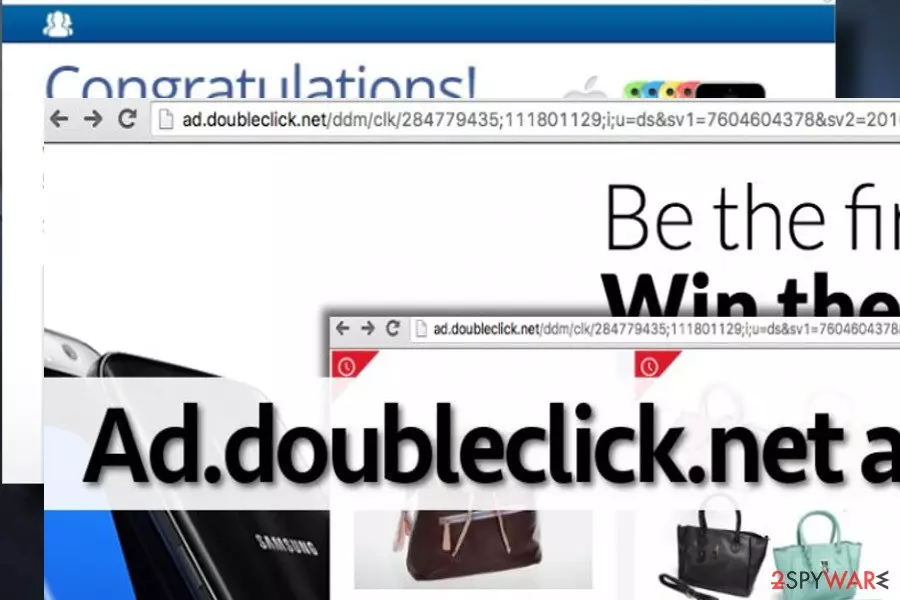
Doubleclick.net is a potentially dangerous service that is closely related to adware.[1] This service is used for advertising and is known for redirecting people to doubtful third-party domains against their will. Some ads may feature professional design and appealing content, but, once clicked, they redirect their victims to irrelevant sites promoting third-party software, software updates, useless products, and so on.
According to malware researchers from dieviren.de,[2] adware is capable of affecting all operating systems and can easily hijack all the most popular web browsers (Chrome, Firefox, Internet Explorer, Edge, Safari, etc.). As a result, you may start receiving intrusive ads. We use the term “virus” because many computer users tend to call this program like that. In reality, it is just a low-level computer threat that belongs to the adware category and is more annoying than dangerous.
In this article, we will try to explain how this potentially unwanted program behaves, what are its main goals, and how to remove googleads.g.doubleclick.net from the system. Besides, we will clarify how did it manage to get inside your PC without being noticed. This advertising campaign recently interferes with macOS devices and spreads around regardless of the operating system. For example, F.txt.js is an issue that is commonly reported by Apple users. So you can find particular steps and tips for various devices below.
| Name | Doubleclick.net |
|---|---|
| Variations | Ad.doubleclick.net, Pubads.g.doubleclick.net, googleads.g.doubleclick.net |
| Type | Adware |
| Distribution | Bundling |
| Affected systems | Windows, Mac OS, Android, iOS |
| Main issue | Annoying ads displayed on the screen |
| Main dangers | Being redirected to an infected website or being tricked into installing dangerous software |
| Elimination | To get rid of this the virus, run a full system scan with your anti-malware. |
| System fix | Use FortectIntego to remediate your computer from malware damage |
First of all, this PUP is misleading in terms of distribution and behavior. Once it is installed on a target system, it adds a browser extension to every single web browser that it finds on it. Soon after that, ads will deluge each website that you are going to visit.
Apart from being annoying, those ads are potentially dangerous. Most of them generate pay-per-click revenue[3] to their developers. The others help third-parties to increase traffic to unpopular or newly developed websites. However, there's always a risk of clicking on malicious pop-up designed by hackers which may redirect to phishing websites or trick you into installing fake software updates that hide malware.
Bear in mind that, no matter what content adware presents, the purpose of this advertising platform is to redirect you to one of its sponsors’ sites. You can never know if they are worth your trust or not.
Most likely these ads will lead you to various third-party websites. If you are not sure whether the web page is safe or not, just stay away from suspicious download links, and do not provide your credit card information.
It is better to be safe than sorry, so we recommend you to remove Ad.doubleclick.net and the related adware from your computer to stop these misleading ads from bothering you. The easiest way to initiate complete removal of the adware-type program is to use a reliable anti-spyware program or reset the affected web browser.
A detailed PUP removal guide for Windows 10 and other operating systems is provided at the end of this post. If you are bothered by system errors, what is normal after virus removal, fix virus damage with FortectIntego.

Adware programs spread by bundling
Inadequate amount of pop-up, banner, interstitial and other type of ads during the browsing sessions is a sign of adware infection. If your web browser keeps redirecting you to a specific domain or new tab window, it means an adware infection either.
Computer security experts claim that such programs are potentially unwanted ones (PUP) and that they usually spread along with other free programs. PUPs are often added to freeware and presented as “recommended downloads.” The best way to maintain your browsing session's experience as it is now, refuse to install each extension, add-on, or toolbar despite the fact of how vividly it may be introduced.
To avoid installing them, we suggest you always to opt for Custom or Advanced installation mode when you open a setup wizard. These modes allow seeing what extra applications are added to a free program. All you have to do to remove them is to remove the tick from checkboxes next to pre-checked installers.
Learn how to remove Ad.doubleclick.net quickly
In fact, calling this program as Doubleclick.net virus is not a good idea, because it is not malicious and it does not act like a virus. Nevertheless, based on its behavior and infiltration technique, it's standard adware and potentially unwanted program.
However, adware removal is an important task to implement and the sooner, the better. That's because this ad-supported program may display irrelevant ads, cause redirects, and sometimes even track web browsing activities.
One of the ways to remove the virus is to run a scan with a professional anti-malware tool. The other method is regular one – to delete adware from Control Panel and then reset all affected web browsers:
Uninstall from Windows
Uninstall from Windows 10/8:
- Type Control Panel into the Windows search box and open the result.
- Under Programs, select Uninstall a program.


Uninstall from Windows 7/XP:
- Click on Windows Start > Control Panel (Windows XP users should click on Add/Remove Programs).
- In Control Panel, select Programs > Uninstall a program.


Remove the unwanted program:
- In the Programs and Features window, look for any recently installed suspicious entries, select them, and click Uninstall.
- If User Account Control appears, click Yes to confirm, then complete the removal.


Delete from macOS
Remove the unwanted application:
- From the menu bar, select Go > Applications.
- In the Applications folder, look for any suspicious entries, then drag them to Trash (or right-click and pick Move to Trash).


Delete leftover files and folders:
- Select Go > Go to Folder.
- Enter /Library/Application Support and remove any suspicious folders related to the unwanted program.
- Repeat the same check in the /Library/LaunchAgents and /Library/LaunchDaemons folders, deleting any suspicious entries.

- Finally, empty the Trash to permanently remove the leftovers.

Remove from Microsoft Edge
Delete unwanted extensions from MS Edge:
- Select Menu (three horizontal dots at the top-right of the browser window) and pick Extensions.
- From the list, pick the extension and click on the Gear icon.
- Click Remove.


Clear cookies and other browser data:
- Click on the Menu (three horizontal dots at the top-right of the browser window) and select Settings > Privacy, search, and services..
- Under Clear browsing data, pick Choose what to clear.
- Select Cookies and other site data and Cached images and files. (apart from passwords, although you might want to include Media licenses as well, if applicable) and click on Clear.


Restore new tab and homepage settings:
- Click the menu icon and choose Settings.
- Then find On startup section.
- Click Remove next to any suspicious startup page.
Reset MS Edge if the above steps did not work:
- Press on Ctrl + Shift + Esc to open Task Manager.
- Click on More details arrow at the bottom of the window.
- Select Details tab.
- Now scroll down and locate every entry with Microsoft Edge name in it. Right-click on each of them and select End Task to stop MS Edge from running.


Instructions for Chromium-based Edge
Delete extensions from MS Edge (Chromium):
- Open Edge and click select Settings > Extensions.
- Delete unwanted extensions by clicking Remove.


Clear cache and site data:
- Click on Menu and go to Settings.
- Select Privacy, search and services.
- Under Clear browsing data, pick Choose what to clear.
- Under Time range, pick All time.
- Select Clear now.


Reset Chromium-based MS Edge:
- Click on Menu and select Settings.
- On the left side, pick Reset settings.
- Select Restore settings to their default values.
- Confirm with Reset.
- This will disable extensions and reset startup pages but will not delete bookmarks, saved passwords, or browsing history.


Remove from Mozilla Firefox (FF)
Remove dangerous extensions:
- Open Mozilla Firefox browser and click on the Menu (three horizontal lines at the top-right of the window).
- Select Add-ons.
- In here, select the unwanted extension and click Remove.


Reset the homepage:
- Click three horizontal lines at the top right corner to open the menu.
- Choose Settings.
- Under Home, set your preferred homepage and new tab settings.
Clear cookies and site data:
- Click Menu and pick Settings.
- Go to Privacy & Security section.
- Scroll down to locate Cookies and Site Data.
- Click on Clear Data...
- Select Cookies and Site Data and Temporary cached files and pages, then click Clear.


Reset Mozilla Firefox
If clearing the browser as explained above did not help, reset Mozilla Firefox:
- Open Mozilla Firefox browser and click the Menu.
- Go to Help and then choose Troubleshooting Information.

- Under Give Firefox a tune up section, click on Refresh Firefox...
- Once the pop-up shows up, confirm the action by pressing on Refresh Firefox.



Remove from Google Chrome
Delete malicious extensions from Google Chrome:
- Open Google Chrome, click on the Menu (three vertical dots at the top-right corner) and select More tools > Extensions.
- In the newly opened window, you will see all the installed extensions. Uninstall all suspicious extensions related to the unwanted program by clicking Remove.


Clear cache and web data from Chrome:
- Click on Menu and pick Settings.
- Under Privacy and security, select Clear browsing data.
- Select Browsing history, Cookies and other site data, as well as Cached images and files.
- Click Clear data.


Change your homepage:
- Click menu and choose Settings.
- Look for a suspicious site in the On startup section.
- Click on Open a specific or set of pages and click on three dots to find the Remove option.
Reset Google Chrome:
If the previous methods did not help you, reset Google Chrome to eliminate all the unwanted components:
- Click on Menu and select Settings.
- In the Settings, scroll down and click Advanced.
- Scroll down and locate Reset and clean up section.
- Now click Restore settings to their original defaults.
- Confirm with Reset settings.


Delete from Safari
Remove dangerous extensions:
- Open Safari, click Safari in the menu at the top-left of the screen, and select Preferences.
- Go to the Extensions tab, look for any suspicious entries, and click Uninstall to remove them.


Clear history and website data:
- Click Safari in the menu and pick Clear History.
- Set Clear to all history and confirm with Clear History.


Reset Safari:
- Click Safari in the menu and select Preferences > Advanced.
- Enable Show Develop menu in menu bar.
- From the menu bar, click Develop and select Empty Caches.


Did this guide help?
4 comments
linksmetowebsites
I see these ads everyday. No luck removing them yet.
Matte
ohh, these ads are so annoying. Just received a couple new ones just now! Ill try to remove them. i was looking for a tutorial how to remove these all over the web!
Phoebe
cannot remove it, help...
007
Personal experience: nothing helps, except of anti-malware program. I have also reset my browsers. Havent seen these ads in a while, hope they will not show up anytime soon