

AdsKeeper – a portal with alluring ads that result in PUP installation
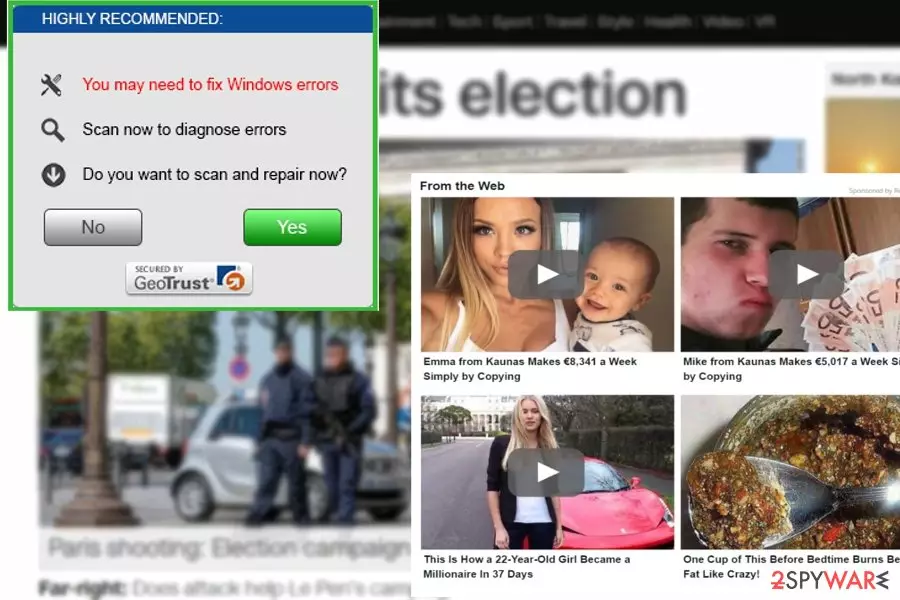
AdsKeeper is an ad-supported program[1] that generates income with the help of pay-per-click traffic. It is not malicious itself. However, third-party commercial content that it displays can easily disrupt your browsing experience. Please, refrain from clicking any of its ads as it may result in privacy issues and PC infections.
You can easily install the virus without even knowing that because it has been actively spread together with other software. Once it gets inside, it alters the browser’s settings and inserts ads into the “virtual layer.” As a result, this potentially unwanted program (PUP)[2] delivers third-party content on each website you visit and causes chaos by offering you suspicious products, software, or lifestyle tips.
| Name | AdsKeeper |
|---|---|
| Type | Potentially unwanted program |
| Issues | Advertisements generated create issues and cause redirects to malicious sites |
| Distribution | Freeware installations, misleading pages, deceptive ads |
| Danger | Redirects can expose users to malicious pages and record user data for later uses |
| Removal | Eliminate all infections from your device by scanning it with reliable anti-malware software |
| Repair | Various cyber infections can cause damage to the machine and system functions. Run FortectIntego to find and fix data damage |
We want to point out that AdsKeeper is a legitimate advertising and monetizing platform which offers this service for reputable companies or websites. The only danger is that some of these trustworthy parties can try to redirect their users to insecure domains or get them involved in online scams.
Third-party applications and content providers can lead to unwanted behavior that is not related to the primary program site you visited. Unfortunately, advertising campaigns rely on tracking and user deception, so the internet can become a dangerous place easily.
Since the developers of this application hardly take any responsibility for the advertised content, it is recommended for you to remove AdsKeeper from the computer. If you have been suffering from intrusive advertising for a while, it is advisable that you additionally scan the system with SpyHunterCombo Cleaner, MalwarebytesMalwarebytes, or other malware detection software, just in case.
Also, it's crucial to delete all tracking cookies that untrustworthy sites might have left on your device. You can do that manually, but by using a system diagnostics tool like the FortectIntego you can rest assured that your system files are in order and all privacy threats are eliminated.
Is this application malicious?
No, definitely not. We want to stress out that this app does not have the main characteristics of a virus.[3] You can go to its official website by visiting adskeeper.co.uk. However, having in mind that most people, who get into computer-related problems, call them “viruses”, there’s no surprise that this PUP has also entitled as such.
We are sure that this program cannot damage the system or cause irreparable damage. However, it is related to adware which is used to change the browser and cause different kinds of ads. Popups delivered by this adware program might be dangerous and be a part of various malvertising[4] campaigns.
Thus, even one unintentional link on a malware-laden ad might end up terribly wrong. For this reason, proper virus removal is recommended as soon as the first ad shows up on the screen.

Displaying intrusive, aggressive, and potentially dangerous ads is not the only problem caused by adware. After the AdsKeeper hijack, all your steps online are observed, collected, and analyzed.
Indeed, this PUP uses cookies and other tracking techniques to spy on the users and collect relevant information about them.[5] Luckily, the collected data is non-personally identifiable which means that the virus only targets browsing-related information such as search queries, computer’s IP address, page views, etc.
All this information is useful for delivering interest-based ads. In some cases, this so-called “targeted advertising” can be useful, but there is always a risk of being exposed to some unexpected alert, scam, or executable file. To prevent such redirects, we would highly recommend you refrain from any offers this adware may propose and remove it from your computer immediately.
Primary distribution methods of PUPs
Adware-related adware has been actively spread with the help of bundling. This infiltration method is nearly possible without the user’s participation. Unfortunately, the majority of PC users are rather sloppy when it comes to downloading and installing software. What they are interested in is a quick result, while the security aspect is often forgotten.
Well, such users are doing a real favor to the creators of malware and other PUPs. All they have to do is to add their shady software to some freeware and watch how it infiltrates the system.
So, make sure you stay away from the pre-selected “Recommended” or “Quick” modes when installing freeware from the Internet. You should switch these settings to the “Custom” or “Advanced” ones instead and deselect the checkmark which allows installing optional software. Always choose these modes if you do not wish to let the PUP to your computer.
Simple removal instructions for AdsKeeper
You can remove the intruder from Chrome and other browsers with the help of two different methods: manual and automatic. You can follow the manual removal instructions provided below if you don't want to install anything on your computer. However, if you are looking for a quicker solution, you should opt for automatic removal.
The second option is especially recommended if it is your first time eliminating a cyber infection and you are not sure where to begin. Of course, be careful when downloading the recommended remover, updating it, and running a full system scan to take care of full AdsKeeper removal.
Due to the silent infiltration and aggressive ads, this program has been entitled as a virus by computer users. However, it’s not the right term to describe this PUP. It cannot damage the system; it can only cause annoying commercial content of third parties during your browsing sessions.
Uninstall from Windows
Uninstall from Windows 10/8:
- Type Control Panel into the Windows search box and open the result.
- Under Programs, select Uninstall a program.


Uninstall from Windows 7/XP:
- Click on Windows Start > Control Panel (Windows XP users should click on Add/Remove Programs).
- In Control Panel, select Programs > Uninstall a program.


Remove the unwanted program:
- In the Programs and Features window, look for any recently installed suspicious entries, select them, and click Uninstall.
- If User Account Control appears, click Yes to confirm, then complete the removal.


Delete from macOS
Remove the unwanted application:
- From the menu bar, select Go > Applications.
- In the Applications folder, look for any suspicious entries, then drag them to Trash (or right-click and pick Move to Trash).


Delete leftover files and folders:
- Select Go > Go to Folder.
- Enter /Library/Application Support and remove any suspicious folders related to the unwanted program.
- Repeat the same check in the /Library/LaunchAgents and /Library/LaunchDaemons folders, deleting any suspicious entries.

- Finally, empty the Trash to permanently remove the leftovers.

Remove from Microsoft Edge
Delete unwanted extensions from MS Edge:
- Select Menu (three horizontal dots at the top-right of the browser window) and pick Extensions.
- From the list, pick the extension and click on the Gear icon.
- Click Remove.


Clear cookies and other browser data:
- Click on the Menu (three horizontal dots at the top-right of the browser window) and select Settings > Privacy, search, and services..
- Under Clear browsing data, pick Choose what to clear.
- Select Cookies and other site data and Cached images and files. (apart from passwords, although you might want to include Media licenses as well, if applicable) and click on Clear.


Restore new tab and homepage settings:
- Click the menu icon and choose Settings.
- Then find On startup section.
- Click Remove next to any suspicious startup page.
Reset MS Edge if the above steps did not work:
- Press on Ctrl + Shift + Esc to open Task Manager.
- Click on More details arrow at the bottom of the window.
- Select Details tab.
- Now scroll down and locate every entry with Microsoft Edge name in it. Right-click on each of them and select End Task to stop MS Edge from running.


Instructions for Chromium-based Edge
Delete extensions from MS Edge (Chromium):
- Open Edge and click select Settings > Extensions.
- Delete unwanted extensions by clicking Remove.


Clear cache and site data:
- Click on Menu and go to Settings.
- Select Privacy, search and services.
- Under Clear browsing data, pick Choose what to clear.
- Under Time range, pick All time.
- Select Clear now.


Reset Chromium-based MS Edge:
- Click on Menu and select Settings.
- On the left side, pick Reset settings.
- Select Restore settings to their default values.
- Confirm with Reset.
- This will disable extensions and reset startup pages but will not delete bookmarks, saved passwords, or browsing history.


Remove from Mozilla Firefox (FF)
Remove dangerous extensions:
- Open Mozilla Firefox browser and click on the Menu (three horizontal lines at the top-right of the window).
- Select Add-ons.
- In here, select the unwanted extension and click Remove.


Reset the homepage:
- Click three horizontal lines at the top right corner to open the menu.
- Choose Settings.
- Under Home, set your preferred homepage and new tab settings.
Clear cookies and site data:
- Click Menu and pick Settings.
- Go to Privacy & Security section.
- Scroll down to locate Cookies and Site Data.
- Click on Clear Data...
- Select Cookies and Site Data and Temporary cached files and pages, then click Clear.


Reset Mozilla Firefox
If clearing the browser as explained above did not help, reset Mozilla Firefox:
- Open Mozilla Firefox browser and click the Menu.
- Go to Help and then choose Troubleshooting Information.

- Under Give Firefox a tune up section, click on Refresh Firefox...
- Once the pop-up shows up, confirm the action by pressing on Refresh Firefox.



Remove from Google Chrome
Delete malicious extensions from Google Chrome:
- Open Google Chrome, click on the Menu (three vertical dots at the top-right corner) and select More tools > Extensions.
- In the newly opened window, you will see all the installed extensions. Uninstall all suspicious extensions related to the unwanted program by clicking Remove.


Clear cache and web data from Chrome:
- Click on Menu and pick Settings.
- Under Privacy and security, select Clear browsing data.
- Select Browsing history, Cookies and other site data, as well as Cached images and files.
- Click Clear data.


Change your homepage:
- Click menu and choose Settings.
- Look for a suspicious site in the On startup section.
- Click on Open a specific or set of pages and click on three dots to find the Remove option.
Reset Google Chrome:
If the previous methods did not help you, reset Google Chrome to eliminate all the unwanted components:
- Click on Menu and select Settings.
- In the Settings, scroll down and click Advanced.
- Scroll down and locate Reset and clean up section.
- Now click Restore settings to their original defaults.
- Confirm with Reset settings.


Delete from Safari
Remove dangerous extensions:
- Open Safari, click Safari in the menu at the top-left of the screen, and select Preferences.
- Go to the Extensions tab, look for any suspicious entries, and click Uninstall to remove them.


Clear history and website data:
- Click Safari in the menu and pick Clear History.
- Set Clear to all history and confirm with Clear History.


Reset Safari:
- Click Safari in the menu and select Preferences > Advanced.
- Enable Show Develop menu in menu bar.
- From the menu bar, click Develop and select Empty Caches.


Did this guide help?
2 comments
Elizabeth
As they say another day- another adware? Thanks for keeping us informed
Ardette132
I deleted it as soon as I noticed the ads. Havent noticed any problematic activity since...