

Adslessfunrtb.top is a push notification scam site made by fraudsters to mislead users
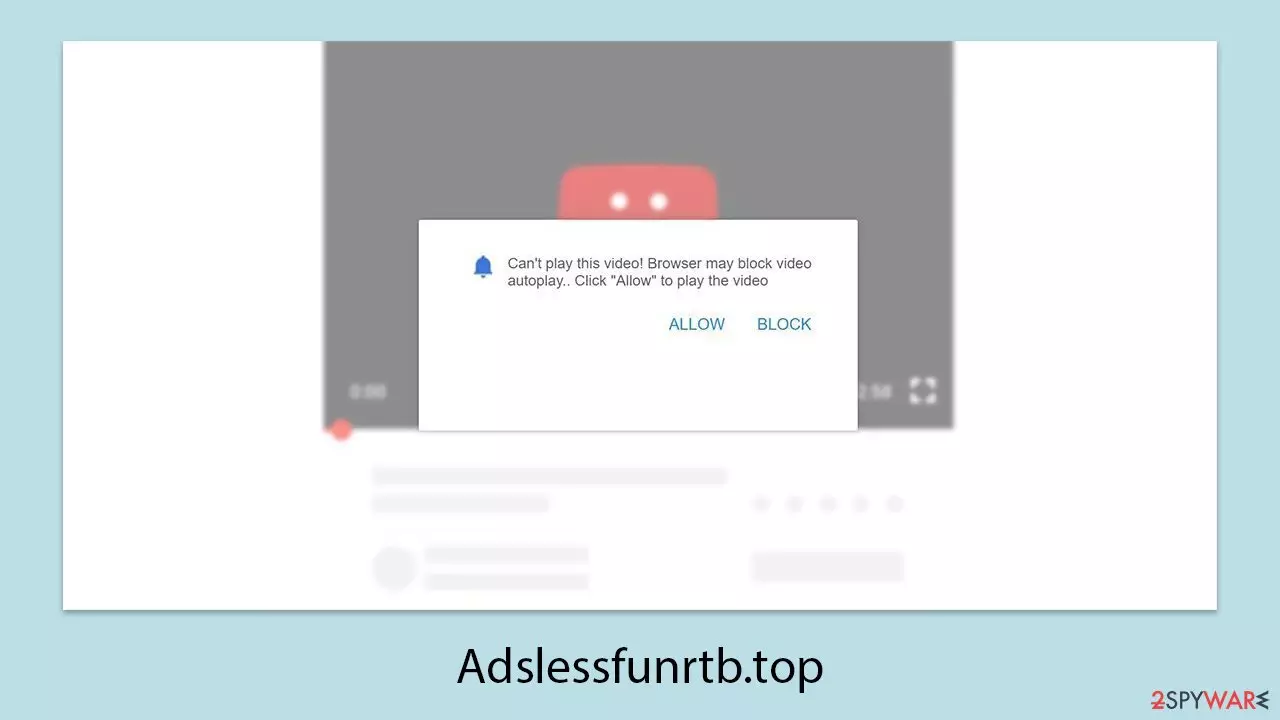
Adslessfunrtb.top is a scam website that tries to trick unsuspecting Internet users into believing it's genuine, only to exploit them for advertising profit in the future. Its primary tactic is disguising a push notification request as benign, with users being led to click on “Allow” without being aware of what's at stake.
Such deceptive websites are an ongoing issue, and notification scams in particular are very frequent. Such schemes are likely to pop up when users visit suspicious corners of the web, i.e., sites offering pirated software or unauthorized video streams. Additionally, redirects to Adslessfunrtb.top can also be an indication of adware or other malware on a user's device, which warrants an immediate security scan.
Worst of all, perhaps, is the barrage of intrusive ads that can appear right on users' screens, even atop other programs or browser tabs. These pop-ups typically harbor deceptive or downright malicious content, with embedded links that can send users to hostile websites. Such websites may download malware onto their devices or entrap them in further spam subscriptions, which escalate the threat.
| Name | Adslessfunrtb.top |
| Type | Push notifications, ads, scam, pop-ups |
| Distribution | Desktop notifications start showing up at random times after clicking on the “Allow” button upon the site entry |
| Symptoms | Pop-up notifications are shown on a desktop at random times |
| Risks | If you click on links provided by the site, your system is at risk of malware/PUPs infection, giving away your personal information to hackers or paying for services that aren't truly required |
| Removal | To stop annoying push notifications, utilize the browser's settings. After that, make sure your computer isn't infected with adware or malware – scan it using SpyHunterCombo Cleaner. |
| Additional tips | We recommend using FortectIntego to fix any virus damage that might have occurred due to a system infection. The app can also remove various trackers for better privacy |
Scam messages and how to spot deception
Few users intentionally navigate to Adslessfunrtb.top, given its deceitful nature. More often, they are unexpectedly redirected to this site from questionable sources, such as torrent platforms or other shady online hubs, which can also lead to a variety of equally unsavory destinations.
This sudden detour is a deliberate tactic employed by spammers to catch users off guard, banking on the likelihood that they will not investigate what follows. The overall goal is to confuse visitors and lead them to believe the push notification alert on their screen is for a reason other than its intended use. Common examples of such misleading prompts are:
- Press “Allow” bot verify, that you are not robot
- Browser verification in progress – click the button “Allow” to access
- If you are 18+, click Allow
- Click Allow to watch the video
- Click “Allow” to win a prize and get it in our shop!
In a moment of haste, some users might instinctively tap the “Allow” button without considering the implications. Fortunately, even if notifications from a fraudulent site like Adslessfunrtb.top are enabled, avoiding interaction with the resulting pop-ups generally keeps you out of harm’s way. Removing these unwanted notifications is also a straightforward process.
It’s important to recognize that these deceptive phrases are not unique to Adslessfunrtb.top. Numerous other dubious sites employ identical tactics, so encountering messages like these -regardless of the accompanying visuals or context – should raise red flags. Always refrain from granting notification permissions when faced with such prompts, no matter how enticing or urgent they may seem.

Remove Adslessfunrtb.top ads
As noted earlier, adware could be responsible for Adslessfunrtb.top redirects, especially if you've noticed other unusual activity browsing the internet – like unwanted pop-ups, special deals, discount alerts, sponsor links, or redirecting via questionable web addresses – or unknown homepage or default search engine changes for your browser. In response, please use the following steps:
- Scan and clean your system. Run a full scan using SpyHunterCombo Cleaner or MalwarebytesMalwarebytes security software to detect and eliminate unwanted programs and malware efficiently, with real-time anti-malware protection to shield against extreme dangers like ransomware, Trojans, rootkits, and keyloggers.
- Clean your browsers. If any unwanted programs are detected, empty your browser caches (especially cookies) with a utility such as FortectIntego to avoid errors, reduce security threats, and end third-party tracking; it can also fix any system damage related to malware.
- Block Adslessfunrtb.top notifications. Rightly confront the site by going to your browser's settings, then to the site permissions section, and remove the Adslessfunrtb.top URL from the “Allowed” list so as to eliminate its annoying pop-ups and vulnerability to deceptive links or invitations; reverse immediately to regain a more secure internet.
If you’re unsure how to proceed with blocking the site, follow these straightforward steps:
Google Chrome
- Open the Google Chrome browser and go to Menu > Settings.
- Scroll down and click on Advanced.
- Locate the Privacy and security section and pick Site Settings > Notifications.
- Look at the Allow section and look for a suspicious URL.
- Click the three vertical dots next to it and pick Block. This should remove unwanted notifications from Google Chrome.


Google Chrome (Android)
- Open Google Chrome and tap on Settings (three vertical dots).
- Select Notifications.
- Scroll down to the Sites section.
- Locate the unwanted URL and toggle the button to the left (Off position).


Mozilla Firefox
- Open Mozilla Firefox and go to Menu > Options.
- Click on Privacy & Security section.
- Under Permissions, you should be able to see Notifications. Click the Settings button next to it.
- In the Settings – Notification Permissions window, click on the drop-down menu by the URL in question.
- Select Block and then click on Save Changes. This should remove unwanted notifications from Mozilla Firefox.


Safari
- Click on Safari > Preferences…
- Go to the Websites tab and, under General, select Notifications.
- Select the web address in question, click the drop-down menu and select Deny.


MS Edge
- Open Microsoft Edge, and go to Settings.
- Select Site permissions.
- Go to Notifications on the right.
- Under Allow, you will find the unwanted entry.
- Click on More actions and select Block.


Internet Explorer
- Open Internet Explorer, and click on the Gear icon at the top-right of the window.
- Select Internet options and go to the Privacy tab.
- In the Pop-up Blocker section, click on Settings.

- Locate the web address in question under Allowed sites and pick Remove.

Did this guide help?
Be the first to comment