

Advertise ads – a strain of third-party advertisements that delivers bogus offers to the desktop
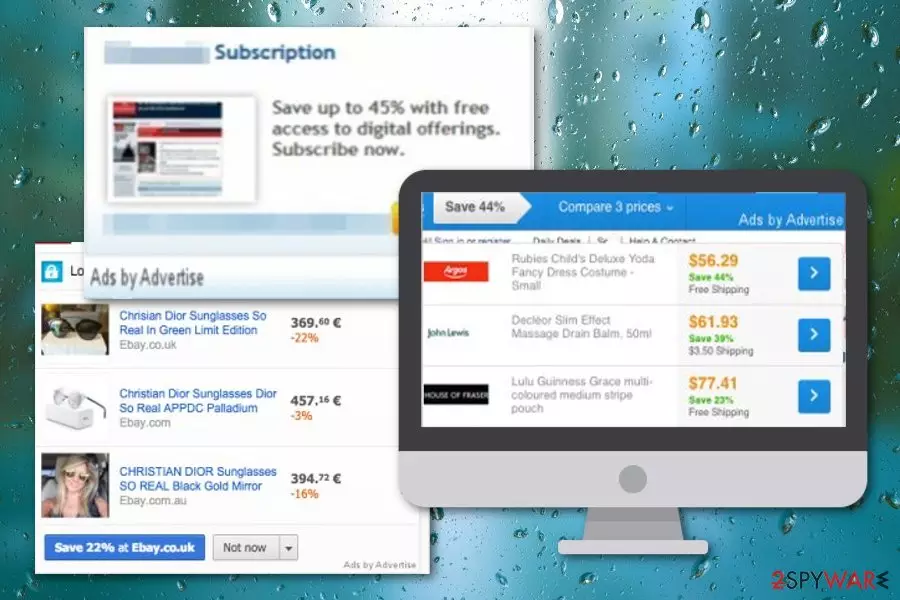
Advertise ads is an advertising line that typically appears through pop-ups, banners[1] or other kinds of notifications that appear on web pages that you visit. You must know that these ads do not originate from the pages you visit and are just a sign of an adware infection. Seeing this line of web ads indicates that your computer has been affected by an adware program called Advertise virus, which sends you these commercial offers based on your browsing patterns. Even more can happen through these ads, for example, you can get redirected to suspicious-looking networks and be infected with malware or scammed there.
| Name | Advertise |
|---|---|
| Type | Adware |
| Sub-type | Potentially unwanted program |
| Aim | To collect pay-per-click income |
| Activities | Interrupting browsing sessions with advertising, redirecting |
| Target | Browsers such as Chrome, Firefox, Explorer, etc. |
| Removal | FortectIntego can help you to find bogus products in your system |
Clicking on some content provided by Advertise ads can take you to a compromised Internet site[2] that can pose a threat to your computer's security. You can easily encounter malicious strings coming from infected hyperlinks or pop-ups. This is an easy way to accidentally install a Trojan virus of ransomware on your computer.
Advertise virus usually displays intrusive ads whenever the victimized computer user browses the Internet. We have researched this adware, and we have noticed that it mostly presents in-text link ads, but it can deliver pop-up and banner ads, too. Annoying notifications are capable of appearing on web browsers such as Google Chrome, Mozilla Firefox, Internet Explorer, Microsoft Edge, or Safari.
No matter that Ads by Advertise look catchy (they usually provide various money-saving shopping deals online) or helpful (they may also offer you to install a computer security software to clean your computer from threats), the only aim of this ad-supported virus is to gain pay-per-click[3] or pay-per-install revenue. Let us explain how this program works to generate as much revenue as possible.
Advertise adware can be installed on the targeted machine without your consent. It can slither into your computer with another PUP or alongside freeware or shareware. Once it enters the computer system, it installs a dubious browser extension, which is meant to monitor your browsing activity and find out what websites you visit, what search terms do you use and so on.

Based on such information, this PUP creates and sends targeted ads to you. Unfortunately, they only seek to draw your attention and make you click on them. These ads are deceptive – if you click on them, Advertise redirects you to a predetermined third-party website that it seeks to promote. Such intrusive activity might prevent you from carrying out quality-full browser sessions.
Some of these third-party websites might be safe, but others can be filled with dangerous or even infectious web content, so we strongly recommend you to avoid visiting them. Keep in mind that high-risk websites often try to convince users to install safe-looking software, which is actually malicious. Additionally, Advertise ads might lure you into scams that claim about fake computer infections and encourage users to download rogue security software for “cleaning” purposes.
Another side-effect of this adware program is that its processes make the computer run slow. We doubt that you want to experience repetitive computer slowdowns that make programs crash. If you wish to solve these annoying issues and keep your computer safe, you should remove Advertise ads without a delay. You can scan the entire system for the discovery of adware-related objects with FortectIntego or any other anti-spyware program.
An alternative option for those who do not want to obtain security software is to perform Advertise ads removal manually. You may want to use guidelines prepared by cybersecurity experts – we have added them right below the article. These instructing steps work for both Windows and Mac operating systems and allow cleaning all kinds of infected web browser applications.

Prevent adware from cluttering your screen with ads
Adware programs and various potentially unwanted content spreads with other free programs via bundling technique, so you need to be careful whenever you install new programs (especially free ones) on your computer:
- Please pay close attention to the installation process and do not rush. Read Terms of Use and Privacy Policy documents thoroughly and adjust installation settings properly.
- Remember that the traditional installation settings (Standard and Default) are untrustworthy, as they hide pre-selected agreements to install extra programs alongside your preferred one. These settings do not allow you to customize the software’s components.
- To decompose the software package and install only desired components, set Custom or Advanced installation option and then deselect the agreements to install additional applications.
According to DieViren.de website,[4] you also have to take care of automatical protection on your computer system. This requires choosing reliable security software from reputable sources and developers. Also, do not forget that antivirus programs need to be updated once in a while for proper operation. This will ensure that the tool does not include any flaws, works as it should, and no bugs appear.
Remove Advertise ads and improve your browser's performance
Although this program is not a malicious PC threat, it is advisable to remove it as it can make your browsing experience unbearable. Advertise ads removal is not the hardest process to carry out but if you are an inexperienced computer user, you should employ an automatic removal tool to successfully uninstall the adware virus from your computer.
However, if you do not wish to acquire an anti-spyware program, you can try to remove Advertise ads manually. Please use the removal instructions provided below this article to delete this ad-supported program and forget about the annoying and deceptive ads that it delivers. The below-given instructing steps include guidelines for web browsers such as Google Chrome, Mozilla Firefox, Internet Explorer, Microsoft Edge, and Safari.
Uninstall from Windows
Uninstall from Windows 10/8:
- Type Control Panel into the Windows search box and open the result.
- Under Programs, select Uninstall a program.


Uninstall from Windows 7/XP:
- Click on Windows Start > Control Panel (Windows XP users should click on Add/Remove Programs).
- In Control Panel, select Programs > Uninstall a program.


Remove the unwanted program:
- In the Programs and Features window, look for any recently installed suspicious entries, select them, and click Uninstall.
- If User Account Control appears, click Yes to confirm, then complete the removal.


Delete from macOS
Remove the unwanted application:
- From the menu bar, select Go > Applications.
- In the Applications folder, look for any suspicious entries, then drag them to Trash (or right-click and pick Move to Trash).


Delete leftover files and folders:
- Select Go > Go to Folder.
- Enter /Library/Application Support and remove any suspicious folders related to the unwanted program.
- Repeat the same check in the /Library/LaunchAgents and /Library/LaunchDaemons folders, deleting any suspicious entries.

- Finally, empty the Trash to permanently remove the leftovers.

Reset Internet Explorer
Remove dangerous add-ons:
- Open Internet Explorer, click on the Gear icon (IE menu) on the top-right corner of the browser
- Pick Manage Add-ons.
- You will see a Manage Add-ons window. Here, look for suspicious plugins. Click on these entries and select Disable.


Change your homepage if it was altered:
- Open IE and click on the Gear icon.
- Select Internet Options.
- In the General tab, delete the Home page address and replace it by your preferred one (for example, Google.com).
- Click Apply and then select OK.


Delete temporary files:
- Press on the Gear icon and select Internet Options.
- Under Browsing history, click Delete...
- Select relevant fields and press Delete.


Reset Internet Explorer:
- Click on Gear icon > Internet options and select Advanced tab.
- Select Reset.
- In the new window, check Delete personal settings and select Reset.


Remove from Microsoft Edge
Delete unwanted extensions from MS Edge:
- Select Menu (three horizontal dots at the top-right of the browser window) and pick Extensions.
- From the list, pick the extension and click on the Gear icon.
- Click Remove.


Clear cookies and other browser data:
- Click on the Menu (three horizontal dots at the top-right of the browser window) and select Settings > Privacy, search, and services..
- Under Clear browsing data, pick Choose what to clear.
- Select Cookies and other site data and Cached images and files. (apart from passwords, although you might want to include Media licenses as well, if applicable) and click on Clear.


Restore new tab and homepage settings:
- Click the menu icon and choose Settings.
- Then find On startup section.
- Click Remove next to any suspicious startup page.
Reset MS Edge if the above steps did not work:
- Press on Ctrl + Shift + Esc to open Task Manager.
- Click on More details arrow at the bottom of the window.
- Select Details tab.
- Now scroll down and locate every entry with Microsoft Edge name in it. Right-click on each of them and select End Task to stop MS Edge from running.


Instructions for Chromium-based Edge
Delete extensions from MS Edge (Chromium):
- Open Edge and click select Settings > Extensions.
- Delete unwanted extensions by clicking Remove.


Clear cache and site data:
- Click on Menu and go to Settings.
- Select Privacy, search and services.
- Under Clear browsing data, pick Choose what to clear.
- Under Time range, pick All time.
- Select Clear now.


Reset Chromium-based MS Edge:
- Click on Menu and select Settings.
- On the left side, pick Reset settings.
- Select Restore settings to their default values.
- Confirm with Reset.
- This will disable extensions and reset startup pages but will not delete bookmarks, saved passwords, or browsing history.


Remove from Mozilla Firefox (FF)
Remove dangerous extensions:
- Open Mozilla Firefox browser and click on the Menu (three horizontal lines at the top-right of the window).
- Select Add-ons.
- In here, select the unwanted extension and click Remove.


Reset the homepage:
- Click three horizontal lines at the top right corner to open the menu.
- Choose Settings.
- Under Home, set your preferred homepage and new tab settings.
Clear cookies and site data:
- Click Menu and pick Settings.
- Go to Privacy & Security section.
- Scroll down to locate Cookies and Site Data.
- Click on Clear Data...
- Select Cookies and Site Data and Temporary cached files and pages, then click Clear.


Reset Mozilla Firefox
If clearing the browser as explained above did not help, reset Mozilla Firefox:
- Open Mozilla Firefox browser and click the Menu.
- Go to Help and then choose Troubleshooting Information.

- Under Give Firefox a tune up section, click on Refresh Firefox...
- Once the pop-up shows up, confirm the action by pressing on Refresh Firefox.



Remove from Google Chrome
Delete malicious extensions from Google Chrome:
- Open Google Chrome, click on the Menu (three vertical dots at the top-right corner) and select More tools > Extensions.
- In the newly opened window, you will see all the installed extensions. Uninstall all suspicious extensions related to the unwanted program by clicking Remove.


Clear cache and web data from Chrome:
- Click on Menu and pick Settings.
- Under Privacy and security, select Clear browsing data.
- Select Browsing history, Cookies and other site data, as well as Cached images and files.
- Click Clear data.


Change your homepage:
- Click menu and choose Settings.
- Look for a suspicious site in the On startup section.
- Click on Open a specific or set of pages and click on three dots to find the Remove option.
Reset Google Chrome:
If the previous methods did not help you, reset Google Chrome to eliminate all the unwanted components:
- Click on Menu and select Settings.
- In the Settings, scroll down and click Advanced.
- Scroll down and locate Reset and clean up section.
- Now click Restore settings to their original defaults.
- Confirm with Reset settings.


Delete from Safari
Remove dangerous extensions:
- Open Safari, click Safari in the menu at the top-left of the screen, and select Preferences.
- Go to the Extensions tab, look for any suspicious entries, and click Uninstall to remove them.


Clear history and website data:
- Click Safari in the menu and pick Clear History.
- Set Clear to all history and confirm with Clear History.


Reset Safari:
- Click Safari in the menu and select Preferences > Advanced.
- Enable Show Develop menu in menu bar.
- From the menu bar, click Develop and select Empty Caches.


Did this guide help?
4 comments
Vanda
Seen these in-text links already. All i can say is - i have tried to remove it manually. A few times. No luck! It keeps coming back, it seems that this virus is quite complicated. Well, all the problems went away after I installed spyhunter. Ill recommend the automatic removal tool guys, because I do not think it is that easy to uninstall this threat manually! (sorry for my imperfect english)
Joel
Totally a virus! So hard to remove, too. On my computer, the extension that was generating these advertise ads was called magic player. removed it, and the ads were gone, but they came back after I restarted my computer. anyone knows a fix?
Faux
Glad these ads are gone... Filthy virus!
lynna28
Thanks for recommending SpyHunter, only this program helped me to remove Advrtise