

AntiMalware – a program that shows fake virus scan results
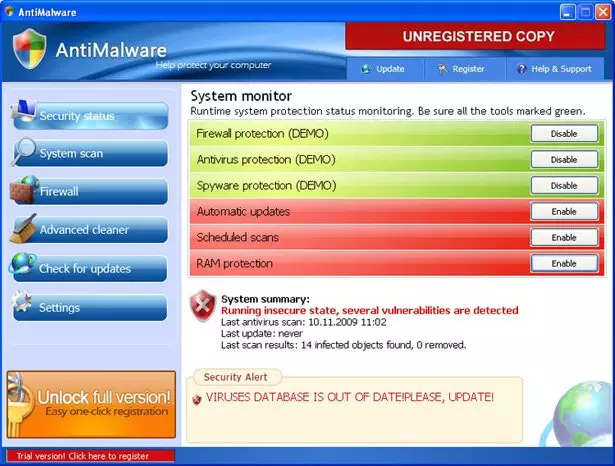
AntiMalware is a misleading application that reports false infections/system security threats, displays fake security alerts, uses browser hijacking and other methods to trick you into believing that your computer is infected with Trojans, Worms, and other viruses. This misleading application is a clone of the rogue security program called Active Security. So, obviously, it has many similarities with it.
When running, the rogue program will perform fake system scans and then prompt you to pay for a full version of the program to remove the threats which do not actually exist. This is a scam; do not purchase this bogus application. Instead, uninstall AntiMalware from your computer as soon as possible with our guides provided at the bottom of the article.
| name | AntiMalware |
|---|---|
| Type | Fake security tool, rogue antispyware software, PUP |
| Purpose | Convince users their devices have severe malware infections, and the only tool capable of removing them is the paid program version |
| Risks | Financial losses, infections with severe malware, privacy issues |
| Elimination | You can remove this program by using a reliable anti-malware tool in Safe Mode with Networking (instructions provided below) |
| System fix | Repair the damage this rogue software has made to your system files and settings by running a system tune-up with the FortectIntego software |
AntiMalware is promoted mostly through the use of Trojans that comes from fake online scanners, fake online video websites, or bundled with other malicious software. It can also be installed through software bundles, fake Flash Player updates, and deceptive ads.
Once installed, this rogue antispyware software will be configured to start automatically each time you log on to Windows. The rogue program will display numerous infections and security threats but won't let you remove them unless you first purchase the program. The reported infections are fake but use real names. The list of the most notable reported infections:
| Rootkit.Win32.Agent.pp | Trojan.Win32.Agent.dcc |
| Trojan-Clicker.HTML.IFrame.g | Virus.Win32.Hala.a |
| Trojan-Downloader.JS.Multi.ca | Trojan-Dropper.Win32.Small.go |
| Trojan-Clicker.Win32.Tiny.a | Email-Worm.Win32.NetSky.q |
| Backdoor.Win32.Kbot.al | Trojan-Spy.Win32.Iespy.od |
| Trojan-PSW.Win32.Hangame.cp | Trojan-Clicker.Win32.Agent.bm |
| Net-Worm.Win32.Mytob.t | Trojan-Clicker.Win32.NetBuie.b |
| Virus.Win32.Gpcode.ak | Trojan-Downloader.HTML.Agent.aq |
| Backdoor.Win32.Agent.ich | Trojan-Downloader.VBS.Agent.cd |
| Trojan-Dropper.Win32.Checkin | Trojan-Dropper.Win32.Agent.sd |
| Trojan-Downloader.Win32.Agent.alr | Trojan-Downloader.NSIS.Agent.a |
| Trojan-Dropper.Win32.VB.or | Net-Worm.Win32.DipNet.d |
To make things even worse, AntiMalware will block anti-virus software and even try to uninstall some of them. The rogue will attempt to uninstall NOD32 Antivirus, Kaspersky, AVG, BitDefender, avast!, Avira AntiVir, Sophos, and other antivirus software.
Furthermore, it will constantly display fake security alerts, and notifications about supposedly detected harmful programs on your computer, network attacks, keyloggers, and very dangerous viruses that may steal private information. For example:
Network attack rejected!
Your computer is being attacked from remote host. Attack has been classified as Remote code execution attempt.
Apart from all of that, it leaves your computer vulnerable to cyber threats because it's not developed to stop any of them. That's why you have to remove it immediately. You can do that by using a legitimate security tool such as MalwarebytesMalwarebytes, SpyHunterCombo Cleaner, or similar.
Since the article's culprit does damage to the computer registry and other core system settings, you have to use a proper system optimizer to revert that. We highly recommend entrusting this task to the time-tested FortectIntego system tune-up tool to take care of all system irregularities automatically.
Stay away from software bundles
People rarely install potentially unwanted programs of their own volition. That's why their distributors use a sneaky way called software bundling to spread them. The trick behind this method is fairly simple, the pack contains multiple installers, and all of them are preselected for installation.
Thus please refrain from downloading such packs. If you can't live without an app and it's offered within a bundle, you have to proceed with caution. To control the installation process and get only the app you initially wanted, please choose the Custom or Advanced installation mode, and deselect all additional apps.

Guidelines to quickly remove AntiMalware from a Windows PC
Timely AntiMalware removal is imperative as this misleading application is able to download and install additional malware onto your computer. It may block System Restore, Task Manager, and even disable safe mode. As you can see, this malware is quite dangerous. Most importantly, do not purchase it.
If you have already done that, please contact your credit card company and dispute the charges. Please use a legitimate anti-malware tool to remove this cyber infection by running a full system scan. When that's done, perform system diagnostics to repair system files and settings.
Uninstall from Windows
Uninstall from Windows 10/8:
- Type Control Panel into the Windows search box and open the result.
- Under Programs, select Uninstall a program.


Uninstall from Windows 7/XP:
- Click on Windows Start > Control Panel (Windows XP users should click on Add/Remove Programs).
- In Control Panel, select Programs > Uninstall a program.


Remove the unwanted program:
- In the Programs and Features window, look for any recently installed suspicious entries, select them, and click Uninstall.
- If User Account Control appears, click Yes to confirm, then complete the removal.


Did this guide help?
Be the first to comment