

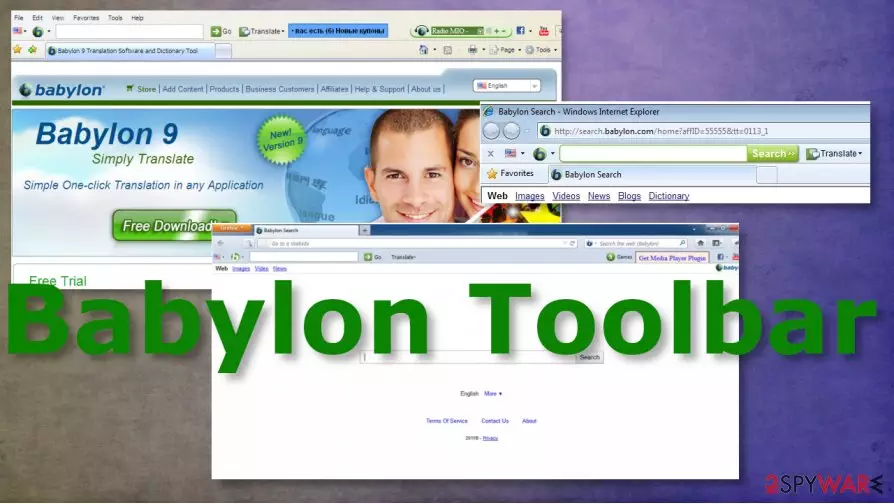
Babylon Toolbar is a potentially unwanted program that is better to avoid due to constant redirects
| Name | Babylon Toolbar |
|---|---|
| Type | Browser hijacker/ redirect virus |
| Symptoms | The program triggers pop-ups and redirects to third-party advertising pages |
| Distirbution | Freeware distribution pages and misleading sites lead to installations of such programs.[1] Other intruders can lead to such infections too |
| Elimination | Babylon Toolbar removal should give the best results when you use the proper anti-malware tools |
| Repair | Remember to repair the damage that PUP causes with tools capable of fixing such issues like FortectIntego |
Babylon Toolbar or Babylon Search Toolbar is a web browser add-on that is promoted as a very useful tool that is capable of improving people's browsing experience. According to its description, this program allows you to get quick translations and definitions directly from the web browser without a need to search the Internet for them.
However, this program is not as peaceful as it may look from the first sight. Beware that it belongs to Babylon Ltd – a company, which presented such search engines as isearch.babylon.com. This company has also been using shady distribution techniques that caused the unexpected appearance of its products on people's computers.
So, there is no doubt that you can let the Babylon Toolbar virus to your computer without even knowing that. After installing this toolbar on your computer, you can find out that your start page and the default search engine are replaced by an unknown page that causes different commercials when used for searches.[2]
In addition, you can receive sponsored search results among the normal ones that can lead you to unknown or unsafe websites. Finally, slowdowns on your browser can also be expected because this Babylon Toolbar potentially unwanted program consumes a generous amount of computer resources.[3]

If you need a quick opinion on Babylon Toolbar, you should know that we recommend staying away from it. We think that you should find another app for translating your text or searching the Internet for useful information. Keep in mind that this toolbar and a page that is related to it, search.babylon.com, are considered potentially unwanted programs and browser hijackers.
No matter how useful they look, they can easily trick you into visiting unknown websites or downloading malicious programs to your computer. This is done by altering search results and showing misleading pop-up ads in them. If you are one of these people who trusted the Babylon Toolbar virus or downloaded it without understanding that, you should scan your computer with FortectIntego to fix the virus damage.
Of course, you can find this hijacker manually and uninstall it from your computer system, but there is no guarantee that components that are spread in a bundle with it won't reinstall this app again. That's why automatic Babylon Toolbar removal is considered the most trustworthy one.
If you have been bothered by the redirect problem, its continuous pop-up ads, and similar problems that are typically initiated by browser hijackers, you need to remove it without wasting your time. What do you need for the manual Babylon Toolbar removal option and the automatic removal method is explained below the article.
However, the best and the first options would be anti-malware tools like SpyHunterCombo Cleaner or MalwarebytesMalwarebytes that can run on the machine and remove Babylon Toolbar with all the associated programs or applications. Unfortunately, eliminating browser applications or extensions is not enough, so you need to clean the machine fully.

PUP can be downloaded to your computer from a deceiving website or with some other software
Toolbars, other browser-based threats can be downloaded from official websites, promotional pages. However, it can also enter your PC system without any permission asked. That's because it has been actively promoted in a bundle with other software as an optional component. In most of the cases, its distribution relies on freeware and shareware that seeks to earn the money from such activities.
In most cases, a hijacker can be noticed after installing one of the download managers, PDF creators, and similar freeware. That's why you should start monitoring the installation of such software. Before installing the freeware, users have to check what does its End User's License Agreement and Privacy Policy claim. Please, do NOT install programs that inform you about the installation of additional components, tracking, and similar activities.
In addition, you must select a Custom or Advanced installation option to get an opportunity to prevent a need for malware removal from your computer. After selecting one of these options, make sure you uncheck check marks that allow changes on the system because that's how hijackers get into the system and change the default search engine or the start page.
Babylon Toolbar virus can be removed manually or with help of trustful antimalware
To sum up, Babylon Search is one of these programs that shouldn't be trusted because it can alter your search results and trick you into visiting suspicious websites. Besides, this questionable search engine can start tracking you and your search sessions for getting a better understanding of your interests and favorite websites.
No matter that such information does not include personally identifiable data, you should keep it private. The easiest way to do that is to remove Babylon Toolbar from the machine using proper antivirus tools.
Babylon Toolbar removal is not as easy as you may have thought because it works on all major web browsers, including Internet Explorer, Google Chrome, Mozilla Firefox, and others. That's why you should not only check your Task Manager and get rid of this and related applications. You should also fix each of your web browsers.
Please, keep in mind that this program may also drop its registry entries to prevent its complete removal from the system, so it may show up on your computer again right after rebooting your machine. In order to avoid this, you should scan your PC with one of these programs that are given in the automatic removal of the Babylon Toolbar option.
Uninstall from Windows
Uninstall from Windows 10/8:
- Type Control Panel into the Windows search box and open the result.
- Under Programs, select Uninstall a program.


Uninstall from Windows 7/XP:
- Click on Windows Start > Control Panel (Windows XP users should click on Add/Remove Programs).
- In Control Panel, select Programs > Uninstall a program.


Remove the unwanted program:
- In the Programs and Features window, look for any recently installed suspicious entries, select them, and click Uninstall.
- If User Account Control appears, click Yes to confirm, then complete the removal.


Delete from macOS
Remove the unwanted application:
- From the menu bar, select Go > Applications.
- In the Applications folder, look for any suspicious entries, then drag them to Trash (or right-click and pick Move to Trash).


Delete leftover files and folders:
- Select Go > Go to Folder.
- Enter /Library/Application Support and remove any suspicious folders related to the unwanted program.
- Repeat the same check in the /Library/LaunchAgents and /Library/LaunchDaemons folders, deleting any suspicious entries.

- Finally, empty the Trash to permanently remove the leftovers.

Reset Internet Explorer
Remove dangerous add-ons:
- Open Internet Explorer, click on the Gear icon (IE menu) on the top-right corner of the browser
- Pick Manage Add-ons.
- You will see a Manage Add-ons window. Here, look for suspicious plugins. Click on these entries and select Disable.


Change your homepage if it was altered:
- Open IE and click on the Gear icon.
- Select Internet Options.
- In the General tab, delete the Home page address and replace it by your preferred one (for example, Google.com).
- Click Apply and then select OK.


Delete temporary files:
- Press on the Gear icon and select Internet Options.
- Under Browsing history, click Delete...
- Select relevant fields and press Delete.


Reset Internet Explorer:
- Click on Gear icon > Internet options and select Advanced tab.
- Select Reset.
- In the new window, check Delete personal settings and select Reset.


Remove from Microsoft Edge
Delete unwanted extensions from MS Edge:
- Select Menu (three horizontal dots at the top-right of the browser window) and pick Extensions.
- From the list, pick the extension and click on the Gear icon.
- Click Remove.


Clear cookies and other browser data:
- Click on the Menu (three horizontal dots at the top-right of the browser window) and select Settings > Privacy, search, and services..
- Under Clear browsing data, pick Choose what to clear.
- Select Cookies and other site data and Cached images and files. (apart from passwords, although you might want to include Media licenses as well, if applicable) and click on Clear.


Restore new tab and homepage settings:
- Click the menu icon and choose Settings.
- Then find On startup section.
- Click Remove next to any suspicious startup page.
Reset MS Edge if the above steps did not work:
- Press on Ctrl + Shift + Esc to open Task Manager.
- Click on More details arrow at the bottom of the window.
- Select Details tab.
- Now scroll down and locate every entry with Microsoft Edge name in it. Right-click on each of them and select End Task to stop MS Edge from running.


Instructions for Chromium-based Edge
Delete extensions from MS Edge (Chromium):
- Open Edge and click select Settings > Extensions.
- Delete unwanted extensions by clicking Remove.


Clear cache and site data:
- Click on Menu and go to Settings.
- Select Privacy, search and services.
- Under Clear browsing data, pick Choose what to clear.
- Under Time range, pick All time.
- Select Clear now.


Reset Chromium-based MS Edge:
- Click on Menu and select Settings.
- On the left side, pick Reset settings.
- Select Restore settings to their default values.
- Confirm with Reset.
- This will disable extensions and reset startup pages but will not delete bookmarks, saved passwords, or browsing history.


Remove from Mozilla Firefox (FF)
Remove dangerous extensions:
- Open Mozilla Firefox browser and click on the Menu (three horizontal lines at the top-right of the window).
- Select Add-ons.
- In here, select the unwanted extension and click Remove.


Reset the homepage:
- Click three horizontal lines at the top right corner to open the menu.
- Choose Settings.
- Under Home, set your preferred homepage and new tab settings.
Clear cookies and site data:
- Click Menu and pick Settings.
- Go to Privacy & Security section.
- Scroll down to locate Cookies and Site Data.
- Click on Clear Data...
- Select Cookies and Site Data and Temporary cached files and pages, then click Clear.


Reset Mozilla Firefox
If clearing the browser as explained above did not help, reset Mozilla Firefox:
- Open Mozilla Firefox browser and click the Menu.
- Go to Help and then choose Troubleshooting Information.

- Under Give Firefox a tune up section, click on Refresh Firefox...
- Once the pop-up shows up, confirm the action by pressing on Refresh Firefox.



Remove from Google Chrome
Delete malicious extensions from Google Chrome:
- Open Google Chrome, click on the Menu (three vertical dots at the top-right corner) and select More tools > Extensions.
- In the newly opened window, you will see all the installed extensions. Uninstall all suspicious extensions related to the unwanted program by clicking Remove.


Clear cache and web data from Chrome:
- Click on Menu and pick Settings.
- Under Privacy and security, select Clear browsing data.
- Select Browsing history, Cookies and other site data, as well as Cached images and files.
- Click Clear data.


Change your homepage:
- Click menu and choose Settings.
- Look for a suspicious site in the On startup section.
- Click on Open a specific or set of pages and click on three dots to find the Remove option.
Reset Google Chrome:
If the previous methods did not help you, reset Google Chrome to eliminate all the unwanted components:
- Click on Menu and select Settings.
- In the Settings, scroll down and click Advanced.
- Scroll down and locate Reset and clean up section.
- Now click Restore settings to their original defaults.
- Confirm with Reset settings.


Delete from Safari
Remove dangerous extensions:
- Open Safari, click Safari in the menu at the top-left of the screen, and select Preferences.
- Go to the Extensions tab, look for any suspicious entries, and click Uninstall to remove them.


Clear history and website data:
- Click Safari in the menu and pick Clear History.
- Set Clear to all history and confirm with Clear History.


Reset Safari:
- Click Safari in the menu and select Preferences > Advanced.
- Enable Show Develop menu in menu bar.
- From the menu bar, click Develop and select Empty Caches.


Did this guide help?
20 comments
Alfred T.
Very helpful indeed, thanks.
Sandy
i am unable to rmuve Babilon toolbar what should i do
Scott D
Thank you, it worked like a charm.
stupid sowtware
this softwaRE AHSE BEN INSTALLED WITHOUT TO ASK ME, I HATE THIS TOLBAN I HATE HATE HATE STUPID AND SHITY SOFTWARE........ STOP THIS HACKERS. KILL HIM
daniel
I read that Babylon has been programmed in Israel. So it is obviously a Mossad spyware, impossible to remove !
Amit
Please suggest way to delete registry file. When delete is pressed then no action is taken by window 7.
Hamlett1974
I placed in to my routers firewall as deny from 65.60.5.225 and 83.231.195.23 IP adresses for all protocols and this perfect protect for my full LAN network.
When you place to website filter in to router.... www.babylon.com .... this rule not work ( possible bypass for this spam website).Rule for protect must be set as exakttly : any protocol(UDP and TCP) and for all ports 1 - 65535.Only tihs is work correctly. Gud luck for safe surfing on the internet.
Hello
Matryem
None of the registry values given are found in my registry. There is no sign of Babylon anywhere on my PC (search brings up nothing), and I set my browser default home page to google. Still this FUCKING searc.babylon is coming up. I wish somebody would pour petrol on these fuckerand burn the bastards! I have to format my drive thanks a bunch.
mad
my system doesnt meet your requirments for size for your product, and spyhunter sneakily gets you to DL their free version, which does nothing but identify the malware...no removal tool available. how rood.
DavidW
Babylon also places entries in your firefox profile that you may need to go in and manually remove. One of these is to send you to babylon.com when you open a new tab.
To determine if you have some or any of these mods do the following:
- Open Firefox
- Type in about:config in the address bar
- Click the "i know what Im doing" - "Ill be careful, I promise" button that pops up
- Enter bab in the search filter box
- For any entries with babylon, you can right click and reset the value or delete the entry
Babylon Support Team
Hello,
Im from babylon support team.
Babylon search page is not a virus and its actually very easy to remove, please follow this link: http://www.babylon.com/uninstall_search to get full and quick instructions.
Need more?
contact us at support@babylon.com
Lanre Moses Aderonmu
This Babylon Soft Ware is the WORST of it`s kind to say the least. How can a Software require a lot of time to Unistall with a number of steps to take for goodness sake? Babylon is the most regretful adventure I have ever made on Internet Download.
Eva Gold
Hey, This is awesome working good, and the process is very easy. i like it. thanks for share!!!
Visit my site Remove babylon
Jeff
Easiest fix ever. Go to Mozilla help and click on troubleshooting, then click on reset Mozilla to original settings
shryke
To Babylon Support Team, You obviously dont know who or what you are working for as the advice on your own site does not work for Chrome and Babylon is most definately an invasive and very irritating VIRUS. So get another job!
and to date I have not yet found an effective way of eradicating this pest that I never invited into my life!
CT
Not a virus, eh? Then kindly explain to me how every single computer on my home network became infected with it? One of those computers was TURNED OFF and when it was turned o after 3 days up popped the installation window with NO way to prevent installation! Once I figure out how this crap got in I will report your company.
SF
Removed from Firefox thanks to this thread! THANK YOU!! :D
SERGIO
I ONLY NEED TO GET RID OF BABYLON PROGRAM, ASAP!
Farrux
insightful.. reminds me of a bunch of other stroeis in the word, like God is taking you to a land of to much, a land flowing with milk and honey. But dont forget they spent 40 years in the wilderness first. Sounds like a lesson in self sacrifice, a little of that, share in his (Christs) sufferings so that we may also share in his glory. I dont take that as we have to be literally crucified, but you do get the idea that we have some real hard work ahead, some sweat and blood some well sacrfice.
fons
Thanks a lot it works..