

Becovi is an application that can can help you find what you are looking for online
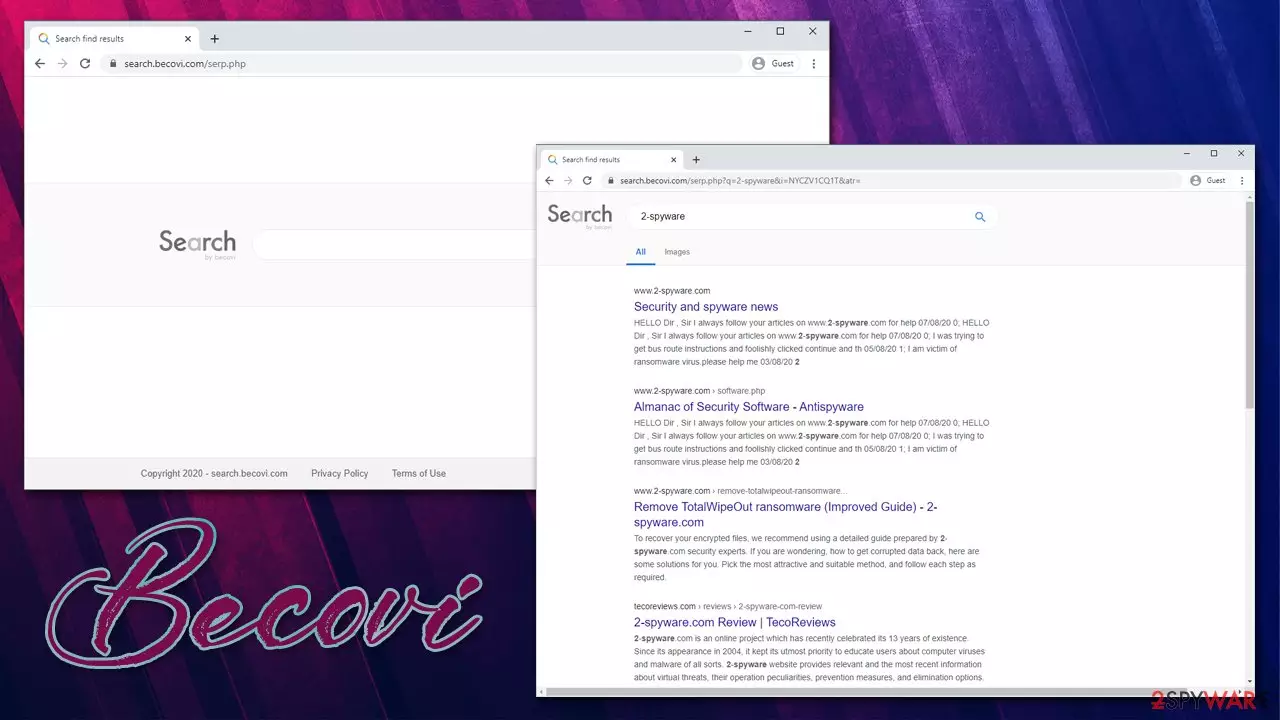
Becovi is a search service that is offered to users as an alternative search engine on Google Chrome, Mozilla Firefox, MS Edge, or another web browser. Upon installation, the homepage and the new tab address would be set to search.becovi.com, which would provide beneficial properties to users' browsers.
Becovi also stands for a service that website developers can use to monetize their content, which is usually not free to make. Unlike some shady providers or similar services, apps provided by these services do not spam users with unwanted pop-ups, banners, and other intrusive ads, as well as the redirects that some of the potentially unwanted programs engage in.[1]
Instead, Becovi apps provide relevant information, filtering data based on what users are most commonly interested in during their searches. In other words, the tool provides more versatility to routine browsing sessions, all while using trusted providers such as Yahoo or Bing. In the meantime, the developers of useful browser extensions or websites receive support from ad revenue.
| Name | Becovi |
|---|---|
| Type | Browser extension |
| Functionality | Users alternative search engine to provide improved search results to users without displaying excessive ads |
| Compatible with | macOS and Windows machines |
| Installation | You can download the app from several sources, including Google Web Store and various third-party sites |
| Elimination | You can easily delete the extension or an application by following our guide provided below |
| Optional Steps | Keep in mind that adware and other PUPs might be installed on your system without permission. If you find such apps on your system, get rid of them and clean your web browsers automatically with FortectIntego |
Becovi application is a legitimate search engine that provides improved results and useful content. Unlike browser hijackers, the app does not include a variety of sponsored links that are presented as real results. Instead, it uses a customized search engine with a clean user interface (UI) to provide an alternative browsing experience. Thus, do not be surprised once your searches are redirected to search.becovi.com.
As soon as Becovi is installed on the system, it will modify the new tab address and the homepage, which includes an alternative search engine. If you believe that the app does it without permission, it is not true since there is a clear notification about the browser changes. If you want to remove Becovi functions, you can easily do so by declining them in the first place.
Just like any other application that provides various features, Becovi uses monetization practices called pay-per-click.[2] Therefore, while using the search engine, you might see some advertisements that can show you websites that might be useful for you. For example, if you are looking for reputable anti-malware software, you can receive offers and discounts via the Becovi search tool.
However, for such practice to be advantageous for both parties, Becovi must collect a certain amount of anonymous information – this is also clearly stated on the official website:
We will use this data in order to operate and provide you with the Services and to customize and improve it. We will also use this data to assist us in implementing the advertisements incorporated within the Services (where applicable). For example, your IP address may be used to determine your approximate location (e.g., country) and thereby assist us in displaying relevant advertisements. Additionally, we may process this data in order to track usage, statistics and traffic flow, detect fraud, or any other security or technical issues that may arise in connection with the Services as well as for our internal analytical and statistical purposes.
To improve services and provide offers that are most relevant for your needs, Becovi might also collect search history, technical information of the device, installed operating system, browser type, etc.

Keep in mind that if you are not happy with these information-gathering practices, you can perform Becovi removal easily – all you have to do is follow the instructions we provide below. Nonetheless, most tech corporations, including Google[3] and Facebook, also gather your data for monetization purposes, a lot of which also includes personal data. If information collection is your concern, we suggest you opt for more privacy-focused browsers/search engines, e.g., Brave browser, DuckDuckGo, the new MS Edge, etc.
We would also like to point out that not all applications have an open approach when it comes to information gathering practices and ad integrity, as Becovi. Some potentially unwanted programs might be harmful, so you should rely on reputable anti-malware programs to help you detect them. Additionally, we recommend using FortectIntego to automatically clean your web browsers from cookies and other information that could accumulate over time.
Pay attention when installing new software on your device to avoid PUPs
Becovi is and app that you can trust. However, not all applications are safe. In other terms, if you are a frequent visitor of third-party websites, you should be careful with what you download. Some ads might promote fake system optimization tools or trick you with software bundling technique.
Therefore, you should always be careful when installing new apps, especially if they do not come from official sources such as Chrome Web Store, Microsoft Store, etc. Also, during the installation, choosing Recommended or Quick installation options means that you agree to get all the programs and tools included in the installation setup.
However, that also means downloading PUPs, or even more dangerous programs. When you go for Advanced or Custom installations from the first step, you can see the full list and de-select anything that is not desirable or creates suspicions.
Removal steps for Becovi
You can remove Becovi from your Windows or macOS computer system if you are unhappy with the service it provides – it is a very straight-forward process that only takes around 30 seconds to complete. If you have never dealt with the uninstallation of browser extensions, check the instructions below.

Becovi removal should not be difficult:
- If you have an extension installed on the web browser, you can easily eliminate it by right-clicking on it or accessing the add-on section via the settings menu;
- If you have a program installed on your Windows or Mac, you should access the Programs & Features/Applications section and perform uninstallation from there.
Additionally, if you frequently use third-party websites to download applications (especially untrustworthy ones), you are highly recommended to perform a full system scan with anti-malware software and then reset the installed web browsers.
Uninstall from Windows
Uninstall from Windows 10/8:
- Type Control Panel into the Windows search box and open the result.
- Under Programs, select Uninstall a program.


Uninstall from Windows 7/XP:
- Click on Windows Start > Control Panel (Windows XP users should click on Add/Remove Programs).
- In Control Panel, select Programs > Uninstall a program.


Remove the unwanted program:
- In the Programs and Features window, look for any recently installed suspicious entries, select them, and click Uninstall.
- If User Account Control appears, click Yes to confirm, then complete the removal.


Delete from macOS
Remove the unwanted application:
- From the menu bar, select Go > Applications.
- In the Applications folder, look for any suspicious entries, then drag them to Trash (or right-click and pick Move to Trash).


Delete leftover files and folders:
- Select Go > Go to Folder.
- Enter /Library/Application Support and remove any suspicious folders related to the unwanted program.
- Repeat the same check in the /Library/LaunchAgents and /Library/LaunchDaemons folders, deleting any suspicious entries.

- Finally, empty the Trash to permanently remove the leftovers.

Remove from Microsoft Edge
Delete unwanted extensions from MS Edge:
- Select Menu (three horizontal dots at the top-right of the browser window) and pick Extensions.
- From the list, pick the extension and click on the Gear icon.
- Click Remove.


Clear cookies and other browser data:
- Click on the Menu (three horizontal dots at the top-right of the browser window) and select Settings > Privacy, search, and services..
- Under Clear browsing data, pick Choose what to clear.
- Select Cookies and other site data and Cached images and files. (apart from passwords, although you might want to include Media licenses as well, if applicable) and click on Clear.


Restore new tab and homepage settings:
- Click the menu icon and choose Settings.
- Then find On startup section.
- Click Remove next to any suspicious startup page.
Reset MS Edge if the above steps did not work:
- Press on Ctrl + Shift + Esc to open Task Manager.
- Click on More details arrow at the bottom of the window.
- Select Details tab.
- Now scroll down and locate every entry with Microsoft Edge name in it. Right-click on each of them and select End Task to stop MS Edge from running.


Instructions for Chromium-based Edge
Delete extensions from MS Edge (Chromium):
- Open Edge and click select Settings > Extensions.
- Delete unwanted extensions by clicking Remove.


Clear cache and site data:
- Click on Menu and go to Settings.
- Select Privacy, search and services.
- Under Clear browsing data, pick Choose what to clear.
- Under Time range, pick All time.
- Select Clear now.


Reset Chromium-based MS Edge:
- Click on Menu and select Settings.
- On the left side, pick Reset settings.
- Select Restore settings to their default values.
- Confirm with Reset.
- This will disable extensions and reset startup pages but will not delete bookmarks, saved passwords, or browsing history.


Remove from Mozilla Firefox (FF)
Remove dangerous extensions:
- Open Mozilla Firefox browser and click on the Menu (three horizontal lines at the top-right of the window).
- Select Add-ons.
- In here, select the unwanted extension and click Remove.


Reset the homepage:
- Click three horizontal lines at the top right corner to open the menu.
- Choose Settings.
- Under Home, set your preferred homepage and new tab settings.
Clear cookies and site data:
- Click Menu and pick Settings.
- Go to Privacy & Security section.
- Scroll down to locate Cookies and Site Data.
- Click on Clear Data...
- Select Cookies and Site Data and Temporary cached files and pages, then click Clear.


Reset Mozilla Firefox
If clearing the browser as explained above did not help, reset Mozilla Firefox:
- Open Mozilla Firefox browser and click the Menu.
- Go to Help and then choose Troubleshooting Information.

- Under Give Firefox a tune up section, click on Refresh Firefox...
- Once the pop-up shows up, confirm the action by pressing on Refresh Firefox.



Remove from Google Chrome
Delete malicious extensions from Google Chrome:
- Open Google Chrome, click on the Menu (three vertical dots at the top-right corner) and select More tools > Extensions.
- In the newly opened window, you will see all the installed extensions. Uninstall all suspicious extensions related to the unwanted program by clicking Remove.


Clear cache and web data from Chrome:
- Click on Menu and pick Settings.
- Under Privacy and security, select Clear browsing data.
- Select Browsing history, Cookies and other site data, as well as Cached images and files.
- Click Clear data.


Change your homepage:
- Click menu and choose Settings.
- Look for a suspicious site in the On startup section.
- Click on Open a specific or set of pages and click on three dots to find the Remove option.
Reset Google Chrome:
If the previous methods did not help you, reset Google Chrome to eliminate all the unwanted components:
- Click on Menu and select Settings.
- In the Settings, scroll down and click Advanced.
- Scroll down and locate Reset and clean up section.
- Now click Restore settings to their original defaults.
- Confirm with Reset settings.


Delete from Safari
Remove dangerous extensions:
- Open Safari, click Safari in the menu at the top-left of the screen, and select Preferences.
- Go to the Extensions tab, look for any suspicious entries, and click Uninstall to remove them.


Clear history and website data:
- Click Safari in the menu and pick Clear History.
- Set Clear to all history and confirm with Clear History.


Reset Safari:
- Click Safari in the menu and select Preferences > Advanced.
- Enable Show Develop menu in menu bar.
- From the menu bar, click Develop and select Empty Caches.


Did this guide help?
Be the first to comment