

Best File Converter – a browser-hijacking app which offers PDF and DOC file converting feature to give itself a look of usefulness
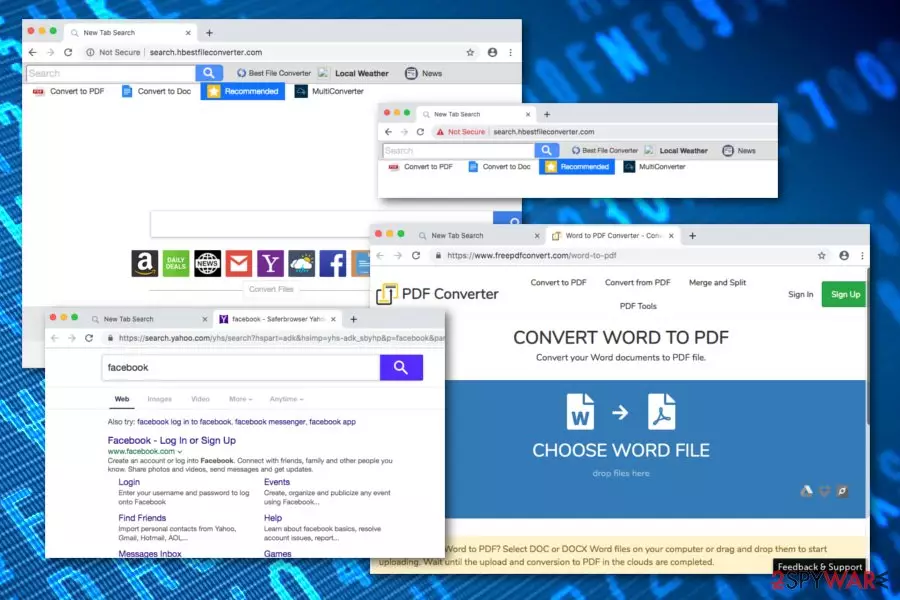
Best File Converter, developed by Eightpoint Technologies Ltd SEZC which is an affiliate of Polarity Technologies Ltd., is considered to be a browser hijacker[1] which provides fast access to well-known applications and offers to convert DOC/PDF files. The browser-hijacking program allows quick access to Local Weather, Daily News, Facebook, Youtube, Gmail, and other popular networks. However, these functions are not worth the consequences that will be brought sooner or later while having Best File Converter virus on your web browser. First of all, your browser's default search provider will be set to search.hbestfileconverter.com and you will not be able to bring it to the previous state unless you remove the program from your computer system. Second, you will be provided with search results from Yahoo.com which makes the application meaningless. Additionally, there is a big chance of receiving intrusive activities such as redirecting to developer-sponsored websites, the delivery of misleading notifications that might promote useless products or services.
| Name | Best File Converter |
|---|---|
| Type | Browser hijacker |
| Sub-type | Potentially unwanted program |
| Developer | Eightpoint Technologies Ltd SEZC |
| Search engine | search.hbestfileconverter.com |
| Symptoms | Browser changes, redirecting, advertising, injection of suspicious extensions |
| Browsers touched | Chrome, Firefox, Safari, Edge, Explorer |
| OS affected | Windows, Mac |
| Distribution | Via software bundling, unsafe websites |
| Prevention tips | Use the Advanced installation mode, carefully surf throughout the web, install reliable anti-malware protection |
| Detection | You can use software such as FortectIntego to detect all dubious content on the infected PC |
Best File Converter does not bring any real value for the user as there are other legitimate search engines you can use to receive reliable search results. For fast access to popular websites and networks, you can inject bookmarks to your web browser and the best part is that there will be no need to experience unwanted browser changes.
Nevertheless, as we have already mentioned, Best File Converter uses the Yahoo search engine for providing you with search query results. So why just not use Yahoo[2] directly instead of running into numerous annoying activities such as possible redirecting, advertising, browser modifying, and similar?
Note that Best File Converter might create an attractive look by providing fast access to popular networks such as Facebook, Twitter, Youtube, various news sources, weather pages, and so on. This browser hijacker offers to take the user to websites such as news.mynewswire.co and nationalweatheragency.org as a benefit.
Search.hbestfileconverter.com might appear on web browser applications such as Google Chrome, Mozilla Firefox, Internet Explorer, Microsoft Edge, and Safari. Not only that the default search zone will be changed but you are also likely to receive certain modifications in the homepage and new tab URL locations of your hijacked browser app.

The browser hijacker itself is not dangerous but it can easily take you to malware-laden websites. If you have been recently redirected by Best File Converter, there is a possibility that you might land by accident on a suspicious website which might contain malware-related objects and cause virus installation into your computer system.
Best File Converter software is a potentially unwanted program that can show up on Windows and Mac computers also. Once it does, note that there is no reason for keeping it. Another annoying feature that such applications might have is browsing data collection. It gathers all the information about your browsing habits and history.
The Privacy Policy of Best File Converter claims that this program can gather two different types of information. One is described as “Personal Information” that includes details such as the user's name/surname, email address, etc. The other part is called “Non-personal Information” that contains data such as visited pages, links clicked, saved bookmarks, and similar:
We may collect information from you in two ways: information we gather from your use of our Service and information you give to us, as further outlined below. This information may include “Personal Information” and “Non-Personal Information.” For purposes of this Privacy Policy, “Personal Information” means information that you provide to us that personally identifies you, such as your first and last name, email address, physical address, telephone number and billing information. For purposes of this Privacy Policy, “Non-Personal Information” means information that does not specifically identify you.
Continuously, Best File Converter might start pushing annoying advertisements to your desktop while you aim to complete browsing tasks. This way developers are capable of promoting rogue products, e.g. fake security software. Note that tricking users in this way is very easy and it is a good and commonly-used income source between third-parties.

Additionally, if you combine all the activities that are provided by Best File Converter together, you will see that there are several or even more tasks being completed at the exact same moment. Such intense activity might rise up your CPU work level which might relate to constant computer, browser, and software crash downs.
Since you have read about all of the activities and changes that might be brought by browser hijackers, you should have decided to remove Best File Converter from your computer system. If so, scan the machine by using FortectIntego and detect all suspicious content. After that, you can begin the elimination process.
Best File Converter removal can be achieved by using anti-malware programs. Also, you can complete this process on your own by scrolling down the text and following the given guidelines. Which method you prefer more is up to you, however, the most important thing is to eliminate all “helper objects” together with the browser hijacker permanently.
Distribution sources and techniques of browser-hijacking programs
If you are infected with a browser hijacker, it will take only a few clicks to notice that. However, did you ever wonder where these potentially unwanted programs come from? According to computer security specialists from Virusai.lt page,[3] browser hijackers and other suspicious content are often bundled[4] with original programs.
This happens when you download your software form free sources on the Internet. We suggest avoiding secondary downloaders and installers as they increase the risk of stealth installations. Rather than that, opt for the Custom/Advanced configuration mode as here you will have the possibility to control all of your incoming downloads.
Other browser hijacker distribution sources can be infectious hyperlinks or advertising posts which might be found on third-party pages.[5] You always need to pay attention to your computer's security while browsing in order to avoid the installation of various questionable and even malicious components that might relate to unrepairable system damage.
One more tip for you would be to download and install reliable automatical software for securing your entire machine at a higher level. Just make sure that your program is always updated for the proper functioning of the tool.
Best File Converter browser hijacker removal tips

You can easily remove Best File Converter from your computer system no matter if you are using a Mac or Windows machine. Follow the below-given instructions carefully to achieve the best results possible. However, if you want a less time-requiring technique, you should install reliable software and complete the elimination with it.
Be aware that Best File Converter might have brought unwanted components all over your machine. While dealing with this threat, you might spot suspicious processes running in your Task Manager or rogue entries injected into the Registry section. For full adware elimination, you need to clean all these directories after you get rid of the cyber threat itself.
Best File Converter removal should be carried out not only on the computer itself but also in web browsers that were infected with the browser-hijacking application and show signs of unwanted activities. This includes web browser apps such as Google Chrome, Mozilla Firefox, Microsoft Edge, Internet Explorer, and Safari.
Uninstall from Windows
Uninstall from Windows 10/8:
- Type Control Panel into the Windows search box and open the result.
- Under Programs, select Uninstall a program.


Uninstall from Windows 7/XP:
- Click on Windows Start > Control Panel (Windows XP users should click on Add/Remove Programs).
- In Control Panel, select Programs > Uninstall a program.


Remove the unwanted program:
- In the Programs and Features window, look for any recently installed suspicious entries, select them, and click Uninstall.
- If User Account Control appears, click Yes to confirm, then complete the removal.


Delete from macOS
Remove the unwanted application:
- From the menu bar, select Go > Applications.
- In the Applications folder, look for any suspicious entries, then drag them to Trash (or right-click and pick Move to Trash).


Delete leftover files and folders:
- Select Go > Go to Folder.
- Enter /Library/Application Support and remove any suspicious folders related to the unwanted program.
- Repeat the same check in the /Library/LaunchAgents and /Library/LaunchDaemons folders, deleting any suspicious entries.

- Finally, empty the Trash to permanently remove the leftovers.

Reset Internet Explorer
Remove dangerous add-ons:
- Open Internet Explorer, click on the Gear icon (IE menu) on the top-right corner of the browser
- Pick Manage Add-ons.
- You will see a Manage Add-ons window. Here, look for suspicious plugins. Click on these entries and select Disable.


Change your homepage if it was altered:
- Open IE and click on the Gear icon.
- Select Internet Options.
- In the General tab, delete the Home page address and replace it by your preferred one (for example, Google.com).
- Click Apply and then select OK.


Delete temporary files:
- Press on the Gear icon and select Internet Options.
- Under Browsing history, click Delete...
- Select relevant fields and press Delete.


Reset Internet Explorer:
- Click on Gear icon > Internet options and select Advanced tab.
- Select Reset.
- In the new window, check Delete personal settings and select Reset.


Remove from Microsoft Edge
Delete unwanted extensions from MS Edge:
- Select Menu (three horizontal dots at the top-right of the browser window) and pick Extensions.
- From the list, pick the extension and click on the Gear icon.
- Click Remove.


Clear cookies and other browser data:
- Click on the Menu (three horizontal dots at the top-right of the browser window) and select Settings > Privacy, search, and services..
- Under Clear browsing data, pick Choose what to clear.
- Select Cookies and other site data and Cached images and files. (apart from passwords, although you might want to include Media licenses as well, if applicable) and click on Clear.


Restore new tab and homepage settings:
- Click the menu icon and choose Settings.
- Then find On startup section.
- Click Remove next to any suspicious startup page.
Reset MS Edge if the above steps did not work:
- Press on Ctrl + Shift + Esc to open Task Manager.
- Click on More details arrow at the bottom of the window.
- Select Details tab.
- Now scroll down and locate every entry with Microsoft Edge name in it. Right-click on each of them and select End Task to stop MS Edge from running.


Instructions for Chromium-based Edge
Delete extensions from MS Edge (Chromium):
- Open Edge and click select Settings > Extensions.
- Delete unwanted extensions by clicking Remove.


Clear cache and site data:
- Click on Menu and go to Settings.
- Select Privacy, search and services.
- Under Clear browsing data, pick Choose what to clear.
- Under Time range, pick All time.
- Select Clear now.


Reset Chromium-based MS Edge:
- Click on Menu and select Settings.
- On the left side, pick Reset settings.
- Select Restore settings to their default values.
- Confirm with Reset.
- This will disable extensions and reset startup pages but will not delete bookmarks, saved passwords, or browsing history.


Remove from Mozilla Firefox (FF)
Remove dangerous extensions:
- Open Mozilla Firefox browser and click on the Menu (three horizontal lines at the top-right of the window).
- Select Add-ons.
- In here, select the unwanted extension and click Remove.


Reset the homepage:
- Click three horizontal lines at the top right corner to open the menu.
- Choose Settings.
- Under Home, set your preferred homepage and new tab settings.
Clear cookies and site data:
- Click Menu and pick Settings.
- Go to Privacy & Security section.
- Scroll down to locate Cookies and Site Data.
- Click on Clear Data...
- Select Cookies and Site Data and Temporary cached files and pages, then click Clear.


Reset Mozilla Firefox
If clearing the browser as explained above did not help, reset Mozilla Firefox:
- Open Mozilla Firefox browser and click the Menu.
- Go to Help and then choose Troubleshooting Information.

- Under Give Firefox a tune up section, click on Refresh Firefox...
- Once the pop-up shows up, confirm the action by pressing on Refresh Firefox.



Remove from Google Chrome
Delete malicious extensions from Google Chrome:
- Open Google Chrome, click on the Menu (three vertical dots at the top-right corner) and select More tools > Extensions.
- In the newly opened window, you will see all the installed extensions. Uninstall all suspicious extensions related to the unwanted program by clicking Remove.


Clear cache and web data from Chrome:
- Click on Menu and pick Settings.
- Under Privacy and security, select Clear browsing data.
- Select Browsing history, Cookies and other site data, as well as Cached images and files.
- Click Clear data.


Change your homepage:
- Click menu and choose Settings.
- Look for a suspicious site in the On startup section.
- Click on Open a specific or set of pages and click on three dots to find the Remove option.
Reset Google Chrome:
If the previous methods did not help you, reset Google Chrome to eliminate all the unwanted components:
- Click on Menu and select Settings.
- In the Settings, scroll down and click Advanced.
- Scroll down and locate Reset and clean up section.
- Now click Restore settings to their original defaults.
- Confirm with Reset settings.


Delete from Safari
Remove dangerous extensions:
- Open Safari, click Safari in the menu at the top-left of the screen, and select Preferences.
- Go to the Extensions tab, look for any suspicious entries, and click Uninstall to remove them.


Clear history and website data:
- Click Safari in the menu and pick Clear History.
- Set Clear to all history and confirm with Clear History.


Reset Safari:
- Click Safari in the menu and select Preferences > Advanced.
- Enable Show Develop menu in menu bar.
- From the menu bar, click Develop and select Empty Caches.


Did this guide help?
Be the first to comment