

Bigpicturepop.com redirects can land you on dangerous Internet sites
Bigpicturepop.com virus is a highly untrustworthy program that keeps causing redirects to hxxp://bigpicturepop.com/redirect/ domain, which then points the victim to one of advertised web pages. Typically, redirects that this potentially unwanted program (PUP) initiates lead to equivocal web pages such as obscure dating websites, phishing sites that are set up by tech support scammers[1], also Internet pages that urge to install additional browser extensions, vague programs or take scam surveys. These Bigpicturepop redirects should instantly give you an idea of how an infected computer acts, and you should rush to remove Bigpicturepop.com redirect virus right away. However, if you decide to interact with content, this adware program pushes to you, remember that doing so will have serious consequences on your privacy. For this reason, we recommend using an anti-spyware program that is trustworthy and powerful, for instance, FortectIntego.
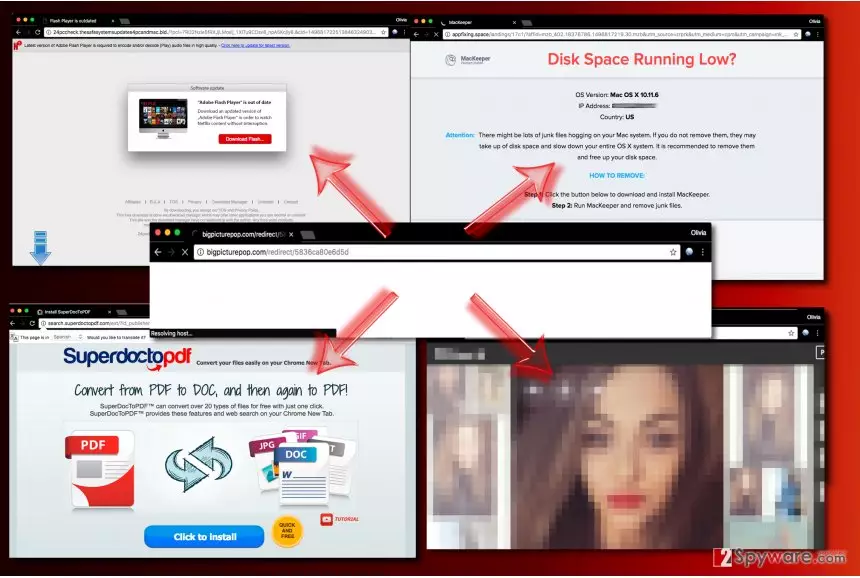
Speaking of problems that you might run into while browsing the Internet on a computer infected with this spyware, we are sure that the first thing that you will notice is a considerably slower computer’s functionality. The PC might no longer be capable of processing given amounts of data so efficiently and might fail to complete given tasks quickly. That is for sure an annoying consequence, but there is another one, and we believe that it is way more critical than the first one. The suspicious program might inject tracking technologies into all of your web browsers (including Chrome, Firefox, and the others) and use them to monitor your online activities. Be aware of the fact that it might be capable of tracking not only your personally non-identifiable data such as clicks, browsing history and search queries, but also some personally identifiable details as well. Such information can be transmitted to insecure servers or shared with third-parties – do you want this to happen? The majority of such data is used to serve targeted ads for the users, however, this highly questionable program clearly do not try to use collected data for user’s benefit. It might start providing attention-drawing ads that will point to insecure or even malicious websites[2]. For this reason, an immediate Bigpicturepop.com removal is required. A guide on how to complete it is provided at the end of this article.

Distribution of ad-supported software
The majority of ad-supported programs are transmitted to users’ computers with the help of software bundling. This technique allows injecting suggestions to install additional applications or tools into installers of free software. Due to the tendency to attempt to establish new programs hastily, many computer users infect their computers with spyware without knowing it. The secret is to obfuscate the suggestion in a way so that the computer user couldn’t notice it; typically, such suggestions are added to Default or Standard software installation settings, which usually look trustworthy to the users. They believe that these settings are suggested by the software developer, and because of this, they are supposed to be the “safe option” to choose. Wrong! Instead of choosing settings that are composed in a way to earn pay-per-install revenue for software developers, switch the selection to Custom/Advanced mode instead and then manually remove ticks from permissions to install suggested browser toolbars, add-ons, or suspicious pieces of software.
Removing Bigpicturepop.com virus from the system isn’t easy
It is not easy to remove Bigpicturepop.com virus because you do not know the name of the program that causes redirects via this shady domain. To identify the culprit, we suggest using anti-malware software to scan your PC thoroughly. It will detect all files and settings associated with it and fix/remove them for you. Remember – attempts to perform manual Bigpicturepop.com removal can be unsuccessful or even result in problems such as computer’s stability issues.
Uninstall from Windows
Uninstall from Windows 10/8:
- Type Control Panel into the Windows search box and open the result.
- Under Programs, select Uninstall a program.


Uninstall from Windows 7/XP:
- Click on Windows Start > Control Panel (Windows XP users should click on Add/Remove Programs).
- In Control Panel, select Programs > Uninstall a program.


Remove the unwanted program:
- In the Programs and Features window, look for any recently installed suspicious entries, select them, and click Uninstall.
- If User Account Control appears, click Yes to confirm, then complete the removal.


Delete from macOS
Remove the unwanted application:
- From the menu bar, select Go > Applications.
- In the Applications folder, look for any suspicious entries, then drag them to Trash (or right-click and pick Move to Trash).


Delete leftover files and folders:
- Select Go > Go to Folder.
- Enter /Library/Application Support and remove any suspicious folders related to the unwanted program.
- Repeat the same check in the /Library/LaunchAgents and /Library/LaunchDaemons folders, deleting any suspicious entries.

- Finally, empty the Trash to permanently remove the leftovers.

Reset Internet Explorer
Remove dangerous add-ons:
- Open Internet Explorer, click on the Gear icon (IE menu) on the top-right corner of the browser
- Pick Manage Add-ons.
- You will see a Manage Add-ons window. Here, look for suspicious plugins. Click on these entries and select Disable.


Change your homepage if it was altered:
- Open IE and click on the Gear icon.
- Select Internet Options.
- In the General tab, delete the Home page address and replace it by your preferred one (for example, Google.com).
- Click Apply and then select OK.


Delete temporary files:
- Press on the Gear icon and select Internet Options.
- Under Browsing history, click Delete...
- Select relevant fields and press Delete.


Reset Internet Explorer:
- Click on Gear icon > Internet options and select Advanced tab.
- Select Reset.
- In the new window, check Delete personal settings and select Reset.


Remove from Microsoft Edge
Delete unwanted extensions from MS Edge:
- Select Menu (three horizontal dots at the top-right of the browser window) and pick Extensions.
- From the list, pick the extension and click on the Gear icon.
- Click Remove.


Clear cookies and other browser data:
- Click on the Menu (three horizontal dots at the top-right of the browser window) and select Settings > Privacy, search, and services..
- Under Clear browsing data, pick Choose what to clear.
- Select Cookies and other site data and Cached images and files. (apart from passwords, although you might want to include Media licenses as well, if applicable) and click on Clear.


Restore new tab and homepage settings:
- Click the menu icon and choose Settings.
- Then find On startup section.
- Click Remove next to any suspicious startup page.
Reset MS Edge if the above steps did not work:
- Press on Ctrl + Shift + Esc to open Task Manager.
- Click on More details arrow at the bottom of the window.
- Select Details tab.
- Now scroll down and locate every entry with Microsoft Edge name in it. Right-click on each of them and select End Task to stop MS Edge from running.


Instructions for Chromium-based Edge
Delete extensions from MS Edge (Chromium):
- Open Edge and click select Settings > Extensions.
- Delete unwanted extensions by clicking Remove.


Clear cache and site data:
- Click on Menu and go to Settings.
- Select Privacy, search and services.
- Under Clear browsing data, pick Choose what to clear.
- Under Time range, pick All time.
- Select Clear now.


Reset Chromium-based MS Edge:
- Click on Menu and select Settings.
- On the left side, pick Reset settings.
- Select Restore settings to their default values.
- Confirm with Reset.
- This will disable extensions and reset startup pages but will not delete bookmarks, saved passwords, or browsing history.


Remove from Mozilla Firefox (FF)
Remove dangerous extensions:
- Open Mozilla Firefox browser and click on the Menu (three horizontal lines at the top-right of the window).
- Select Add-ons.
- In here, select the unwanted extension and click Remove.


Reset the homepage:
- Click three horizontal lines at the top right corner to open the menu.
- Choose Settings.
- Under Home, set your preferred homepage and new tab settings.
Clear cookies and site data:
- Click Menu and pick Settings.
- Go to Privacy & Security section.
- Scroll down to locate Cookies and Site Data.
- Click on Clear Data...
- Select Cookies and Site Data and Temporary cached files and pages, then click Clear.


Reset Mozilla Firefox
If clearing the browser as explained above did not help, reset Mozilla Firefox:
- Open Mozilla Firefox browser and click the Menu.
- Go to Help and then choose Troubleshooting Information.

- Under Give Firefox a tune up section, click on Refresh Firefox...
- Once the pop-up shows up, confirm the action by pressing on Refresh Firefox.



Remove from Google Chrome
Delete malicious extensions from Google Chrome:
- Open Google Chrome, click on the Menu (three vertical dots at the top-right corner) and select More tools > Extensions.
- In the newly opened window, you will see all the installed extensions. Uninstall all suspicious extensions related to the unwanted program by clicking Remove.


Clear cache and web data from Chrome:
- Click on Menu and pick Settings.
- Under Privacy and security, select Clear browsing data.
- Select Browsing history, Cookies and other site data, as well as Cached images and files.
- Click Clear data.


Change your homepage:
- Click menu and choose Settings.
- Look for a suspicious site in the On startup section.
- Click on Open a specific or set of pages and click on three dots to find the Remove option.
Reset Google Chrome:
If the previous methods did not help you, reset Google Chrome to eliminate all the unwanted components:
- Click on Menu and select Settings.
- In the Settings, scroll down and click Advanced.
- Scroll down and locate Reset and clean up section.
- Now click Restore settings to their original defaults.
- Confirm with Reset settings.


Delete from Safari
Remove dangerous extensions:
- Open Safari, click Safari in the menu at the top-left of the screen, and select Preferences.
- Go to the Extensions tab, look for any suspicious entries, and click Uninstall to remove them.


Clear history and website data:
- Click Safari in the menu and pick Clear History.
- Set Clear to all history and confirm with Clear History.


Reset Safari:
- Click Safari in the menu and select Preferences > Advanced.
- Enable Show Develop menu in menu bar.
- From the menu bar, click Develop and select Empty Caches.


Did this guide help?
Be the first to comment