

ChinAd – adware designed for Chinese users
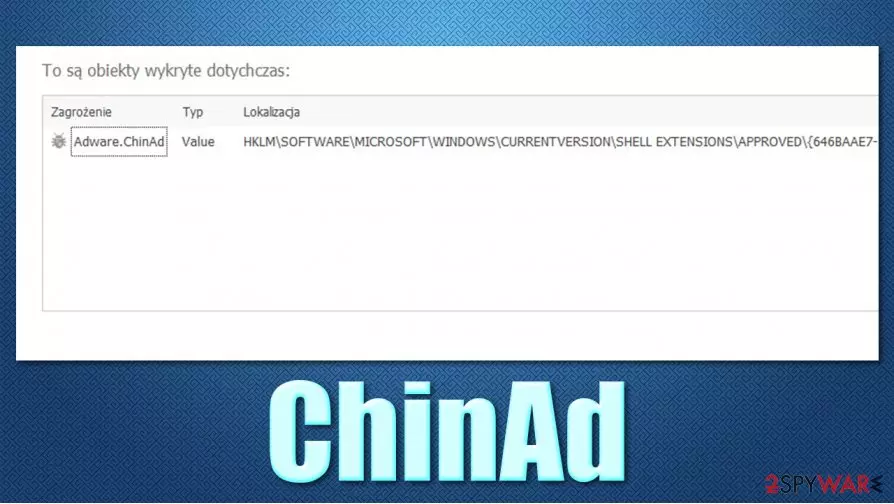
ChinAd, otherwise known as Adware.ChinAd, is a heuristic[1] detection name used by various security programs to describe a computer threat. In this case, as the name suggests, the infection is related to adware, while “Chin” represents that it is targeted towards the Chinese market. Heuristic analysis is very common in cybersecurity and is typically used to detect unknown threats, as well as new variants of those.
The main purpose of ChinAd adware is to infiltrate users' devices without their permission and then deliver intrusive advertisement campaigns during their web browsing sessions on Google Chrome, Mozilla Firefox, MS Edge, or Safari. Therefore, those infected can commonly encounter pop-ups, banners, in-text links, auto-play, interstitial, and other types of ads, which negatively impact online experience and might result in infection of other potentially unwanted programs/malware in some cases.
| Name | ChinAd, Adware.ChinAd |
|---|---|
| Type | Adware, potentially unwanted program |
| Targeted audience | Chinese |
| Distribution | Software bundles |
| Symptoms | Symptoms can vary depending on particular adware that is being installed, although most common symptoms include intrusive ads and redirects to suspicious websites |
| Dangers | Redirects to malicious websites can result in unwanted site notifications, personal information disclosure to unknown parties (cybercriminals), financial losses, installation of other potentially unwanted programs or malware |
| Elimination | You can attempt to uninstall potentially unwanted programs as per instructions given below. Alternatively, a full system scan with anti-malware software can get rid of the infection automatically |
| Further steps | Malware or adware infections can diminish the performance of your computer or cause serious stability issues. Use FortectIntego to remediate your device and ensure that the virus damage is fixed |
You might find that the ChinAd virus is flagged when you attempt to download new software from some random website. This happens because each of the freeware websites bundles software into a single package and then try to mislead users by intentionally not providing enough information to remove optional components on the way. Due to this, many end up installing potentially unwanted programs or malware on their computers without realizing it.
If adware manages to slip in, it can perform a variety of changes on the system. Some adware is known to modify Windows registry or create scheduled tasks in order to run in the background. This allows it to be launched each time the computer is booted. Users might not even be aware that adware is running in the background.
As already mentioned, the main goal of adware is to earn revenue to its creators from users' clicks on ads. Not only can this activity be intrusive, but sometimes dangerous, as links provided during browsing sessions might lead to scams, phishing, or even malware-laden domains, so caution should be practiced.
Since Adware.ChinAd is a generic detection name, it can also be related to false positives,[2], which means that not all programs or files detected are actually malicious. When an unknown file is being analyzed, it is placed into a virtual machine environment where it is executed. The antivirus can then check whether the app's operation is not (or is) suspicious when it comes to its capability to:
- modify system-related files;
- persistence techniques;
- replication tendencies, etc.
If one of these meets the criteria, the file is marked as suspicious or malicious, depending on the severity of system modification capabilities. In some cases, heuristics can mistakenly flag a file as malicious due to some of the processes it engages in, despite it being harmless. Thus, if you have encountered a pop-up from your antivirus, do not rush to remove Adware.ChinAd from your system immediately – investigate the situation further.
One of the best ways to know whether the file is malicious is by scanning it with alternative security software, such as SpyHunterCombo Cleaner or MalwarebytesMalwarebytes. Also, uploading the file to virus analysis sources such as Virus Total can be useful. If the file is detected by other programs, you should not delay ChinAd removal.

Security software can also find and eliminate other infections with just one scan. If more serious infections were present, we suggest using FortectIntego after all of them are removed. The app can be used as a great remediation tool for your PC.
Avoid adware by installing new software carefully
In most cases, users do not install adware and other potentially unwanted programs intentionally. Even if they do, they do not realize the underlying and damaging activities that this software can bring post-installation. To make matters worse, some of such programs use various persistence mechanisms, preventing users from uninstalling these apps in a regular way.
Thus, the best thing to do here is not to get infected in the first place. While it is true that there are no means that would provide 100% protection, adequate web browsing practices combined with robust automated tools can be a significant difference. Here are a few tips from industry experts:[3]
- Install robust anti-malware software and keep it updated;
- Avoid suspicious sources for your downloads – torrents and similar sites that distributed pirated or repacked software;
- Never rush the installation process of freeware – read the instructions carefully;
- If available, always pick Advanced/Custom mode instead of Recommended/Quick one;
- Read the fine print;
- Remove all the ticks from pre-selected checkboxes;
- Watch out for misplaced buttons and deceptive deals.
Quick solution for ChinAd virus
You should never ignore warnings from your security software, especially if you are trying to download files from insecure sources. Even if you are absolutely sure that the file is secure, you should analyze it with alternative anti-malware before you make your decision or keep or remove ChinAd virus from your system. If you ignore all warnings, you could end up with a completely ruined web browsing experience, compromised privacy, and potential risks of malware infections.
Thus, Adware.ChinAd removal is important for many reasons. If your antivirus detected it, put the file in question in quarantine and then eliminate it. If adware is already present on your device, if your antivirus is unable to delete it, you can look for suspicious programs or extensions yourself – we provide a comprehensive guide on how to eliminate suspicious apps from the system and then clean all the installed web browsers accordingly.
Uninstall from Windows
Uninstall from Windows 10/8:
- Type Control Panel into the Windows search box and open the result.
- Under Programs, select Uninstall a program.


Uninstall from Windows 7/XP:
- Click on Windows Start > Control Panel (Windows XP users should click on Add/Remove Programs).
- In Control Panel, select Programs > Uninstall a program.


Remove the unwanted program:
- In the Programs and Features window, look for any recently installed suspicious entries, select them, and click Uninstall.
- If User Account Control appears, click Yes to confirm, then complete the removal.


Delete from macOS
Remove the unwanted application:
- From the menu bar, select Go > Applications.
- In the Applications folder, look for any suspicious entries, then drag them to Trash (or right-click and pick Move to Trash).


Delete leftover files and folders:
- Select Go > Go to Folder.
- Enter /Library/Application Support and remove any suspicious folders related to the unwanted program.
- Repeat the same check in the /Library/LaunchAgents and /Library/LaunchDaemons folders, deleting any suspicious entries.

- Finally, empty the Trash to permanently remove the leftovers.

Reset Internet Explorer
Remove dangerous add-ons:
- Open Internet Explorer, click on the Gear icon (IE menu) on the top-right corner of the browser
- Pick Manage Add-ons.
- You will see a Manage Add-ons window. Here, look for suspicious plugins. Click on these entries and select Disable.


Change your homepage if it was altered:
- Open IE and click on the Gear icon.
- Select Internet Options.
- In the General tab, delete the Home page address and replace it by your preferred one (for example, Google.com).
- Click Apply and then select OK.


Delete temporary files:
- Press on the Gear icon and select Internet Options.
- Under Browsing history, click Delete...
- Select relevant fields and press Delete.


Reset Internet Explorer:
- Click on Gear icon > Internet options and select Advanced tab.
- Select Reset.
- In the new window, check Delete personal settings and select Reset.


Remove from Microsoft Edge
Delete unwanted extensions from MS Edge:
- Select Menu (three horizontal dots at the top-right of the browser window) and pick Extensions.
- From the list, pick the extension and click on the Gear icon.
- Click Remove.


Clear cookies and other browser data:
- Click on the Menu (three horizontal dots at the top-right of the browser window) and select Settings > Privacy, search, and services..
- Under Clear browsing data, pick Choose what to clear.
- Select Cookies and other site data and Cached images and files. (apart from passwords, although you might want to include Media licenses as well, if applicable) and click on Clear.


Restore new tab and homepage settings:
- Click the menu icon and choose Settings.
- Then find On startup section.
- Click Remove next to any suspicious startup page.
Reset MS Edge if the above steps did not work:
- Press on Ctrl + Shift + Esc to open Task Manager.
- Click on More details arrow at the bottom of the window.
- Select Details tab.
- Now scroll down and locate every entry with Microsoft Edge name in it. Right-click on each of them and select End Task to stop MS Edge from running.


Instructions for Chromium-based Edge
Delete extensions from MS Edge (Chromium):
- Open Edge and click select Settings > Extensions.
- Delete unwanted extensions by clicking Remove.


Clear cache and site data:
- Click on Menu and go to Settings.
- Select Privacy, search and services.
- Under Clear browsing data, pick Choose what to clear.
- Under Time range, pick All time.
- Select Clear now.


Reset Chromium-based MS Edge:
- Click on Menu and select Settings.
- On the left side, pick Reset settings.
- Select Restore settings to their default values.
- Confirm with Reset.
- This will disable extensions and reset startup pages but will not delete bookmarks, saved passwords, or browsing history.


Remove from Mozilla Firefox (FF)
Remove dangerous extensions:
- Open Mozilla Firefox browser and click on the Menu (three horizontal lines at the top-right of the window).
- Select Add-ons.
- In here, select the unwanted extension and click Remove.


Reset the homepage:
- Click three horizontal lines at the top right corner to open the menu.
- Choose Settings.
- Under Home, set your preferred homepage and new tab settings.
Clear cookies and site data:
- Click Menu and pick Settings.
- Go to Privacy & Security section.
- Scroll down to locate Cookies and Site Data.
- Click on Clear Data...
- Select Cookies and Site Data and Temporary cached files and pages, then click Clear.


Reset Mozilla Firefox
If clearing the browser as explained above did not help, reset Mozilla Firefox:
- Open Mozilla Firefox browser and click the Menu.
- Go to Help and then choose Troubleshooting Information.

- Under Give Firefox a tune up section, click on Refresh Firefox...
- Once the pop-up shows up, confirm the action by pressing on Refresh Firefox.



Remove from Google Chrome
Delete malicious extensions from Google Chrome:
- Open Google Chrome, click on the Menu (three vertical dots at the top-right corner) and select More tools > Extensions.
- In the newly opened window, you will see all the installed extensions. Uninstall all suspicious extensions related to the unwanted program by clicking Remove.


Clear cache and web data from Chrome:
- Click on Menu and pick Settings.
- Under Privacy and security, select Clear browsing data.
- Select Browsing history, Cookies and other site data, as well as Cached images and files.
- Click Clear data.


Change your homepage:
- Click menu and choose Settings.
- Look for a suspicious site in the On startup section.
- Click on Open a specific or set of pages and click on three dots to find the Remove option.
Reset Google Chrome:
If the previous methods did not help you, reset Google Chrome to eliminate all the unwanted components:
- Click on Menu and select Settings.
- In the Settings, scroll down and click Advanced.
- Scroll down and locate Reset and clean up section.
- Now click Restore settings to their original defaults.
- Confirm with Reset settings.


Delete from Safari
Remove dangerous extensions:
- Open Safari, click Safari in the menu at the top-left of the screen, and select Preferences.
- Go to the Extensions tab, look for any suspicious entries, and click Uninstall to remove them.


Clear history and website data:
- Click Safari in the menu and pick Clear History.
- Set Clear to all history and confirm with Clear History.


Reset Safari:
- Click Safari in the menu and select Preferences > Advanced.
- Enable Show Develop menu in menu bar.
- From the menu bar, click Develop and select Empty Caches.


Did this guide help?
Be the first to comment