

What can you expect from Content Protector virus?
For some computer users, Content Protector might be known as Content Defender. It’s an annoying adware-type program created by Artex Management S. A. Developers present the program as a network protection tool; however, you should look for more reliable software that can actually ensure safer browsing online. This program is supposed to protect from malicious websites, but in reality, it is a deceptively designed adware which might inject multiple ads and purposefully lead you to even worse websites than you could stumble upon while regularly browsing online. Users might install the program from its official website; however, it’s not the primary distribution technique. The application spreads bundled with other software and gets inside computers without users’ recognition. However, after Content Protector hijack users notice an increased amount of advertisements showing up, but it’s not a surprise if you read the Privacy Policy. Here developers reveal that it’s an ad-supported program which provides third party content. We have to warn you that the program is designed only for delivering commercial content and authors do not care about credibility, safety and the amount of provided ads. An excessive amount of aggressive advertisements diminishes computers performance and makes browsing the Internet unbearable. There’s no doubt; you should remove Content Protector from your PC immediately. We strongly recommend using FortectIntego or other reputable anti-malware program for adware elimination. It might be difficult to detect and remove adware-related files and other suspicious programs that might have been installed as well.
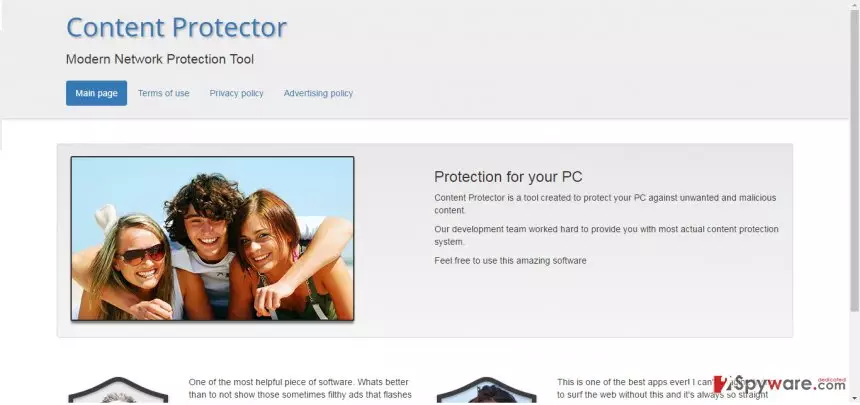
Content Protector has one unique feature that distinguishes it from other adware-type programs. Once it gets inside the system, it installs certificate which is valid until 2056. However, we do not recommend keeping this potentially unwanted program (PUP) for so long. All adware-type programs are designed for the same purpose – to advertise affiliate websites and generate pay-per-click revenue. This is the fundamental reason why Content Protector ads tend to be intrusive and pushy. Sadly, but the security experts also note that interacting with these ads usually lead to various suspicious sites, filled with different malware and viruses. Therefore, if you see ads labeled “Ads by Content Protector,” “Powered by Content Protector” or featuring other similar slogans, you should refrain from clicking on them. Such ads are a clear indicator of an adware residing on your PC. Keep in mind, that Content Protector redirect issue is a serious security threat, which may lead to other potentially unwanted programs infiltrating your computer. Therefore, it is advisable to scan your computer for these threats as soon as you start noticing suspicious ads appearing on your browser and eliminate the virus immediately. As you already know, you can remove this virus automatically. However, manual Content Protector removal option is possible as well. You will find the detailed guide to virus removal at the end of this article.
How to protect the computer from the virus?
Content Protector may enter your computer if your computer through an infected software package. This deceptive marketing strategy also called “bundling,” is based on spreading of the malicious programs along with other, popular freeware or shareware, usually PDF creators, video/audio players and recorders, etc. Since the information about additional installs is not adequately disclosed to the users, majority of them simply install the infected software package as a singular program, they think they have downloaded. Therefore, it comes as a surprise for them to find potentially unwanted programs running on their computer systems. Essentially, there are three basic methods to prevent such unwanted installs:
- Choose reliable software download sources. Avoid unknown, suspicious sites and go for the acknowledged and more popular ones instead.
- Opt for the “Advanced” or “Custom” installation modes when installing new software. Only these options will disclose the optional software package contents and will allow you to manage their installation.
- Obtain a reputable antivirus software. Also, when downloaded a new software do not rush with the installation. Let your antivirus evaluate the trustworthiness of the program
How to remove Content Protector?
Adware-type programs like Content Protector are not actual viruses, so their deletion from the computer is not as complicated. However, you may still encounter some trouble, especially, if you opt for the manual Content Protector removal method. Since the potentially unwanted programs tend to help additional and possibly programs to enter the computers, removing this threat from the system may not be enough to ensure it is completely virus-free. An automatic method is more suitable for a throughout system investigation. Scan your computer with a reliable virus-fighting utility and it will remove Content Protector and other potential threats from the computer for you. Yet, if you prefer the manual method more, check the instructions below.
Uninstall from Windows
Uninstall from Windows 10/8:
- Type Control Panel into the Windows search box and open the result.
- Under Programs, select Uninstall a program.


Uninstall from Windows 7/XP:
- Click on Windows Start > Control Panel (Windows XP users should click on Add/Remove Programs).
- In Control Panel, select Programs > Uninstall a program.


Remove the unwanted program:
- In the Programs and Features window, look for any recently installed suspicious entries, select them, and click Uninstall.
- If User Account Control appears, click Yes to confirm, then complete the removal.


Delete from macOS
Remove the unwanted application:
- From the menu bar, select Go > Applications.
- In the Applications folder, look for any suspicious entries, then drag them to Trash (or right-click and pick Move to Trash).


Delete leftover files and folders:
- Select Go > Go to Folder.
- Enter /Library/Application Support and remove any suspicious folders related to the unwanted program.
- Repeat the same check in the /Library/LaunchAgents and /Library/LaunchDaemons folders, deleting any suspicious entries.

- Finally, empty the Trash to permanently remove the leftovers.

Reset Internet Explorer
Remove dangerous add-ons:
- Open Internet Explorer, click on the Gear icon (IE menu) on the top-right corner of the browser
- Pick Manage Add-ons.
- You will see a Manage Add-ons window. Here, look for suspicious plugins. Click on these entries and select Disable.


Change your homepage if it was altered:
- Open IE and click on the Gear icon.
- Select Internet Options.
- In the General tab, delete the Home page address and replace it by your preferred one (for example, Google.com).
- Click Apply and then select OK.


Delete temporary files:
- Press on the Gear icon and select Internet Options.
- Under Browsing history, click Delete...
- Select relevant fields and press Delete.


Reset Internet Explorer:
- Click on Gear icon > Internet options and select Advanced tab.
- Select Reset.
- In the new window, check Delete personal settings and select Reset.


Remove from Microsoft Edge
Delete unwanted extensions from MS Edge:
- Select Menu (three horizontal dots at the top-right of the browser window) and pick Extensions.
- From the list, pick the extension and click on the Gear icon.
- Click Remove.


Clear cookies and other browser data:
- Click on the Menu (three horizontal dots at the top-right of the browser window) and select Settings > Privacy, search, and services..
- Under Clear browsing data, pick Choose what to clear.
- Select Cookies and other site data and Cached images and files. (apart from passwords, although you might want to include Media licenses as well, if applicable) and click on Clear.


Restore new tab and homepage settings:
- Click the menu icon and choose Settings.
- Then find On startup section.
- Click Remove next to any suspicious startup page.
Reset MS Edge if the above steps did not work:
- Press on Ctrl + Shift + Esc to open Task Manager.
- Click on More details arrow at the bottom of the window.
- Select Details tab.
- Now scroll down and locate every entry with Microsoft Edge name in it. Right-click on each of them and select End Task to stop MS Edge from running.


Instructions for Chromium-based Edge
Delete extensions from MS Edge (Chromium):
- Open Edge and click select Settings > Extensions.
- Delete unwanted extensions by clicking Remove.


Clear cache and site data:
- Click on Menu and go to Settings.
- Select Privacy, search and services.
- Under Clear browsing data, pick Choose what to clear.
- Under Time range, pick All time.
- Select Clear now.


Reset Chromium-based MS Edge:
- Click on Menu and select Settings.
- On the left side, pick Reset settings.
- Select Restore settings to their default values.
- Confirm with Reset.
- This will disable extensions and reset startup pages but will not delete bookmarks, saved passwords, or browsing history.


Remove from Mozilla Firefox (FF)
Remove dangerous extensions:
- Open Mozilla Firefox browser and click on the Menu (three horizontal lines at the top-right of the window).
- Select Add-ons.
- In here, select the unwanted extension and click Remove.


Reset the homepage:
- Click three horizontal lines at the top right corner to open the menu.
- Choose Settings.
- Under Home, set your preferred homepage and new tab settings.
Clear cookies and site data:
- Click Menu and pick Settings.
- Go to Privacy & Security section.
- Scroll down to locate Cookies and Site Data.
- Click on Clear Data...
- Select Cookies and Site Data and Temporary cached files and pages, then click Clear.


Reset Mozilla Firefox
If clearing the browser as explained above did not help, reset Mozilla Firefox:
- Open Mozilla Firefox browser and click the Menu.
- Go to Help and then choose Troubleshooting Information.

- Under Give Firefox a tune up section, click on Refresh Firefox...
- Once the pop-up shows up, confirm the action by pressing on Refresh Firefox.



Remove from Google Chrome
Delete malicious extensions from Google Chrome:
- Open Google Chrome, click on the Menu (three vertical dots at the top-right corner) and select More tools > Extensions.
- In the newly opened window, you will see all the installed extensions. Uninstall all suspicious extensions related to the unwanted program by clicking Remove.


Clear cache and web data from Chrome:
- Click on Menu and pick Settings.
- Under Privacy and security, select Clear browsing data.
- Select Browsing history, Cookies and other site data, as well as Cached images and files.
- Click Clear data.


Change your homepage:
- Click menu and choose Settings.
- Look for a suspicious site in the On startup section.
- Click on Open a specific or set of pages and click on three dots to find the Remove option.
Reset Google Chrome:
If the previous methods did not help you, reset Google Chrome to eliminate all the unwanted components:
- Click on Menu and select Settings.
- In the Settings, scroll down and click Advanced.
- Scroll down and locate Reset and clean up section.
- Now click Restore settings to their original defaults.
- Confirm with Reset settings.


Delete from Safari
Remove dangerous extensions:
- Open Safari, click Safari in the menu at the top-left of the screen, and select Preferences.
- Go to the Extensions tab, look for any suspicious entries, and click Uninstall to remove them.


Clear history and website data:
- Click Safari in the menu and pick Clear History.
- Set Clear to all history and confirm with Clear History.


Reset Safari:
- Click Safari in the menu and select Preferences > Advanced.
- Enable Show Develop menu in menu bar.
- From the menu bar, click Develop and select Empty Caches.


Did this guide help?
3 comments
Nathan@glost
Thanks for the removal advice ;)
Bridgitte
A new day, a new virus...
June Peters
Great! Now I can remove this virus from my PC. Its been annoying me for ages!