

Cowboy2u4me.me wants to spam you with push notifications to generate revenue
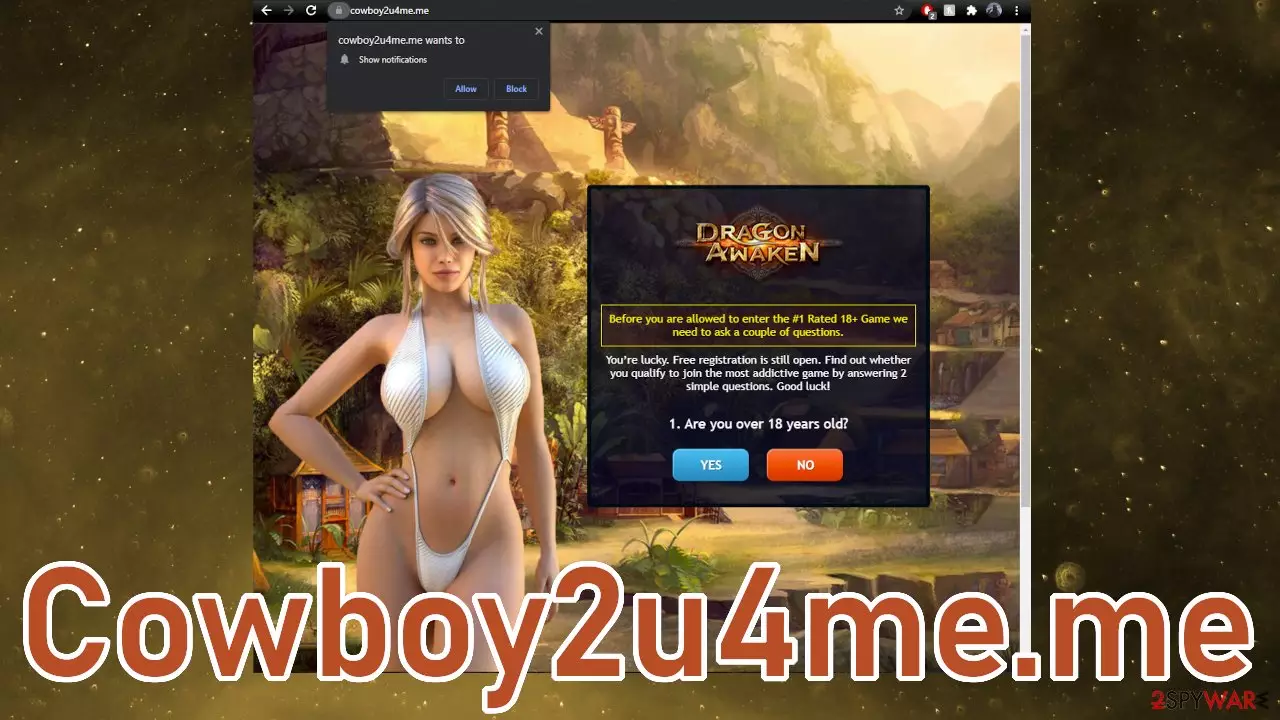
Cowboy2u4me.me is a bogus website that wants users to allow push notifications to earn money with PPC advertising. The site also seems to be promoting “Dragon Awaken,” which is a legitimate browser game. It is unclear if the developers of the game are associated with this page or not. It might just be used by other individuals to lure people in.
If you allow push notifications from this site, you will most likely start getting spammed with pop-up ads that include links to phishing, spoofing,[1] and similar websites. This includes scams like fake giveaways, surveys, software updates, or scareware.[2] These types of schemes can lead to severe problems, including financial losses, personal information leaks, virus infections, or even identity theft.
| NAME | Cowboy2u4me.me |
| TYPE | Push notification spam; adware |
| SYMPTOMS | Pop-up ads start appearing in the corner of the screen, sometimes when the browser is closed |
| DISTRIBUTION | Shady websites, deceptive ads, redirects, software bundling |
| DANGERS | Links embedded in the push notification prompts can lead to dangerous websites where people can be tricked into providing their personal information or downloading PUPs and malware |
| ELIMINATION | You can disable pop-up windows in the browser settings |
| FURTHER STEPS | Use FortectIntego which will help you fix any remaining damage and optimize the system |
This is not the only web page on the Internet abusing the push notification function in users' browsers. We write about these types of sites every day. Some of them even look identical. There is a common misconception among some people that the Internet is a safe place, and scams, viruses are a thing of the past, but it is the opposite. Hundreds of new sites like this disappear and appear every day, and it does not seem to be stopping.
Suppose you want to know more about the techniques used to trick people into allowing push notifications on dubious websites. In that case, you can read about a couple of pages that we wrote about previously – Funlife.info, Ngecauuksehi.xyz, and Funtoday.info.
How does the scam work?
The website asks a couple of questions to hook people:
1. Are you over 18 years old?
2. Most characters look very sexy, and you have to choose a sexy girl to fight with you, will you allow it?
It gives an impression to users that they will be able to play an adult game, and it is very plausible that it is promoted on x-rated sites as well. When you see a message saying, “You may Enter the game now. Good Luck!” and click continue, you just get redirected to Google search, so it seems that their link is not working, and wherever the authors want to redirect you is unknown.
There are a couple of possibilities of what could actually happen if the link was working. Users might be redirected to a page that asks them to download a game, and that could be a PUP (potentially unwanted program) or malware. People might also get redirected to another similar shady site.

User privacy concerns
Unfortunately, most of the time, push notification spam appears because of users' own fault. These pages can rarely be found accidentally in the search results. They lure in already shady pages that often engage in illegal activities. Such websites are unregulated and are full of deceptive ads and sneaky redirects, so it is easy to be taken to one of these pages.
You should be aware that Cowboy2u4me.me does not even have Terms of Use or Privacy Policy sections anywhere on the page, and that already is a red flag you should pay attention to. The General Data Protection Regulation[3] (GDPR) is a law enacted in the European Union ensuring websites that collect personal data comply with data protection and privacy regulations to protect citizens.
This means that if a website is intended to have visitors, it is mandatory to include a Privacy Policy. The law requires website owners to inform users about what data they collect, how it is used, stored, and protected. Websites use cookies to collect data about you, and you can check how many cookies[4] are used on any page at the top left corner of the screen when you click a lock next to the URL.
We saw that 26 cookies were activated as soon as we entered the website. That is why it is a good idea to clear your browsers occasionally to delete these trackers. There is an excellent maintenance tool for this task – FortectIntego. It will automatically get rid of cookies and cache for you and improve your machine's performance with optimization.
Block intrusive pop-ups
The good thing is that push notifications are based on a subscription model, so users can opt-out any time via browser settings:
Google Chrome (desktop):
- Open Google Chrome browser and go to Menu > Settings.
- Scroll down and click on Advanced.
- Locate the Privacy and security section and pick Site Settings > Notifications.
- Look at the Allow section and look for a suspicious URL.
- Click the three vertical dots next to it and choose Block. This should remove unwanted notifications from Google Chrome.


Google Chrome (Android):
- Open Google Chrome and tap on Settings (three vertical dots).
- Select Notifications.
- Scroll down to the Sites section.
- Locate the unwanted URL and toggle the button to the left (Off setting).


Mozilla Firefox:
- Open Mozilla Firefox and go to Menu > Options.
- Click on Privacy & Security section.
- Under Permissions, you should be able to see Notifications. Click the Settings button.
- In the Settings – Notification Permissions window, click on the drop-down menu by the URL in question.
- Select Block and then click on Save Changes. This should remove unwanted notifications from Mozilla Firefox.


MS Edge (Chromium):
- Open Microsoft Edge, and go to Settings.
- Select Site permissions.
- Go to Notifications on the right.
- Under Allow, you will find the unwanted entry.
- Click on More actions and select Block.


Safari:
- Click on Safari > Preferences…
- Go to the Websites tab and, under General, select Notifications.
- Select the web address in question, click the drop-down menu and select Deny.


Redirects to scammy pages can also be caused by adware
Your browser could be redirecting you to bogus websites automatically with the help of adware that is installed on your system. If you block push notification but still experience symptoms like redirects and an increased amount of commercial content while browsing, this could definitely be the case. There are many methods used to spread such programs, but the most common one is software bundling.
You should be aware that adware is most often bundled on websites that distribute freeware. The authors do not disclose the fact that they include additional apps in the installers in the hopes that users will not notice them. That is precisely what happens most of the time because people find the installation process boring and skip through the steps.
It is recommended to scan your machine with anti-malware tools like SpyHunterCombo Cleaner or MalwarebytesMalwarebytes. This software is capable of detecting suspicious processes in the background and eliminating them completely. Manual removal of malware or PUPs is not always successful as users can leave some of the related files behind still operational.
It is also hard to identify a PUA yourself because it can be disguised as a handy tool or a legitimate, well-known application. If you think you know what program you need to delete, you can also do it yourself. We have provided step-by-step guides for Windows and Mac users below this post.
Uninstall from Windows
Uninstall from Windows 10/8:
- Type Control Panel into the Windows search box and open the result.
- Under Programs, select Uninstall a program.


Uninstall from Windows 7/XP:
- Click on Windows Start > Control Panel (Windows XP users should click on Add/Remove Programs).
- In Control Panel, select Programs > Uninstall a program.


Remove the unwanted program:
- In the Programs and Features window, look for any recently installed suspicious entries, select them, and click Uninstall.
- If User Account Control appears, click Yes to confirm, then complete the removal.


Delete from macOS
Remove the unwanted application:
- From the menu bar, select Go > Applications.
- In the Applications folder, look for any suspicious entries, then drag them to Trash (or right-click and pick Move to Trash).


Delete leftover files and folders:
- Select Go > Go to Folder.
- Enter /Library/Application Support and remove any suspicious folders related to the unwanted program.
- Repeat the same check in the /Library/LaunchAgents and /Library/LaunchDaemons folders, deleting any suspicious entries.

- Finally, empty the Trash to permanently remove the leftovers.

Did this guide help?
Be the first to comment