

“Debug malware error 895-system 32.exe failure” is a convincing message used to scam people into paying or calling the criminals
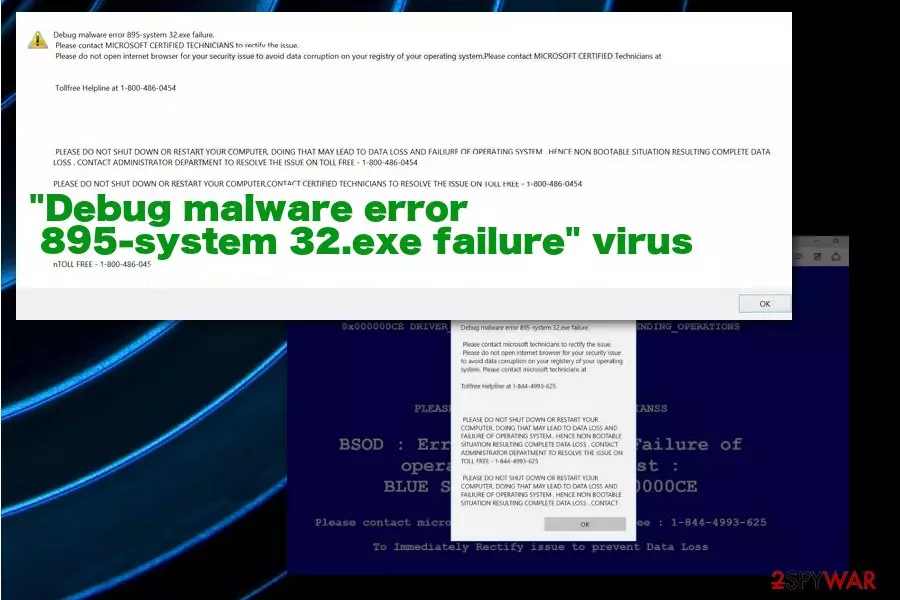
This scam is related to ad-supported sites, so when you encounter “Debug malware error 895-system 32.exe failure” pop-ups they get led with advertisements and similar commercial content. Clicking on that material can also cause more exposure to possibly malicious sites and create danger for your privacy and security of the machine. The information lists particular names of malware, trojans and other types of cyber threats, so the victim is scared immediately. This is fake and your machine, in most cases has nothing besides this potentially unwanted program.
| Name | “Debug malware error 895-system 32.exe failure” virus |
|---|---|
| Type | Adware/ technical support scam |
| Claims | The pop-up states about issues with your machine and immediate actions – contacting the technicians behind a tollfree number |
| Purpose | To trick people into calling the phone number and providing personal details, banking credentials, or directly paying the criminals |
| Distribution | Freeware installations, deceptive programs, and websites containing shady content that triggers such error messages |
| Possible danger | These fake messages trigger redirects and expose the user to malicious content that can lead to malware installations. Criminals behind the scammy message target your private information and credit card credentials to use them in latter scams and extortion-based campaigns |
| Elimination | To remove “Debug malware error 895-system 32.exe failure”, you need a proper anti-malware tool like FortectIntego |
“Debug malware error 895-system 32.exe failure” scam is designed to trick users into calling the phone number that supposedly connects you to the technical support team. However, this is connecting you to criminals, money-driven people that can lie their way into extorting information from you directly.
These scary messages, pop-ups with errors and additionally installed apps, files affect the whole process of “Debug malware error 895-system 32.exe failure” removal because all the files associated with the intruder make the virus more persistent. This why experts[1] recommend getting anti-malware tools for the best results.
“Debug malware error 895-system 32.exe failure” is the intruder that installs other programs and redirects users to shady websites, exposes to suspicious content, so you may need additional steps to access all the changes and material loaded on the device behind your back. So rely on this guide that provides you steps of fixing the error.
If you are here because of the suspicious ’Debug malware error 895-system 32.exe failure’ message on your computer screen, it means that you are a security-minded computer user. In this article, you are going to find all essential information about the reliability of Debug malware error 895-system 32.exe failure alert, and how you should fix this problem. 
To be more precise, ‘Debug malware error 895-system 32.exe failure’ virus usually attacks the Microsoft Edge browser but it can also infect other internet browsers. However, the main issue is not with the content delivered on Google Chrome, Mozilla Firefox, or Safari. The biggest concern is with changes the program can make on the system.
This deceptive app is categorized as an adware software, which hijacks computer systems in an indirect way. After the silent infiltration of your system, ‘Debug malware error 895-system 32.exe failure’ adware starts to attack your web browsers. If the machine gets affected by this application, you are not going to be able to use any of your Internet browsers normally.
Once the Debug malware error 895-system 32.exe failure is installed and running, it starts to send you a frightening message every time you launch your Internet browser. Due to these social engineering tactics people get scared and follow all the instructions.[3] This is what this scam warning usually says:
Debug malware error 895-system 32.exe failure.
Please contact Windows Technicians immediately to rectify the issue.
Please do not close or open your internet browser to avoid data corruption of your registery of your operation system. Please Contact Windows Technicians at
TOLLFREE HELPLINE AT :
PLEASE DO NOT SHUT DOWN OR RESTART YOUR COMPUTER DOING THAT MAY LEAD TO DATA LOSS AND FAILIURE OF OPERATING SYSTEM, HENCE NON BOOTABLE SITUATION RESULTING IN COMPLETE DATA LOSS.
CONTACT WINDOWS TECHNICIANS TO RESOLVE THE ISSUE ON TOLL FREE :
Please do not open internet browser for your security issue to avoid data corruption on your registery of your operation system.
Please Contact Windows Technicians at
TOLLFREE HELPLINE AT :
DO NOT believe what this fake message, which imitates system warning, says. It only seeks to frighten you and force you to think that your computer is infected. In addition, you should NOT CALL this fake tech support number! This number is thought to be a premium rate number, which might connect you with suspicious people who might have even more suspicious purposes. To avoid potential risks to your computer, you should keep an anti-spyware software like FortectIntego installed on it. It can guarantee long-term computer protection and you can remove “Debug malware error 895-system 32.exe failure” with the same program.
Malware delivery ways include deceptive online sites
If you wonder why this hoax message constantly pops-up on your screen, you probably have never heard about this shady PUPs’ distribution technique called bundling. This is a rogue marketing method that got borrowed by malicious actors. This pre-packing is a way to spread several programs in one freeware bundle, which seems to be a single program at first sight.
Moreover, the installation setup of such a software pack does not reveal the information about the additional programs added – you have to reveal such data by yourself. To find out whether you have installed a software bundle or not, you need to select Advanced or Custom installation mode, and then look for suspicious suggestions to install additional apps. If you happen to find any suggestions, deselect them.
Deceptive pages and other shady content like that can also cause exposure to malware-laden pages where direct downloads of a malicious script can get triggered by clicking on the content or visiting the particular page. You need to pay more attention to such processes and installations to keep the machine virus-free.
Remove “Debug malware error 895-system 32.exe failure” virus from the system with professional tools
The “Debug malware error 895-system 32.exe failure” virus should be deleted as soon as you notice its fake messages on your screen. Do not keep this rogue application on your system as it can slow down the computer performance and obstruct your regular activities on the Internet.
You can remove Debug malware error 895-system 32.exe failure from your system manually. However, we strongly recommend uninstalling the program alongside all the traces automatically – it is a much safer method to eliminate this doubtful program with a reputable spyware removal tool.
Anti-malware is the type of tool that you need to get for the proper “Debug malware error 895-system 32.exe failure” removal. Such software can help to achieve the best results and clean the system fully from the adware traces, malicious files and possible malware that could damage the machine.
Uninstall from Windows
Uninstall from Windows 10/8:
- Type Control Panel into the Windows search box and open the result.
- Under Programs, select Uninstall a program.


Uninstall from Windows 7/XP:
- Click on Windows Start > Control Panel (Windows XP users should click on Add/Remove Programs).
- In Control Panel, select Programs > Uninstall a program.


Remove the unwanted program:
- In the Programs and Features window, look for any recently installed suspicious entries, select them, and click Uninstall.
- If User Account Control appears, click Yes to confirm, then complete the removal.


Delete from macOS
Remove the unwanted application:
- From the menu bar, select Go > Applications.
- In the Applications folder, look for any suspicious entries, then drag them to Trash (or right-click and pick Move to Trash).


Delete leftover files and folders:
- Select Go > Go to Folder.
- Enter /Library/Application Support and remove any suspicious folders related to the unwanted program.
- Repeat the same check in the /Library/LaunchAgents and /Library/LaunchDaemons folders, deleting any suspicious entries.

- Finally, empty the Trash to permanently remove the leftovers.

Reset Internet Explorer
Remove dangerous add-ons:
- Open Internet Explorer, click on the Gear icon (IE menu) on the top-right corner of the browser
- Pick Manage Add-ons.
- You will see a Manage Add-ons window. Here, look for suspicious plugins. Click on these entries and select Disable.


Change your homepage if it was altered:
- Open IE and click on the Gear icon.
- Select Internet Options.
- In the General tab, delete the Home page address and replace it by your preferred one (for example, Google.com).
- Click Apply and then select OK.


Delete temporary files:
- Press on the Gear icon and select Internet Options.
- Under Browsing history, click Delete...
- Select relevant fields and press Delete.


Reset Internet Explorer:
- Click on Gear icon > Internet options and select Advanced tab.
- Select Reset.
- In the new window, check Delete personal settings and select Reset.


Remove from Microsoft Edge
Delete unwanted extensions from MS Edge:
- Select Menu (three horizontal dots at the top-right of the browser window) and pick Extensions.
- From the list, pick the extension and click on the Gear icon.
- Click Remove.


Clear cookies and other browser data:
- Click on the Menu (three horizontal dots at the top-right of the browser window) and select Settings > Privacy, search, and services..
- Under Clear browsing data, pick Choose what to clear.
- Select Cookies and other site data and Cached images and files. (apart from passwords, although you might want to include Media licenses as well, if applicable) and click on Clear.


Restore new tab and homepage settings:
- Click the menu icon and choose Settings.
- Then find On startup section.
- Click Remove next to any suspicious startup page.
Reset MS Edge if the above steps did not work:
- Press on Ctrl + Shift + Esc to open Task Manager.
- Click on More details arrow at the bottom of the window.
- Select Details tab.
- Now scroll down and locate every entry with Microsoft Edge name in it. Right-click on each of them and select End Task to stop MS Edge from running.


Instructions for Chromium-based Edge
Delete extensions from MS Edge (Chromium):
- Open Edge and click select Settings > Extensions.
- Delete unwanted extensions by clicking Remove.


Clear cache and site data:
- Click on Menu and go to Settings.
- Select Privacy, search and services.
- Under Clear browsing data, pick Choose what to clear.
- Under Time range, pick All time.
- Select Clear now.


Reset Chromium-based MS Edge:
- Click on Menu and select Settings.
- On the left side, pick Reset settings.
- Select Restore settings to their default values.
- Confirm with Reset.
- This will disable extensions and reset startup pages but will not delete bookmarks, saved passwords, or browsing history.


Remove from Mozilla Firefox (FF)
Remove dangerous extensions:
- Open Mozilla Firefox browser and click on the Menu (three horizontal lines at the top-right of the window).
- Select Add-ons.
- In here, select the unwanted extension and click Remove.


Reset the homepage:
- Click three horizontal lines at the top right corner to open the menu.
- Choose Settings.
- Under Home, set your preferred homepage and new tab settings.
Clear cookies and site data:
- Click Menu and pick Settings.
- Go to Privacy & Security section.
- Scroll down to locate Cookies and Site Data.
- Click on Clear Data...
- Select Cookies and Site Data and Temporary cached files and pages, then click Clear.


Reset Mozilla Firefox
If clearing the browser as explained above did not help, reset Mozilla Firefox:
- Open Mozilla Firefox browser and click the Menu.
- Go to Help and then choose Troubleshooting Information.

- Under Give Firefox a tune up section, click on Refresh Firefox...
- Once the pop-up shows up, confirm the action by pressing on Refresh Firefox.



Remove from Google Chrome
Delete malicious extensions from Google Chrome:
- Open Google Chrome, click on the Menu (three vertical dots at the top-right corner) and select More tools > Extensions.
- In the newly opened window, you will see all the installed extensions. Uninstall all suspicious extensions related to the unwanted program by clicking Remove.


Clear cache and web data from Chrome:
- Click on Menu and pick Settings.
- Under Privacy and security, select Clear browsing data.
- Select Browsing history, Cookies and other site data, as well as Cached images and files.
- Click Clear data.


Change your homepage:
- Click menu and choose Settings.
- Look for a suspicious site in the On startup section.
- Click on Open a specific or set of pages and click on three dots to find the Remove option.
Reset Google Chrome:
If the previous methods did not help you, reset Google Chrome to eliminate all the unwanted components:
- Click on Menu and select Settings.
- In the Settings, scroll down and click Advanced.
- Scroll down and locate Reset and clean up section.
- Now click Restore settings to their original defaults.
- Confirm with Reset settings.


Delete from Safari
Remove dangerous extensions:
- Open Safari, click Safari in the menu at the top-left of the screen, and select Preferences.
- Go to the Extensions tab, look for any suspicious entries, and click Uninstall to remove them.


Clear history and website data:
- Click Safari in the menu and pick Clear History.
- Set Clear to all history and confirm with Clear History.


Reset Safari:
- Click Safari in the menu and select Preferences > Advanced.
- Enable Show Develop menu in menu bar.
- From the menu bar, click Develop and select Empty Caches.


Did this guide help?
2 comments
wiljam
You know what, I called the number provided on that fake alert. The boy who answered the phone has a STRONG accent. I do not believe English is his native language, sounded like an eastern accent... I immediately understood that it is not a reliable service after the boy asked to install TeamViewer to control my computer instead of me. SCAM! Of course, I hung up the phone. By the way, the call was extra expensive, I saw the phone bill at the end of the November. A total deception! Do not believe these blue window messages!
Tenerifa
finally Ive got rid of this annoying program, i was about to smash my pc screen! *feels relieved*