

Dolphin Deals – an annoying app that might be related to Rocket Tab adware
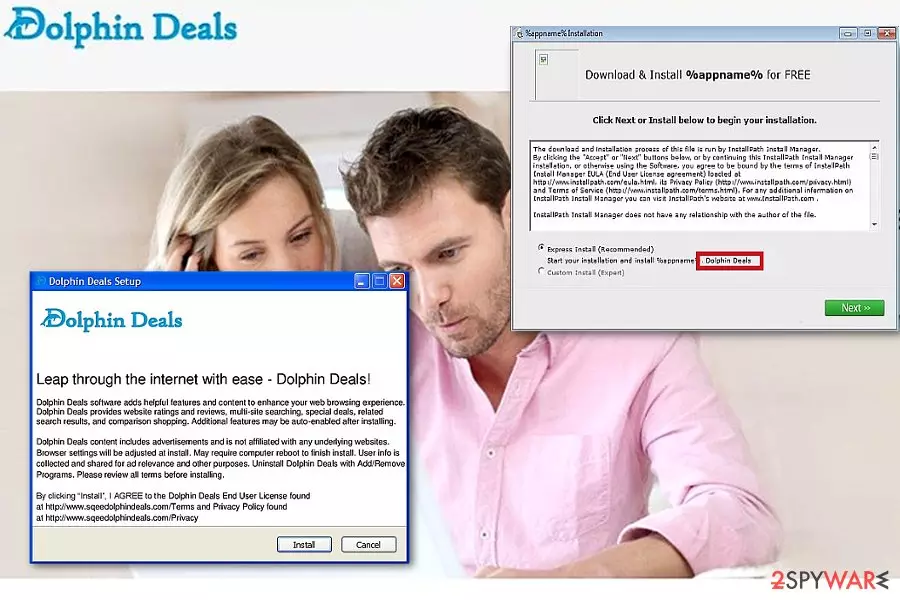
Dolphin Deals, released by SuperWeb LLC, functions as an adware-type[1] program which can significantly diminish your browsing quality. Due to certain peculiarities such as deceptive distribution techniques, some might treat this PUP as a virus.
We have made some investigation on this particular app and discovered that it might provide “RocketTab powered by Dolphin Deals“ named ads that show possible relations with another adware app named Rocket Tab. This adware is a program that should raise your concerns after installation. You might find your web browsers modified in some particular ways. PUPs are able to change the default homepage and new tab URL bar.
| Name | Dolphin Deals |
|---|---|
| Type | Adware app/potentially unwanted program |
| Developer | This program has been developed and released by SuperWeb LLC |
| Danger | Low. However, you can be led to malicious websites during redirecting activities |
| Relations | This adware might be related to Rocket Tab or these apps might support each other |
| Signs | The main signs of an adware infection are frequent advertising, redirecting, and collecting browsing data |
| Distribution | Adware often gets distributed by a deceptive technique known as “bundling”. The PUP can also come camouflaged as a fake update |
| Removal | You can get rid of the adware infection with the help of antimalware or manual guidelines (check the end of this article) |
| Fix | If you have found some files compromised by the PUP, try employing FortectIntego for the fix |
Dolphin Deals adware does not hold a very high danger level as it technically is not malware. However, this does not mean that the PUP should be ignored and kept on the affected system for a long period of time as it can:
- disturb your browsing sessions
- redirect you to sponsored websites
- spy on your online activities
The majority of digital shopping assistants also tend to share the collected information with third parties, which again results in another stream of ads or the commercial offers of sponsored domains. Developers aim to record your browsing habits, experience, and history that allows them to produce a bigger number of targeted adverts.
These pop-up alerts are not only an annoyance, but they leave a negative impact on your browser's capabilities to process information and load new tabs fastly. Dolphin Deals might try to execute enormous loads of adverts throughout a very short period of time that might relate to decreased browsing quality and even high CPU usage.

The only way to prevent this from happening is to remove Dolphin Deals from your computer system and web browser apps such as Chrome, Explorer, Firefox, Safari, etc. Note that the adware might inject BHOs[2] such as extensions, add-ons, and plug-ins that also need to be terminated for a full removal process.
You can complete the removal by leaning on automatic or manual techniques. If you choose the second method, you will have to put some effort of your own. However, if you find this method too challenging, you can always download a security program like MalwarebytesMalwarebytes or SpyHunterCombo Cleaner that will complete the entire task for you.
Also, Dolphin Deals virus might leave some compromised system components such as files, entries, and similar. If you find some content that needs fixing, you can try repairing it with a system tool such as FortectIntego. However, feel free to use any type of program if you think that it will suit your needs better.
This particular adware was active a few years ago, though even now some users spotted it on cyberspace. Now its official domain is not available anymore. Previously, users may have downloaded its browser extension and installed it as independent software. Due to these peculiarities, it was able to spy on users' browsing habits more efficiently.
Even if you were fine with the lack of privacy, its distribution model is what alarms IT experts. Dolphin Deals was spotted traveling along with shady applications. Considering the fact that it clings to fishy applications, it is not surprising if you get misguided to poorly secured partner websites with weak SSL certificates. Adware programs are becoming a more popular tool among hackers.[3]

PUPs attempt to slip along with another program
The majority of adware programs have official download websites. Enthusiastic online shoppers are likely to have installed this app. Alternatively, the adware might also enter the operating system if you accidentally install it with another free program. This might happen if you like downloading software from websites such as download.com, softonic.com, cnet.com, and soft32.com.
Also, you have a bigger risk of receiving adware within your installations if you use the Quick or Recommended configuration instead of the Custom or Advanced one. The previous mode allows users to take full control of all incoming objects and opt-out products that give a concerning look to them. This way people can be sure that no questionable app will slip into the system without their own notice.
Continuously, adware programs sometimes pretend to be suspicious software updates (JavaScript, Flash Player). If you are looking forward to updating some apps on your computer, go to the official website and check out all newly-released upgrades there. Additionally, do not be afraid to invest in a reliable antivirus program that will drop alerts if you encounter something suspicious/malicious during your online sessions.
Uninstall Dolphin Deals and delete its browser extension
If you now are convinced to remove Dolphin Deals, you may eliminate it manually or automatically. Install an anti-spyware program and let it do the job for you. You can also download some system repair software and try to repair compromised entries or files. It is also highly important to clean the browser from its tracking cookies.
In order to do that, the below manual removal guidelines might be of service to you. Browser reset is a faster solution. Proceed to the guidelines carefully. The extension is compatible with all main browser types, but it mainly targetted Chrome and IE users. It was highly spread in France[4] too.
Uninstall from Windows
Uninstall from Windows 10/8:
- Type Control Panel into the Windows search box and open the result.
- Under Programs, select Uninstall a program.


Uninstall from Windows 7/XP:
- Click on Windows Start > Control Panel (Windows XP users should click on Add/Remove Programs).
- In Control Panel, select Programs > Uninstall a program.


Remove the unwanted program:
- In the Programs and Features window, look for any recently installed suspicious entries, select them, and click Uninstall.
- If User Account Control appears, click Yes to confirm, then complete the removal.


Delete from macOS
Remove the unwanted application:
- From the menu bar, select Go > Applications.
- In the Applications folder, look for any suspicious entries, then drag them to Trash (or right-click and pick Move to Trash).


Delete leftover files and folders:
- Select Go > Go to Folder.
- Enter /Library/Application Support and remove any suspicious folders related to the unwanted program.
- Repeat the same check in the /Library/LaunchAgents and /Library/LaunchDaemons folders, deleting any suspicious entries.

- Finally, empty the Trash to permanently remove the leftovers.

Remove from Microsoft Edge
Delete unwanted extensions from MS Edge:
- Select Menu (three horizontal dots at the top-right of the browser window) and pick Extensions.
- From the list, pick the extension and click on the Gear icon.
- Click Remove.


Clear cookies and other browser data:
- Click on the Menu (three horizontal dots at the top-right of the browser window) and select Settings > Privacy, search, and services..
- Under Clear browsing data, pick Choose what to clear.
- Select Cookies and other site data and Cached images and files. (apart from passwords, although you might want to include Media licenses as well, if applicable) and click on Clear.


Restore new tab and homepage settings:
- Click the menu icon and choose Settings.
- Then find On startup section.
- Click Remove next to any suspicious startup page.
Reset MS Edge if the above steps did not work:
- Press on Ctrl + Shift + Esc to open Task Manager.
- Click on More details arrow at the bottom of the window.
- Select Details tab.
- Now scroll down and locate every entry with Microsoft Edge name in it. Right-click on each of them and select End Task to stop MS Edge from running.


Instructions for Chromium-based Edge
Delete extensions from MS Edge (Chromium):
- Open Edge and click select Settings > Extensions.
- Delete unwanted extensions by clicking Remove.


Clear cache and site data:
- Click on Menu and go to Settings.
- Select Privacy, search and services.
- Under Clear browsing data, pick Choose what to clear.
- Under Time range, pick All time.
- Select Clear now.


Reset Chromium-based MS Edge:
- Click on Menu and select Settings.
- On the left side, pick Reset settings.
- Select Restore settings to their default values.
- Confirm with Reset.
- This will disable extensions and reset startup pages but will not delete bookmarks, saved passwords, or browsing history.


Remove from Mozilla Firefox (FF)
Remove dangerous extensions:
- Open Mozilla Firefox browser and click on the Menu (three horizontal lines at the top-right of the window).
- Select Add-ons.
- In here, select the unwanted extension and click Remove.


Reset the homepage:
- Click three horizontal lines at the top right corner to open the menu.
- Choose Settings.
- Under Home, set your preferred homepage and new tab settings.
Clear cookies and site data:
- Click Menu and pick Settings.
- Go to Privacy & Security section.
- Scroll down to locate Cookies and Site Data.
- Click on Clear Data...
- Select Cookies and Site Data and Temporary cached files and pages, then click Clear.


Reset Mozilla Firefox
If clearing the browser as explained above did not help, reset Mozilla Firefox:
- Open Mozilla Firefox browser and click the Menu.
- Go to Help and then choose Troubleshooting Information.

- Under Give Firefox a tune up section, click on Refresh Firefox...
- Once the pop-up shows up, confirm the action by pressing on Refresh Firefox.



Remove from Google Chrome
Delete malicious extensions from Google Chrome:
- Open Google Chrome, click on the Menu (three vertical dots at the top-right corner) and select More tools > Extensions.
- In the newly opened window, you will see all the installed extensions. Uninstall all suspicious extensions related to the unwanted program by clicking Remove.


Clear cache and web data from Chrome:
- Click on Menu and pick Settings.
- Under Privacy and security, select Clear browsing data.
- Select Browsing history, Cookies and other site data, as well as Cached images and files.
- Click Clear data.


Change your homepage:
- Click menu and choose Settings.
- Look for a suspicious site in the On startup section.
- Click on Open a specific or set of pages and click on three dots to find the Remove option.
Reset Google Chrome:
If the previous methods did not help you, reset Google Chrome to eliminate all the unwanted components:
- Click on Menu and select Settings.
- In the Settings, scroll down and click Advanced.
- Scroll down and locate Reset and clean up section.
- Now click Restore settings to their original defaults.
- Confirm with Reset settings.


Delete from Safari
Remove dangerous extensions:
- Open Safari, click Safari in the menu at the top-left of the screen, and select Preferences.
- Go to the Extensions tab, look for any suspicious entries, and click Uninstall to remove them.


Clear history and website data:
- Click Safari in the menu and pick Clear History.
- Set Clear to all history and confirm with Clear History.


Reset Safari:
- Click Safari in the menu and select Preferences > Advanced.
- Enable Show Develop menu in menu bar.
- From the menu bar, click Develop and select Empty Caches.


Did this guide help?
Be the first to comment