

Driver Updater is an unreliable system optimizer that prompts users to buy its full version
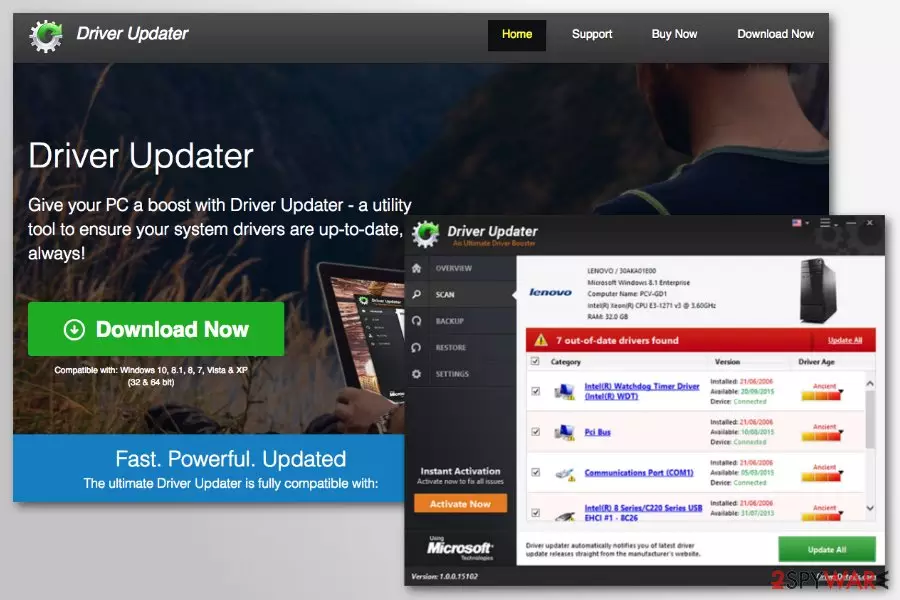
Driver Updater is a bogus driver updater software created by the infamous PCVARK and can be download from driverdetails.com. The application is meant to keep the Windows computer up to date by automatically updating drivers for various PC components. However, the truth is that Driver Updater shows exaggerated or even fake scan results in order to make users believe that their computer is highly unstable. However, as soon as they click on the “Update” button, they are led to a payment page which asks for $29.95 every six months. Essentially you are paying for a tool that can not only compromise your device but also will charge your credit card every six months until you cancel the subscription (which on itself might be quite complicated). Regular Windows users rarely need driver updates, unless they are using their PC for gaming or video editing; and even then there are official tools that can update the computer for you.
| Summary | |
| Name | Driver Updater |
| Type | Scareware |
| Category | Potentially unwanted application |
| Developer | PCVARK |
| Distribution | Software bundling, promotion campaigns, official website |
| Main dangers | Installation of incompatible drivers that might corrupt system operation, as well as money loss due to useless application |
| Elimination | Check out our instructions below |
| Recovery | Use FortectIntego to restore normal operation of the device |
PCVARK is a notorious PUP publisher and distributor, with creations like Mac Auto Fixer, Advanced Password Manager, Malware Crusher, and the infamous Advanced Mac Cleaner under its belt. These apps, along with Driver Updater, are mostly distributed with the help of software bundling and are also actively promoted via advertisement campaigns.
Once installed, the application immediately scans the device and, unsurprisingly, finds a large number of outdated drivers. Driver Updater shows numerous entries, all in red, claiming that the system is in danger, making unaware users quite concerned. Fake system optimizers are designed to scare the user, creating the illusion that the only way to fix their device is by paying for the full version of the program.
Based on social engineering, Driver Updater works very similarly to tech support scams, apart from that these are usually shown on Google Chrome, Mozilla Firefox, Safari or other browsers. They claim that the PC is infected with malware, and the only solution is to download bogus software or call the criminals. It is all a hoax, and Driver Updater removal should be performed before it can inflict damage to the system.

To remove Driver Updater, you should check our guide below. In some cases, the potentially unwanted program[1] might install additional apps to your system without your permission. In such a case, use security software that specializes in PUP elimination, such as MalwarebytesMalwarebytes. Once complete, we recommend using FortectIntego for system recovery – it can remove registry entries created by the PUP and fix other damage done by Driver Updater virus.
Why drivers are important and why you should not employ bogus software to update them
As we already mentioned, drivers[2] are an important software component that keeps the operation between hardware and software compatible. In some cases, new released can improve the performance of the device and patch the bugs. However, these releases are relatively rare, and most regular users do not need to update their drivers to keep the normal functioning of the machine.
Generally, you should only update drivers if you are having problems with a device, for example, graphics card. However, you most certainly do not need tools like Driver Updater to do so, as it costs you money and can download wrong drivers, compromising the device.
You can rely on tools like official Nvidia Geforce Experience or AMD application to update drivers securely. Additionally, there are other two options: using Device Manager and downloading them from the official websites. Remove Driver Updater bloatware and do not pay – it is merely a scam and will not provide your computer with anything useful.

Driver Updater tricks
We downloaded Driver Updater to check out its functionality. It found 17 outdated drivers (allegedly back from 2006) and prompted us to update them immediately. We proceeded, and the application was offered to us for $29.95. We declined and continued with Driver Updater uninstallation.
As soon as we entered the Control Panel and selected the program to remove it, we were immediately redirected to the “75% discount offer” and now offered the application for $5.99. We can assure you that it is typical PUP behavior, and no legitimate software developers would do that. That is another reason you should not trust Driver Updater and its developers – it is merely a scam that tries to take your money.
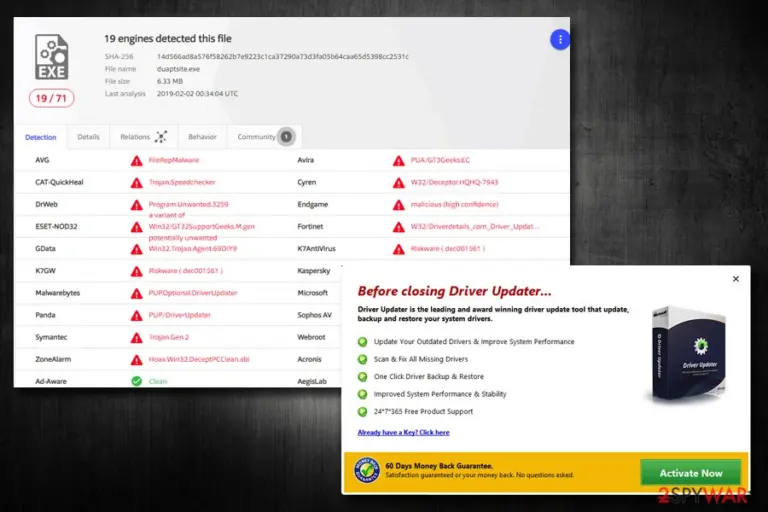
Finally, multiple AV engines recognize the threat as potentially dangerous and mark it as:[3]
- FileRepMalware
- a variant of Win32/GT32SupportGeeks.M.gen
- PUA/GT3Geeks.EC
- Hoax.Win32.DeceptPCClean.abi
- W32.Deceptor.Driverupdater
- driverdetails.com Driver Updater (PUA)

Distribution methods and download sources of the PC optimization software
Driver Updater has an official website that offers to download it directly. Additionally, you can find it available on various file-sharing sites, P2P networks, and similar free download sources. Of course, we do not recommend using them.
However, authors of the program also take advantage of software bundling method that allows spreading it in freeware or shareware packages. It means that this tool can be offered to download with any free program or sneak into the system unnoticed if you do not pay proper attention to the needed software installation.
Specialists from LesVirus.fr[4] note that using Recommended or Standard settings are the easiest way to install PUPs without realizing it. These settings do not reveal about additional components. To avoid unwanted apps, you have to use Advanced or Custom settings only and opt out pre-selected optional downloads.
Uninstall Driver Updater and other PUPs
You can remove Driver Updater from Windows computer just like any other program. Navigate to Control panel, find it and click Uninstall button. However, if you accidentally installed in a software bundle, you have to look up for other unwanted entries that may have been installed too.
To quickly find and eliminate suspicious components that may have been installed on your device, you should opt for automatic Driver Updater removal. All you have to do is to scan the computer with updated and reliable security software.
Uninstall from Windows
Uninstall from Windows 10/8:
- Type Control Panel into the Windows search box and open the result.
- Under Programs, select Uninstall a program.


Uninstall from Windows 7/XP:
- Click on Windows Start > Control Panel (Windows XP users should click on Add/Remove Programs).
- In Control Panel, select Programs > Uninstall a program.


Remove the unwanted program:
- In the Programs and Features window, look for any recently installed suspicious entries, select them, and click Uninstall.
- If User Account Control appears, click Yes to confirm, then complete the removal.


Reset Internet Explorer
Remove dangerous add-ons:
- Open Internet Explorer, click on the Gear icon (IE menu) on the top-right corner of the browser
- Pick Manage Add-ons.
- You will see a Manage Add-ons window. Here, look for suspicious plugins. Click on these entries and select Disable.


Change your homepage if it was altered:
- Open IE and click on the Gear icon.
- Select Internet Options.
- In the General tab, delete the Home page address and replace it by your preferred one (for example, Google.com).
- Click Apply and then select OK.


Delete temporary files:
- Press on the Gear icon and select Internet Options.
- Under Browsing history, click Delete...
- Select relevant fields and press Delete.


Reset Internet Explorer:
- Click on Gear icon > Internet options and select Advanced tab.
- Select Reset.
- In the new window, check Delete personal settings and select Reset.


Remove from Microsoft Edge
Delete unwanted extensions from MS Edge:
- Select Menu (three horizontal dots at the top-right of the browser window) and pick Extensions.
- From the list, pick the extension and click on the Gear icon.
- Click Remove.


Clear cookies and other browser data:
- Click on the Menu (three horizontal dots at the top-right of the browser window) and select Settings > Privacy, search, and services..
- Under Clear browsing data, pick Choose what to clear.
- Select Cookies and other site data and Cached images and files. (apart from passwords, although you might want to include Media licenses as well, if applicable) and click on Clear.


Restore new tab and homepage settings:
- Click the menu icon and choose Settings.
- Then find On startup section.
- Click Remove next to any suspicious startup page.
Reset MS Edge if the above steps did not work:
- Press on Ctrl + Shift + Esc to open Task Manager.
- Click on More details arrow at the bottom of the window.
- Select Details tab.
- Now scroll down and locate every entry with Microsoft Edge name in it. Right-click on each of them and select End Task to stop MS Edge from running.


Instructions for Chromium-based Edge
Delete extensions from MS Edge (Chromium):
- Open Edge and click select Settings > Extensions.
- Delete unwanted extensions by clicking Remove.


Clear cache and site data:
- Click on Menu and go to Settings.
- Select Privacy, search and services.
- Under Clear browsing data, pick Choose what to clear.
- Under Time range, pick All time.
- Select Clear now.


Reset Chromium-based MS Edge:
- Click on Menu and select Settings.
- On the left side, pick Reset settings.
- Select Restore settings to their default values.
- Confirm with Reset.
- This will disable extensions and reset startup pages but will not delete bookmarks, saved passwords, or browsing history.


Remove from Mozilla Firefox (FF)
Remove dangerous extensions:
- Open Mozilla Firefox browser and click on the Menu (three horizontal lines at the top-right of the window).
- Select Add-ons.
- In here, select the unwanted extension and click Remove.


Reset the homepage:
- Click three horizontal lines at the top right corner to open the menu.
- Choose Settings.
- Under Home, set your preferred homepage and new tab settings.
Clear cookies and site data:
- Click Menu and pick Settings.
- Go to Privacy & Security section.
- Scroll down to locate Cookies and Site Data.
- Click on Clear Data...
- Select Cookies and Site Data and Temporary cached files and pages, then click Clear.


Reset Mozilla Firefox
If clearing the browser as explained above did not help, reset Mozilla Firefox:
- Open Mozilla Firefox browser and click the Menu.
- Go to Help and then choose Troubleshooting Information.

- Under Give Firefox a tune up section, click on Refresh Firefox...
- Once the pop-up shows up, confirm the action by pressing on Refresh Firefox.



Remove from Google Chrome
Delete malicious extensions from Google Chrome:
- Open Google Chrome, click on the Menu (three vertical dots at the top-right corner) and select More tools > Extensions.
- In the newly opened window, you will see all the installed extensions. Uninstall all suspicious extensions related to the unwanted program by clicking Remove.


Clear cache and web data from Chrome:
- Click on Menu and pick Settings.
- Under Privacy and security, select Clear browsing data.
- Select Browsing history, Cookies and other site data, as well as Cached images and files.
- Click Clear data.


Change your homepage:
- Click menu and choose Settings.
- Look for a suspicious site in the On startup section.
- Click on Open a specific or set of pages and click on three dots to find the Remove option.
Reset Google Chrome:
If the previous methods did not help you, reset Google Chrome to eliminate all the unwanted components:
- Click on Menu and select Settings.
- In the Settings, scroll down and click Advanced.
- Scroll down and locate Reset and clean up section.
- Now click Restore settings to their original defaults.
- Confirm with Reset settings.


Delete from Safari
Remove dangerous extensions:
- Open Safari, click Safari in the menu at the top-left of the screen, and select Preferences.
- Go to the Extensions tab, look for any suspicious entries, and click Uninstall to remove them.


Clear history and website data:
- Click Safari in the menu and pick Clear History.
- Set Clear to all history and confirm with Clear History.


Reset Safari:
- Click Safari in the menu and select Preferences > Advanced.
- Enable Show Develop menu in menu bar.
- From the menu bar, click Develop and select Empty Caches.


Did this guide help?
Be the first to comment