

Findiosearch.com – a fake search engine by Aztec Media that redirects users to unwanted domains
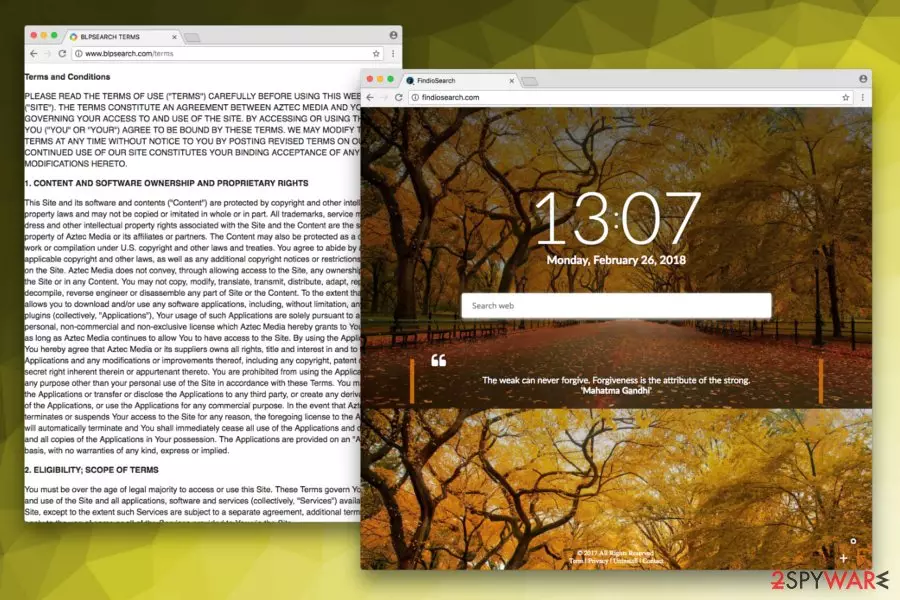
Findiosearch is a browser hijacker[1] which was created by a company called Aztec Media. Just like many other browser hijackers, it infiltrates users' machines without their permission and starts suspicious activity shortly. As soon as it is settled, the homepage and search engine of users’ Google Chrome, MS Edge, Mozilla Firefox, or Safari is set to Findiosearch.com. As security experts from wubingdu.cn[2] concluded, PUPs are typically not entirely dangerous on their own (unlike malware, they do not corrupt system files or registry entries). However, it is redirecting, possibly spying, and promotional tendencies are considered to be potentially malicious and might harm not only your PC but also compromise personal data. Therefore, the removal of this app should be carried out as soon as its demeanor is noticed.
| Name | Findiosearch.com |
|---|---|
| Type | Browser hijacker |
| Category | Potentially Unwanted Program |
| Problems created | The search engine continuously shows advertisements, redirects to other pages, and injects ads to random pages, affects the speed of the internet |
| Removal | You can run an anti-malware tool and check for any intruders. Then remove all detected programs and apps completely |
| Recovery | The system gets affected by the changes that PUP triggers, run FortectIntego to repair any files and functions damaged by the intruder |
Visually, the original website looks stunning – it provides a search engine, a clock, a date, and a beautiful background to enjoy. However, this is all done for marketing purposes as developers of browser hijackers often try to manipulate users making them believe that the app provided is useful and user-friendly. However, their only goal is to monetize on victims who do not suspect anything fishy at the start.
You should not be deceived by pretty looks and an “enhanced browsing experience” (as promised by developers). Google has long implemented a security tool that identifies potentially dangerous websites. Thus, the search engine is marked as being “Not Secure”:
Your connection to this site is not secure. You should not enter any sensitive information on this site (for example, passwords or credit cards), because it could be stolen by attackers.
Speaking of attackers – redirects initiated by Findiosearch.com might lead you to potentially perilous domains. As the developers of browser hijackers have no control over the web content that you might be exposed to – hyperlinks, ads generated and redirects might lead you to websites where malicious JavaScripts might install malware on your machine. This way, you can even be attacked by ransomware which is devastating to any computer user.
As already mentioned by Google, personal information exposed on this website might lead to it being stolen by cybercriminals. Although Aztec Media specifies in their privacy policy that they will try their best to protect your information, they cannot guarantee its safety. Identity theft is a serious issue that should never be ignored.
Undoubtedly, you should remove the suspicious program from your computer. Do not let its looks deceive you – it only brings disturbance after little usage. To eliminate this suspicious application, we suggest using [d2, or MalwarebytesMalwarebytes, or any other security tool of your preference.

Dubious applications invade users machines without their authorization
If you wonder how the computer changes started to appear, you should probably look at recently downloaded and installed free applications. Typically, the culprit of unauthorized installation is caused by bundling – a suspicious marketing campaign used by freeware developers on a regular basis.
To avoid being a victim of PUP installation, we suggest you follow these simple rules[3]:
- Browse the internet before installing an application or toolbar you have never heard of before. There are tremendous amounts of information about every program. You merely need to look for it.
- Try to avoid third-party content for software downloads and its updates. Always pick legitimate websites as third-party sites might offer fake installers.
- If you need to download a program from an unknown source, follow the installation process carefully. Read the EULA and instructions well. When prompted, opt for Advanced settings instead of Recommended ones as the latter will not fully disclose a full list of applications that might be installed on your PC. Then, untick any pre-checked tick marks.
- Invest in robust security software that can quickly eliminate unpleasant infections and keep your machine safe in the long run.
Simple ways to delete the virus from your computer
The consequences of an unwanted program were described in the first part of this article. Thus, there is no doubt that Findiosearch.com removal is a must for every user who values their internet safety and cybersecurity. Fortunately, eliminating this PUP is a simple task – you can do it either manually or automatically.
Manual PUP removal should not be performed by individuals who are new to the computer world as this method requires decent IT skills. If you are up for the challenge, you can follow the instructions below this article (it will help you with the procedure tremendously; however, make sure you follow each step carefully as incorrect elimination will not get rid of the virus).
We highly recommend you remove Findiosearch.com using a robust security tool as it is an efficient and quick way to delete the PUP. Please pick from the programs mentioned below as they are designed to deal with troublesome intruders like browser hijackers and malware.
Uninstall from Windows
Uninstall from Windows 10/8:
- Type Control Panel into the Windows search box and open the result.
- Under Programs, select Uninstall a program.


Uninstall from Windows 7/XP:
- Click on Windows Start > Control Panel (Windows XP users should click on Add/Remove Programs).
- In Control Panel, select Programs > Uninstall a program.


Remove the unwanted program:
- In the Programs and Features window, look for any recently installed suspicious entries, select them, and click Uninstall.
- If User Account Control appears, click Yes to confirm, then complete the removal.


Delete from macOS
Remove the unwanted application:
- From the menu bar, select Go > Applications.
- In the Applications folder, look for any suspicious entries, then drag them to Trash (or right-click and pick Move to Trash).


Delete leftover files and folders:
- Select Go > Go to Folder.
- Enter /Library/Application Support and remove any suspicious folders related to the unwanted program.
- Repeat the same check in the /Library/LaunchAgents and /Library/LaunchDaemons folders, deleting any suspicious entries.

- Finally, empty the Trash to permanently remove the leftovers.

Remove from Microsoft Edge
Delete unwanted extensions from MS Edge:
- Select Menu (three horizontal dots at the top-right of the browser window) and pick Extensions.
- From the list, pick the extension and click on the Gear icon.
- Click Remove.


Clear cookies and other browser data:
- Click on the Menu (three horizontal dots at the top-right of the browser window) and select Settings > Privacy, search, and services..
- Under Clear browsing data, pick Choose what to clear.
- Select Cookies and other site data and Cached images and files. (apart from passwords, although you might want to include Media licenses as well, if applicable) and click on Clear.


Restore new tab and homepage settings:
- Click the menu icon and choose Settings.
- Then find On startup section.
- Click Remove next to any suspicious startup page.
Reset MS Edge if the above steps did not work:
- Press on Ctrl + Shift + Esc to open Task Manager.
- Click on More details arrow at the bottom of the window.
- Select Details tab.
- Now scroll down and locate every entry with Microsoft Edge name in it. Right-click on each of them and select End Task to stop MS Edge from running.


Instructions for Chromium-based Edge
Delete extensions from MS Edge (Chromium):
- Open Edge and click select Settings > Extensions.
- Delete unwanted extensions by clicking Remove.


Clear cache and site data:
- Click on Menu and go to Settings.
- Select Privacy, search and services.
- Under Clear browsing data, pick Choose what to clear.
- Under Time range, pick All time.
- Select Clear now.


Reset Chromium-based MS Edge:
- Click on Menu and select Settings.
- On the left side, pick Reset settings.
- Select Restore settings to their default values.
- Confirm with Reset.
- This will disable extensions and reset startup pages but will not delete bookmarks, saved passwords, or browsing history.


Remove from Mozilla Firefox (FF)
Remove dangerous extensions:
- Open Mozilla Firefox browser and click on the Menu (three horizontal lines at the top-right of the window).
- Select Add-ons.
- In here, select the unwanted extension and click Remove.


Reset the homepage:
- Click three horizontal lines at the top right corner to open the menu.
- Choose Settings.
- Under Home, set your preferred homepage and new tab settings.
Clear cookies and site data:
- Click Menu and pick Settings.
- Go to Privacy & Security section.
- Scroll down to locate Cookies and Site Data.
- Click on Clear Data...
- Select Cookies and Site Data and Temporary cached files and pages, then click Clear.


Reset Mozilla Firefox
If clearing the browser as explained above did not help, reset Mozilla Firefox:
- Open Mozilla Firefox browser and click the Menu.
- Go to Help and then choose Troubleshooting Information.

- Under Give Firefox a tune up section, click on Refresh Firefox...
- Once the pop-up shows up, confirm the action by pressing on Refresh Firefox.



Remove from Google Chrome
Delete malicious extensions from Google Chrome:
- Open Google Chrome, click on the Menu (three vertical dots at the top-right corner) and select More tools > Extensions.
- In the newly opened window, you will see all the installed extensions. Uninstall all suspicious extensions related to the unwanted program by clicking Remove.


Clear cache and web data from Chrome:
- Click on Menu and pick Settings.
- Under Privacy and security, select Clear browsing data.
- Select Browsing history, Cookies and other site data, as well as Cached images and files.
- Click Clear data.


Change your homepage:
- Click menu and choose Settings.
- Look for a suspicious site in the On startup section.
- Click on Open a specific or set of pages and click on three dots to find the Remove option.
Reset Google Chrome:
If the previous methods did not help you, reset Google Chrome to eliminate all the unwanted components:
- Click on Menu and select Settings.
- In the Settings, scroll down and click Advanced.
- Scroll down and locate Reset and clean up section.
- Now click Restore settings to their original defaults.
- Confirm with Reset settings.


Delete from Safari
Remove dangerous extensions:
- Open Safari, click Safari in the menu at the top-left of the screen, and select Preferences.
- Go to the Extensions tab, look for any suspicious entries, and click Uninstall to remove them.


Clear history and website data:
- Click Safari in the menu and pick Clear History.
- Set Clear to all history and confirm with Clear History.


Reset Safari:
- Click Safari in the menu and select Preferences > Advanced.
- Enable Show Develop menu in menu bar.
- From the menu bar, click Develop and select Empty Caches.


Did this guide help?
Be the first to comment