

FixMyPC is the questionable registry cleaner that shows false results of the scan
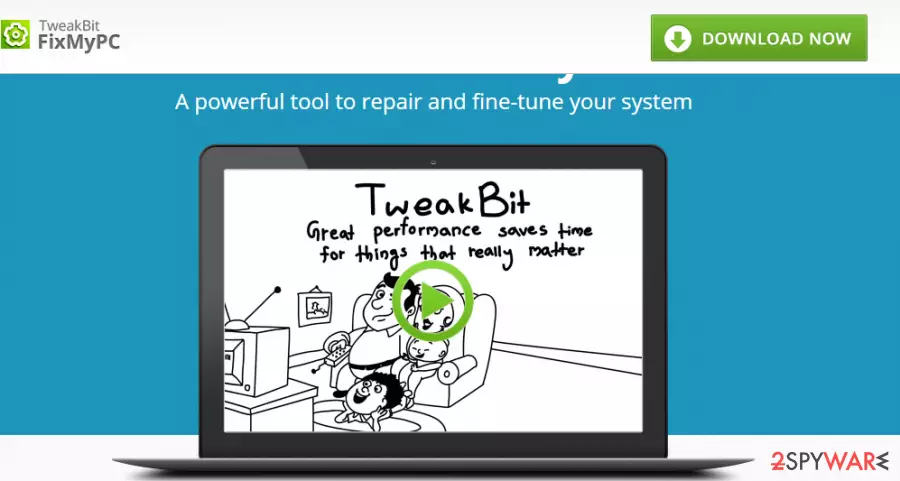
FixMyPC is a registry cleaner that has been developed in 2013 by Auslogics Pty Ltd. Like any other optimization tool, it can clean, fix, and defrag the system. Probably all people, who want their computers to run smoothly, use such and similar optimization tools because system defragmentation and registry cleaning are vital. However, this optimization tool is distributed in the same domain as PCSpeedUp, PCCleaner, PCBooster, DriverUpdater, and PCRepairKit. All these apps belong to the potentially unwanted program (PUP) category, which is why the fact that FixMyPC is spreading along with them is alarming.
In fact, FixMyPC is just the same as the programs listed above. It is classified as a PUP because it spread in a suspicious manner and tricks users into buying its full version.
However, security vendors recommend trusting a more reputable registry cleaner. It seems that FixMyPC virus can detect only the basic registry errors. Besides, its defrag system is very questionable. Therefore, even if you decide to buy it, it's not likely that you will notice an improvement in the system's performance.
Did you notice that FixMyPC is scanning your PC's system without your request? Then you should launch a proper anti-malware tool or another reliable security application and get rid of this unwanted registry cleaner right away. As for the issues that can be created in your system folders, try FortectIntego or another trustworthy optimization tool.

FixMyPC is a tool that is primarily spread on its official website. To get permission to use it, you will have to pay $59.40. However, there is one but. This tool is also distributed in a bundle with other freeware and shareware. Bundled FixMyPC version is a trial that is set to perform a system scan only.
Thus, if it enters the system without being noticed, it creates a Windows startup key and initiates full system scans on a certain schedule. It may inform about tens of errors existing in your PC's system, you should not trust that blindly.
Also, FixMyPC can try to involve you in online scam affairs. It may display random pop-ups that warn about system errors and urge to use a remote technical support. FixMyPC pop-up alert looks like:
Our expert technicians are standing by ready to help you clean up virus or malware infections and set up protection, resolve stubborn computer problems, install printer or set up email program, and a lot more.
Call for immediate assistance
1-888-424-8349
PUPs spread around with deceiving content and promotional ads
The majority of the issues that are indicated as critical may be bogus, i.e. random files from your PC's system can be reported as corrupted. However, if you would decide to fix the named issues, you will be redirected to the official website of FixMyPC and will be asked to buy a license key.
If you have already noticed signs of FixMyPC malware, check your computer with a trustworthy anti-spyware and remove it without a delay. Buying its license is almost equal to supporting cybercriminals. Besides, you will empty your pockets for nothing.
You need to rely on Advanced or Custom options during every freeware installation and always pay attention to claims, developers, and other details when you encounter promotional ads online.
Use anti-spyware to remove FixMyPC virus
You don't necessarily have to use anti-malware to delete FixMyPC optimizer from the system. You can do that by performing the following steps. But remember that you should double-check to be sure that a PUP is fully eliminated.
However, don't forget that it's a PUP. If you have installed it unconsciously, you might have installed other PUPs this way too. Thus, fix the system after the intruder FixMyPC thoroughly and ensure that all its counterparts are gone as well, you are strongly advised to use a reliable optimizer after.
Uninstall from Windows
Uninstall from Windows 10/8:
- Type Control Panel into the Windows search box and open the result.
- Under Programs, select Uninstall a program.


Uninstall from Windows 7/XP:
- Click on Windows Start > Control Panel (Windows XP users should click on Add/Remove Programs).
- In Control Panel, select Programs > Uninstall a program.


Remove the unwanted program:
- In the Programs and Features window, look for any recently installed suspicious entries, select them, and click Uninstall.
- If User Account Control appears, click Yes to confirm, then complete the removal.


Delete from macOS
Remove the unwanted application:
- From the menu bar, select Go > Applications.
- In the Applications folder, look for any suspicious entries, then drag them to Trash (or right-click and pick Move to Trash).


Delete leftover files and folders:
- Select Go > Go to Folder.
- Enter /Library/Application Support and remove any suspicious folders related to the unwanted program.
- Repeat the same check in the /Library/LaunchAgents and /Library/LaunchDaemons folders, deleting any suspicious entries.

- Finally, empty the Trash to permanently remove the leftovers.

Reset Internet Explorer
Remove dangerous add-ons:
- Open Internet Explorer, click on the Gear icon (IE menu) on the top-right corner of the browser
- Pick Manage Add-ons.
- You will see a Manage Add-ons window. Here, look for suspicious plugins. Click on these entries and select Disable.


Change your homepage if it was altered:
- Open IE and click on the Gear icon.
- Select Internet Options.
- In the General tab, delete the Home page address and replace it by your preferred one (for example, Google.com).
- Click Apply and then select OK.


Delete temporary files:
- Press on the Gear icon and select Internet Options.
- Under Browsing history, click Delete...
- Select relevant fields and press Delete.


Reset Internet Explorer:
- Click on Gear icon > Internet options and select Advanced tab.
- Select Reset.
- In the new window, check Delete personal settings and select Reset.


Remove from Microsoft Edge
Delete unwanted extensions from MS Edge:
- Select Menu (three horizontal dots at the top-right of the browser window) and pick Extensions.
- From the list, pick the extension and click on the Gear icon.
- Click Remove.


Clear cookies and other browser data:
- Click on the Menu (three horizontal dots at the top-right of the browser window) and select Settings > Privacy, search, and services..
- Under Clear browsing data, pick Choose what to clear.
- Select Cookies and other site data and Cached images and files. (apart from passwords, although you might want to include Media licenses as well, if applicable) and click on Clear.


Restore new tab and homepage settings:
- Click the menu icon and choose Settings.
- Then find On startup section.
- Click Remove next to any suspicious startup page.
Reset MS Edge if the above steps did not work:
- Press on Ctrl + Shift + Esc to open Task Manager.
- Click on More details arrow at the bottom of the window.
- Select Details tab.
- Now scroll down and locate every entry with Microsoft Edge name in it. Right-click on each of them and select End Task to stop MS Edge from running.


Instructions for Chromium-based Edge
Delete extensions from MS Edge (Chromium):
- Open Edge and click select Settings > Extensions.
- Delete unwanted extensions by clicking Remove.


Clear cache and site data:
- Click on Menu and go to Settings.
- Select Privacy, search and services.
- Under Clear browsing data, pick Choose what to clear.
- Under Time range, pick All time.
- Select Clear now.


Reset Chromium-based MS Edge:
- Click on Menu and select Settings.
- On the left side, pick Reset settings.
- Select Restore settings to their default values.
- Confirm with Reset.
- This will disable extensions and reset startup pages but will not delete bookmarks, saved passwords, or browsing history.


Remove from Mozilla Firefox (FF)
Remove dangerous extensions:
- Open Mozilla Firefox browser and click on the Menu (three horizontal lines at the top-right of the window).
- Select Add-ons.
- In here, select the unwanted extension and click Remove.


Reset the homepage:
- Click three horizontal lines at the top right corner to open the menu.
- Choose Settings.
- Under Home, set your preferred homepage and new tab settings.
Clear cookies and site data:
- Click Menu and pick Settings.
- Go to Privacy & Security section.
- Scroll down to locate Cookies and Site Data.
- Click on Clear Data...
- Select Cookies and Site Data and Temporary cached files and pages, then click Clear.


Reset Mozilla Firefox
If clearing the browser as explained above did not help, reset Mozilla Firefox:
- Open Mozilla Firefox browser and click the Menu.
- Go to Help and then choose Troubleshooting Information.

- Under Give Firefox a tune up section, click on Refresh Firefox...
- Once the pop-up shows up, confirm the action by pressing on Refresh Firefox.



Remove from Google Chrome
Delete malicious extensions from Google Chrome:
- Open Google Chrome, click on the Menu (three vertical dots at the top-right corner) and select More tools > Extensions.
- In the newly opened window, you will see all the installed extensions. Uninstall all suspicious extensions related to the unwanted program by clicking Remove.


Clear cache and web data from Chrome:
- Click on Menu and pick Settings.
- Under Privacy and security, select Clear browsing data.
- Select Browsing history, Cookies and other site data, as well as Cached images and files.
- Click Clear data.


Change your homepage:
- Click menu and choose Settings.
- Look for a suspicious site in the On startup section.
- Click on Open a specific or set of pages and click on three dots to find the Remove option.
Reset Google Chrome:
If the previous methods did not help you, reset Google Chrome to eliminate all the unwanted components:
- Click on Menu and select Settings.
- In the Settings, scroll down and click Advanced.
- Scroll down and locate Reset and clean up section.
- Now click Restore settings to their original defaults.
- Confirm with Reset settings.


Delete from Safari
Remove dangerous extensions:
- Open Safari, click Safari in the menu at the top-left of the screen, and select Preferences.
- Go to the Extensions tab, look for any suspicious entries, and click Uninstall to remove them.


Clear history and website data:
- Click Safari in the menu and pick Clear History.
- Set Clear to all history and confirm with Clear History.


Reset Safari:
- Click Safari in the menu and select Preferences > Advanced.
- Enable Show Develop menu in menu bar.
- From the menu bar, click Develop and select Empty Caches.


Did this guide help?
4 comments
Lilian
Silly me! Ive just paid those $59 and only then decided to google on this program. I assume I can do nothing to get my money back?
Bert88
No one should pay money for an unfamiliar program. Thats the easiest way of giving away your money. :) If you have just made the payment, you should try to contact with your bank consultant and ask to cancel the payment if its not too late. Good luck!
Lilian
Ive f**** up this time. My payment has already been confirmed, so nothing could be done. Well, at least I can now use a licensed FixMyPC version. It seems to be true that it does nothing!
Glen
I knew that FixMyPC cleaner is worthless!!! I has started checking my PC out of nowhere, so I have immediately checked the system with SpyHunter. Guess what it has showed? FixMyPC PUP. Be careful guys!