

Flvto is the service that provides YouTube video conversion but also fills the screen with ads
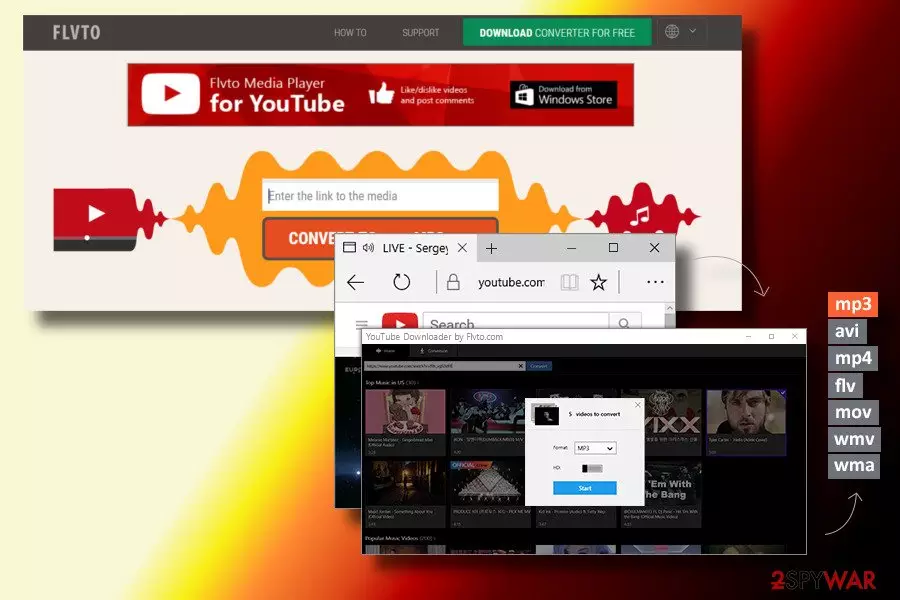
Flvto is a free browser plugin[1] developed by Perspektiva LLC and can be downloaded from Windows or Google stores. The app can also be applied to Google Chrome, Internet Explorer, Mozilla Firefox, Safari, and other browsers. The primary purpose of Flvto biz is to help users to convert YouTube videos into mp3, .avi or other formats, allowing them to upload these files into DVDs, music players, USB sticks, etc. However, the site can be used for excessive marketing campaigns and data tracking.
| SUMMARY | |
| Name | Flvto Youtube Downloader |
| Type | Adware/PUP/Potentially unwanted program |
| Developer | Perspektiva LLC |
| Symptoms | The most common signs of this adware program are supposed to be intrusive advertising, redirecting during browsing sessions, tracking your browsing history, changing the browser's homepage, and new tab search section |
| Distribution | You can find this product on its official website, however, it is more likely to use deceptive installation techniques such as software bundling which happens while downloading products or services from unsecured sources such as Softonic, CNET, etc. |
| Main dangers | Redirecting tasks might lead to potentially infectious domains where different types of malware might be hidden. Bogus pop-up notifications might provide you with surveys that might try to swindle your personally identifiable information |
| Elimination | Download and install the anti-malware tool to check viruses. To remove malicious files, go to the end of this article and use our manual elimination guidelines |
| Repair | Tools like FortectIntego can help repair virus damage |
Despite the initial impression, our research team initiated an in-depth analysis of this tool and the results aroused suspicions. Based on Google Analytics,[2] the bulk of Internet users are typically interested in Flvto removal or if it is safe. Such queries indicate the fact that the application works questionably and causes difficulties concerning removal.
It turned out that the virus belongs to the potentially unwanted program and adware categories since 2015 and keeps implementing suspicious activities up until now. Within three years of existence, the downloader did not change its distribution strategy in any way – its developers keep attaching it to freeware and shareware as “optional download,” and that's the main reason why it's been assigned to the PUP category.
The rest of the traits exhibited by Flvto Downloader are typical to an adware program. If the extension is downloaded, it is automatically enabled on Google Chrome and starts running the related processes in Task Manager and Windows Startup.
Apart from unusually high CPU usage, people should notice an increment of commercial ads on most frequently visited websites. The layer of ads can cover up the content of Flvto and other sites that typically do not display pop-ups, deals, offers, or similar. In some cases, users might notice the following Some of them may be marked as:
- Ads by XXX
- Downloading from XXX
- Sponsored by XXX
- Powered by XXX
- Etc.
There's no doubt that a continuous flood of intrusive full-page graphics, video ads, pop-up ads, interstitial ads, hyperlinks, and other forms of resist-to-go-away ads disrupt web browsing activities. Nonetheless, that's not the biggest problem. Whether or not Flvto biz providing viruses is the biggest concern.

The app is infamous for promoting suspicious products, services, surveys, software updates, and other misleading content, which features attention-grabbing headlines. However, what's behind those headlines and does Flvto connects users to virus-laden domains is still a debatable question.
If the previous facts are not enough for you to uninstall the questionable appyou still consider it useful, note that it can also track your web browsing activities. For this purpose, it installs tracking cookies and web beacons into Chrome and continuously monitors what websites you visit and what activities you perform while using them.
Our team also took a look at the Privacy Policy of Flvto which is provided on the official website. Considering a large number of data breaches recently, as well as the release of the GDPR,[3] the data collected by the site drew our attention. According to the company, not only non-personally identifiable information is collected but also personal data can be used in the following ways:
We may aggregate your personal information with personal information of other members and users, and disclose such information to advertisers and other third-parties for marketing and promotional purposes.
We may use your information to run promotions, contests, surveys and other features and events.
We will not use your e-mail address or other personal information to send commercial or marketing messages without your consent. We may use your e-mail without further consent for non-marketing or administrative purposes.
Bedynet.ru,[4] Russian-based team of cybersecurity researchers, prompt Internet users to remove the questionable program ASAP. No matter how useful some of its offers may seem, beware that they are used for driving traffic to predetermined websites to increase their rank or sales.
Moreover, some of the ads may be linked to potentially dangerous third-party websites or even hacked domains, which initiate drive-by download and phishing attacks. It is advisable to run a full system scan with SpyHunterCombo Cleaner, MalwarebytesMalwarebytes and get rid of the PUP. Use reputable anti-spyware if you need to remove Flvto from the system.

Be careful installing free apps
As we have already mentioned, volunteers can download this Youtube Downloader from its official website (flvto[.]biz). If you check this site, you must have changed your mind to install this app. The official domain is full of fishy-looking ads with catchy headlines. Besides, the website automatically generates a new Google Chrome tab, which reports that Flash Player and Pop-Up were blocked on this website.
Unfortunately, its developers have also added this PUP as a useful Chrome extension to various freeware and shareware. Thus, if you have started noticing an unusual amount of ads and misleading extensions injected into Chrome's extensions' list, you should check the system with anti-malware and remove all suspicious entries that have recently been installed on your PC.
We must add that freeware installation always pose a risk of getting the system compromised by potentially unwanted programs. To prevent this from happening, it's not enough to click the “Next” button to follow the installation wizard. You have to select the Advanced or Custom installation option and read every notification carefully to know what terms do you agree with. DO NOT accept to install any add-ons, plug-ins, toolbars, and extensions, and make sure that you unmark all of them if offered during freeware's installation.
Most people discover suspicious applications coming from sources such as softonic.com, soft32.com, download.com, or cnet.com, so you have to be extremely careful while installing applications and services from non-original developers. Besides, having reliable antimalware software will create some type of protection that would prevent bogus products from occurring unknowingly.
Uninstall the app and keep away from the service
Flvto.biz virus can render your PC vulnerable to various cyber infections. Thus, any interaction with the ads that it generates poses a risk of redirects to potentially dangerous or even malicious domains that may be involved in malware distribution.

Two options are available for virus removal. First of all, you can try to delete it manually from Control Panel and reset the web browser's settings. However, people reported that they could not eliminate this tool due to the flvtoyoutubedownloader.exe process, which generates a downloader error pop-up.
In case you attempt to remove it manually is blocked, we would recommend using a professional anti-malware utility to remove the unwanted program. You should either update the one that is currently running on your PC or install a powerful tool developed by a reputable security vendor.
Uninstall from Windows
Uninstall from Windows 10/8:
- Type Control Panel into the Windows search box and open the result.
- Under Programs, select Uninstall a program.


Uninstall from Windows 7/XP:
- Click on Windows Start > Control Panel (Windows XP users should click on Add/Remove Programs).
- In Control Panel, select Programs > Uninstall a program.


Remove the unwanted program:
- In the Programs and Features window, look for any recently installed suspicious entries, select them, and click Uninstall.
- If User Account Control appears, click Yes to confirm, then complete the removal.


Delete from macOS
Remove the unwanted application:
- From the menu bar, select Go > Applications.
- In the Applications folder, look for any suspicious entries, then drag them to Trash (or right-click and pick Move to Trash).


Delete leftover files and folders:
- Select Go > Go to Folder.
- Enter /Library/Application Support and remove any suspicious folders related to the unwanted program.
- Repeat the same check in the /Library/LaunchAgents and /Library/LaunchDaemons folders, deleting any suspicious entries.

- Finally, empty the Trash to permanently remove the leftovers.

Remove from Microsoft Edge
Delete unwanted extensions from MS Edge:
- Select Menu (three horizontal dots at the top-right of the browser window) and pick Extensions.
- From the list, pick the extension and click on the Gear icon.
- Click Remove.


Clear cookies and other browser data:
- Click on the Menu (three horizontal dots at the top-right of the browser window) and select Settings > Privacy, search, and services..
- Under Clear browsing data, pick Choose what to clear.
- Select Cookies and other site data and Cached images and files. (apart from passwords, although you might want to include Media licenses as well, if applicable) and click on Clear.


Restore new tab and homepage settings:
- Click the menu icon and choose Settings.
- Then find On startup section.
- Click Remove next to any suspicious startup page.
Reset MS Edge if the above steps did not work:
- Press on Ctrl + Shift + Esc to open Task Manager.
- Click on More details arrow at the bottom of the window.
- Select Details tab.
- Now scroll down and locate every entry with Microsoft Edge name in it. Right-click on each of them and select End Task to stop MS Edge from running.


Instructions for Chromium-based Edge
Delete extensions from MS Edge (Chromium):
- Open Edge and click select Settings > Extensions.
- Delete unwanted extensions by clicking Remove.


Clear cache and site data:
- Click on Menu and go to Settings.
- Select Privacy, search and services.
- Under Clear browsing data, pick Choose what to clear.
- Under Time range, pick All time.
- Select Clear now.


Reset Chromium-based MS Edge:
- Click on Menu and select Settings.
- On the left side, pick Reset settings.
- Select Restore settings to their default values.
- Confirm with Reset.
- This will disable extensions and reset startup pages but will not delete bookmarks, saved passwords, or browsing history.


Remove from Mozilla Firefox (FF)
Remove dangerous extensions:
- Open Mozilla Firefox browser and click on the Menu (three horizontal lines at the top-right of the window).
- Select Add-ons.
- In here, select the unwanted extension and click Remove.


Reset the homepage:
- Click three horizontal lines at the top right corner to open the menu.
- Choose Settings.
- Under Home, set your preferred homepage and new tab settings.
Clear cookies and site data:
- Click Menu and pick Settings.
- Go to Privacy & Security section.
- Scroll down to locate Cookies and Site Data.
- Click on Clear Data...
- Select Cookies and Site Data and Temporary cached files and pages, then click Clear.


Reset Mozilla Firefox
If clearing the browser as explained above did not help, reset Mozilla Firefox:
- Open Mozilla Firefox browser and click the Menu.
- Go to Help and then choose Troubleshooting Information.

- Under Give Firefox a tune up section, click on Refresh Firefox...
- Once the pop-up shows up, confirm the action by pressing on Refresh Firefox.



Remove from Google Chrome
Delete malicious extensions from Google Chrome:
- Open Google Chrome, click on the Menu (three vertical dots at the top-right corner) and select More tools > Extensions.
- In the newly opened window, you will see all the installed extensions. Uninstall all suspicious extensions related to the unwanted program by clicking Remove.


Clear cache and web data from Chrome:
- Click on Menu and pick Settings.
- Under Privacy and security, select Clear browsing data.
- Select Browsing history, Cookies and other site data, as well as Cached images and files.
- Click Clear data.


Change your homepage:
- Click menu and choose Settings.
- Look for a suspicious site in the On startup section.
- Click on Open a specific or set of pages and click on three dots to find the Remove option.
Reset Google Chrome:
If the previous methods did not help you, reset Google Chrome to eliminate all the unwanted components:
- Click on Menu and select Settings.
- In the Settings, scroll down and click Advanced.
- Scroll down and locate Reset and clean up section.
- Now click Restore settings to their original defaults.
- Confirm with Reset settings.


Delete from Safari
Remove dangerous extensions:
- Open Safari, click Safari in the menu at the top-left of the screen, and select Preferences.
- Go to the Extensions tab, look for any suspicious entries, and click Uninstall to remove them.


Clear history and website data:
- Click Safari in the menu and pick Clear History.
- Set Clear to all history and confirm with Clear History.


Reset Safari:
- Click Safari in the menu and select Preferences > Advanced.
- Enable Show Develop menu in menu bar.
- From the menu bar, click Develop and select Empty Caches.


Did this guide help?
Be the first to comment