

Foritatoginia.com is a deceptive website you should avoid at all costs
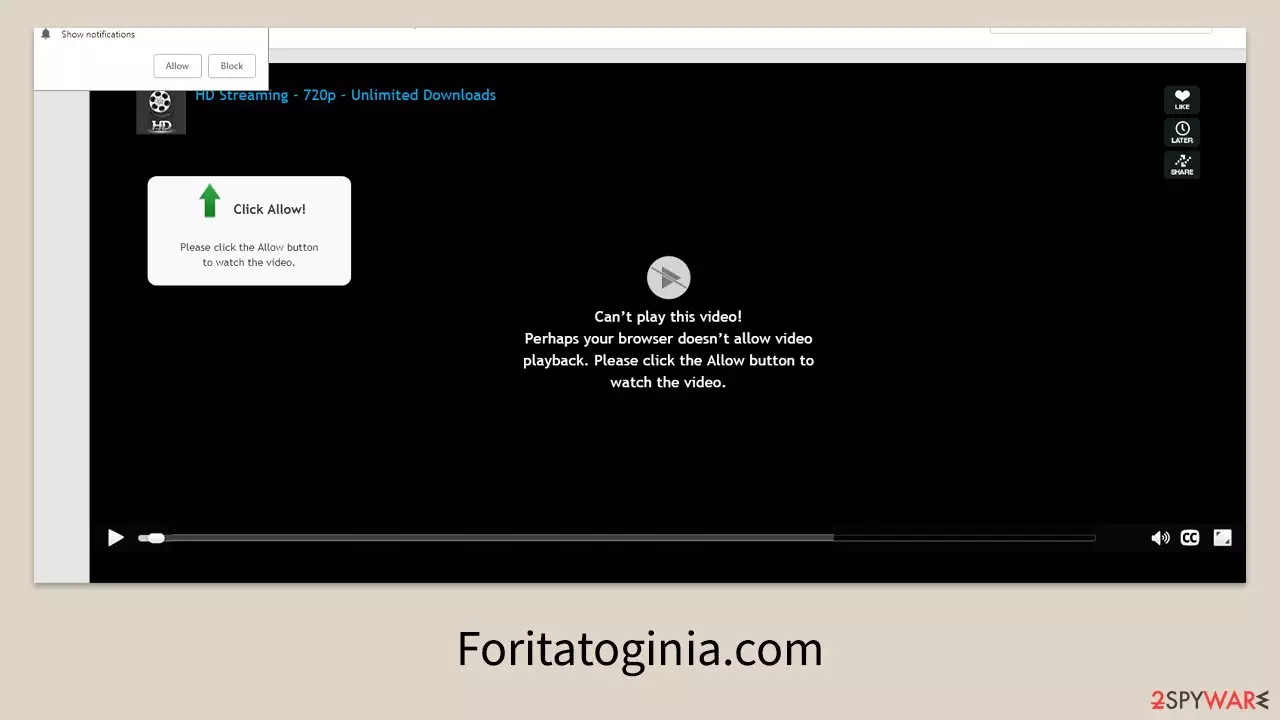
Foritatoginia.com is a malicious online destination that users often encounter after being redirected from unsafe parts of the internet, such as illegal streaming platforms, torrent directories, or compromised sites. Upon arrival, visitors are typically greeted with a browser notification request urging them to click the “Allow” button.
Accepting this request grants the site permission to send browser notifications, which quickly turn into persistent and intrusive advertisements. These pop-ups can appear over any program you’re using, disrupt full-screen activities, and generally interfere with normal device operation.
The danger is not just in the disruption but in the content of these ads. They often lead to phishing pages, fraudulent giveaways, fake security alerts, and various scam offers. Interacting with them can expose you to serious privacy and security risks. It is strongly advised to avoid engaging with any message or link from Foritatoginia.com and to follow proper removal instructions if you have already clicked “Allow”.
| Name | News-pekota.cc |
| Type | Push notifications, ads, pop-ups, scam |
| Distribution | The website gains access to deliver any information as soon as the “Allow” button is pressed within the push notification prompt |
| Symptoms | Push notifications from the site show up on the desktop. These pop-ups show fake notices and push scams. Links can also lead to websites filled with malware |
| Risks | The ads shown within push notification prompts might include misleading messages and links to malicious websites. If clicked, you might end up infecting your system with malware, disclosing your personal information, or losing money |
| Termination | Access browser settings to stop intrusive push notifications. After that, make sure that your system is not infected with adware or malware – scan it with SpyHunterCombo Cleaner, MalwarebytesMalwarebytes |
| Recovery | It is important to clean web browser caches to prevent further data tracking and other issues related to web data corruption – use FortectIntego to do this quicker |
How Foritatoginia.com deceives users
Most people don’t intentionally visit Foritatoginia.com — instead, they arrive via redirects from suspicious links or hacked websites. This is especially common when browsing torrent trackers or free movie sites, which frequently host deceptive buttons and malicious scripts designed to push users onto scam pages.
One of the key tactics behind the site’s success is exploiting the element of surprise. Caught off guard, users are more likely to comply without questioning the legitimacy of the prompt. To further disguise its malicious intent, Foritatoginia.com displays messages that appear routine, such as:
- Click Allow to confirm that you are not a robot
- Click “Allow” to win the prize and get it in our shop!
- If you are 18+, click Allow
- Click Allow to start downloading
- Press “Allow” to watch the video, etc.
These messages mimic legitimate verification processes — a classic social engineering approach used by cybercriminals to trick users into granting access.

Stopping unwanted push notifications from Foritatoginia.com
When these ads start appearing, it’s easy to assume your computer is infected with malware. While understandable, this isn’t usually the case — the push notification system is actually a built-in browser feature that scammers exploit. Security software won’t block the ads because the notifications are being delivered through permissions you granted yourself by clicking “Allow”.
To stop them, you must manually revoke Foritatoginia.com’s permission in your browser settings. Once removed, the site will no longer be able to send notifications.
Google Chrome (desktop)
- Open the Google Chrome browser and go to Menu > Settings.
- Scroll down and click on Advanced.
- Locate the Privacy and security section and pick Site Settings > Notifications.
- Look at the Allow section and look for a suspicious URL.
- Click the three vertical dots next to it and pick Block. This should remove unwanted notifications from Google Chrome.


Google Chrome (Android)
- Open Google Chrome and tap on Settings (three vertical dots).
- Select Notifications.
- Scroll down to the Sites section.
- Locate the unwanted URL and toggle the button to the left (Off setting).


Mozilla Firefox
- Open Mozilla Firefox and go to Menu > Options.
- Click on Privacy & Security section.
- Under Permissions, you should be able to see Notifications. Click the Settings button next to it.
- In the Settings – Notification Permissions window, click on the drop-down menu by the URL in question.
- Select Block and then click on Save Changes. This should remove unwanted notifications from Mozilla Firefox.


MS Edge (Chromium)
- Open Microsoft Edge, and go to Settings.
- Select Site permissions.
- Go to Notifications on the right.
- Under Allow, you will find the unwanted entry.
- Click on More actions and select Block.


Safari
- Click on Safari > Preferences…
- Go to the Websites tab and, under General, select Notifications.
- Select the web address in question, click the drop-down menu and select Deny.


Internet Explorer
- Open Internet Explorer, and click on the Gear icon at the top-right of the window.
- Select Internet options and go to the Privacy tab.
- In the Pop-up Blocker section, click on Settings.

- Locate the web address in question under Allowed sites and pick Remove.

Additional safety measures
Although push notification spam isn’t the same as having a virus, the fact that you reached Foritatoginia.com might indicate other security concerns. It’s possible that adware or other potentially unwanted programs are installed on your device, often bundled with free downloads.
To strengthen your protection:
- Keep software updated – Regular updates close security gaps that could be exploited.
- Use ad-blockers and security extensions – These can stop many malicious redirects before they load.
- Run a full system scan – Use a reputable antivirus tool such as SpyHunterCombo Cleaner, MalwarebytesMalwarebytes, or another trusted security program to ensure your device is clean.
- Perform system maintenance – Clearing your browser cache and checking system health with tools like FortectIntego can help prevent performance and security issues.
By following these steps and avoiding suspicious parts of the web, you can greatly reduce the risk of encountering threats like Foritatoginia.com in the future.
Did this guide help?
Be the first to comment