

FullSearching.com might cause browser redirects
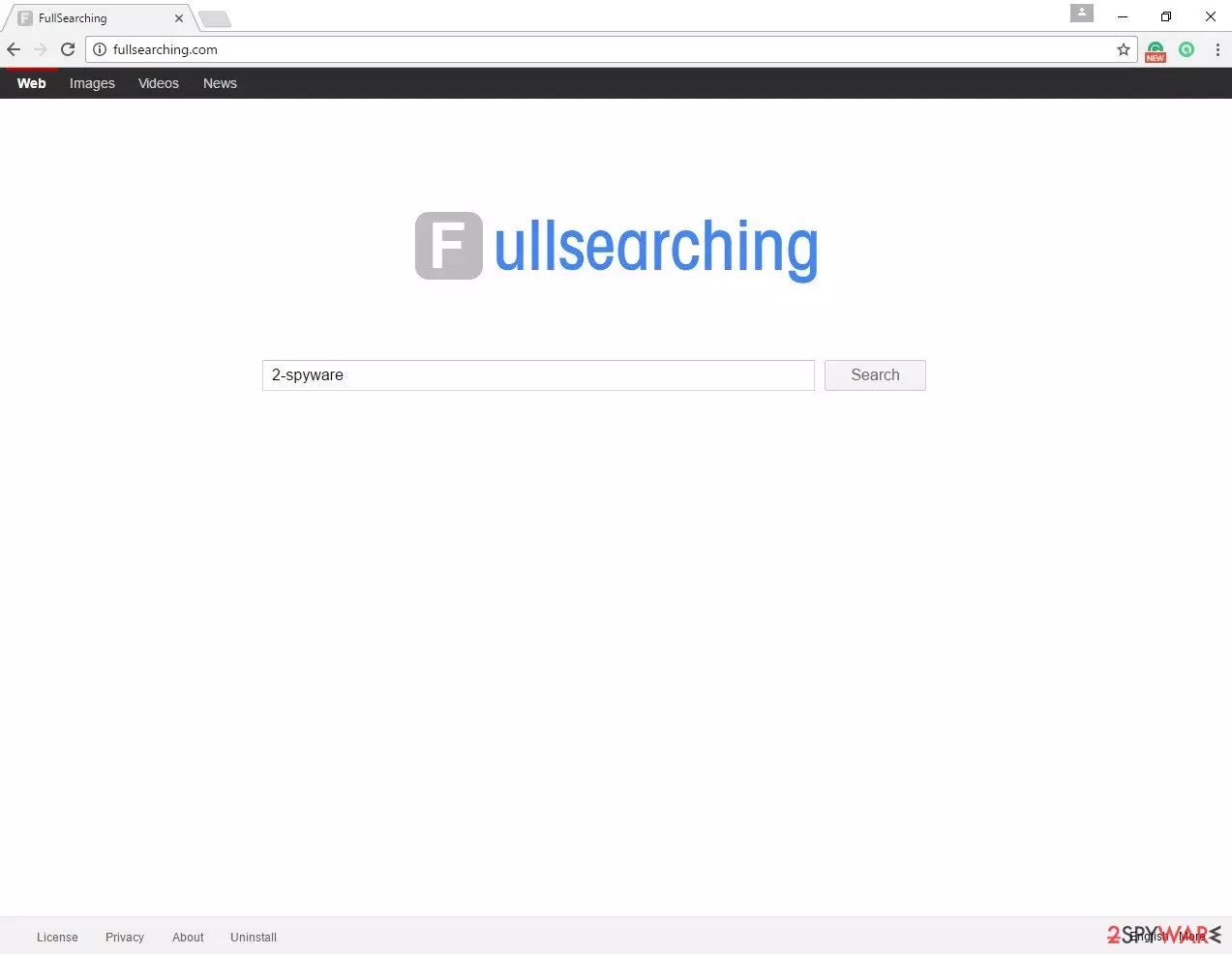
FullSearching.com is a program that can modify your browser's settings and make it launch its URL on every startup. At first, you might not notice anything suspicious because the address serves a simple search engine with a different logo above it. However, you will quickly notice that the results you are viewing for your searches are greatly altered, and ads are inserted at the top.
Besides these redirects to a different search provider, the provided links might not be useful at all. If you go through several promoted pages, you might end up installing other potentially unwanted programs. Also, browser hijackers are known for tracking user data and then using it for marketing purposes, for example, sharing it with third parties. If you want to protect your privacy and revert the browser changes, uninstall the potentially unwanted app immediately.
| Name | FullSearching.com |
| Type | Browser hijacker |
| Distribution | Third-party websites, software bundles |
| Symptoms | Changes homepage and new tab address; delivers sponsored links and ads at the top of search results; redirects all searches to a customized search engine |
| Removal | Uninstall PUPs by following our manual guide or employ an antivirus program |
| System fix | After the elimination of adware or malware, we highly recommend running a scan with FortectIntego repair software |
We have to disappoint you by saying that this search tool hardly filters sponsored ads and can present sponsored results that lead to insecure Internet sites, where you can be asked to download dangerous programs or to reveal personal information for shady purposes.
For your own safety, we advise you to remove the FullSearching.com redirect virus and change your browser settings then. To uninstall this program and get rid of all components that might be related to it (such as tracking cookies, which are used to spy on your activity online), use an anti-spyware program, for instance, SpyHunterCombo Cleaner.
It appears that this browser hijacker can infect two major web browsers only:
- Google Chrome
- Mozilla Firefox.
Once installed, it loads these browsers with tracking cookies and starts monitoring user's activity on the Internet. It aims to explore what websites the user enters, what links or ads does he or she click on, what is the computer's IP address, and similar content.
All this information allows this hijacker to analyze user's interests and deliver targeted sponsored content later on. However, such activity might not seem beneficial to you; most likely, you will find the ads annoying.
Also, keep in mind browser hijackers might be hiding as an extension, so make sure you check your browsers accordingly – you can do it quicker with FortectIntego repair and maintenance software.
Methods of distribution
FullSearching.com virus travels in the same way as many other browser hijackers. It spreads bundled with other software that users download from the Internet or via file-sharing programs. This method allows developers to add their program as an “additional download” and hide it under “Default” or “Standard” installation mode. Usually, software installers recommend using these settings, and the majority of users agree with it – that’s the biggest problem.
Users have to monitor the freeware installation process and stop potentially unwanted programs from infiltrating their computers by adjusting components of the software package. This can be done via “Advanced” or “Custom” settings only. Here, remove all the ticks next to browser add-ons, media players, file converters, and similar software that would otherwise be installed on your device without permission.
PUP elimination guide
If you have encountered sudden homepage and new tab changes, it’s time to concentrate and eliminate this potentially unwanted program until it hasn’t caused more problems or let other unwanted apps enter your computer. At the end of the article, you will find detailed instructions on removing the PUP manually.
This method takes more time and requires more knowledge or experience in virus elimination. If you don’t feel capable of removing the virus manually or this task scares you a lot, you can choose automatic FullSearching.com removal. We recommend this method for those who faced a browser hijacker for the first time.
Uninstall from Windows
Uninstall from Windows 10/8:
- Type Control Panel into the Windows search box and open the result.
- Under Programs, select Uninstall a program.


Uninstall from Windows 7/XP:
- Click on Windows Start > Control Panel (Windows XP users should click on Add/Remove Programs).
- In Control Panel, select Programs > Uninstall a program.


Remove the unwanted program:
- In the Programs and Features window, look for any recently installed suspicious entries, select them, and click Uninstall.
- If User Account Control appears, click Yes to confirm, then complete the removal.


Delete from macOS
Remove the unwanted application:
- From the menu bar, select Go > Applications.
- In the Applications folder, look for any suspicious entries, then drag them to Trash (or right-click and pick Move to Trash).


Delete leftover files and folders:
- Select Go > Go to Folder.
- Enter /Library/Application Support and remove any suspicious folders related to the unwanted program.
- Repeat the same check in the /Library/LaunchAgents and /Library/LaunchDaemons folders, deleting any suspicious entries.

- Finally, empty the Trash to permanently remove the leftovers.

Remove from Mozilla Firefox (FF)
Remove dangerous extensions:
- Open Mozilla Firefox browser and click on the Menu (three horizontal lines at the top-right of the window).
- Select Add-ons.
- In here, select the unwanted extension and click Remove.


Reset the homepage:
- Click three horizontal lines at the top right corner to open the menu.
- Choose Settings.
- Under Home, set your preferred homepage and new tab settings.
Clear cookies and site data:
- Click Menu and pick Settings.
- Go to Privacy & Security section.
- Scroll down to locate Cookies and Site Data.
- Click on Clear Data...
- Select Cookies and Site Data and Temporary cached files and pages, then click Clear.


Reset Mozilla Firefox
If clearing the browser as explained above did not help, reset Mozilla Firefox:
- Open Mozilla Firefox browser and click the Menu.
- Go to Help and then choose Troubleshooting Information.

- Under Give Firefox a tune up section, click on Refresh Firefox...
- Once the pop-up shows up, confirm the action by pressing on Refresh Firefox.



Remove from Google Chrome
Delete malicious extensions from Google Chrome:
- Open Google Chrome, click on the Menu (three vertical dots at the top-right corner) and select More tools > Extensions.
- In the newly opened window, you will see all the installed extensions. Uninstall all suspicious extensions related to the unwanted program by clicking Remove.


Clear cache and web data from Chrome:
- Click on Menu and pick Settings.
- Under Privacy and security, select Clear browsing data.
- Select Browsing history, Cookies and other site data, as well as Cached images and files.
- Click Clear data.


Change your homepage:
- Click menu and choose Settings.
- Look for a suspicious site in the On startup section.
- Click on Open a specific or set of pages and click on three dots to find the Remove option.
Reset Google Chrome:
If the previous methods did not help you, reset Google Chrome to eliminate all the unwanted components:
- Click on Menu and select Settings.
- In the Settings, scroll down and click Advanced.
- Scroll down and locate Reset and clean up section.
- Now click Restore settings to their original defaults.
- Confirm with Reset settings.


Did this guide help?
3 comments
Lucy
Thanks for instructions. They helped me a lot!
Disappointed
I have no idea why I am forced to use this search engine, but it delivers so strange results. Nothing similar to Google.
Simona
Ive bought a new computer and installed so many programs. Somehow I managed to install FullSearching.com virus too. Im so mad!