

Garbage Cleaner – a tool that is endorsed as a system optimizer or a cleaner
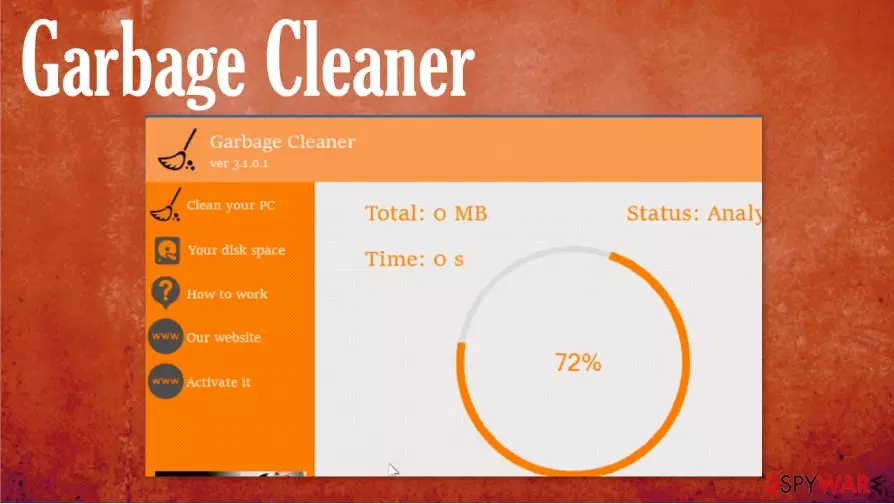
Garbage Cleaner is a useless system program that cannot clean the machine or improve the performance in any way. The program is classified as rogue software because it uses the method of showing false scan results and listing issues with the system that are not even related to your device. It is not an operational application, so the system check might not even happen, and those results are falsified to get users' attention and interaction with the particular program.
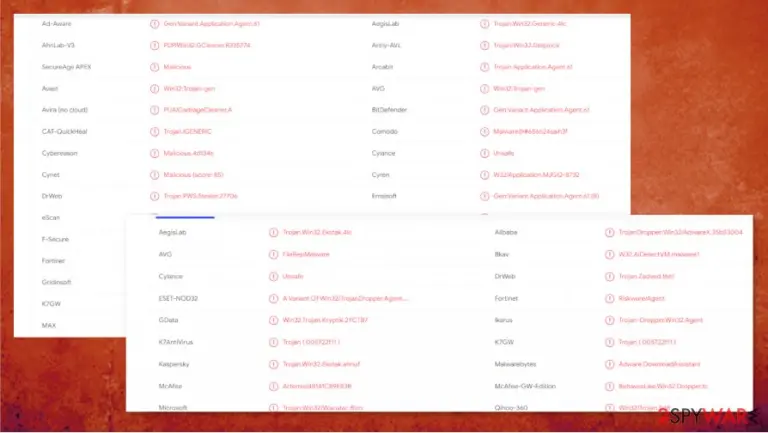
The thing with this Garbage Cleaner PUP is that those scan results report about nonexistent issues and encourages people to pay for or install another tool or the licensed version of this junk file cleaner. This is the intruder that has a good AV tool detection rate[1] and can be indicated as malicious by various security programs. Experts[2] note that you need to take this into consideration and rely on programs like anti-malware and security apps to clean the machine properly. This rogue system tool is not giving any value itself.
| Name | Garbage Cleaner |
|---|---|
| Type | System tool/ Potentially unwanted program |
| Issues | The program shows false results and claims to find issues with the system while the list is false |
| Distribution | This PUP can get installed during freeware installation or from a deceptive/misleading page |
| Elimination | Try to remove Garbage Cleaner with a proper anti-malware tool |
| System recovery | PUP can alter settings and other parts of the machine, so repair the damage with FortectIntego |
Even though you are not installing the program on purpose, Garbage Cleaner can run in the background, alter various functions, and claim to scan the machine, so you can be informed about disk space, cleaning issues, junk files. This is the message that promotional advertisements try to show. These false claims should encourage you to purchase the full version of a program.
Sometimes people themselves fall for those promotions and advertisements pushing Garbage Cleaner PUP and installs the junk cleaner directly on the machine. That is even worse because users believe that the application is useful and do not consider this program as malicious or harmful.
Garbage Cleaner removal gets significantly difficult when the PUP manages to alter registry entries, change settings, and other parts of the computer system. It can access various folders and functions, so the affected device gets slower than usual and can even crash from time to time. Rely on SpyHunterCombo Cleaner or MalwarebytesMalwarebytes for the termination.
Garbage Cleaner is a possibly dangerous program that is considered potentially malicious because its executable file gets called a Trojan. The file often is spotted and becomes suspiciously analyzed when located in %COMMON APPDATA%\GARBAGE CLEANER\GARBAGE CLEANER.EXE.

When it comes to a particular executable file, the GrabageCleaner virus might trigger these errors regarding the file on the machine:
- GARBAGE CLEANER.EXE has stopped working.
- GARBAGE CLEANER.EXE has encountered a problem and needs to close. We are sorry for the inconvenience.
- GARBAGE CLEANER.EXE. This program is not responding.
- GARBAGE CLEANER.EXE is not a valid windows 32 application error.
- GARBAGE CLEANER.EXE missing or not found.
It is possible that Garbage Cleaner can be considered intrusive and malicious when it changes your desktop background, adds shortcuts, and start-up items to ensure that the program gets activated when the system reboots. Actively modifying registry files, Internet, firewall settings can lead to errors and system issues. This is why you should run FortectIntego to repair these issues after you cleaned the machine from this PUP automatically.
Make sure to remove Garbage Cleaner since it disables the active firewall systems and security programs, triggers issues with security programs and performance. It is possible that PUPs can install packages of other threats like malware, spyware besides affecting the system themselves.

PUP distribution ways involve deceptive content and misleading pages
You can catch potentially unwanted programs everywhere when browsing. The most common ways to spread these types of PUAs or rogue system tools:
- spam email campaigns;[3]
- promotional ads;
- downloading freeware apps;
- social networks;
- other PUPs.
Make sure to choose proper system tools and rely on official sources that provide applications. This way, you can ensure that the freeware installation that happens is secure and safe. Otherwise, you may end up with a shady tool installed automatically.
Clear the machine from any traces of this shady Garbage Cleaner program
Garbage Cleaner virus can cause many issues as the system starts responding unexpectedly due to all the changes. To get rid of these issues in loading OS and showing suspicious content, you need to delete the PUA completely. It is not the easiest procedure.
Especially when Garbage Cleaner removal requires tools capable of finding the PUP installation files and other possibly related intruders. Run an anti-malware tool or a similar security program that can check the machine fully for you.
Also, after you remove Garbage Cleaner from the machine, you should pay attention to other system parts and run a tool that could help with file repair and corrupted program issues. PC repair applications, system optimization software, can help you with virus damage and additional alterations in the registry.
Uninstall from Windows
Uninstall from Windows 10/8:
- Type Control Panel into the Windows search box and open the result.
- Under Programs, select Uninstall a program.


Uninstall from Windows 7/XP:
- Click on Windows Start > Control Panel (Windows XP users should click on Add/Remove Programs).
- In Control Panel, select Programs > Uninstall a program.


Remove the unwanted program:
- In the Programs and Features window, look for any recently installed suspicious entries, select them, and click Uninstall.
- If User Account Control appears, click Yes to confirm, then complete the removal.


Delete from macOS
Remove the unwanted application:
- From the menu bar, select Go > Applications.
- In the Applications folder, look for any suspicious entries, then drag them to Trash (or right-click and pick Move to Trash).


Delete leftover files and folders:
- Select Go > Go to Folder.
- Enter /Library/Application Support and remove any suspicious folders related to the unwanted program.
- Repeat the same check in the /Library/LaunchAgents and /Library/LaunchDaemons folders, deleting any suspicious entries.

- Finally, empty the Trash to permanently remove the leftovers.

Did this guide help?
Be the first to comment