

Geostream.online – a PUP that employs social engineering tricks to attract users
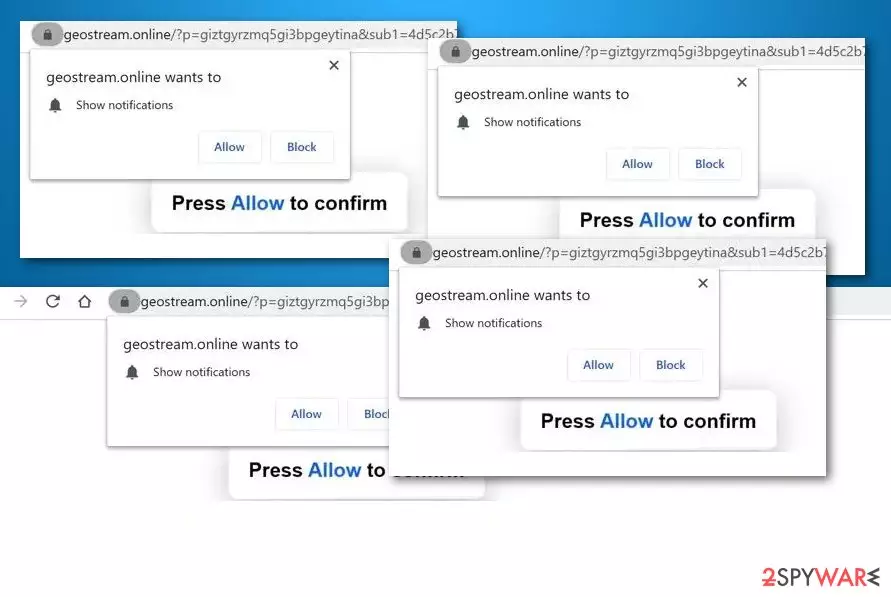
Geostream.online falls into the PUP[1] category as it uses unfair tactics for collecting subscribers and enters the device through the software bundling technique. This adware aims to attract people to click on its “Allow notifications” section by providing them with specific encouragements such as “click here to continue”, “click allow to download file”, “press allow to confirm that you are not a robot”, “click allow to watch video”, etc. Note that this is just a technique that Geostream.online uses to seduce people into allowing its notifications. Truly, there is no content to download or watch so you should not expect that happening. The only thing that you are likely to receive is an entire load of pop-ups, banner ads, in-text ads, and coupons.
| Name | Geostream.online |
|---|---|
| Type | Potentially unwanted program |
| Sub-type | Adware |
| Symptoms | Once the adware application enters your computer system, you are likely to spot some browser changes in the homepage and new tab URL, encounter frequent advertising during browsing sessions, get redirected to developer-sponsored sources constantly, find suspicious extensions included into your web browsers |
| Distribution | Adware programs do not notify about themselves before appearing on computers. They are usually bundled with other freeware and shareware that users are likely to get from third-party sources such as cnet.com, download.com, or softonic.com. Also, you can receive adware from infectious adverts and links |
| Elimination | If you have been having trouble to maintain full browsing quality due to the appearance of this adware, you should get rid of the potentially unwanted program by employing reliable security software or the manual step-by-step guidelines that have been added to the end of this page |
| Fix tip | If you have discovered that your computer system and some of its areas were compromised by the adware program, you can try fixing the corrupted sections with the help of repair software such as FortectIntego |
Geostream.online virus is a name attached to this adware as it employs stealth distribution techniques such as software bundling in order to reach the targeted computer system. This type of potentially unwanted program can infect any type of web browser, including Google Chrome, Mozilla Firefox, Internet Explorer, Microsoft Edge, and Safari.
When this happens, Geostream.online might apply unexpected changes to web browser sections such as the homepage and new tab URL. Additionally, you might find that your web browser settings are filled with suspicious components such as extensions, plug-ins, and add-ons that are brought for advertising and redirecting purposes.
Furthermore, Geostream.online pop-up ads will likely appear on your computer screen during browsing sessions. These notifications can come in any type of form such as banner ads, in-text ads, sales coupons, and similar.
The main purpose of advertising is to collect monetary income from the cost-per-click technique. The developers of Geostream.online try to deliver as beneficial-looking advertisements as possible in order to attract a bigger variety of people. Once the user clicks on an ad provided, the developers receive monetary benefits straight to their pockets.

Nevertheless, Geostream.online can provide you with offers to purchase suspicious security products for an inadequate price or get yourself subscribed to various untrusted services. Moreover, this PUP can load you with various surveys and questionnaires that require entering personally-identifiable information.
You should be careful with such requests and avoid providing any sensitive details about yourself as you cannot know where the information will be misused in the future. Even though Geostream.online does not store personal information, some other hackers might find your details online and use them for scamming purposes, identity theft.
However, Geostream.online still does record another type of information. This data refers to the user's browsing sessions, online activities, and habits. The developers try to figure out what type of deals are relevant for the user so that they could deliver targeted advertising campaigns or share the collected information with other parties.
Continuously, if Geostream.online starts spamming you with intrusive advertisements very frequently, this can result in constant browser struggles or freezes as your web browser apps might become incapable of carrying out multiple tasks per one session. Nevertheless, you can see some increase in the CPU[2] power on your computer.

Even though Geostream.online does not pose any harm directly as it would be with a serious malware infection,[3] there still are some possibilities that the adware might lead to potentially dangerous locations. This type of thing can happen through redirecting sessions that are likely to be initiated during the activity period of the potentially unwanted program.
Nevertheless, Geostream.online can be used as an intermediary for malware distribution as the potentially unwanted program has at least some abilities to modify the computer's areas, injecting bogus processes in the Windows Task Manager, including suspicious entries into the Registry, and placing bogus files on the desktop.
If you want to avoid these types of risks, you should remove Geostream.online from your computer system and web browsers with the help of antimalware software or the manual step-by-step guidelines that have been added to the end of this article. Also, if you have found any system compromisation, try using FortectIntego for fixing the affected areas.
Geostream.online removal is a process that should be performed with big care as the adware can include suspicious objects all over the system and run during startup again if you do not terminate all the bogus components. Also, do not forget to refresh all the infected web browsers, otherwise, you might not be able to reverse the suspicious changes.
The delivery process of adware viruses
Adware apps never enter the system completely without the user's interaction. Even though no one would download such a program on purpose if they would know about its functionality, a big variety of users skip downloading and installing steps and agree to the infiltration of additional products such as adware without their own knowledge.
According to computer experts from Virusai.lt,[4] every person should pay attention while downloading products and services from the Internet, especially from third-party sources such as cnet.com, download.com, and softonic.com. Also, always make sure that you have set “Custom” as your default downloading mode where you will be able to opt-out of suspicious components during the downloading/installing process of particular software.
Furthermore, adware-related products can appear on the computer system through infected advertisements and hyperlinks that are found on third-party sources all over the web. You should be careful while visiting various Internet sources. Do not enter those pages that are automatically marked by your web browser as unsafe to proceed with. Also, employ reliable antimalware software that will take care of your safety 24/7.
Note that the key to safety is the user's own cautiousness while completing computing work. Combining manual methods and installing reliable antivirus protection would do the best job in preventing the appearance of adware infections.
The termination methods of Geostream.online adware
Geostream.online removal can be completed with the help of antimalware software that will help to deal with this cyber threat in a few minutes of time. These types of products are recommended for every user that has been running into a lack of time lately or just lacks skills in the cybersecurity field. Besides, reliable antivirus tools will ensure that no adware-related components are left lurking on your Windows or macOS computer system.
However, you can also always try to remove Geostream.online with the help of manual instructions. At the end of this article, we have provided step-by-step guidelines that will help you to clean both your Windows or Mac operating system and infected web browser applications, including Google Chrome, Mozilla Firefox, Internet Explorer, Microsoft Edge, and Safari.
If you are uninstalling Geostream.online virus on your own, you need to make sure that you get rid of all suspicious components that were added by the adware, otherwise, the PUP might reappear within the next computer boot.
Uninstall from Windows
Uninstall from Windows 10/8:
- Type Control Panel into the Windows search box and open the result.
- Under Programs, select Uninstall a program.


Uninstall from Windows 7/XP:
- Click on Windows Start > Control Panel (Windows XP users should click on Add/Remove Programs).
- In Control Panel, select Programs > Uninstall a program.


Remove the unwanted program:
- In the Programs and Features window, look for any recently installed suspicious entries, select them, and click Uninstall.
- If User Account Control appears, click Yes to confirm, then complete the removal.


Delete from macOS
Remove the unwanted application:
- From the menu bar, select Go > Applications.
- In the Applications folder, look for any suspicious entries, then drag them to Trash (or right-click and pick Move to Trash).


Delete leftover files and folders:
- Select Go > Go to Folder.
- Enter /Library/Application Support and remove any suspicious folders related to the unwanted program.
- Repeat the same check in the /Library/LaunchAgents and /Library/LaunchDaemons folders, deleting any suspicious entries.

- Finally, empty the Trash to permanently remove the leftovers.

Reset Internet Explorer
Remove dangerous add-ons:
- Open Internet Explorer, click on the Gear icon (IE menu) on the top-right corner of the browser
- Pick Manage Add-ons.
- You will see a Manage Add-ons window. Here, look for suspicious plugins. Click on these entries and select Disable.


Change your homepage if it was altered:
- Open IE and click on the Gear icon.
- Select Internet Options.
- In the General tab, delete the Home page address and replace it by your preferred one (for example, Google.com).
- Click Apply and then select OK.


Delete temporary files:
- Press on the Gear icon and select Internet Options.
- Under Browsing history, click Delete...
- Select relevant fields and press Delete.


Reset Internet Explorer:
- Click on Gear icon > Internet options and select Advanced tab.
- Select Reset.
- In the new window, check Delete personal settings and select Reset.


Remove from Microsoft Edge
Delete unwanted extensions from MS Edge:
- Select Menu (three horizontal dots at the top-right of the browser window) and pick Extensions.
- From the list, pick the extension and click on the Gear icon.
- Click Remove.


Clear cookies and other browser data:
- Click on the Menu (three horizontal dots at the top-right of the browser window) and select Settings > Privacy, search, and services..
- Under Clear browsing data, pick Choose what to clear.
- Select Cookies and other site data and Cached images and files. (apart from passwords, although you might want to include Media licenses as well, if applicable) and click on Clear.


Restore new tab and homepage settings:
- Click the menu icon and choose Settings.
- Then find On startup section.
- Click Remove next to any suspicious startup page.
Reset MS Edge if the above steps did not work:
- Press on Ctrl + Shift + Esc to open Task Manager.
- Click on More details arrow at the bottom of the window.
- Select Details tab.
- Now scroll down and locate every entry with Microsoft Edge name in it. Right-click on each of them and select End Task to stop MS Edge from running.


Instructions for Chromium-based Edge
Delete extensions from MS Edge (Chromium):
- Open Edge and click select Settings > Extensions.
- Delete unwanted extensions by clicking Remove.


Clear cache and site data:
- Click on Menu and go to Settings.
- Select Privacy, search and services.
- Under Clear browsing data, pick Choose what to clear.
- Under Time range, pick All time.
- Select Clear now.


Reset Chromium-based MS Edge:
- Click on Menu and select Settings.
- On the left side, pick Reset settings.
- Select Restore settings to their default values.
- Confirm with Reset.
- This will disable extensions and reset startup pages but will not delete bookmarks, saved passwords, or browsing history.


Remove from Mozilla Firefox (FF)
Remove dangerous extensions:
- Open Mozilla Firefox browser and click on the Menu (three horizontal lines at the top-right of the window).
- Select Add-ons.
- In here, select the unwanted extension and click Remove.


Reset the homepage:
- Click three horizontal lines at the top right corner to open the menu.
- Choose Settings.
- Under Home, set your preferred homepage and new tab settings.
Clear cookies and site data:
- Click Menu and pick Settings.
- Go to Privacy & Security section.
- Scroll down to locate Cookies and Site Data.
- Click on Clear Data...
- Select Cookies and Site Data and Temporary cached files and pages, then click Clear.


Reset Mozilla Firefox
If clearing the browser as explained above did not help, reset Mozilla Firefox:
- Open Mozilla Firefox browser and click the Menu.
- Go to Help and then choose Troubleshooting Information.

- Under Give Firefox a tune up section, click on Refresh Firefox...
- Once the pop-up shows up, confirm the action by pressing on Refresh Firefox.



Remove from Google Chrome
Delete malicious extensions from Google Chrome:
- Open Google Chrome, click on the Menu (three vertical dots at the top-right corner) and select More tools > Extensions.
- In the newly opened window, you will see all the installed extensions. Uninstall all suspicious extensions related to the unwanted program by clicking Remove.


Clear cache and web data from Chrome:
- Click on Menu and pick Settings.
- Under Privacy and security, select Clear browsing data.
- Select Browsing history, Cookies and other site data, as well as Cached images and files.
- Click Clear data.


Change your homepage:
- Click menu and choose Settings.
- Look for a suspicious site in the On startup section.
- Click on Open a specific or set of pages and click on three dots to find the Remove option.
Reset Google Chrome:
If the previous methods did not help you, reset Google Chrome to eliminate all the unwanted components:
- Click on Menu and select Settings.
- In the Settings, scroll down and click Advanced.
- Scroll down and locate Reset and clean up section.
- Now click Restore settings to their original defaults.
- Confirm with Reset settings.


Delete from Safari
Remove dangerous extensions:
- Open Safari, click Safari in the menu at the top-left of the screen, and select Preferences.
- Go to the Extensions tab, look for any suspicious entries, and click Uninstall to remove them.


Clear history and website data:
- Click Safari in the menu and pick Clear History.
- Set Clear to all history and confirm with Clear History.


Reset Safari:
- Click Safari in the menu and select Preferences > Advanced.
- Enable Show Develop menu in menu bar.
- From the menu bar, click Develop and select Empty Caches.


Did this guide help?
Be the first to comment