

GoPCPro – a computer optimization tool which is considered as a PUP
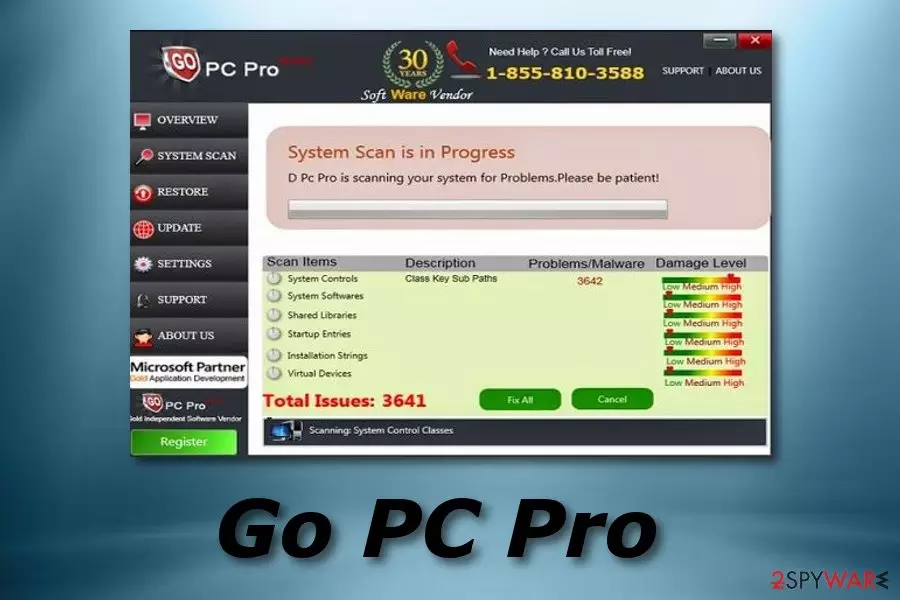
GoPCPro is a system tool but not a truly reliable one. Some people falsely tend to call this potentially unwanted program (PUP) as GoPCPro virus, although it is not malicious at all. This program still cannot be trusted due to several reasons. First of all, it uses unfair techniques to convince the victim to buy the full version of GoPCPro. For example, it might imitate fake system scans and bring you bogus results filled with numerous false positives. False positive results are items that supposedly have been detected, although they aren't really there. This technique is used to intimidate the PC user and push him into buying the licensed version of this system tool.
| Name | GoPCPro |
|---|---|
| Type | System tool |
| Sub-type | PUP |
| Purpose | To trick gullible users into buying the licensed version of the program |
| Symptoms | Pop-ups related to the program are showing up frequently, you are receiving dubious alerts announcing about computer problems |
| Distribution | Official website, bundling |
| Elimination | Use FortectIntego to scan your PC |
GoPCPro might start sending annoying pop-up messages[1] asking for user's attention and informing that there are still hundreds of items that either needs to be cleaned or optimized. These messages are highly annoying, and the whole activity of this bogus PC optimizer can slow your computer down instead of improving its performance.
It is apparent that this program combines various tricky techniques to achieve its goal, so make sure you do not get scared by such suspicious activity on your computer and remove GoPCPro virus without a doubt. It is obvious that this suspicious program only falls into the huge group of shady PC optimizers that praise themselves as useful tools while in reality cannot do anything useful.

If you still are hesitating to eliminate GoPCPro fake system optimization tool, you can check your computer system by getting another but reliable antivirus tool. Perform a full system scan with it and measure the received results with those which were provided by the dubious tool. You should see that no problems, if there are some, are the same as the ones that were displayed by GoPCPro.
If you wish to get a trustworthy PC optimizer, you should install FortectIntego software, which is a PC optimizer AND a malware[2] removal tool as well. Therefore, it can complete GoPCPro removal with ease. The entire elimination process will take no longer than a couple of minutes and the computer security program will successfully get rid of all dubious components.

Suspicious programs are widely spread throughout the Web
According to IT experts from Dieviren.de[3], the first thing that you have to know is that a suspicious application cannot enter your computer without asking for your permission. Sadly, it asks for it in an indirect way, which, in our opinion, is not a fair way to get user's permission. It hides in the shadow of other free programs, and it travels alongside them. This distribution method is called bundling[4], and it allows to distribute several pieces of software at once.
Typically, such programs hide information about additional software behind safe-looking installation options, which need to be expanded in order to see what's behind them. Sadly, the vast of users tend to think that Default or Standard installation options are the safest and that they guarantee safe installation procedure. In fact, that is not true, especially if you happen to be installing a software package.
These settings will automatically add various “recommended” software to your computer, so to reject them, the user needs to choose Custom or Advanced installation settings and manually pick out suggested programs to avoid installing them. However, some computer users happen to wander around the world wide web a lot and install random free programs that they come across.

GoPCPro removal instructions
If you think that it is hard to remove GoPCPro, you are mistaken. This system tool might seem annoying or even dangerous; however, it is not that hard to remove it. To eliminate this system tool, you have to either run a spyware removal tool[5] or uninstall it by yourself. However, if you are looking for a system optimizer, FortectIntego might be the best option for you
It is not hard to complete GoPCPro removal process either way, so just decide how you wish to remove it. Remember that choosing the automatic removal option is always a very good idea because such spyware removal program can detect not only this suspicious system tool, but also critical applications and other potentially unwanted items from the system.
Uninstall from Windows
Uninstall from Windows 10/8:
- Type Control Panel into the Windows search box and open the result.
- Under Programs, select Uninstall a program.


Uninstall from Windows 7/XP:
- Click on Windows Start > Control Panel (Windows XP users should click on Add/Remove Programs).
- In Control Panel, select Programs > Uninstall a program.


Remove the unwanted program:
- In the Programs and Features window, look for any recently installed suspicious entries, select them, and click Uninstall.
- If User Account Control appears, click Yes to confirm, then complete the removal.


Reset Internet Explorer
Remove dangerous add-ons:
- Open Internet Explorer, click on the Gear icon (IE menu) on the top-right corner of the browser
- Pick Manage Add-ons.
- You will see a Manage Add-ons window. Here, look for suspicious plugins. Click on these entries and select Disable.


Change your homepage if it was altered:
- Open IE and click on the Gear icon.
- Select Internet Options.
- In the General tab, delete the Home page address and replace it by your preferred one (for example, Google.com).
- Click Apply and then select OK.


Delete temporary files:
- Press on the Gear icon and select Internet Options.
- Under Browsing history, click Delete...
- Select relevant fields and press Delete.


Reset Internet Explorer:
- Click on Gear icon > Internet options and select Advanced tab.
- Select Reset.
- In the new window, check Delete personal settings and select Reset.


Remove from Microsoft Edge
Delete unwanted extensions from MS Edge:
- Select Menu (three horizontal dots at the top-right of the browser window) and pick Extensions.
- From the list, pick the extension and click on the Gear icon.
- Click Remove.


Clear cookies and other browser data:
- Click on the Menu (three horizontal dots at the top-right of the browser window) and select Settings > Privacy, search, and services..
- Under Clear browsing data, pick Choose what to clear.
- Select Cookies and other site data and Cached images and files. (apart from passwords, although you might want to include Media licenses as well, if applicable) and click on Clear.


Restore new tab and homepage settings:
- Click the menu icon and choose Settings.
- Then find On startup section.
- Click Remove next to any suspicious startup page.
Reset MS Edge if the above steps did not work:
- Press on Ctrl + Shift + Esc to open Task Manager.
- Click on More details arrow at the bottom of the window.
- Select Details tab.
- Now scroll down and locate every entry with Microsoft Edge name in it. Right-click on each of them and select End Task to stop MS Edge from running.


Instructions for Chromium-based Edge
Delete extensions from MS Edge (Chromium):
- Open Edge and click select Settings > Extensions.
- Delete unwanted extensions by clicking Remove.


Clear cache and site data:
- Click on Menu and go to Settings.
- Select Privacy, search and services.
- Under Clear browsing data, pick Choose what to clear.
- Under Time range, pick All time.
- Select Clear now.


Reset Chromium-based MS Edge:
- Click on Menu and select Settings.
- On the left side, pick Reset settings.
- Select Restore settings to their default values.
- Confirm with Reset.
- This will disable extensions and reset startup pages but will not delete bookmarks, saved passwords, or browsing history.


Remove from Mozilla Firefox (FF)
Remove dangerous extensions:
- Open Mozilla Firefox browser and click on the Menu (three horizontal lines at the top-right of the window).
- Select Add-ons.
- In here, select the unwanted extension and click Remove.


Reset the homepage:
- Click three horizontal lines at the top right corner to open the menu.
- Choose Settings.
- Under Home, set your preferred homepage and new tab settings.
Clear cookies and site data:
- Click Menu and pick Settings.
- Go to Privacy & Security section.
- Scroll down to locate Cookies and Site Data.
- Click on Clear Data...
- Select Cookies and Site Data and Temporary cached files and pages, then click Clear.


Reset Mozilla Firefox
If clearing the browser as explained above did not help, reset Mozilla Firefox:
- Open Mozilla Firefox browser and click the Menu.
- Go to Help and then choose Troubleshooting Information.

- Under Give Firefox a tune up section, click on Refresh Firefox...
- Once the pop-up shows up, confirm the action by pressing on Refresh Firefox.



Remove from Google Chrome
Delete malicious extensions from Google Chrome:
- Open Google Chrome, click on the Menu (three vertical dots at the top-right corner) and select More tools > Extensions.
- In the newly opened window, you will see all the installed extensions. Uninstall all suspicious extensions related to the unwanted program by clicking Remove.


Clear cache and web data from Chrome:
- Click on Menu and pick Settings.
- Under Privacy and security, select Clear browsing data.
- Select Browsing history, Cookies and other site data, as well as Cached images and files.
- Click Clear data.


Change your homepage:
- Click menu and choose Settings.
- Look for a suspicious site in the On startup section.
- Click on Open a specific or set of pages and click on three dots to find the Remove option.
Reset Google Chrome:
If the previous methods did not help you, reset Google Chrome to eliminate all the unwanted components:
- Click on Menu and select Settings.
- In the Settings, scroll down and click Advanced.
- Scroll down and locate Reset and clean up section.
- Now click Restore settings to their original defaults.
- Confirm with Reset settings.


Delete from Safari
Remove dangerous extensions:
- Open Safari, click Safari in the menu at the top-left of the screen, and select Preferences.
- Go to the Extensions tab, look for any suspicious entries, and click Uninstall to remove them.


Clear history and website data:
- Click Safari in the menu and pick Clear History.
- Set Clear to all history and confirm with Clear History.


Reset Safari:
- Click Safari in the menu and select Preferences > Advanced.
- Enable Show Develop menu in menu bar.
- From the menu bar, click Develop and select Empty Caches.


Did this guide help?
2 comments
Freida
I am so mad that i trusted gopcpro! its totally useless!
Ellen
It is number 1 worst pc optimizer, indeed.