

Hamster ransomware authors threaten victims with sensitive data disclosure
Ransomware is by far one of the most prolific malware types that cybercriminals use in the current times. The infection rate of both regular computer users and businesses/organizations is rising with every passing year, and it is not going to stop due to the illegal business being so lucrative.
Hamster ransomware is just another addition to the extensive malware type and was first spotted in early November 2021. Like any other virus of this type, it uses a sophisticated encryption algorithm to lock all pictures, videos, databases, documents, and various other types of personal files located on a Windows computer and all the machines on the connected network, if such is available.
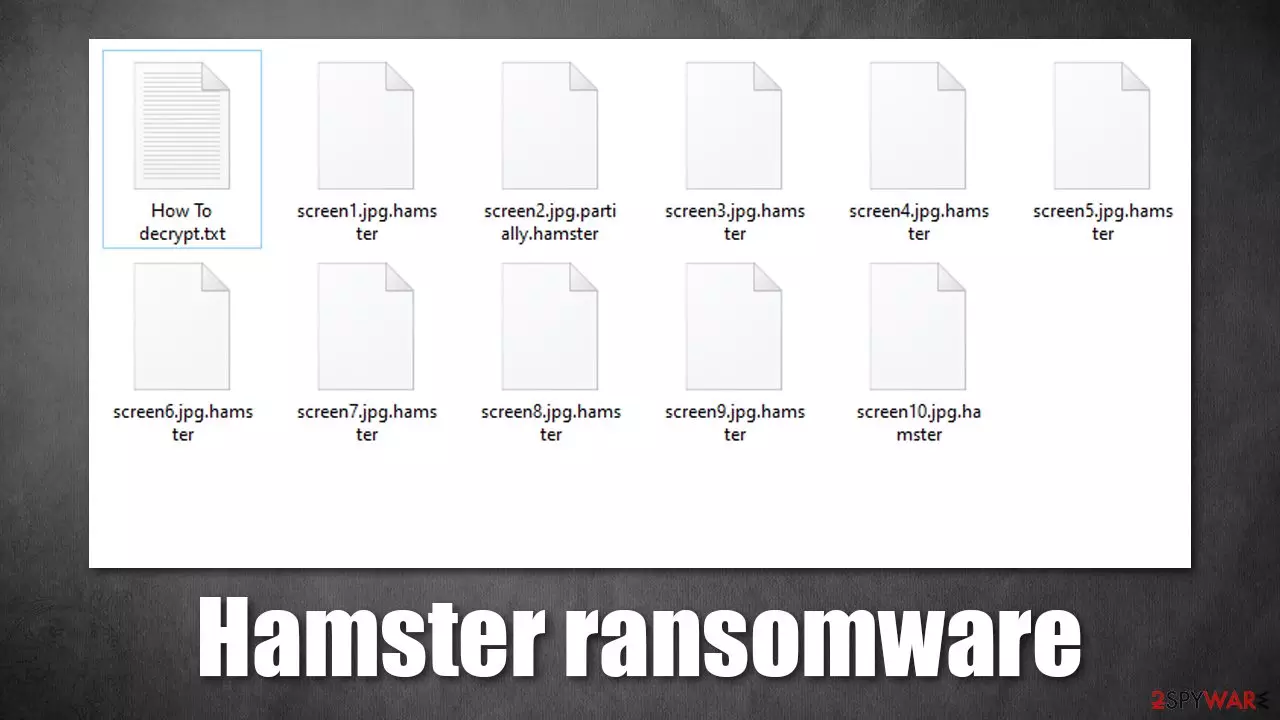
Suchlike files receive a .hamster extension and can no longer be opened or modified. It is important to note that this data is not corrupted, but rather ciphered with a combination of AES and RSA[1] encryption algorithms – a common, secure method for the data locking process. It almost guarantees that breaking the encryption is impossible without a unique key sent to the attackers' C&C servers[2] upon data encryption.
Hamster virus likely targets are corporate environments, judging from the “How To decrypt.txt” message left by malware authors. In it, the attackers explain to victims what happened to their files and the infected network and that they need to download the TOX instant messenger app if they want to recover their data intact.
We have previously discussed similar ransomware examples, including ReadMe, Mallox, or CryptoJoker 2021, mainly because new strains are so common nowadays. Trusting cybercriminals and paying the ransom is extremely risky, as they might never fulfill their promises and send the required decryptor.
Instead, we recommend you follow the instructions and information we provide below – we'll explain how to remove Hamster ransomware for the system correctly without damaging files located on the local and networked computers and show some alternative methods for data recovery if such is required.
| Name | Hamster ransomware |
|---|---|
| Type | Ransomware, file-locking virus |
| File extension | Each of the personal files receives a .hamster extension |
| Ransom note | How To decrypt.txt |
| Contact | via TOX messenger |
| File Recovery | If no backups are available, recovering data is almost impossible. Nonetheless, we suggest you try the alternative methods that could help you in some cases – we list them below |
| Malware removal | You can remove malware and all its malicious components with powerful security software SpyHunterCombo Cleaner |
| System fix | Malware can seriously tamper with Windows systems, causing errors, crashes, lag, and other stability issues after it is terminated. To remediate the OS and avoid its reinstallation, we recommend scanning it with the FortectIntego repair tool |
The threat to release sensitive information – common tactic to make victims pay
A ransom note is something that serves as an initial communication means between the attackers and victims. This is why these files are generated as soon as the malware's data-locking task is complete. They are either placed on the desktop, can be found in multiple locations within various directories where locked files are located, or both.
Likewise, some ransomware creators use specially crafted programs that open pop-up windows, sometimes even preventing users from operating their machines normally. This trend is slowly going away, however, as users and especially corporations can easily bypass this function.
Instead, text files are commonly used. In this case, victims are presented with How To decrypt.txt, which reads:
Hello there, I'm the Hamster!
What's happened?
Well, it's pretty simple: hamster penetrated your network, carried out compromised files,
and encrypted all the stuff.Why am I reading this?
Because your technicans are careless, get rid of security measures, skipped updates, etc.Do you want to turn it back?
Sure thing, right? It also pretty simple: contact me during 72 hours since incident discovery,
and you will get discount for full data recovery. Moreover, I'll provide advices and tell you how to fix this vulnerability.
Use the TOX messenger to contact: https://github.com/uTox/uTox/releases/download/v0.18.1/utox_x86_64.exeMy TOX ID:
B74F33BBBA637DCCFCD8FA3376A3B9BF8A4ACA36BDF25219B6689345E34831303FDDB2D95F6AStart messaging from incident ID, which has been assigned to you:
What happens if you decide to avoid negotiations?
Well, I could sell most worthful stuff to your competitors, the rest will go to the clearnet and mass media.
It will cost you reputation.
There are several pointers that crooks make here. According to the message, they managed to break in thanks to a security vulnerability found on the network or a computer. Usually, these breaking can be stopped with the latest security patches applied, so it is vital to keep all the software on the system updated. Older operating systems, such as Windows 7 or Windows XP, are also more susceptible to such attacks.[3]

Further are promises of all sorts of perks if the ransom is actually paid, such as crooks disclosing the vulnerability they used to access the network and how to fix it. Threat actors also claim that if the negotiations were unsuccessful, they would disclose sensitive information to media and competitors, which could sometimes prove devastating to any company.
However, paying crooks can be very dangerous, as they might still do what they promised not to. Likewise, storing a large amount of data might be impractical and costly, so they might simply be bluffing about having it in the first place.
We recommend you ignore the demands of crooks and instead follow the steps below to remediate the situation in alternative ways.
Step 1. Disconnect the device from the network
While ransomware's main job is to encrypt all files on the computer or network, it does not mean that the initial infection can't be used for something else. The longer malware stays on the system, the bigger problems you might face in the future. It is likely that the virus connects to a remote server for various reasons, so it is important to stop that communication immediately before proceeding with Hamster ransomware removal.
If the infected PC is not connected to a network, you can simply disconnect it by plugging out the ethernet or using the WiFi symbol in the taskbar. However, if a large network is affected, you should proceed with the following to disconnect all machines at once:
- Type in Control Panel in Windows search and press Enter
- Go to Network and Internet
- Click Network and Sharing Center
- On the left, pick Change adapter settings
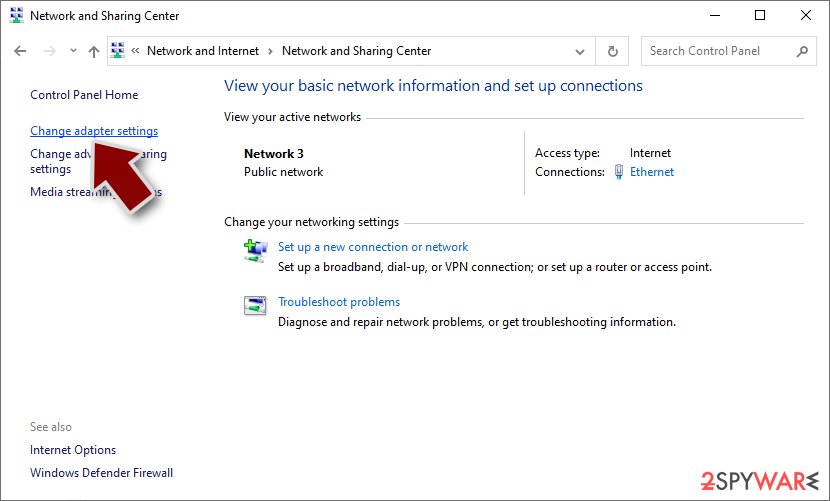
- Right-click on your connection (for example, Ethernet), and select Disable
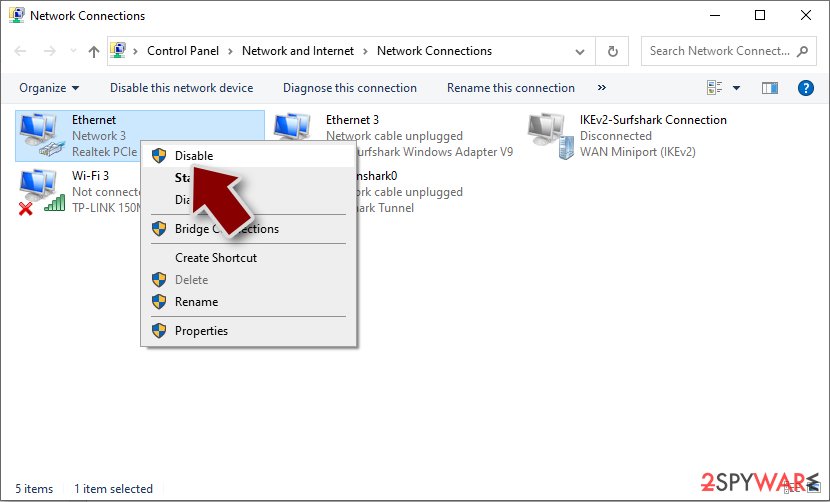
- Confirm with Yes.


Step 2. Remove malware
Once the internet connection is no longer accessible to malware, you can begin the removal process. It is important to note that even if a few modules of the virus are left behind, it might continue encrypting files or connecting to remote hosts in the future. Thus, it is vital that proper elimination is done, so use security software SpyHunterCombo Cleaner or MalwarebytesMalwarebytes for this process. Manual elimination can be a particularly difficult and lengthy process, so it is not recommended.
Malware might interfere with security software and prevent it from being used in normal mode. You can bypass this by accessing Safe Mode and performing the scan from there.
Windows 7 / Vista / XP
- Click Start > Shutdown > Restart > OK.
- When your computer becomes active, start pressing the F8 button (if that does not work, try F2, F12, Del, etc. – it all depends on your motherboard model) multiple times until you see the Advanced Boot Options window.
- Select Safe Mode with Networking from the list.


Windows 10 / Windows 8
- Right-click on the Start button and select Settings.
- Scroll down to pick Update & Security.
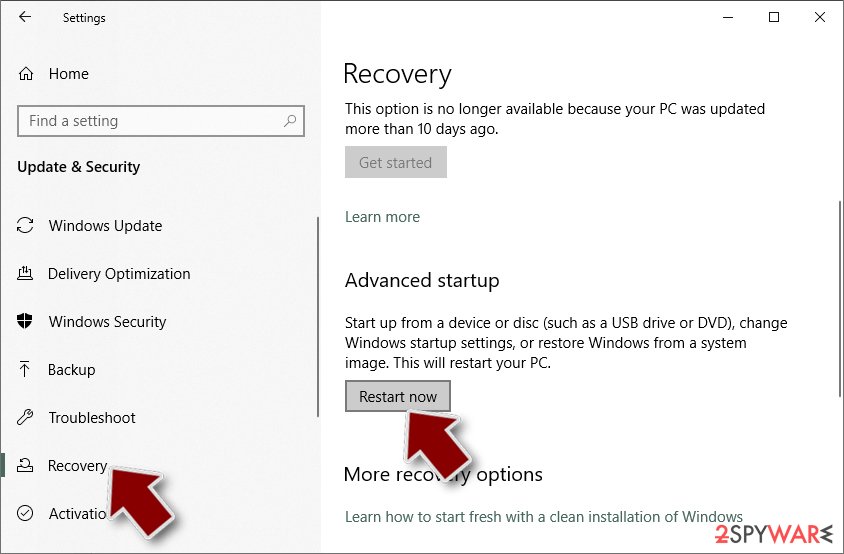
- On the left side of the window, pick Recovery.
- Now scroll down to find the Advanced Startup section.
- Click Restart now.
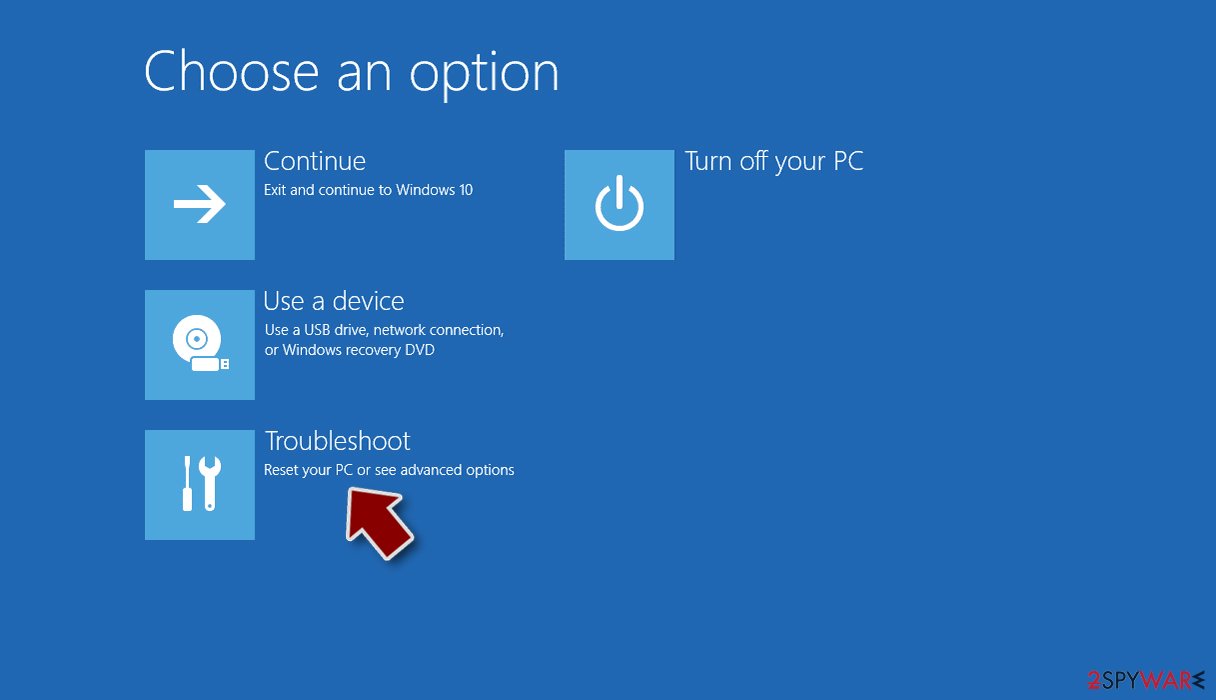
- Select Troubleshoot.
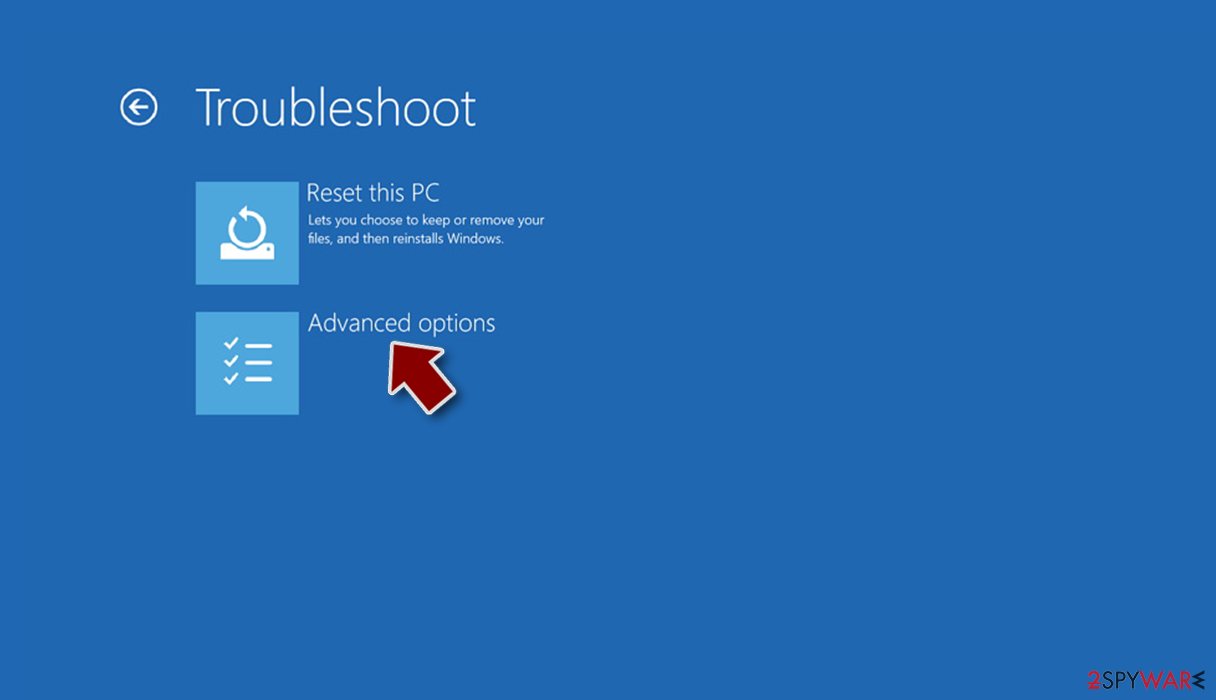
- Go to Advanced options.
- Select Startup Settings.
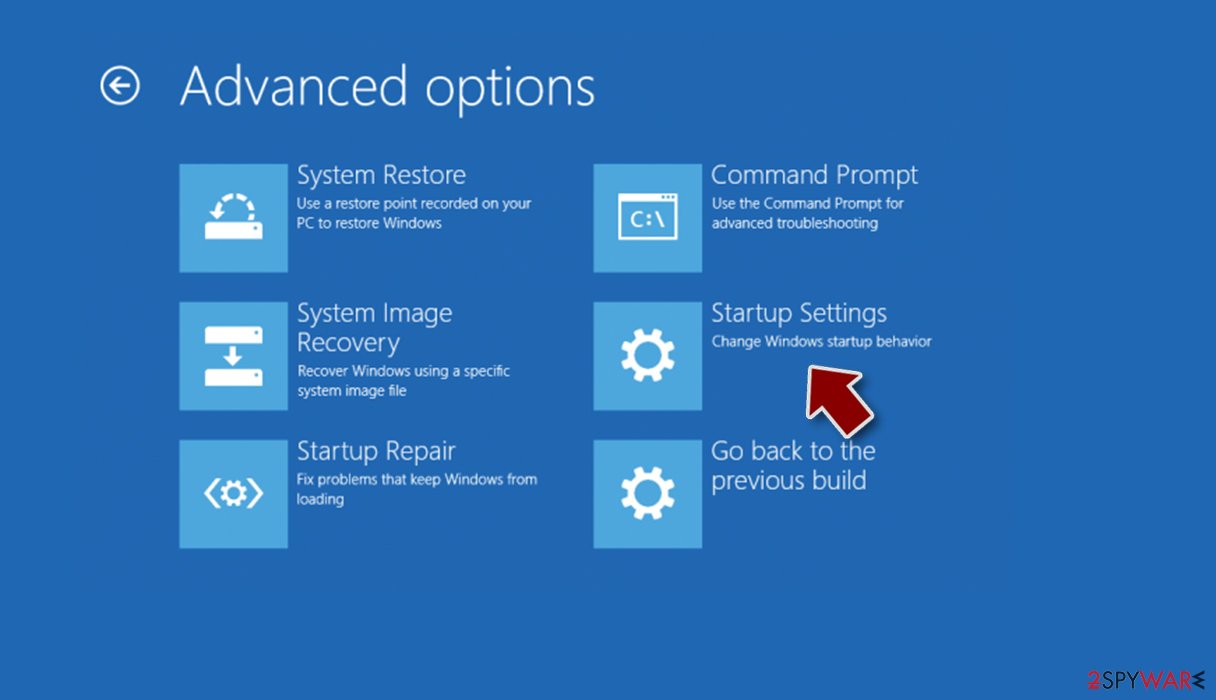
- Click Restart.
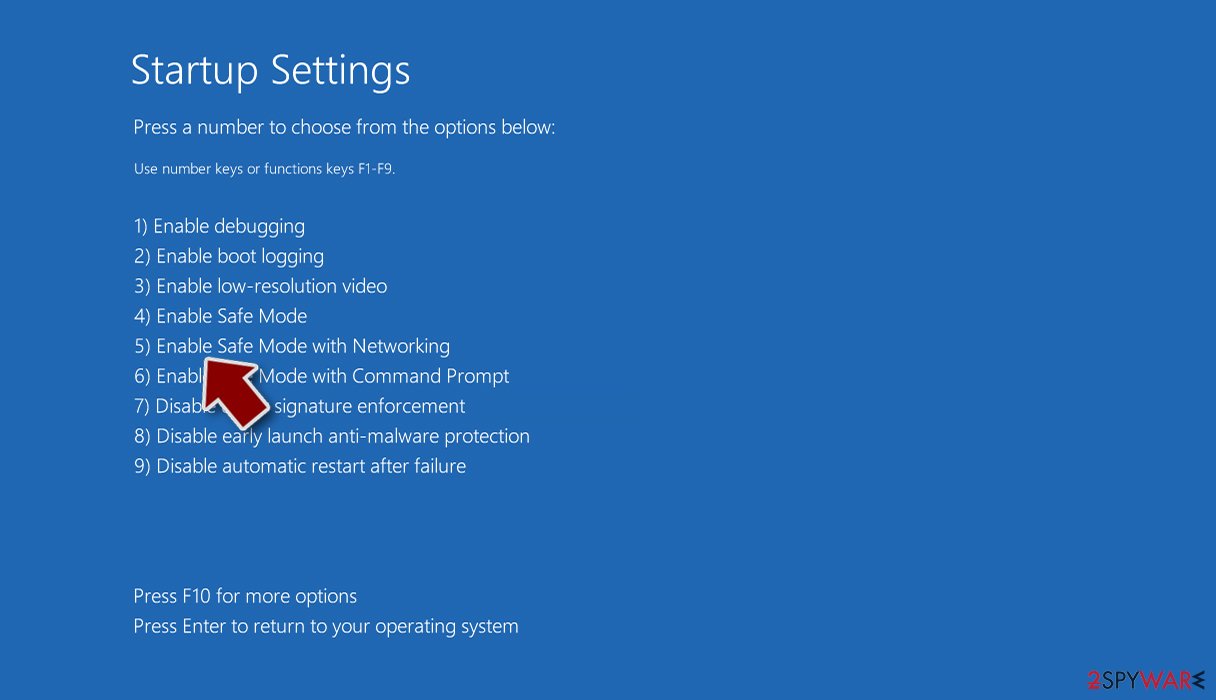
- Press 5 or click 5) Enable Safe Mode with Networking.


Step 3. Data recovery process
The operation of ransomware (or, rather its encryption element) is rather complex, even though there could be many novice hackers who take up an already existing malicious code and modify it slightly. Nonetheless, data recovery without the decryption key is rather difficult, as even the supercomputers would take thousands of years to calculate it.
Since decryption keys are assigned to each of the victims individually, they can't be shared. This is one of the reasons why this kind of malware is so devastating. Security software won't help here either, as it is simply not designed for that.
Most companies and businesses, no matter how small, usually keep backups of their data. It can be done via cloud or via local segregated storage units, such as NAS devices. If that is the case, file recovery is rather straightforward – all you have to do is remove the Hamster virus and then restore all the missing files from backups.
However, if you have no backups ready, the situation is much more complicated. You can first try using recovery software, as it might be able to recover at least some of the encrypted files:
- Download Data Recovery Pro.
- Double-click the installer to launch it.

- Follow on-screen instructions to install the software.
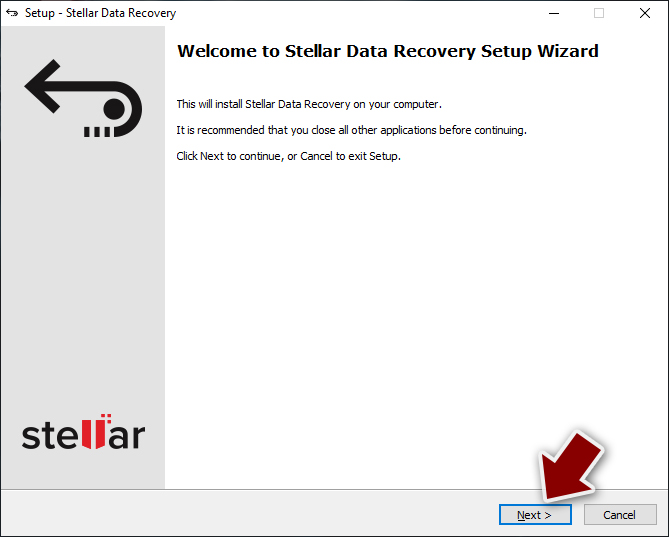
- As soon as you press Finish, you can use the app.
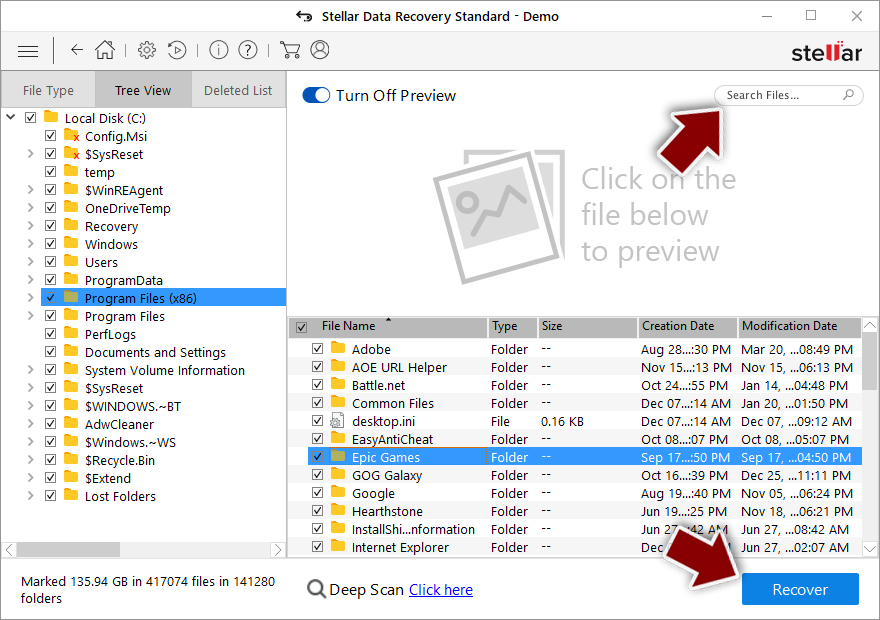
- Select Everything or pick individual folders where you want the files to be recovered from.
- Press Next.
- At the bottom, enable Deep scan and pick which Disks you want to be scanned.

- Press Scan and wait till it is complete.
- You can now pick which folders/files to recover – don't forget you also have the option to search by the file name!
- Press Recover to retrieve your files.


Security researchers are constantly working on battling malicious actors and helping victims by creating free decryptors. Unfortunately, such a tool is not yet developed for this malware family. There are several places where you could look for decryptors in the future:
- No More Ransom Project
- Free Ransomware Decryptors by Kaspersky
- Free Ransomware Decryption Tools from Emsisoft
- Avast decryptors

Step 4. Repair damaged system components
Finally, after a ransomware infection, some of many of your Windows registries, DLL files, and other components might be left with damage. This might result in various computer issues, including crashes, lag, failure to load applications, and much more. If that is the case, we strongly recommend running a PC repair tool that would take of such problems automatically.
- Download FortectIntego
- Click on the ReimageRepair.exe

- If User Account Control (UAC) shows up, select Yes
- Press Install and wait till the program finishes the installation process
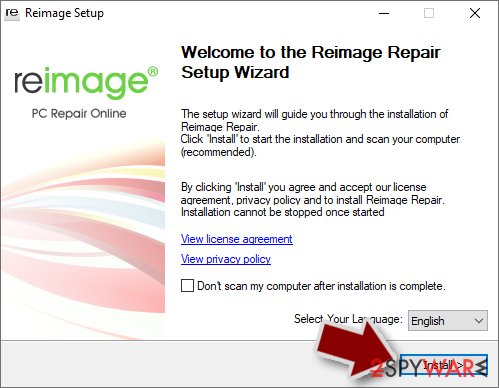
- The analysis of your machine will begin immediately
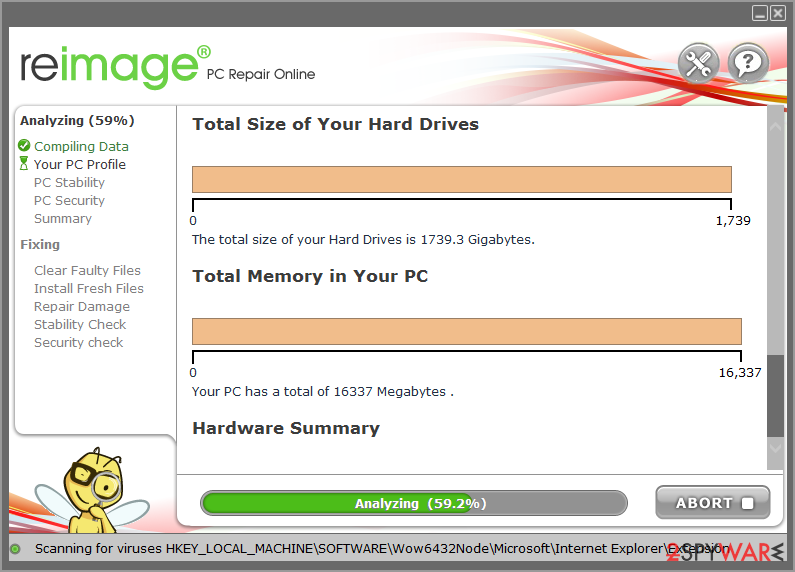
- Once complete, check the results – they will be listed in the Summary
- You can now click on each of the issues and fix them manually
- If you see many problems that you find difficult to fix, we recommend you purchase the license and fix them automatically.



Did this guide help?
Be the first to comment