

Home.bitmotion-tab.com tries to earn users' trust with an appealing design
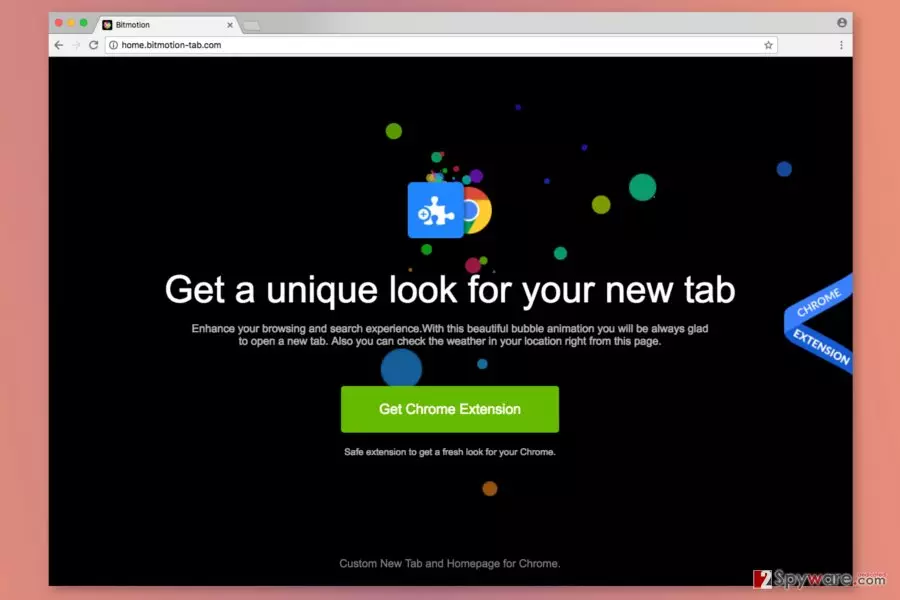
Bitmotion virus is perceived to be a dubious search engine which does not only offer its search engine services but persistently promotes its extensions. Thus, you might notice Bitmotion New Tab instead of your previous one. The latter is devised by Victory Commerce Ltd. Nevertheless, it is promoted as a tool that enhances browsing experience; in fact, it is categorized as a browser hijacker that might alter browser’s settings and prevent users from browsing the Web normally.
Nevertheless, it is promoted as a tool that enhances browsing experience; in fact, it is categorized as a browser hijacker that might alter browser’s settings and prevent users from browsing the Web normally. Is Bitmotion a virus? Technically, it is not, but it may cause troublesome outcomes.
After you enable Bitmotion extension:
- alter browser’s homepage and new tab page settings without clearly asking user’s permission[1];
- launch chrome-extension://iinglghmhcgdgjjlafobajghjamdchik/newtab.html page as soon as the victim opens an infected web browser, a new tab or simply clicks on extension’s icon in the browser’s menu bar;
- alter search results;
- display intrusive online ads;
- redirect to suspicious third-party web pages;
- install helper objects to the affected browsers;
- collect various information about the user.
Bitmotion Tab redirect phenomenon might become an issue within a while. Keep in mind that this browser hijacker aims to monetize the website it promotes, so it inserts third-party ads into search results[2].
Once users click on paid search links, the browser infection initiates redirects to pre-determined websites to increase their popularity. Although some of these websites can be entirely safe to visit, others might provide dangerous or inappropriate material or even pose a threat to your computer or your privacy.
In fact, consider the privacy of your personal information when using this extension we mentioned above. By enabling Bitmotion Tab virus, you agree to disclose your email address to its developers, also read and change your bookmarks as well as data on websites you visit. On top of that, the Bitmotion-tab virus collects your search terms, links that you decided to click on, IP address, and related data.
This parasite is going to annoy you to hell because the described search engine has a background that moves all the time. In addition, the Bitmotion extension can send you surveys and contests, and usually, these ask to provide personal data such as name and email address. Such information can be used to send you spam[3]. Pay attention to these statements:
“We may use an intermediary to conduct these surveys or contests. These companies may use your personal information to help the BitmotionTab communicate with you about offers from the [ tab ] and our marketing partners.”
Although the company claims that these third-parties do not have Victory Commerce’s permission to use user’s personal data for any other purposes, you can never know. Therefore, you should consider Home.bitmotion-tab.com removal as a matter of utmost importance. You might want to use anti-malware like FortectIntego for it.
If using additional software to eliminate the virus does not seem like the right option for you, you can remove Home.bitmotion-tab.com manually too. You can find a detailed explanation how to complete this task at the end of the article.

Preven the infiltration of PUP-like programs
To avoid installation of Bitmotion hijacker, you should be very careful when installing various free programs from the Internet[4]. If you tend to rush and act carelessly when installing new programs, you will have to find a way to get rid of it later. However, you can prevent its installation by making a couple of easy modifications in software installers.
When you open an installer of a certain program, you will be provided with its Privacy Policy and Terms of Use papers, which are very important, so read them carefully. Later, you will be asked to select installation mode, so choose Custom or Advanced one and then find statements saying that you agree to install additional programs. Remove checkmarks placed in checkboxes next to them and proceed with the installation.
The hijacker mostly aims at Chrome users located in the United States. However, some infiltration cases were noticed in Bulgaria[5] as well. Thus, users from these countries should be extremely careful.
Remove Bitmotion virus quickly
The best way to complete Bitmotion Tab removal is to use a professional malware removal tool[6]. If you have an antivirus, it might fail to successfully detect this intruder because such programs usually are capable of finding critical viruses, meanwhile, bitmotion-tab is just a spyware-type parasite.
If you are wondering how to remove Bitmotion Tab manually, save time and use the instructions described below – be very careful and implement steps with precision if you want to annul changes made by the potentially unwanted program. Otherwise, your browser remains to be taken to hostage. You may also uninstall Bitmotion by resetting the default browser settings.
Uninstall from Windows
Uninstall from Windows 10/8:
- Type Control Panel into the Windows search box and open the result.
- Under Programs, select Uninstall a program.


Uninstall from Windows 7/XP:
- Click on Windows Start > Control Panel (Windows XP users should click on Add/Remove Programs).
- In Control Panel, select Programs > Uninstall a program.


Remove the unwanted program:
- In the Programs and Features window, look for any recently installed suspicious entries, select them, and click Uninstall.
- If User Account Control appears, click Yes to confirm, then complete the removal.


Delete from macOS
Remove the unwanted application:
- From the menu bar, select Go > Applications.
- In the Applications folder, look for any suspicious entries, then drag them to Trash (or right-click and pick Move to Trash).


Delete leftover files and folders:
- Select Go > Go to Folder.
- Enter /Library/Application Support and remove any suspicious folders related to the unwanted program.
- Repeat the same check in the /Library/LaunchAgents and /Library/LaunchDaemons folders, deleting any suspicious entries.

- Finally, empty the Trash to permanently remove the leftovers.

Reset Internet Explorer
Remove dangerous add-ons:
- Open Internet Explorer, click on the Gear icon (IE menu) on the top-right corner of the browser
- Pick Manage Add-ons.
- You will see a Manage Add-ons window. Here, look for suspicious plugins. Click on these entries and select Disable.


Change your homepage if it was altered:
- Open IE and click on the Gear icon.
- Select Internet Options.
- In the General tab, delete the Home page address and replace it by your preferred one (for example, Google.com).
- Click Apply and then select OK.


Delete temporary files:
- Press on the Gear icon and select Internet Options.
- Under Browsing history, click Delete...
- Select relevant fields and press Delete.


Reset Internet Explorer:
- Click on Gear icon > Internet options and select Advanced tab.
- Select Reset.
- In the new window, check Delete personal settings and select Reset.


Remove from Microsoft Edge
Delete unwanted extensions from MS Edge:
- Select Menu (three horizontal dots at the top-right of the browser window) and pick Extensions.
- From the list, pick the extension and click on the Gear icon.
- Click Remove.


Clear cookies and other browser data:
- Click on the Menu (three horizontal dots at the top-right of the browser window) and select Settings > Privacy, search, and services..
- Under Clear browsing data, pick Choose what to clear.
- Select Cookies and other site data and Cached images and files. (apart from passwords, although you might want to include Media licenses as well, if applicable) and click on Clear.


Restore new tab and homepage settings:
- Click the menu icon and choose Settings.
- Then find On startup section.
- Click Remove next to any suspicious startup page.
Reset MS Edge if the above steps did not work:
- Press on Ctrl + Shift + Esc to open Task Manager.
- Click on More details arrow at the bottom of the window.
- Select Details tab.
- Now scroll down and locate every entry with Microsoft Edge name in it. Right-click on each of them and select End Task to stop MS Edge from running.


Instructions for Chromium-based Edge
Delete extensions from MS Edge (Chromium):
- Open Edge and click select Settings > Extensions.
- Delete unwanted extensions by clicking Remove.


Clear cache and site data:
- Click on Menu and go to Settings.
- Select Privacy, search and services.
- Under Clear browsing data, pick Choose what to clear.
- Under Time range, pick All time.
- Select Clear now.


Reset Chromium-based MS Edge:
- Click on Menu and select Settings.
- On the left side, pick Reset settings.
- Select Restore settings to their default values.
- Confirm with Reset.
- This will disable extensions and reset startup pages but will not delete bookmarks, saved passwords, or browsing history.


Remove from Mozilla Firefox (FF)
Remove dangerous extensions:
- Open Mozilla Firefox browser and click on the Menu (three horizontal lines at the top-right of the window).
- Select Add-ons.
- In here, select the unwanted extension and click Remove.


Reset the homepage:
- Click three horizontal lines at the top right corner to open the menu.
- Choose Settings.
- Under Home, set your preferred homepage and new tab settings.
Clear cookies and site data:
- Click Menu and pick Settings.
- Go to Privacy & Security section.
- Scroll down to locate Cookies and Site Data.
- Click on Clear Data...
- Select Cookies and Site Data and Temporary cached files and pages, then click Clear.


Reset Mozilla Firefox
If clearing the browser as explained above did not help, reset Mozilla Firefox:
- Open Mozilla Firefox browser and click the Menu.
- Go to Help and then choose Troubleshooting Information.

- Under Give Firefox a tune up section, click on Refresh Firefox...
- Once the pop-up shows up, confirm the action by pressing on Refresh Firefox.



Remove from Google Chrome
Delete malicious extensions from Google Chrome:
- Open Google Chrome, click on the Menu (three vertical dots at the top-right corner) and select More tools > Extensions.
- In the newly opened window, you will see all the installed extensions. Uninstall all suspicious extensions related to the unwanted program by clicking Remove.


Clear cache and web data from Chrome:
- Click on Menu and pick Settings.
- Under Privacy and security, select Clear browsing data.
- Select Browsing history, Cookies and other site data, as well as Cached images and files.
- Click Clear data.


Change your homepage:
- Click menu and choose Settings.
- Look for a suspicious site in the On startup section.
- Click on Open a specific or set of pages and click on three dots to find the Remove option.
Reset Google Chrome:
If the previous methods did not help you, reset Google Chrome to eliminate all the unwanted components:
- Click on Menu and select Settings.
- In the Settings, scroll down and click Advanced.
- Scroll down and locate Reset and clean up section.
- Now click Restore settings to their original defaults.
- Confirm with Reset settings.


Delete from Safari
Remove dangerous extensions:
- Open Safari, click Safari in the menu at the top-left of the screen, and select Preferences.
- Go to the Extensions tab, look for any suspicious entries, and click Uninstall to remove them.


Clear history and website data:
- Click Safari in the menu and pick Clear History.
- Set Clear to all history and confirm with Clear History.


Reset Safari:
- Click Safari in the menu and select Preferences > Advanced.
- Enable Show Develop menu in menu bar.
- From the menu bar, click Develop and select Empty Caches.


Did this guide help?
4 comments
ZOe
I infected my machine with this accidentally. bitmotion tab - I removed it, but it kept coming back. In result, I only managed to get rid of it for good with anti-malware program.
777
THANKS GOD. I finally erased this hideous virus from my PC! at first, I couldnt find it, but with these instructions, everything was clear for me.
Connie
gone! the virus is gone. thank you, 2-spyware :)
helena
still stuck... cant find it...