

Search Pulse is a browser hijacker which reaches the system via fake Adobe Flash Player update
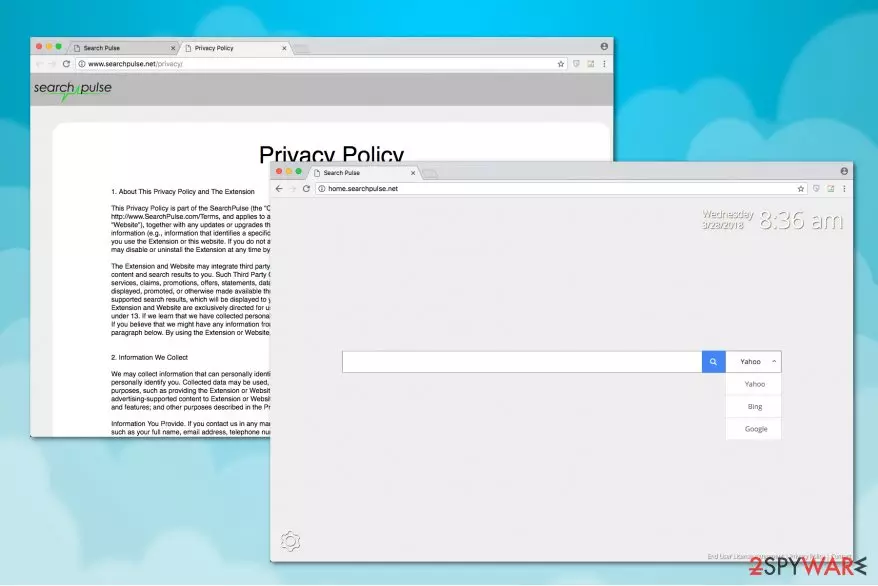
Search Pulse is a dubious search engine that falls into the categories of the potentially unwanted program (PUP)[1] and browser hijacker. At the moment, the most affected web browser is Safari. However, it has also been noticed on Google Chrome, Firefox, IE, and other web browsers. The hijacker has been actively spreading around with the help of bundling technique, via a well known fake update for the Adobe Flash Player.[2] Once inside the system, it replaces a default start page, search engine, and URL address with http://home.searchpulse.net/, and starts initiating doubtful advertising campaigns. Furthermore, promotion of questionable software and redirects to affiliate pages might also be related to this PUP.
| Name | Search Pulse |
|---|---|
| Type | Browser hijacker |
| Sub-type | Potentially unwanted program |
| Possible dangers | Might take you to pages which are filled with malicious apps |
| Distribution | Installed by users as a useful extension; spreads together with third-party applications |
| Search results provided via | Yahoo Search |
| Symptoms | Changes browsers' settings; assigns itself as the new tab URL, homepage, and default search engine; presents forged search results, redirects to sponsored websites |
| Prevention tips | There are some ways to prevent the installation of browser hijackers, for example, activating the Custom/Advanced configuration mode to complete all of your incoming downloads |
| Removal | Uninstall Home.searchpulse.net by using our guide. Additionally, run FortectIntego to get rid of the damage that it caused. |
If you are wondering what is Search Pulse truly, we are here to inform you about all of the capabilities this potential threat includes and what kinds of activities it performs on the system and web browser applications. This type of suspicious program is not directly a virus but it can be recognized as one due to all the intrusive capabilities it has.
Although it might look even useful at first due to a provision of search engine customization and blend of Yahoo, Bing, and Google search results, do not fall for the trick. Search Pulse is a browser hijacker, which aims at promoting the websites of affiliate parties, driving traffic to partner's sites, and generating pay-per-click[3] profit.
Browser hijackers, including Search Pulse, are stealthily distributed in a form of extension along with free applications online. Therefore, a vast majority of people often are not aware of how this PUP sneaked into their systems. Unfortunately, it's not possible to dismiss the unauthorized modification of the startup page, search provider, and other personalized settings.

Experts also warn that this Search Pulse virus can collect details about the users and subsequently transfer it to affiliate parties for marketing purposes. After infiltration, it drops tracking cookies and starts monitoring its users' browsing activity and collecting specific information which includes:
- Name;
- Email address;
- IP address;
- Country code;
- Search query;
- Unique identifier number, etc.
It is evident that such activity is performed without directly notifying the user. Unfortunately, some of these details are classified as personally identifiable information (PII)[4] and can put your privacy at risk. Moreover, the developers of Search Pulse add that they might share the gathered data with third-parties:
Collected data may be used, supplemented, and shared with other parties for business, commercial, or marketing purposes <…>
Additionally, they inform that SearchPulse is designed to deliver advertising content via search results or by displaying ads on frequently visited pages. While many would like to receive shopping coupons or Holiday offers, we want to warn you that online advertisements can be potentially dangerous to your computer's security.
Here is the fraction informing about the ads by Home.searchpulse.net:
The Extension and Website may integrate third party content (“Third Party Content”) in order to display what services are streaming certain content and search results to you. Such Third Party Content may include feeds, search results, <…> promotions, offers, <…> music, photographs, sounds, or other content displayed, promoted, or otherwise made available through third parties.
Sadly, but the contrivers of Search Pulse are not responsible for the content of third-party ads. Thus, you can be redirected to highly suspicious pages or even websites where malware is distributed. For this reason, you must stay away from any types of ads and avoid clicking on them or promotional links on this search engine.

Our experts recommend you to remove Search Pulse for your safety. This way, you will be able to employ a reliable search engine instead. The quickest way to get rid of this browser hijacker is to get a robust antivirus. After selecting the one that seems right for you, scan your system properly. Additionally, make sure you get rid of virus leftovers by using FortectIntego.
If you are an experienced computer user, you can try to perform Search Pulse removal by yourself. In this case, we would suggest you follow the elimination instructions which are attached at the end of this article. Those steps will help you to get rid of the potentially unwanted content from infected web browser apps and stabilize your computer system.
PUPs travel as browser extensions inside the installers of third-party software
As we have already mentioned before, most people do not notice when the browser hijacker infiltrates the system. It is because developers bundle their products with free applications and offer them as one. Likewise, users might think that they install only one software while the PUP is installed together as an additional component.
However, you can identify the bundled software if you choose Advanced or Custom settings. They are designed not to skip steps during the installation and fully disclose the information about additional programs. Also, it is essential to find all pre-selected marks which permit to install the PUP and de-select them.
Additionally, browser hijackers and similar programs are capable of infiltrating the system through fake Adobe Flash Player updates or other outdated applications. If you keep some software, for example, anti-malware, ensure that your programs are always updated regularly to avoid possible errors.
Get rid of Home.searchpulse.net right now

Virusi.bg[5] team says that even though browser hijackers are not considered to be malware, users often use Search Pulse virus for browsing term since this program is very persistent — people cannot get rid of it by simply uninstalling the software. This is because PUPs have extra elements which might be hidden in different places across your computer.
Likewise, manual Search Pulse removal is a challenging procedure which should only be performed by an experienced user. Additionally, we have prepared instructions that should help and guide through the process. You can find them below this paragraph.
Finally, those who do not have specific IT skills can remove Search Pulse automatically. This is the fastest and most convenient method since it merely takes a few clicks. For that, you should install professional security software and let it examine your computer files.
Delete from macOS
Remove the unwanted application:
- From the menu bar, select Go > Applications.
- In the Applications folder, look for any suspicious entries, then drag them to Trash (or right-click and pick Move to Trash).


Delete leftover files and folders:
- Select Go > Go to Folder.
- Enter /Library/Application Support and remove any suspicious folders related to the unwanted program.
- Repeat the same check in the /Library/LaunchAgents and /Library/LaunchDaemons folders, deleting any suspicious entries.

- Finally, empty the Trash to permanently remove the leftovers.

Reset Internet Explorer
Remove dangerous add-ons:
- Open Internet Explorer, click on the Gear icon (IE menu) on the top-right corner of the browser
- Pick Manage Add-ons.
- You will see a Manage Add-ons window. Here, look for suspicious plugins. Click on these entries and select Disable.


Change your homepage if it was altered:
- Open IE and click on the Gear icon.
- Select Internet Options.
- In the General tab, delete the Home page address and replace it by your preferred one (for example, Google.com).
- Click Apply and then select OK.


Delete temporary files:
- Press on the Gear icon and select Internet Options.
- Under Browsing history, click Delete...
- Select relevant fields and press Delete.


Reset Internet Explorer:
- Click on Gear icon > Internet options and select Advanced tab.
- Select Reset.
- In the new window, check Delete personal settings and select Reset.


Remove from Microsoft Edge
Delete unwanted extensions from MS Edge:
- Select Menu (three horizontal dots at the top-right of the browser window) and pick Extensions.
- From the list, pick the extension and click on the Gear icon.
- Click Remove.


Clear cookies and other browser data:
- Click on the Menu (three horizontal dots at the top-right of the browser window) and select Settings > Privacy, search, and services..
- Under Clear browsing data, pick Choose what to clear.
- Select Cookies and other site data and Cached images and files. (apart from passwords, although you might want to include Media licenses as well, if applicable) and click on Clear.


Restore new tab and homepage settings:
- Click the menu icon and choose Settings.
- Then find On startup section.
- Click Remove next to any suspicious startup page.
Reset MS Edge if the above steps did not work:
- Press on Ctrl + Shift + Esc to open Task Manager.
- Click on More details arrow at the bottom of the window.
- Select Details tab.
- Now scroll down and locate every entry with Microsoft Edge name in it. Right-click on each of them and select End Task to stop MS Edge from running.


Instructions for Chromium-based Edge
Delete extensions from MS Edge (Chromium):
- Open Edge and click select Settings > Extensions.
- Delete unwanted extensions by clicking Remove.


Clear cache and site data:
- Click on Menu and go to Settings.
- Select Privacy, search and services.
- Under Clear browsing data, pick Choose what to clear.
- Under Time range, pick All time.
- Select Clear now.


Reset Chromium-based MS Edge:
- Click on Menu and select Settings.
- On the left side, pick Reset settings.
- Select Restore settings to their default values.
- Confirm with Reset.
- This will disable extensions and reset startup pages but will not delete bookmarks, saved passwords, or browsing history.


Remove from Mozilla Firefox (FF)
Remove dangerous extensions:
- Open Mozilla Firefox browser and click on the Menu (three horizontal lines at the top-right of the window).
- Select Add-ons.
- In here, select the unwanted extension and click Remove.


Reset the homepage:
- Click three horizontal lines at the top right corner to open the menu.
- Choose Settings.
- Under Home, set your preferred homepage and new tab settings.
Clear cookies and site data:
- Click Menu and pick Settings.
- Go to Privacy & Security section.
- Scroll down to locate Cookies and Site Data.
- Click on Clear Data...
- Select Cookies and Site Data and Temporary cached files and pages, then click Clear.


Reset Mozilla Firefox
If clearing the browser as explained above did not help, reset Mozilla Firefox:
- Open Mozilla Firefox browser and click the Menu.
- Go to Help and then choose Troubleshooting Information.

- Under Give Firefox a tune up section, click on Refresh Firefox...
- Once the pop-up shows up, confirm the action by pressing on Refresh Firefox.



Remove from Google Chrome
Delete malicious extensions from Google Chrome:
- Open Google Chrome, click on the Menu (three vertical dots at the top-right corner) and select More tools > Extensions.
- In the newly opened window, you will see all the installed extensions. Uninstall all suspicious extensions related to the unwanted program by clicking Remove.


Clear cache and web data from Chrome:
- Click on Menu and pick Settings.
- Under Privacy and security, select Clear browsing data.
- Select Browsing history, Cookies and other site data, as well as Cached images and files.
- Click Clear data.


Change your homepage:
- Click menu and choose Settings.
- Look for a suspicious site in the On startup section.
- Click on Open a specific or set of pages and click on three dots to find the Remove option.
Reset Google Chrome:
If the previous methods did not help you, reset Google Chrome to eliminate all the unwanted components:
- Click on Menu and select Settings.
- In the Settings, scroll down and click Advanced.
- Scroll down and locate Reset and clean up section.
- Now click Restore settings to their original defaults.
- Confirm with Reset settings.


Delete from Safari
Remove dangerous extensions:
- Open Safari, click Safari in the menu at the top-left of the screen, and select Preferences.
- Go to the Extensions tab, look for any suspicious entries, and click Uninstall to remove them.


Clear history and website data:
- Click Safari in the menu and pick Clear History.
- Set Clear to all history and confirm with Clear History.


Reset Safari:
- Click Safari in the menu and select Preferences > Advanced.
- Enable Show Develop menu in menu bar.
- From the menu bar, click Develop and select Empty Caches.


Did this guide help?
Be the first to comment