

Should you treat Hosts application as a legitimate one?
In general, the presence of Hosts virus results in the appearance of multiple advertisements, banners, and commercial offers. Rest assured as it is not a serious cyber threat capable of crashing the operating system. In fact, your computer has been targeted by the adware. In any case, its operation way is as much annoying and exasperating as the consequences left more dangerous malware. The sole purpose of adware is to cram users’ screens with diverse advertising content. This activity brings profit, so adware is one of the most frequent occurrences in the virus world. Despite the PUP being quite harmless, you should still remove Hosts immediately. Due to the app, you may be directed to the domains bearing highly questionable and even potentially malicious content. While you are reading the article, start Hosts removal. For that purpose, FortectIntego comes in handy.
Such PUPs usually display diverse advertisements. They might be offers to obtain a new 25” smart TV or the recommendations to install system scanners. Speaking about this particular case, Hosts ads operate quite aggressively as they tend to diminish the commercial offers shown by other online advertising companies. Thus, users who take preference to shop online might find it irritating not to be able to see the objective advertising material.
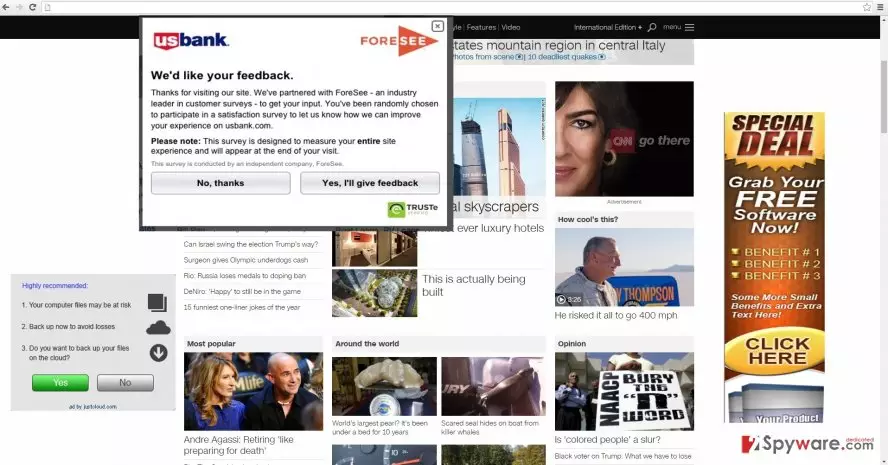
If you are concerned about the security of your computer, the malware removal utilities by the adware might catch your attention. We would like to warn you not to get tricked by the veneer of such blissful ads. Due to them and Hosts redirect tendency, you might be misled to the website which promotes futile software or the programs potentially infected with malevolent elements. Lastly, the adware is likely to spy on your browsing activities. It collects information about the visited domains, frequent search entries, and the IP address. This data is highly valued by the advertising companies as they transform this compiled data into money-making activities. After identifying user needs, they create customized ads. It means that the chances that you click on the pay-per-view commercial offers significantly level up.
The distribution ways of the PUP
Hosts hijack usually takes place when users recklessly finish installing newly downloaded programs. It is a common mistake to rush through the installation guides without even taking a look at the marked add-ons. The latter frequently happen to be none other than adware, browser hijackers, unnecessary toolbars, etc. As a result, potentially unwanted programs easily find their way into the computers. Luckily, there is a way how you can avoid being infected again. Install programs only from the official sources. When the installation wizard is ready, choose “Custom” settings. If you find pre-marked optional programs, uncheck them carefully not to accidentally install another adware-type tool.
How should you perform the removal of Hosts adware?
There are two ways to get rid of this pest. Install an anti-spyware program or remove Hosts manually. The instructions necessary to perform the elimination are provided on this page. However, some users dislike meddling with similar PUPs or are simply afraid to miss any essential detail. In that case, automatic Hosts removal is the better choice. After you download the security program, update it so it could receive the newest virus definitions. After that, the program is able to detect minor threats, such as Hosts virus or more devastating ones, for example, trojans or computer worms.
Uninstall from Windows
Uninstall from Windows 10/8:
- Type Control Panel into the Windows search box and open the result.
- Under Programs, select Uninstall a program.


Uninstall from Windows 7/XP:
- Click on Windows Start > Control Panel (Windows XP users should click on Add/Remove Programs).
- In Control Panel, select Programs > Uninstall a program.


Remove the unwanted program:
- In the Programs and Features window, look for any recently installed suspicious entries, select them, and click Uninstall.
- If User Account Control appears, click Yes to confirm, then complete the removal.


Delete from macOS
Remove the unwanted application:
- From the menu bar, select Go > Applications.
- In the Applications folder, look for any suspicious entries, then drag them to Trash (or right-click and pick Move to Trash).


Delete leftover files and folders:
- Select Go > Go to Folder.
- Enter /Library/Application Support and remove any suspicious folders related to the unwanted program.
- Repeat the same check in the /Library/LaunchAgents and /Library/LaunchDaemons folders, deleting any suspicious entries.

- Finally, empty the Trash to permanently remove the leftovers.

Remove from Microsoft Edge
Delete unwanted extensions from MS Edge:
- Select Menu (three horizontal dots at the top-right of the browser window) and pick Extensions.
- From the list, pick the extension and click on the Gear icon.
- Click Remove.


Clear cookies and other browser data:
- Click on the Menu (three horizontal dots at the top-right of the browser window) and select Settings > Privacy, search, and services..
- Under Clear browsing data, pick Choose what to clear.
- Select Cookies and other site data and Cached images and files. (apart from passwords, although you might want to include Media licenses as well, if applicable) and click on Clear.


Restore new tab and homepage settings:
- Click the menu icon and choose Settings.
- Then find On startup section.
- Click Remove next to any suspicious startup page.
Reset MS Edge if the above steps did not work:
- Press on Ctrl + Shift + Esc to open Task Manager.
- Click on More details arrow at the bottom of the window.
- Select Details tab.
- Now scroll down and locate every entry with Microsoft Edge name in it. Right-click on each of them and select End Task to stop MS Edge from running.


Instructions for Chromium-based Edge
Delete extensions from MS Edge (Chromium):
- Open Edge and click select Settings > Extensions.
- Delete unwanted extensions by clicking Remove.


Clear cache and site data:
- Click on Menu and go to Settings.
- Select Privacy, search and services.
- Under Clear browsing data, pick Choose what to clear.
- Under Time range, pick All time.
- Select Clear now.


Reset Chromium-based MS Edge:
- Click on Menu and select Settings.
- On the left side, pick Reset settings.
- Select Restore settings to their default values.
- Confirm with Reset.
- This will disable extensions and reset startup pages but will not delete bookmarks, saved passwords, or browsing history.


Remove from Mozilla Firefox (FF)
Remove dangerous extensions:
- Open Mozilla Firefox browser and click on the Menu (three horizontal lines at the top-right of the window).
- Select Add-ons.
- In here, select the unwanted extension and click Remove.


Reset the homepage:
- Click three horizontal lines at the top right corner to open the menu.
- Choose Settings.
- Under Home, set your preferred homepage and new tab settings.
Clear cookies and site data:
- Click Menu and pick Settings.
- Go to Privacy & Security section.
- Scroll down to locate Cookies and Site Data.
- Click on Clear Data...
- Select Cookies and Site Data and Temporary cached files and pages, then click Clear.


Reset Mozilla Firefox
If clearing the browser as explained above did not help, reset Mozilla Firefox:
- Open Mozilla Firefox browser and click the Menu.
- Go to Help and then choose Troubleshooting Information.

- Under Give Firefox a tune up section, click on Refresh Firefox...
- Once the pop-up shows up, confirm the action by pressing on Refresh Firefox.



Remove from Google Chrome
Delete malicious extensions from Google Chrome:
- Open Google Chrome, click on the Menu (three vertical dots at the top-right corner) and select More tools > Extensions.
- In the newly opened window, you will see all the installed extensions. Uninstall all suspicious extensions related to the unwanted program by clicking Remove.


Clear cache and web data from Chrome:
- Click on Menu and pick Settings.
- Under Privacy and security, select Clear browsing data.
- Select Browsing history, Cookies and other site data, as well as Cached images and files.
- Click Clear data.


Change your homepage:
- Click menu and choose Settings.
- Look for a suspicious site in the On startup section.
- Click on Open a specific or set of pages and click on three dots to find the Remove option.
Reset Google Chrome:
If the previous methods did not help you, reset Google Chrome to eliminate all the unwanted components:
- Click on Menu and select Settings.
- In the Settings, scroll down and click Advanced.
- Scroll down and locate Reset and clean up section.
- Now click Restore settings to their original defaults.
- Confirm with Reset settings.


Delete from Safari
Remove dangerous extensions:
- Open Safari, click Safari in the menu at the top-left of the screen, and select Preferences.
- Go to the Extensions tab, look for any suspicious entries, and click Uninstall to remove them.


Clear history and website data:
- Click Safari in the menu and pick Clear History.
- Set Clear to all history and confirm with Clear History.


Reset Safari:
- Click Safari in the menu and select Preferences > Advanced.
- Enable Show Develop menu in menu bar.
- From the menu bar, click Develop and select Empty Caches.


Did this guide help?
2 comments
Kelly
Annoying virtual parasite.
BonnieM
Thank you for the manual guide. It really helped!