

Hunforandiogs.com is a malicious website that shows misleading messages to trick users into accepting push notifications
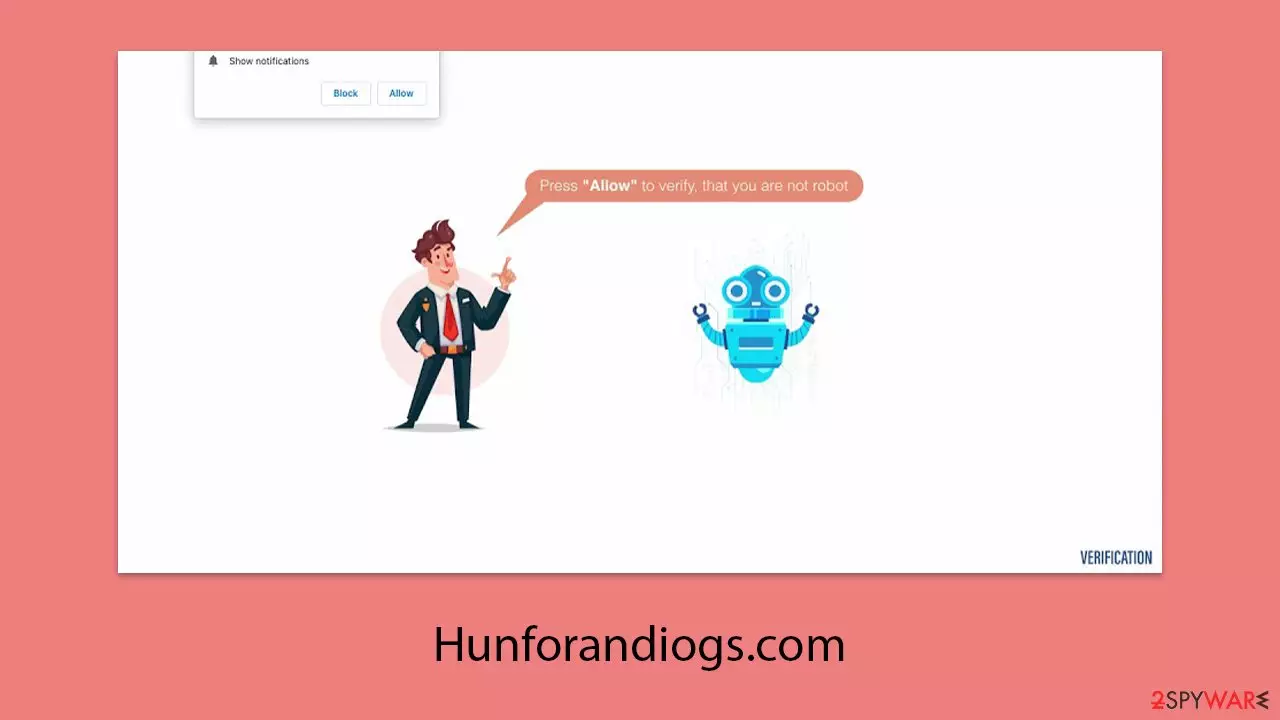
Hunforandiogs.com is a typical example of the numerous scam sites exploiting push notification prompts online. These sites are designed by fraudsters to trick users into enabling push notifications by pressing the “Allow” button. This action mistakenly gives the site permission to send notifications directly to the user's screen.
Once permission is granted, Hunforandiogs.com can send notifications anytime the browser like Google Chrome is active. These notifications can interrupt other activities by appearing over other applications, even pulling users out of full-screen applications like video players, which can be incredibly disruptive.
The primary concern with the notifications from Hunforandiogs.com is their lack of security. They frequently push phishing scams that could include alarming fake warnings about virus infections, attractive but deceptive get-rich-quick offers, or survey scams. Clicking on these could lead users to dangerous sites where they might be coaxed into jeopardizing their security or privacy, potentially leading to malware infections.
| Name | Hunforandiogs.com |
| Type | Push notifications, ads, pop-ups, scam |
| Distribution | Intrusive pop-ups can start showing up at some point after the “Allow” button is pressed within the notification prompt |
| Symptoms | Once enabled, notifications from malicious websites would bring misleading or other suspicious content to your screen. These links could lead to malware-laden, scam, phishing, or similar malicious sites |
| Dangers | Push notifications can contain ads that might be misleading and direct you to malicious websites. If you click on them, you could end up infecting your system with malware or revealing personal information to cybercriminals |
| Removal | You can stop unwanted notifications by accessing web browser settings. If you suspect adware infection, you should use SpyHunterCombo Cleaner security software to get rid of it |
| Recovery | Following adware removal, use FortectIntego to erase caches and web data, thereby preventing tracking. Additionally, this tool can repair any compromised system components |
The deceptive nature of the site

Checking the system for threats
Before you tackle the irritating pop-up notifications from Hunforandiogs.com, it's crucial to inspect your computer's health. Often, users land on phishing sites via redirects from risky sources like torrents and peer-to-peer networks, known for harboring dangerous links. However, the problem may also stem from adware—often inadvertently installed, running silently in the background and bombarding your device with malicious ads.
To address this, using reputable security software SpyHunterCombo Cleaner or MalwarebytesMalwarebytes to scan and cleanse your system is advised. Anti-virus tools are vital for shielding against new virus threats, especially when they are kept up-to-date. Additionally, consider employing specialized utilities to clear your browser cache and rectify any virus-induced damage. This step not only enhances your privacy but also helps maintain your system’s stability, preventing crashes, errors, and other performance issues.
Removing unwanted Hunforandiogs.com ads
Users often find themselves puzzled over the source of persistent push notifications, a confusion fostered by deceptive tactics used on sites like Hunforandiogs.com. These pop-ups can misleadingly suggest that a user’s system is compromised, leading to unnecessary system scans that won’t help in stopping these notifications.
Despite the complexity it might initially appear to have, disabling these push notifications is relatively straightforward once you know the necessary steps. To prevent a specific website, such as Hunforandiogs.com, from sending notifications, you need to modify your browser settings. By accessing the site settings within your browser, you can easily block this site from delivering any further notifications to your screen.
Google Chrome (desktop)
- Open the Google Chrome browser and go to Menu > Settings.
- Scroll down and click on Advanced.
- Locate the Privacy and security section and pick Site Settings > Notifications.
- Look at the Allow section and look for a suspicious URL.
- Click the three vertical dots next to it and pick Block. This should remove unwanted notifications from Google Chrome.


Google Chrome (Android)
- Open Google Chrome and tap on Settings (three vertical dots).
- Select Notifications.
- Scroll down to the Sites section.
- Locate the unwanted URL and toggle the button to the left (Off setting).


Mozilla Firefox
- Open Mozilla Firefox and go to Menu > Options.
- Click on Privacy & Security section.
- Under Permissions, you should be able to see Notifications. Click the Settings button next to it.
- In the Settings – Notification Permissions window, click on the drop-down menu by the URL in question.
- Select Block and then click on Save Changes. This should remove unwanted notifications from Mozilla Firefox.


MS Edge (Chromium)
- Open Microsoft Edge, and go to Settings.
- Select Site permissions.
- Go to Notifications on the right.
- Under Allow, you will find the unwanted entry.
- Click on More actions and select Block.


Safari
- Click on Safari > Preferences…
- Go to the Websites tab and, under General, select Notifications.
- Select the web address in question, click the drop-down menu and select Deny.


Internet Explorer
- Open Internet Explorer, and click on the Gear icon at the top-right of the window.
- Select Internet options and go to the Privacy tab.
- In the Pop-up Blocker section, click on Settings.

- Locate the web address in question under Allowed sites and pick Remove.

We also recommend using the FortectIntego PC repair and maintenance tool once you have verified that there is no malware on your device. This tool is effective at removing leftover files from potentially unwanted programs (PUPs), which might be used for tracking and other activities. It can also repair damage from viruses, preventing the need for a complete system reinstall if failures occur.
Did this guide help?
Be the first to comment