

Instant Support delivers fake security alerts and wants users to call to fake support line
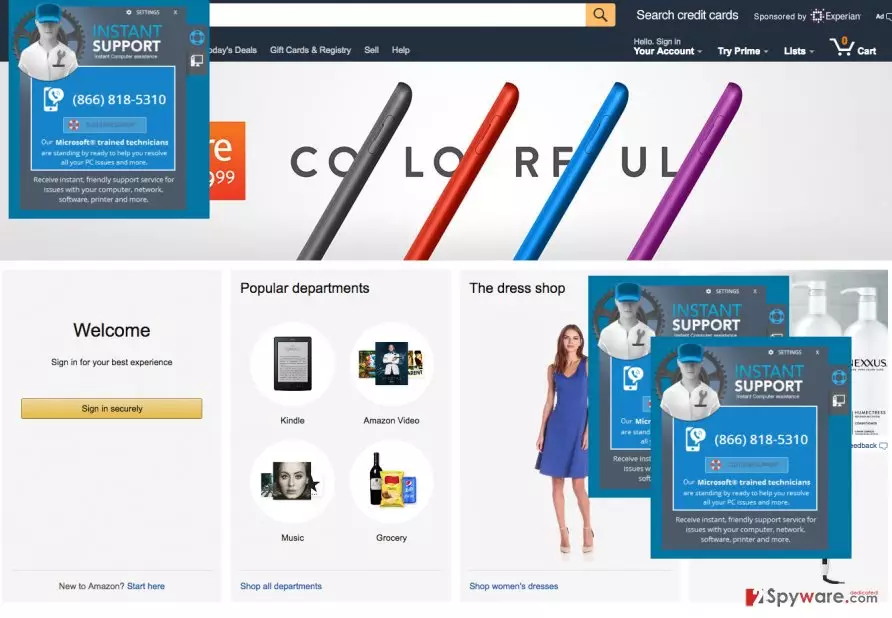
Instant Support is a suspicious adware[1] that sneaks inside computer unnoticed and pretends to be a reliable technical support provider. What is more, adware might deliver other commercial content and reduce browsing quality. Adware mostly aims at Win 10 and Win 7 users; however, other Windows versions might be affected as well.
It does not matter which Internet browser you prefer to use – Google Chrome, Internet Explorer or Mozilla Firefox – this adware will affect all of them. Instant Support toolbar installs its browser extension that might send you various pop-up messages which will make you concerned about the state of your computer. Typically, they claim:
Our Microsoft trained technicians are standing by ready to help you resolve all your PC issues and more.
In addition, Instant Support ads will offer you to get free assistance via these phone numbers: (888) 693-5841 or (866) 818-5310 but you should never call these numbers! Otherwise, you will be shocked when you will receive your next phone bill. The Instant Support staff is going to talk with you about your computer, but you should know that the minute rate of this support number is extremely high.
We strongly advise you to ignore such pop-ups. Remember that you can receive such misleading pop-ups offering PC support not only from Instant Support but also from any other adware as well. Thus, you should be aware of signs of adware infiltration, such as increased amount of online ads or redirects to sponsored sites.
This PUP belongs to Trojan.Tech-Support-Scam group. Thus, Instant Support virus might display error messages from Windows taskbar and Windows Event logs. However, you should not be fooled by this hoax.[2] Keep in mind that Windows support service does not require to call technicians to solve various problems. Thus, you are dealing with tech support scam[3].
In order to remove Instant Support and all other PUPs or possible computer threats automatically, we suggest installing FortectIntego anti-malware, which will detect and eliminate this cyber infection. What is more, it will protect your PC from similar cyber threats in the future.
If you are looking for manual Instant Support removal instructions, you can find them at the end of the article. Keep in mind that adware may have installed numerous components and other PUPs to the system and web browsers. Thus, you need to get rid of them all.

Bundling helps adware to step inside the computers
Instant Support adware is spread with other freeware and shareware. If you download free programs from the web from time to time, you have to be super cautious, because there's a chance of installing a bundled software[4] pack.
Developers of this PUP will not clearly notify you about extra applications added to your download pack, and you will not know about them unless you check it yourself. At the moment of writing, it was mentioned that this parasite spreads in a bundle with PC Accelerate.
To avoid this and similar applications, you have to find out about optional downloads by following these tips:
- Skip the traditional ''Standard'', ''Basic'', ''Regular'' or ''Default'' modes and choose whether ''Advanced'' or ''Custom'' ones instead.
- Follow each of the steps carefully and attentively in order not to overlook the list of pre-selected third-party programs.
- Once you see the list, you can reject unwanted applications by taking off the tick sign near the suggestions to install them.
- Now, you can proceed further and finish the installation process.
Keep in mind that doesn’t matter where you live – in the U.S., the U.K, or China[5] – this tricky potentially unwanted application can enter the device if you do not pay proper attention to the installation of freeware or shareware. Otherwise, you will need to uninstall Instant Support or other annoying applications.
Showing how to get rid of the Instant Support virus
You can choose how to remove Instant Support – with or without the anti-spyware program. You can also try to delete this PUP manually. For that, we have provided step-by-step removal instructions below this article.
However, if you are a fresh computer user, it can be quite a challenging task to detect all infectious files that this program may have hidden deep in the computer's system. For this reason, we strongly recommend using a professional computer security tool, which will find all hidden junk files and eliminate them.
If you want to opt for automatic Instant Support removal, you should not choose professional and reputable security tool, but update it too. Only up-to-date software is capable of detecting and eliminating all PUPs and suspicious entries from the device.
Uninstall from Windows
Uninstall from Windows 10/8:
- Type Control Panel into the Windows search box and open the result.
- Under Programs, select Uninstall a program.


Uninstall from Windows 7/XP:
- Click on Windows Start > Control Panel (Windows XP users should click on Add/Remove Programs).
- In Control Panel, select Programs > Uninstall a program.


Remove the unwanted program:
- In the Programs and Features window, look for any recently installed suspicious entries, select them, and click Uninstall.
- If User Account Control appears, click Yes to confirm, then complete the removal.


Delete from macOS
Remove the unwanted application:
- From the menu bar, select Go > Applications.
- In the Applications folder, look for any suspicious entries, then drag them to Trash (or right-click and pick Move to Trash).


Delete leftover files and folders:
- Select Go > Go to Folder.
- Enter /Library/Application Support and remove any suspicious folders related to the unwanted program.
- Repeat the same check in the /Library/LaunchAgents and /Library/LaunchDaemons folders, deleting any suspicious entries.

- Finally, empty the Trash to permanently remove the leftovers.

Reset Internet Explorer
Remove dangerous add-ons:
- Open Internet Explorer, click on the Gear icon (IE menu) on the top-right corner of the browser
- Pick Manage Add-ons.
- You will see a Manage Add-ons window. Here, look for suspicious plugins. Click on these entries and select Disable.


Change your homepage if it was altered:
- Open IE and click on the Gear icon.
- Select Internet Options.
- In the General tab, delete the Home page address and replace it by your preferred one (for example, Google.com).
- Click Apply and then select OK.


Delete temporary files:
- Press on the Gear icon and select Internet Options.
- Under Browsing history, click Delete...
- Select relevant fields and press Delete.


Reset Internet Explorer:
- Click on Gear icon > Internet options and select Advanced tab.
- Select Reset.
- In the new window, check Delete personal settings and select Reset.


Remove from Mozilla Firefox (FF)
Remove dangerous extensions:
- Open Mozilla Firefox browser and click on the Menu (three horizontal lines at the top-right of the window).
- Select Add-ons.
- In here, select the unwanted extension and click Remove.


Reset the homepage:
- Click three horizontal lines at the top right corner to open the menu.
- Choose Settings.
- Under Home, set your preferred homepage and new tab settings.
Clear cookies and site data:
- Click Menu and pick Settings.
- Go to Privacy & Security section.
- Scroll down to locate Cookies and Site Data.
- Click on Clear Data...
- Select Cookies and Site Data and Temporary cached files and pages, then click Clear.


Reset Mozilla Firefox
If clearing the browser as explained above did not help, reset Mozilla Firefox:
- Open Mozilla Firefox browser and click the Menu.
- Go to Help and then choose Troubleshooting Information.

- Under Give Firefox a tune up section, click on Refresh Firefox...
- Once the pop-up shows up, confirm the action by pressing on Refresh Firefox.



Remove from Google Chrome
Delete malicious extensions from Google Chrome:
- Open Google Chrome, click on the Menu (three vertical dots at the top-right corner) and select More tools > Extensions.
- In the newly opened window, you will see all the installed extensions. Uninstall all suspicious extensions related to the unwanted program by clicking Remove.


Clear cache and web data from Chrome:
- Click on Menu and pick Settings.
- Under Privacy and security, select Clear browsing data.
- Select Browsing history, Cookies and other site data, as well as Cached images and files.
- Click Clear data.


Change your homepage:
- Click menu and choose Settings.
- Look for a suspicious site in the On startup section.
- Click on Open a specific or set of pages and click on three dots to find the Remove option.
Reset Google Chrome:
If the previous methods did not help you, reset Google Chrome to eliminate all the unwanted components:
- Click on Menu and select Settings.
- In the Settings, scroll down and click Advanced.
- Scroll down and locate Reset and clean up section.
- Now click Restore settings to their original defaults.
- Confirm with Reset settings.


Delete from Safari
Remove dangerous extensions:
- Open Safari, click Safari in the menu at the top-left of the screen, and select Preferences.
- Go to the Extensions tab, look for any suspicious entries, and click Uninstall to remove them.


Clear history and website data:
- Click Safari in the menu and pick Clear History.
- Set Clear to all history and confirm with Clear History.


Reset Safari:
- Click Safari in the menu and select Preferences > Advanced.
- Enable Show Develop menu in menu bar.
- From the menu bar, click Develop and select Empty Caches.


Did this guide help?
4 comments
Ivy96
I have seen these pop-ups messages on my screen! However, I have never though that they can be so deceptive. Luckily I havent called this number!!!
Eleonora
This is so frustrating! Sadly, I had to experience the tear-off... So I have received my phone bill, and I could not believe my eyes! The phone bill was HUGE. I feel the need to tell everybody - if you ever start receiving any pop-up windows repeatedly, you should know that an infectious program has sneaked into your computer!! Before clicking on any pop-up windows, or doing what they command you, firstly s look for any keywords that can reveal the presence of these ads. Then look it up on the web!
Vicky
Sadly, I could not remove this manually - it seems so difficult to me ;( I will invite a technician to fix this for me
Hills
You shouldnt! It will cost you a lot!