
Internet Protection: what it is and how to remove it
Internet Protection is a rogue anti-malware software that belongs to the scareware category. In most cases, the application is accidentally installed from software bundles acquired from third-party websites, so users are usually unaware where it came from in the first place.
Facts checked October 6, 2026. Removal steps tested on Windows 11 (26H2) and checked against Microsoft's and the browser makers' current documentation. Sections marked as our earlier report are the original text: they describe the threat as it was then and have not been reviewed since. The 2026 status, the removal steps and the questions are current.
Automatic
Get a free scan and check if your PC is infected.
Fortect finds malware, unwanted programs and the Windows damage they leave behind, and repairs it in one pass.
An automatic scan checks installed programs, startup items and browser extensions for anything that came with Internet Protection.
Do it yourself · free Remove Internet Protection yourself 5 steps, about 15 minutes, no software needed.
Start the steps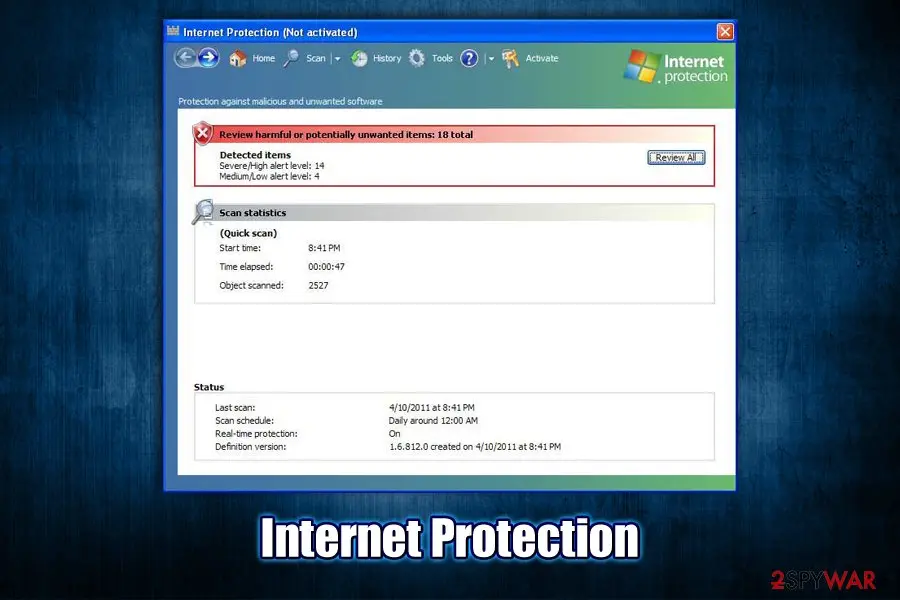
Internet Protection: summary
| Damage | Money loss, installation of other malware, MS Windows system compromise |
|---|---|
| Name | Internet Protection |
| Type | Rogue anti-spyware, scareware, malware |
| Infiltration | The virus is installed on the system along with other software from insecure third-party sites. Alternatively, users may get tricked by fake Flash Player updates or install it intentionally while being deceived about its true functionality |
| Symptoms | Numerous warnings and pop-ups that show fake security alerts and ask to purchase software licence to allegedly remove malware found on the device |
| Detection names | No Microsoft detection name is known |
| Removal | Scan the PC with security software to find and remove the malware and anything installed with it. Fortect scans Windows for malware and repairs the system files and settings it damaged. Remove it nowTo use the full-featured product, you have to purchase a license for Fortect. The scan is free. |
Show 5 more facts
| Distribution | Not recorded in the old report |
|---|---|
| Evidence | 4 write-ups by security sites; details still limited |
| Program | Internet Protection |
| First seen | 10 December 2019 |
| Facts checked | 6 October 2026 |
Is Internet Protection a real security program?
From our report of Dec 2019 · not reviewed since
Internet Protection is a fake security software that implements various scam messages to make users buy its licence
Internet Protection is a rogue anti-malware software that belongs to the scareware category.
In most cases, the application is accidentally installed from software bundles acquired from third-party websites, so users are usually unaware where it came from in the first place. In other cases, users might be tricked by fake updates that represent Flash Player.
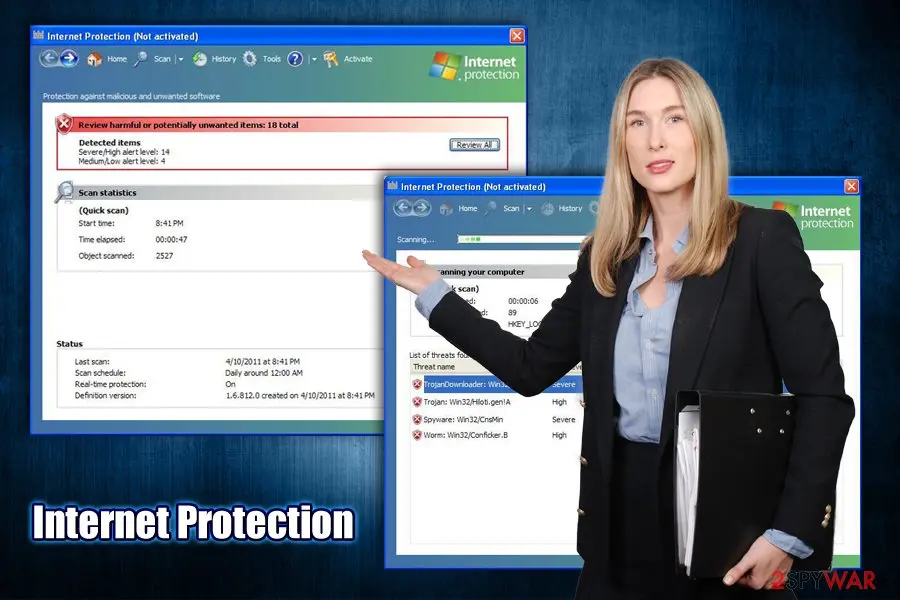
As soon as the application gets installed, it immediately performs an alleged system scan, finding hundreds of Trojans, worms, spyware, and other types of malware. Of course, these findings are fake, and Internet Protection is a scam.
The main goal of Internet Protection developers is to make users believe that their machines are in grave danger due to malware infections. To make the scam more believable, the app uses similar colors and icons that resemble Microsoft Windows attributes.
Until Internet Protection removal is performed, users will keep constantly spammed with notifications and pop-ups that claim malware infections and that they need to purchase a full version of the program in order to save their computers and sensitive information.
Internet Protection is a Trojan that aims to scam people and is just one of many "recycled" programs that use exact same methods for its operation. The malware family it belongs includes tools like System Security, Antivirus 2009, Security Defender, Security Tool, and many others.
Luckily, these malicious programs are dying off, and it would be rare to download them via Google Chrome, Mozilla Firefox, or another browser, as online scams now focus on not so obviously-malicious tools. Nevertheless, it does not mean that Internet Protection and all the other programs of such kind are completely gone, so it is important to keep an eye on such threats.
Calling Internet Protection a virus or malware is absolutely accurate, as the tool engages in malicious activities once it is installed on the host machine via deceptive ways. Because users are unaware where the app comes from, and it uses a legitimately-looking interface, they might believe that their systems are actually in danger. This is especially true for less experienced computer users.
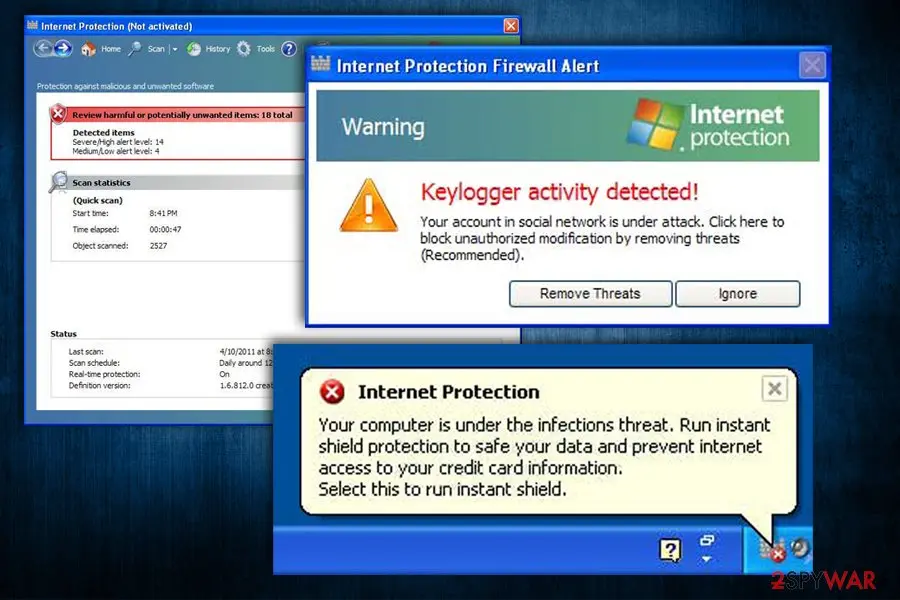
Upon Windows boot, Internet Protection will automatically launch itself and perform fake scans, which will return hundreds of entries. Even when the program is not running, it will display one of the following security warning messages in pop-up windows:
Another reason to avoid rogue anti-spyware tools is its persistence. Quite often, users will not find the entry within the Control Panel or uninstallation might completely fail due to running background processes. Consequently, Internet Protection removal might become a real nightmare, especially to those who are unfamiliar with the techniques it uses.
To remove Internet Protection virus easily, you should simply employ reputable anti-malware and perform a full system scan. In case that does not work, you could also access Safe Mode with Networking, as explained below. Note that after you uninstall Internet Protection, you might suffer from Windows crashes and various errors.
From our report of Dec 2019 · not reviewed since
Be careful when browsing the internet or installing new programs
Rogue software can be found on various third-party websites, and some users actually opt for it when trying to find alternatives to legitimate tools.
As a result, they risk infecting their machines with potentially unwanted programs, scareware, and even malware. Therefore, the first step to better computer security is to avoid visiting websites that host pirated programs, as well as software cracks or keygens - these sites are never safe and should not be trusted.
Besides, torrent and warez sites do not adequately protect visitors and might be infused with malicious JavaScript, which would sometimes initiate an automatic malware installation procedure. Thus, when looking for software to install, rather than trust reliable websites that hold a good reputation - you can find website and application reviews everywhere on the internet.
Also, during the installation process of new software, always opt for Advanced/Custom settings instead of recommended ones, as sometimes optional components might only be removed in such way.
Finally, beware of fake updates - the message usually pops up seemingly out of nowhere and claims that Java or Flash components are out of date. Never "update" software in such a way - either set up automatic updates for each of the installed apps or go to the official website and download them from there.
From our report of Dec 2019 · not reviewed since
More from our earlier report on Internet Protection
- In some cases, the malicious app may be difficult to remove manually.
- In such a case, access Safe Mode with Networking and perform a full system scan using reputable anti-malware like or
- Just as many other programs of such type, Internet Protection alters the registry and some other vital Windows settings, which might result in system errors or crashes post-termination.
- To repair the damage done to the OS, we highly recommend using
- Internet Protection Your system has come under attack of harmful software.
- Internet Protection External software tries to control variety of your system files.
- This may lead to breaking of some data in your system.
- Internet Protection Firewall Alert Warning Keylogger activity detected!
- Your account in social network is under attack.
- Suspicious activity in your registry system space was detected.
- Rogue malware detected in your system.
- Data leaks and system damage are possible.
- Please use a deep scan option.
How to remove Internet Protection
Nothing it reports is real.
These steps remove it and undo a payment if you made one.
Step 1: Do not pay, and undo a payment if you made one
Nothing that Internet Protection says it found needs fixing by Internet Protection. Close its windows and do not enter card details.
If you bought it, contact your bank or card issuer about a dispute and cancel any renewal, keeping the receipt e-mail as evidence. Uninstalling it from Windows 11 or Windows 10 removes the program but leaves the subscription running.
Full procedure with screenshots: What to do after paying a scammer
Step 2: Uninstall Internet Protection
Internet Protection is removed like any other program, from the list of installed apps. In Windows 11 that is Settings > Apps > Installed apps, in Windows 10 Settings > Apps > Apps & features, and in both you can also use Control Panel > Programs and Features.
Select Internet Protection, click Uninstall and follow the uninstaller to the end. Then look at the entries just above and below it when the list is sorted by date: bundled programs install at the same minute.
Full procedure with screenshots: Uninstall a program or app in Windows On uGetFix
Step 3: Remove it from startup
Press Ctrl + Shift + Esc to open Task Manager and select Startup apps (Windows 11) or the Startup tab (Windows 10). Disable entries you do not recognise, especially ones with no publisher or with a name that copies a Windows component.
Right-click an entry and choose Open file location to see where it runs from: programs in
%AppData%or%Temp%deserve a closer look. Some entries are not listed there but in the registry Run keys, which the procedure below shows how to check.Full procedure with screenshots: Stop apps from opening at startup On uGetFix
Step 4: Delete the folders left behind
Uninstalling often leaves the program's folders, and some threats reinstall themselves from them.
Press Windows + R, type
%LocalAppData%and press Enter, then do the same for%AppData%and %ProgramData%, and look for folders named after Internet Protection, its publisher or created on the day the problem started.Delete those folders, and check
C:\Program FilesandC:\Program Files (x86)too.If Windows says a file is in use, end it in Task Manager or delete the folder after a restart in Safe Mode. The folders are the same in Windows 11 and Windows 10.
Full procedure with screenshots: Remove what malware leaves behind in Windows
Step 5: Scan the PC, then run the offline scan
A scan finds the parts of Internet Protection that the manual steps cannot see. In Windows Security > Virus & threat protection > Scan options, start a Full scan and quarantine what it reports.
Follow it with Microsoft Defender Antivirus (offline scan) > Scan now, which restarts the PC and checks the disk while Windows and the malware are not running.
It takes about 15 minutes and works the same in Windows 11 and Windows 10. If either scan finds something, run the full scan again after removal until it comes back clean.

Windows 11: Windows Security > Virus & threat protection > Scan options. Full procedure with screenshots: Run a Microsoft Defender Offline scan
Instructions for each browser and system
The detailed steps for every browser and system this guide covers. Open the one you use.
Manual removal using Safe Mode
Important! →
Manual removal guide might be too complicated for regular computer users. It requires advanced IT knowledge to be performed correctly (if vital system files are removed or damaged, it might result in full Windows compromise), and it also might take hours to complete. Therefore, we highly advise using the automatic method provided above instead.
Step 1. Access Safe Mode with Networking
Manual malware removal should be best performed in the Safe Mode environment.
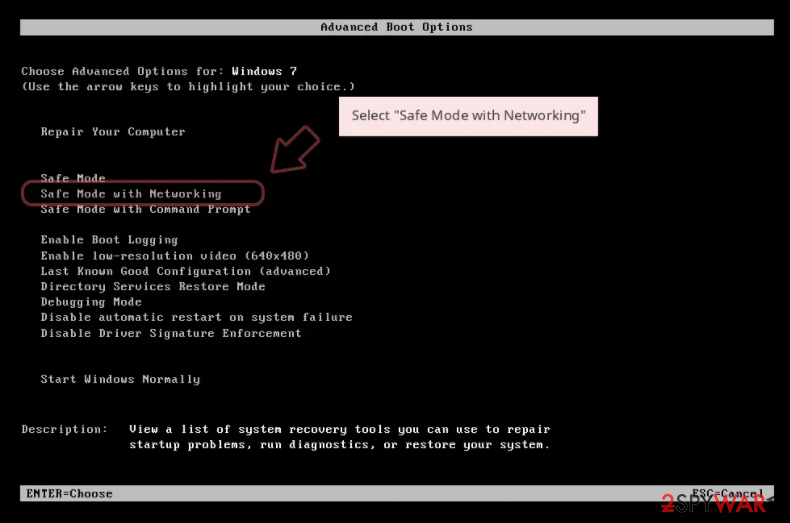
Windows 7 / Vista / XP
- Click Start > Shutdown > Restart > OK.
- When your computer becomes active, start pressing F8 button (if that does not work, try F2, F12, Del, etc. - it all depends on your motherboard model) multiple times until you see the Advanced Boot Options window.
- Select Safe Mode with Networking from the list.
Windows 10 / Windows 8
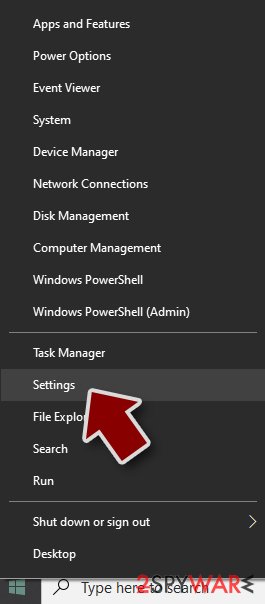
- Right-click on Start button and select Settings.
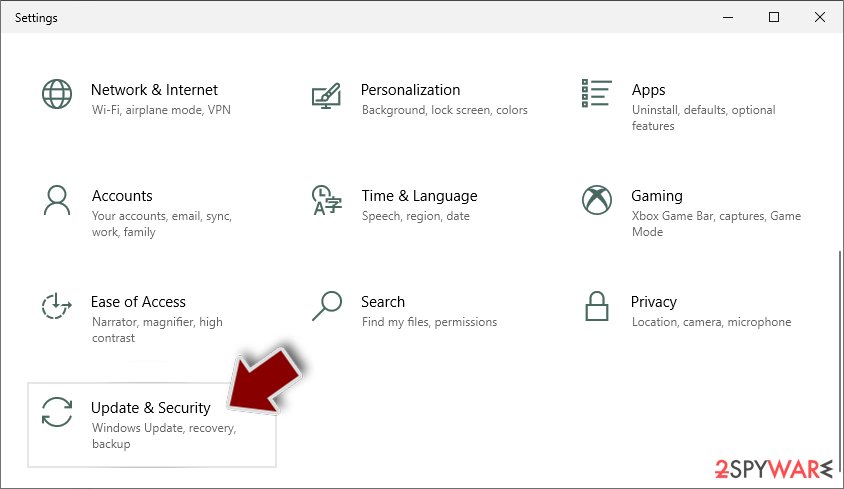
- Scroll down to pick Update & Security.
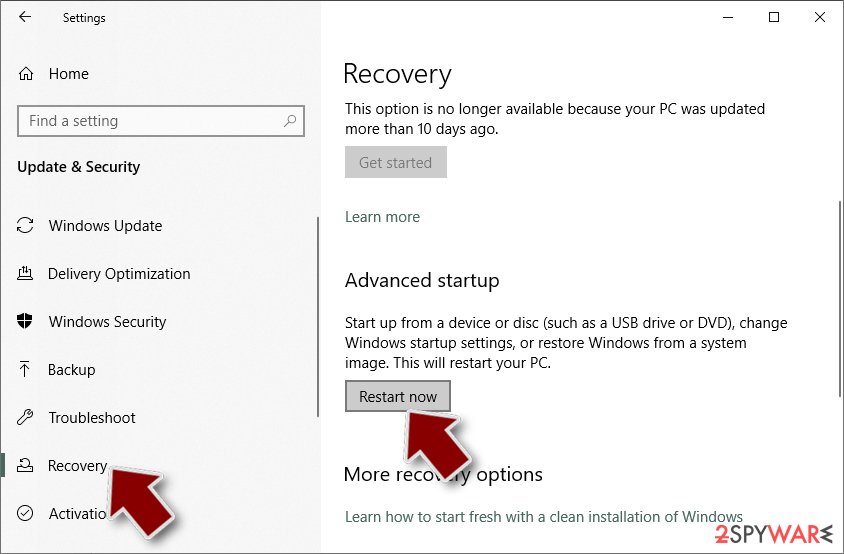
- On the left side of the window, pick Recovery.
- Now scroll down to find Advanced Startup section.
- Click Restart now.
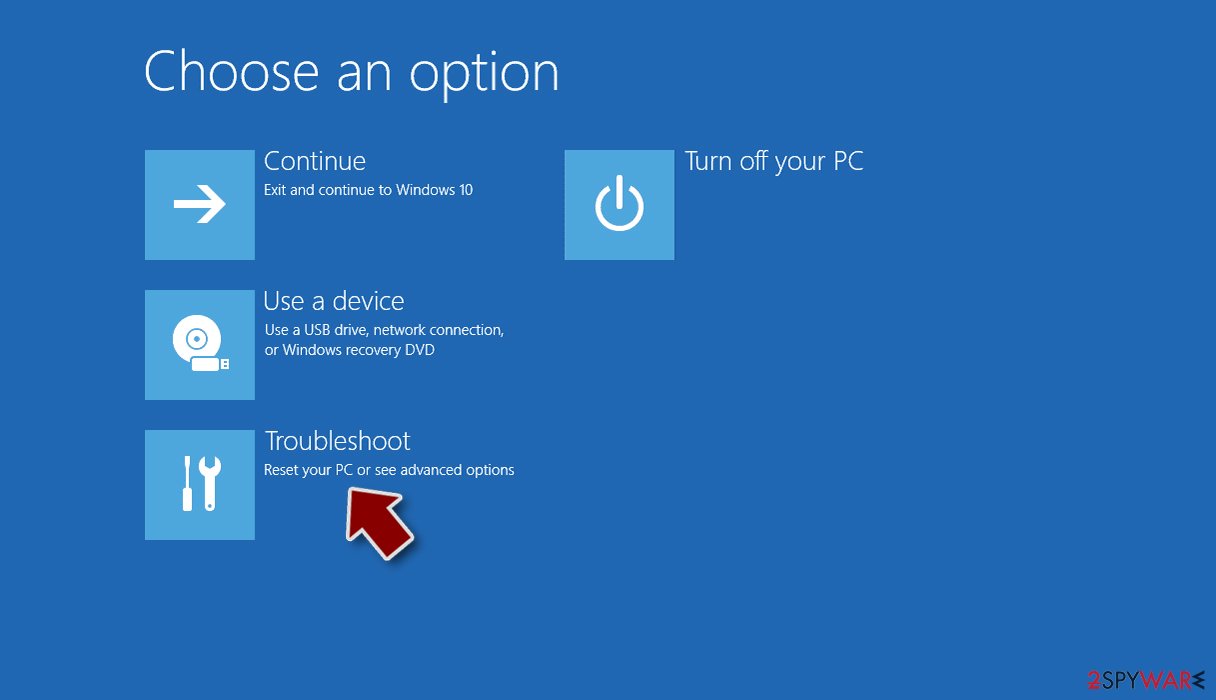
- Select Troubleshoot.
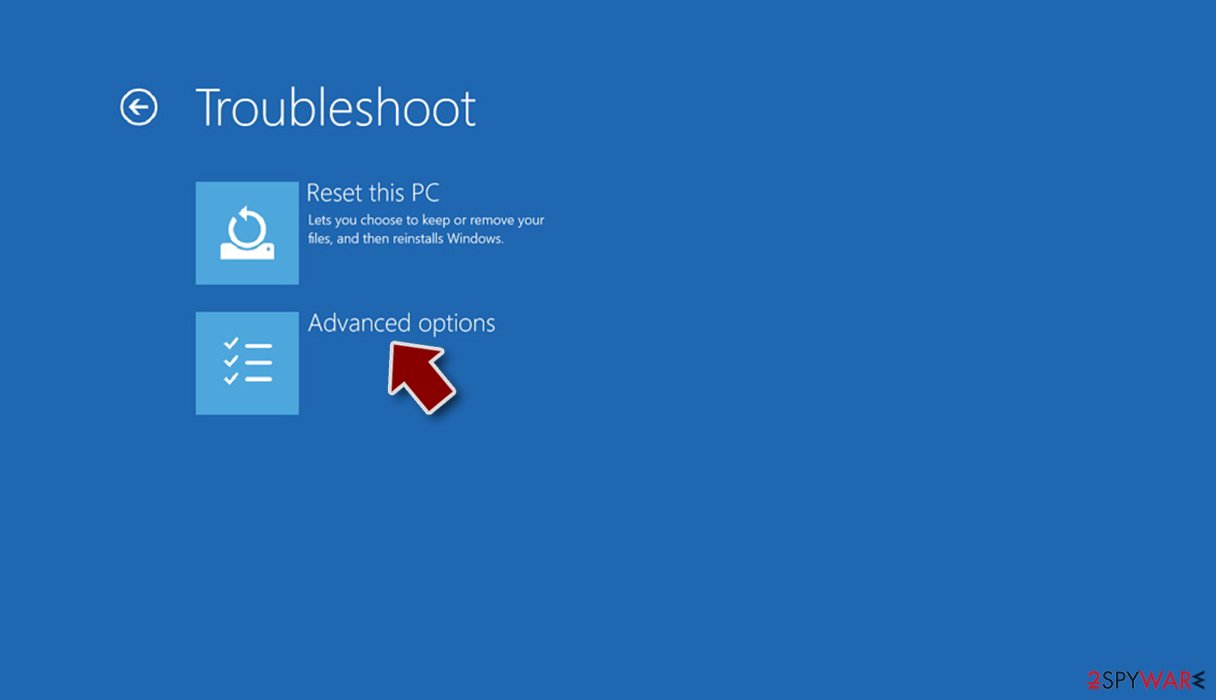
- Go to Advanced options.
- Select Startup Settings.
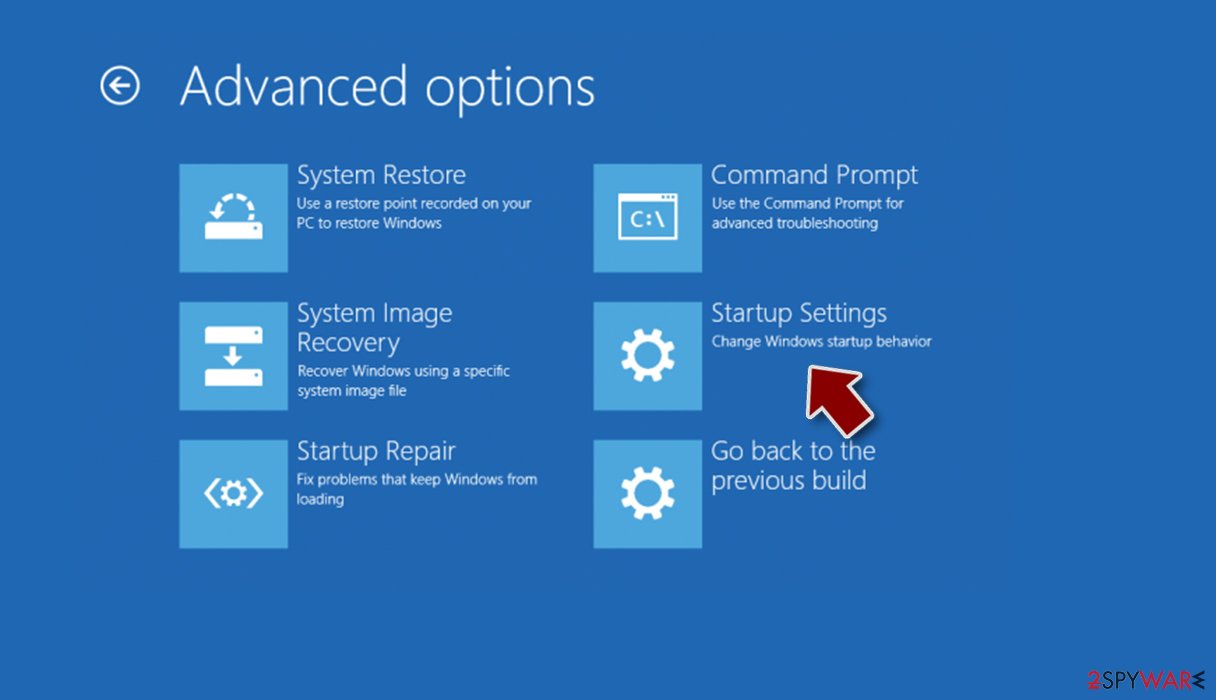
- Press Restart.
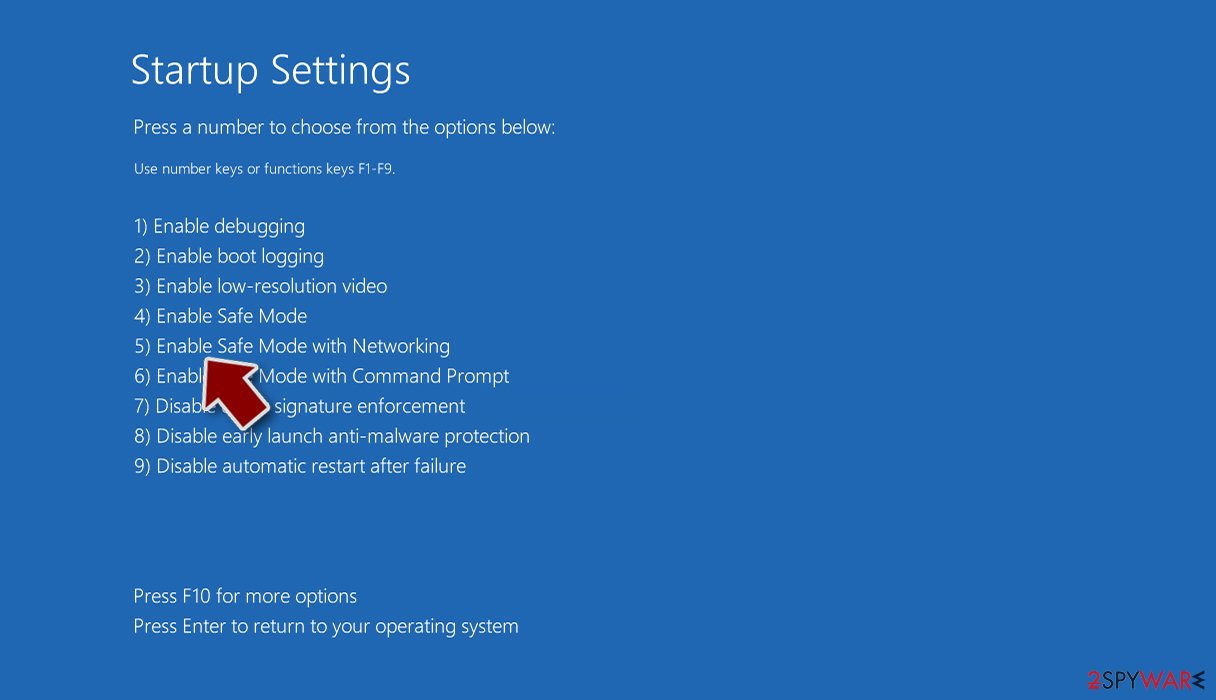
- Now press 5 or click 5) Enable Safe Mode with Networking.
Step 2. Shut down suspicious processes
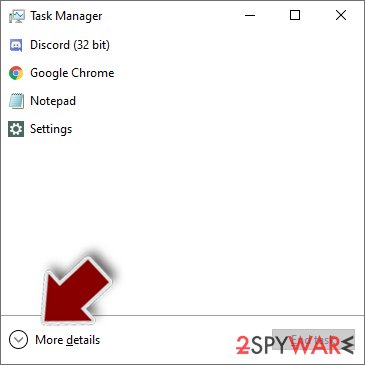
Windows Task Manager is a useful tool that shows all the processes running in the background. If malware is running a process, you need to shut it down:
- Press Ctrl + Shift + Esc on your keyboard to open Windows Task Manager.
- Click on More details.
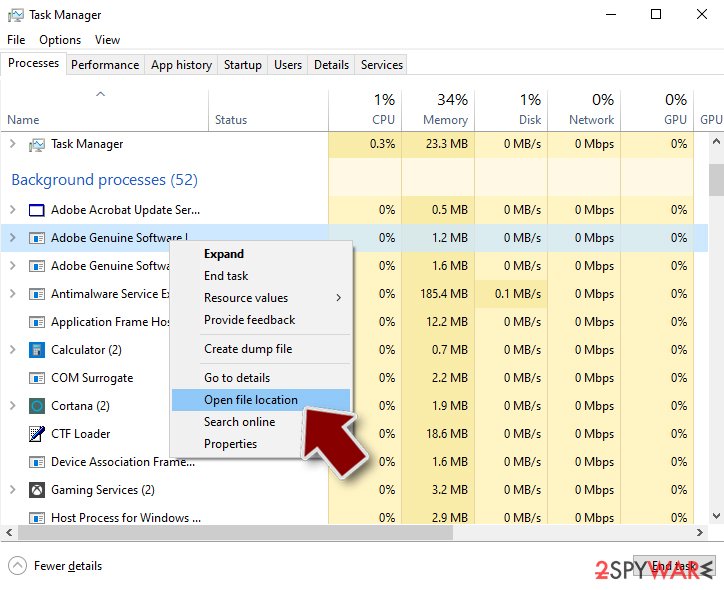
- Scroll down to Background processes section, and look for anything suspicious.
- Right-click and select Open file location.
- Go back to the process, right-click and pick End Task.
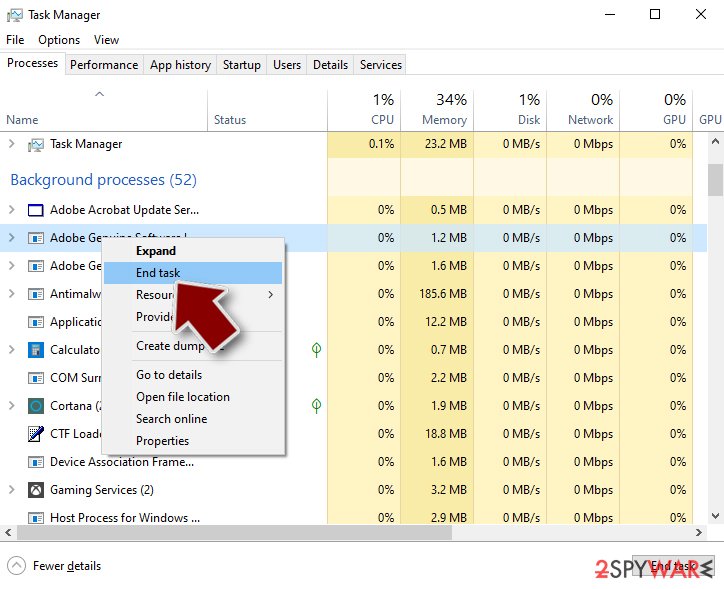
- Delete the contents of the malicious folder.
Step 3. Check program Startup
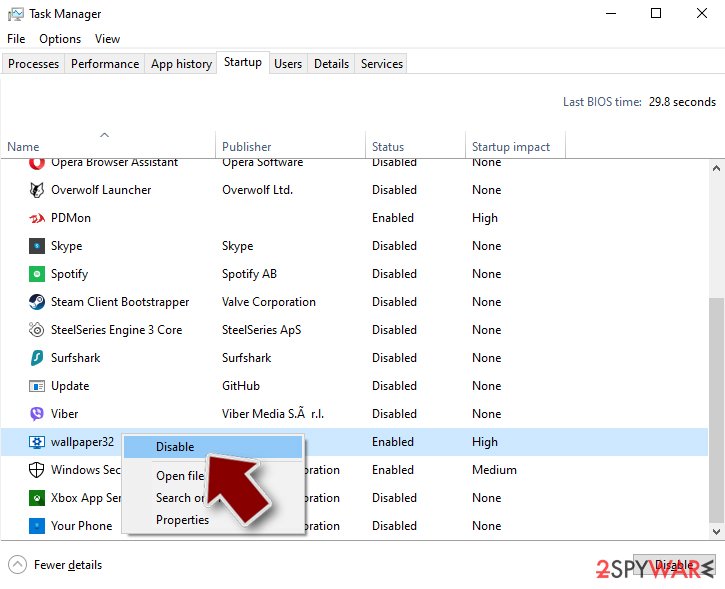
- Press Ctrl + Shift + Esc on your keyboard to open Windows Task Manager.
- Go to Startup tab.
- Right-click on the suspicious program and pick Disable.
Step 4. Delete virus files
Malware-related files can be found in various places within your computer. Here are instructions that could help you find them:
- Type in Disk Cleanup in Windows search and press Enter.
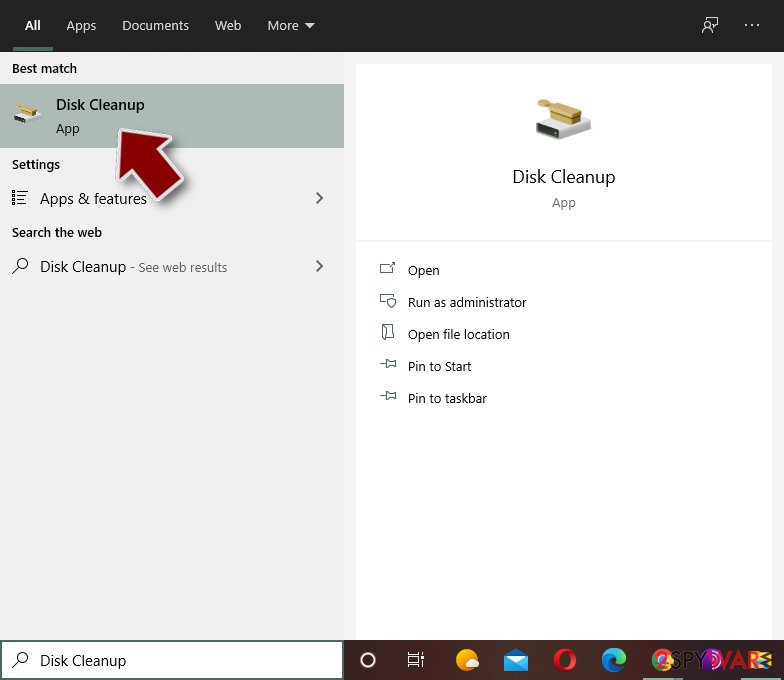
- Select the drive you want to clean (C: is your main drive by default and is likely to be the one that has malicious files in).
- Scroll through the Files to delete list and select the following:
Temporary Internet Files
Downloads
Recycle Bin
Temporary files - Pick Clean up system files.
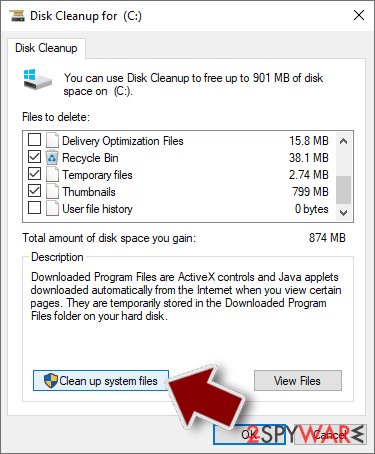
- You can also look for other malicious files hidden in the following folders (type these entries in Windows Search and press Enter):
%AppData%
%LocalAppData%
%ProgramData%
%WinDir%
After you are finished, reboot the PC in normal mode.
Choose a proper web browser and improve your safety with a VPN tool
Online spying has got momentum in recent years and people are getting more and more interested in how to protect their privacy online.
One of the basic means to add a layer of security - choose the most private and secure web browser. Although web browsers can't grant full privacy protection and security, some of them are much better at sandboxing, HTTPS upgrading, active content blocking, tracking blocking, phishing protection, and similar privacy-oriented features.
However, if you want true anonymity, we suggest you employ a powerful VPN - it can encrypt all the traffic that comes and goes out of your computer, preventing tracking completely.
Lost your files? Use data recovery software
While some files located on any computer are replaceable or useless, others can be extremely valuable.
Family photos, work documents, school projects - these are types of files that we don't want to lose. Unfortunately, there are many ways how unexpected data loss can occur:
- power cuts
- Blue Screen of Death errors
- hardware failures
- crypto-malware attack
- even accidental deletion
To ensure that all the files remain intact, you should prepare regular data backups. You can choose cloud-based or physical copies you could restore from later in case of a disaster. If your backups were lost as well or you never bothered to prepare any, can be your only hope to retrieve your invaluable files.
From our report of Dec 2019 · not reviewed since
Get rid of Internet Protection malware from your machine
Internet Protection removal might sometimes not that easy of a process, considering that the virus can perform various changes on the infected system.
For example, if the app has a background process running, or registry is set in a particular way, it automatically gains persistence. If that is the case, you can access Safe Mode with networking and remove Internet Protection without problems via Control Panel.
You can also get rid of the Internet Protection virus by scanning your machine with anti-malware software.
[GI=method-1]Access Safe Mode with Networking and remove Internet Protection malware either manually or automatically.
Questions about Internet Protection
Is Internet Protection a virus?
Most programs that appear the way Internet Protection did are not viruses in the strict sense. They are potentially unwanted programs:
- real software that arrives bundled with other downloads and then shows offers
- changes browser settings
- starts with Windows
Some are harmless, some are annoying and a few carry adware. What makes it worth removing is that you did not choose it.
Uninstall it from Installed apps and check the startup list and the browsers for anything added the same day. If it refuses to uninstall or returns after a restart, treat it as more serious and run a Microsoft Defender offline scan.
Internet Protection came back after I uninstalled it. Why?
Something else is reinstalling it. Common causes are a second program from the same publisher, a scheduled task that downloads it again, or a browser extension that keeps prompting for it. Sort Installed apps by install date and uninstall each entry from the same day that you did not choose.
Then open Task Scheduler and look in the Task Scheduler Library for tasks with updater-style names that you do not recognise. Check Startup apps in Task Manager too. If Internet Protection still returns, start Windows in Safe Mode, uninstall it there and run a Microsoft Defender offline scan, which looks for loaders that ordinary scans can miss.
Is my card safe after buying Internet Protection?
Treat it as exposed. The order page belongs to the seller of Internet Protection, and you cannot know how the number is stored or shared. Ask your bank for a replacement card, which is usually free, and dispute the original charge as a misrepresented product.
Until the new card arrives, check your account daily for small or foreign transactions. If the bank offers alerts for every card payment, turn them on. Keep the receipt and screenshots, because they support the dispute.
Someone called offering a refund for Internet Protection. Is it genuine?
Almost certainly not. Refund calls are a well-known second stage of scareware and tech support scams. The caller says you are owed money, asks you to install a remote access program to "process" it, then opens your online banking, makes it look as if too much was refunded and asks you to send the difference back.
Hang up. Real refunds go back to the card or PayPal account you paid with, through your bank or the payment provider, and never need remote access or a gift card.
What if I paid Internet Protection?
Contact your bank or card issuer the same day, explain that the payment went to a fake security program and ask for a chargeback. Keep screenshots of internet Protection in the list of installed apps, the payment receipt and any e-mails.
If you gave card details in the program, ask the bank to block and replace the card. Then uninstall the program and run a full scan in Windows Security. If you also called a number and let someone connect to your PC, uninstall the remote-access tool they used and change your passwords from another device.
Is Windows Security enough to protect me from programs like Internet Protection?
For most home users, yes, especially with Potentially unwanted app blocking turned on in Windows Security > App & browser control > Reputation-based protection settings. That setting blocks many scareware installers before they run.
No security tool stops every scam, though, because programs like Internet Protection are usually installed by the user after a frightening message. The habit that helps most is simple: ignore any website or pop-up that claims to have scanned your PC, and never call a number shown in a warning.
Internet Protection will not uninstall. What can I do?
Close it in Task Manager first, then uninstall it from Settings > Apps > Installed apps (in Windows 10, Apps & features). If it blocks this or restarts itself, start Windows in Safe Mode, where third-party programs do not start automatically, and uninstall from there.
Afterwards run a Microsoft Defender offline scan and delete any leftover folder named after Internet Protection in C:\Program Files or %AppData%. If nothing works, Windows can be reset while keeping your personal files, which removes the program together with any settings it changed.
Do I need to reinstall Windows to get rid of Internet Protection?
Usually not. A thorough clean-up is enough when the offline scan finds nothing afterwards and you do not see internet Protection in the list of installed apps again. A reset is the safer choice if an attacker had remote control, if security tools were switched off, or if detections come back after every clean-up.
Windows 11 can reset itself without a USB stick under Settings > System > Recovery > Reset this PC. Copy documents and photos out first and scan the copies. A reset does not change passwords or undo stolen data, so the account steps still apply.
Is Internet Protection an antivirus?
No. It looks like one, with a shield, a scan and a list of threats, but Internet Protection is a rogue antivirus: its scans are designed to find something every time, and every fix leads to a payment page.
A real antivirus detects the same threats consistently, removes them without asking for money first and does not block other security tools. Windows 11 and Windows 10 already include Microsoft Defender in Windows Security, which is enough for most home users. Remove Internet Protection and keep Defender on.
Will Fortect remove Internet Protection?
Fortect scans Windows for malware and unwanted programs and repairs the system files and settings they change, and its free scan shows what it finds on your PC before you decide anything.
For Internet Protection, follow the plan above as well: the browser steps take back permissions and settings that no scanner treats as a threat, and uninstalling the program that brought it removes the source.
Run Microsoft Defender's full scan and, if anything was found, its offline scan as a second opinion. If the symptoms are gone after the plan and both scans are clean, there is nothing more to do.
Sources
- Symantec: Fake Adobe Flash Update Installs Ransomware, Performs Click Fraud (read October 6, 2026)
- Make Tech Easier: The Dangers of Using Pirated Software and Why You Should Stop Right Now (read October 6, 2026)
- FTC: How to recognize, remove and avoid malware (read October 6, 2026)
- Microsoft Learn: Microsoft Defender Offline (read October 6, 2026)
- Microsoft Learn: How Microsoft names malware (read October 6, 2026)