

All you need to know about “IOS CRASH REPORT” notifications
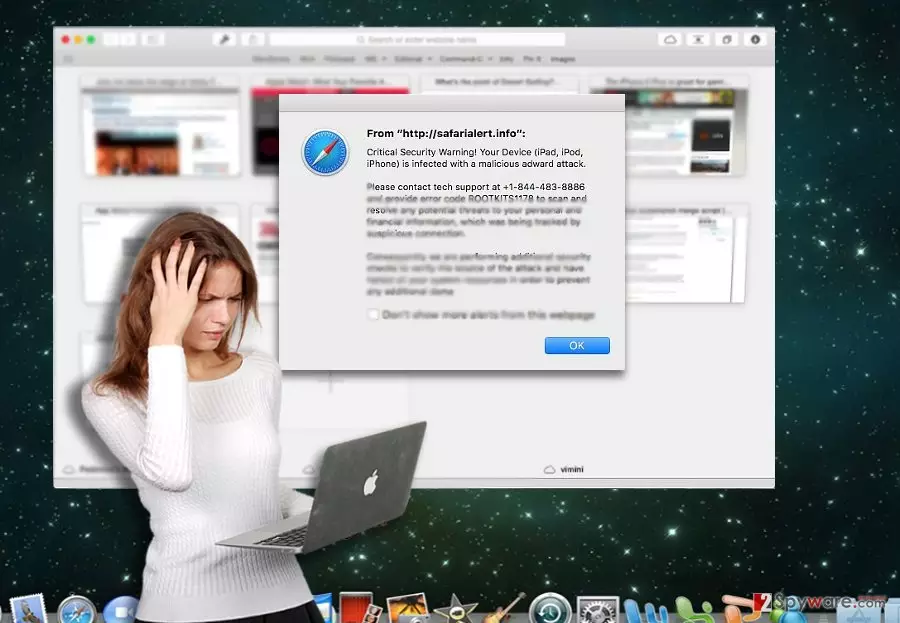
As soon as IOS CRASH REPORT virus lands on your browser, it starts generating fake notifications about your operating system being hacked. Fortunately, it is not a highly sophisticated tech support scam, as it merely instructs you to call +1-844-827-1204. For some users, the concept of Mac OS virus might be just incomprehensive. However, times, when the users of this operating system could browse the Web without any fear of getting hijacked, are quickly coming to an end[1]. Observing the trends, more reports about Mac OS-based ransomware appear online[2]. Likewise, it is high time you reconsidered your cyber security and current protection tools. One of such, FortectIntego is also practical in performing IOS CRASH REPORT removal.
Comparing this sample of malware with other tech support scams, it does not stand out much[3]. The main message alerts users of their iPads or Macs being locked as a result of privacy breach. No explicit information is provided except the number. The message contains repeated statements encouraging the victims call Apple tech support expert. This scam is actually web-based screen locker, so you may not succeed in exiting the window from the first time. There is no need to call the number, since the supposed expert might do a favor but instead only corrupt your system for real. More sophisticated scammers employ remote access programs to access your device[4]. As a result, they will create an image as if they perform a series of complex operations. For these services, they are likely to charge with a delicate amount of money. Alternatively, the crook will try to foist a questionable anti-virus tool which supposedly secures your Apple device. Do not give into such deception as installing third party tools from these fraudsters might actually endanger the device and make it vulnerable to outside threats[5]. Thus, when you encounter IOS CRASH REPORT hijack, there is no need to make any reckless action even if your browser becomes unresponsive. Shut it down it forcefully and remove IOS CRASH REPORT scam.
How did this malware settle on my Mac OS?
This type of scams usually dwell in poorly secured domains such as gaming, gambling websites or file-sharing web pages. As a result, if you tend to visit them often, you are likely to be redirected and run into the irritating alerts of IOS CRASH REPORT or another Mac Os scam, e.g. Apple Security Damaged scam. More sophisticated tech support scams employ exploit kits and trojans to affect the entire operating system and lock device‘s screen. Likewise, users might need to employ extra measures to get rid of them. That is why we remind users to keep their system applications updated, especially security apps. They do not only help to lower the risk of IOS CRASH REPORT tech support scam but assist in terminating them.
Options to terminate IOS CRASH REPORT scam
Since it is browser-based scam, you will need to clean your browser from. Close the browser and start the scan. Once it finishes, you might go through manual IOS CRASH REPORT removal instructions as well. Pay attention to every step. In order to remove IOS CRASH REPORT virus completely and its lingering objects and scripts, a full browser reset is recommended. In case, your browser is paralyzed, click Command+Spacebar, When Spotlight search box opens type Activity Monitor, In the list find, your browser, select it and choose Quit Process.
Delete from macOS
Remove the unwanted application:
- From the menu bar, select Go > Applications.
- In the Applications folder, look for any suspicious entries, then drag them to Trash (or right-click and pick Move to Trash).


Delete leftover files and folders:
- Select Go > Go to Folder.
- Enter /Library/Application Support and remove any suspicious folders related to the unwanted program.
- Repeat the same check in the /Library/LaunchAgents and /Library/LaunchDaemons folders, deleting any suspicious entries.

- Finally, empty the Trash to permanently remove the leftovers.

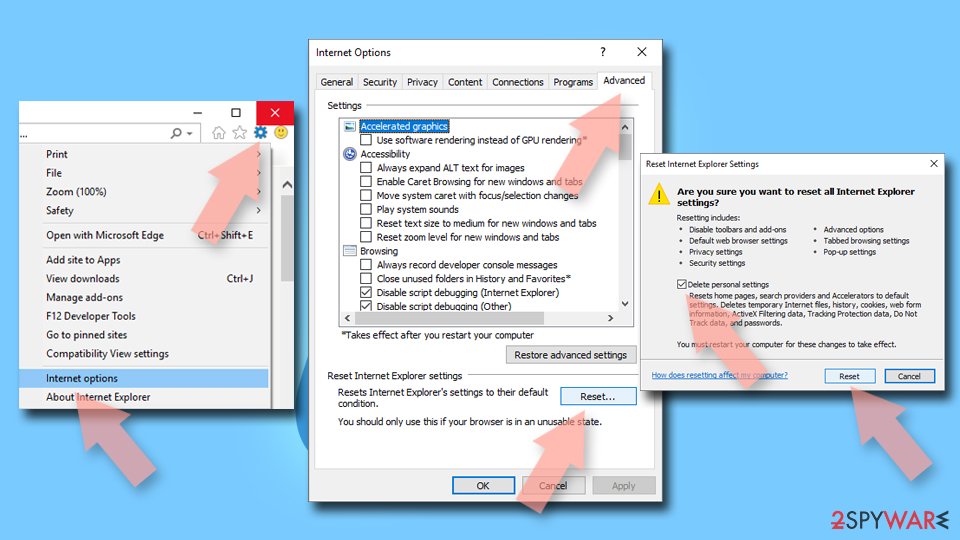
Reset Internet Explorer
Remove dangerous add-ons:
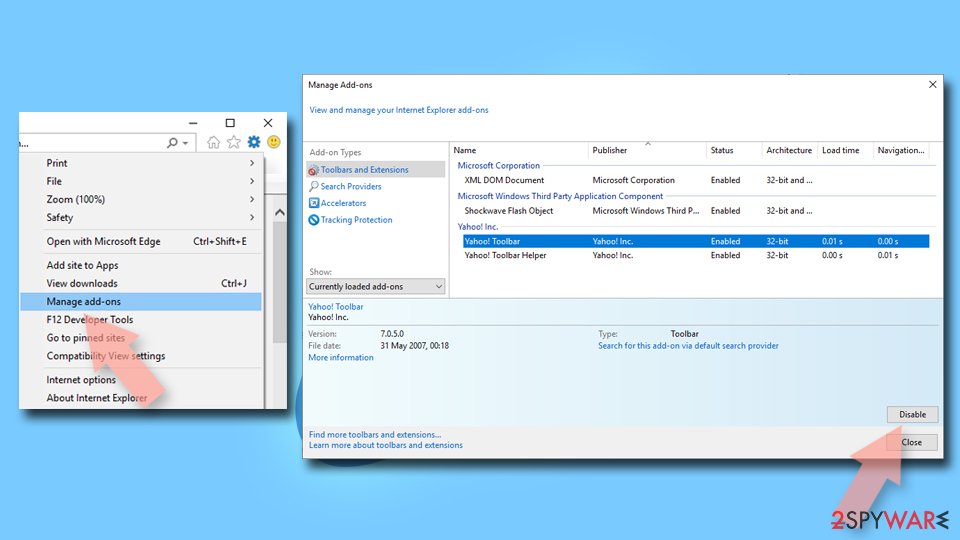
- Open Internet Explorer, click on the Gear icon (IE menu) on the top-right corner of the browser
- Pick Manage Add-ons.
- You will see a Manage Add-ons window. Here, look for suspicious plugins. Click on these entries and select Disable.

Change your homepage if it was altered:
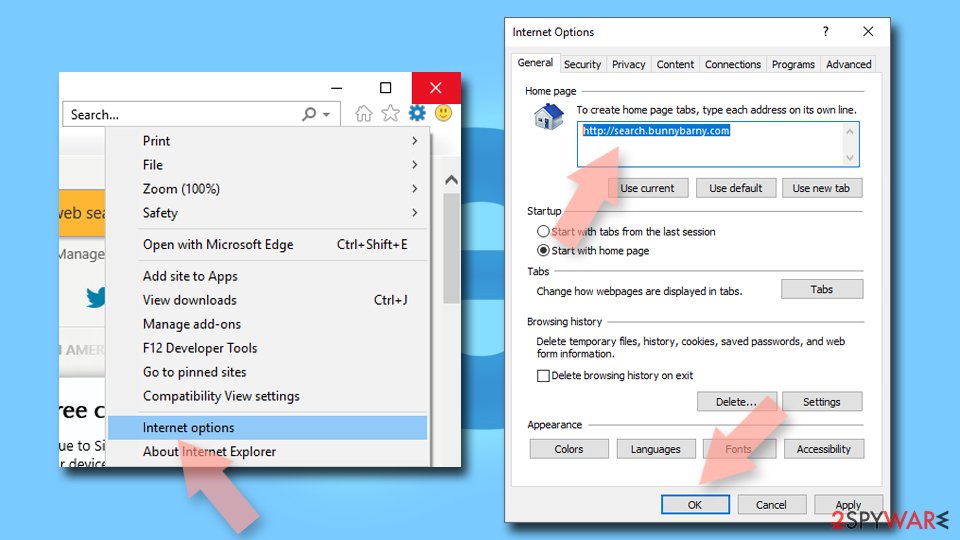
- Open IE and click on the Gear icon.
- Select Internet Options.
- In the General tab, delete the Home page address and replace it by your preferred one (for example, Google.com).
- Click Apply and then select OK.

Delete temporary files:
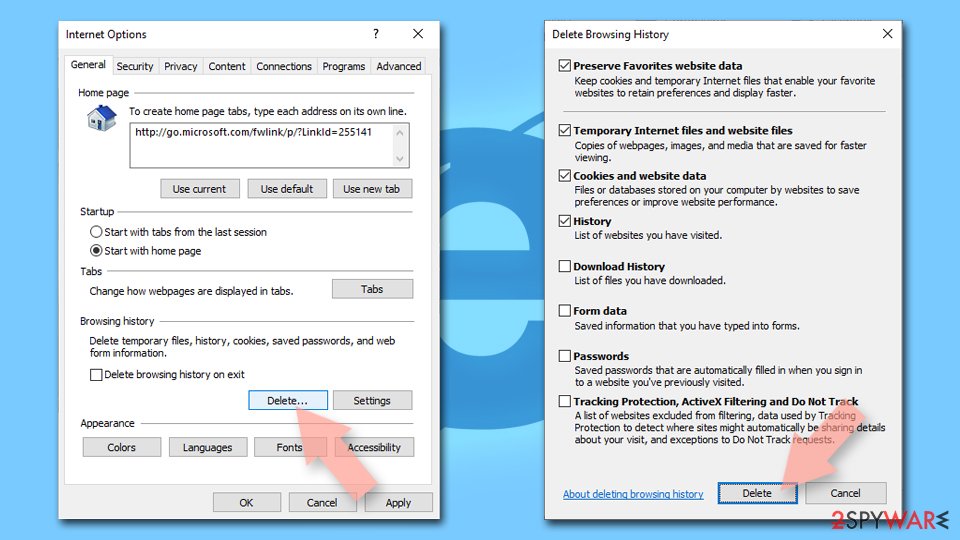
- Press on the Gear icon and select Internet Options.
- Under Browsing history, click Delete...
- Select relevant fields and press Delete.

Reset Internet Explorer:
- Click on Gear icon > Internet options and select Advanced tab.
- Select Reset.
- In the new window, check Delete personal settings and select Reset.

Remove from Microsoft Edge
Delete unwanted extensions from MS Edge:
- Select Menu (three horizontal dots at the top-right of the browser window) and pick Extensions.
- From the list, pick the extension and click on the Gear icon.
- Click Remove.


Clear cookies and other browser data:
- Click on the Menu (three horizontal dots at the top-right of the browser window) and select Settings > Privacy, search, and services..
- Under Clear browsing data, pick Choose what to clear.
- Select Cookies and other site data and Cached images and files. (apart from passwords, although you might want to include Media licenses as well, if applicable) and click on Clear.


Restore new tab and homepage settings:
- Click the menu icon and choose Settings.
- Then find On startup section.
- Click Remove next to any suspicious startup page.
Reset MS Edge if the above steps did not work:
- Press on Ctrl + Shift + Esc to open Task Manager.
- Click on More details arrow at the bottom of the window.
- Select Details tab.
- Now scroll down and locate every entry with Microsoft Edge name in it. Right-click on each of them and select End Task to stop MS Edge from running.


Instructions for Chromium-based Edge
Delete extensions from MS Edge (Chromium):
- Open Edge and click select Settings > Extensions.
- Delete unwanted extensions by clicking Remove.


Clear cache and site data:
- Click on Menu and go to Settings.
- Select Privacy, search and services.
- Under Clear browsing data, pick Choose what to clear.
- Under Time range, pick All time.
- Select Clear now.


Reset Chromium-based MS Edge:
- Click on Menu and select Settings.
- On the left side, pick Reset settings.
- Select Restore settings to their default values.
- Confirm with Reset.
- This will disable extensions and reset startup pages but will not delete bookmarks, saved passwords, or browsing history.


Remove from Mozilla Firefox (FF)
Remove dangerous extensions:
- Open Mozilla Firefox browser and click on the Menu (three horizontal lines at the top-right of the window).
- Select Add-ons.
- In here, select the unwanted extension and click Remove.


Reset the homepage:
- Click three horizontal lines at the top right corner to open the menu.
- Choose Settings.
- Under Home, set your preferred homepage and new tab settings.
Clear cookies and site data:
- Click Menu and pick Settings.
- Go to Privacy & Security section.
- Scroll down to locate Cookies and Site Data.
- Click on Clear Data...
- Select Cookies and Site Data and Temporary cached files and pages, then click Clear.


Reset Mozilla Firefox
If clearing the browser as explained above did not help, reset Mozilla Firefox:
- Open Mozilla Firefox browser and click the Menu.
- Go to Help and then choose Troubleshooting Information.

- Under Give Firefox a tune up section, click on Refresh Firefox...
- Once the pop-up shows up, confirm the action by pressing on Refresh Firefox.



Remove from Google Chrome
Delete malicious extensions from Google Chrome:
- Open Google Chrome, click on the Menu (three vertical dots at the top-right corner) and select More tools > Extensions.
- In the newly opened window, you will see all the installed extensions. Uninstall all suspicious extensions related to the unwanted program by clicking Remove.


Clear cache and web data from Chrome:
- Click on Menu and pick Settings.
- Under Privacy and security, select Clear browsing data.
- Select Browsing history, Cookies and other site data, as well as Cached images and files.
- Click Clear data.


Change your homepage:
- Click menu and choose Settings.
- Look for a suspicious site in the On startup section.
- Click on Open a specific or set of pages and click on three dots to find the Remove option.
Reset Google Chrome:
If the previous methods did not help you, reset Google Chrome to eliminate all the unwanted components:
- Click on Menu and select Settings.
- In the Settings, scroll down and click Advanced.
- Scroll down and locate Reset and clean up section.
- Now click Restore settings to their original defaults.
- Confirm with Reset settings.


Delete from Safari
Remove dangerous extensions:
- Open Safari, click Safari in the menu at the top-left of the screen, and select Preferences.
- Go to the Extensions tab, look for any suspicious entries, and click Uninstall to remove them.


Clear history and website data:
- Click Safari in the menu and pick Clear History.
- Set Clear to all history and confirm with Clear History.


Reset Safari:
- Click Safari in the menu and select Preferences > Advanced.
- Enable Show Develop menu in menu bar.
- From the menu bar, click Develop and select Empty Caches.


Did this guide help?
2 comments
brutalMojojo
Muahaa..now Macs turn!
Dona.Mon471
Nothing extraordinary.