

What should we know about isearch.omiga-plus.com?
Created by by Taiwan Shui Mu Chih Ching Technology, isearch.omiga-plus.com (can also be found as Omiga Plus) has been labeled as a questionable search engine, which may show up on your browser without downloading it. Typically, users agree to replace their default search engine or the start page to this suspicious search page when they download freeware to their computers without checking its installation process. In order to be sure that you are not downloading third party software to your computer, you have to be very attentive while installing freeware, shareware and similar programs. If you noticed isearch.omiga-plus.com on your computer, we don't recommend leaving it there because it mostly returns altered search results. That means it may be used for promoting suspicious websites that seek to increase their page rank or sales. In addition to isearch.omiga-plus.com redirects, this search engine may also cause unwanted alow downs and pop-up ads that may start interruptng each of your search sessions. Finally, you may not even know that such questionable search engines may start tracking your browsing habits and may collect such data as your email address, PC's location, PC's IP address, your mostly visited websites, data that you enter on each of them, etc. This should be the most important reason why would like to recommend you to avoid this search engine and continue using such well known sites as Google, Yahoo, Bing and similar search sites. If you have already noticed annoying pop-up ads, slow downs and similar issues on your PC, you should get rid of isearch.omiga-plus.com. For that we highly recommend using FortectIntego.
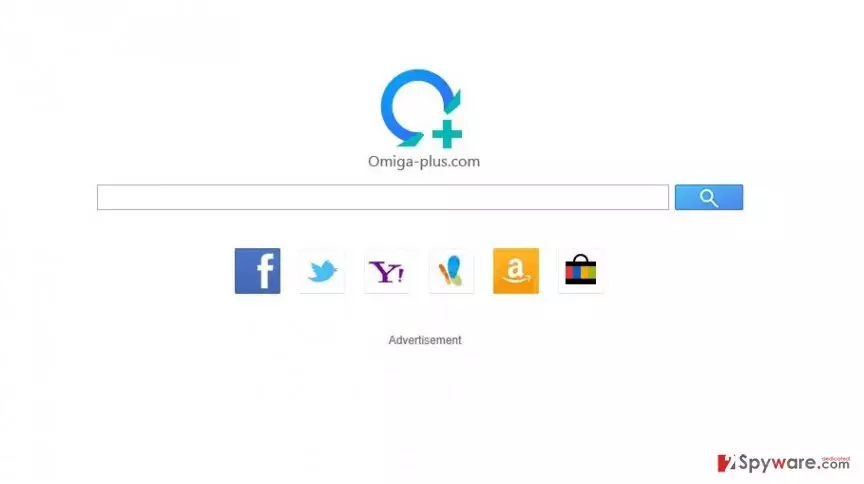
isearch.omiga-plus.com redirects my searches. why and how to fix it?
We have already mentioned that isearch.omiga-plus.com can infiltrate computers in a bundle with other applications. As soon as it enters the system, it mostly occupies all web browsers that can be found on it. This search engine is still not compatible with Opera, but it can easily show up on Internet Explorer, Google Chrome, Safari and Mozilla Firefox browsers. As a result, isearch.omiga-plus.com may start blocking Google, Yahoo and other search engines, and may also display commercial pop-up notifications that promote related websites. In order to avoid unfair search results, redirections to unknown websites and continuous pop-up ads, we recommend avoiding isearch.omiga-plus.com virus. For that, you should start monitoring installation of the freeware. How can you do that? Here, the most important thing is to select Custom or Advanced installation of the freeware when downloading such software to the system. Also, pay attention to End User's License Agreement, Privacy Policy and similar information, which is given about the program because it may reveal whether you are dealing with a trustworthy program or not. In order to feel safer, you should rely only on Google, Yahoo and Bing. For eliminating this questionable search engine, please follow a guide below.
How to remove isearch.omiga-plus.com virus?
If you noticed isearch.omiga-plus.com redirects on each of your browsers, you should immediately scan your machine with any of these anti-malwares that are given in its automatic removal guide. You can also follow manual removal steps if you have some knowledge about computers and their structure. If you use many web browsers removing this virus will take some time and efforts. You will need to uninstall it from all the browsers one by one. Faster solution is paid and automated. Use the adaptive spyware removal programs listed below.
Uninstall from Windows
Uninstall from Windows 10/8:
- Type Control Panel into the Windows search box and open the result.
- Under Programs, select Uninstall a program.


Uninstall from Windows 7/XP:
- Click on Windows Start > Control Panel (Windows XP users should click on Add/Remove Programs).
- In Control Panel, select Programs > Uninstall a program.


Remove the unwanted program:
- In the Programs and Features window, look for any recently installed suspicious entries, select them, and click Uninstall.
- If User Account Control appears, click Yes to confirm, then complete the removal.


Delete from macOS
Remove the unwanted application:
- From the menu bar, select Go > Applications.
- In the Applications folder, look for any suspicious entries, then drag them to Trash (or right-click and pick Move to Trash).


Delete leftover files and folders:
- Select Go > Go to Folder.
- Enter /Library/Application Support and remove any suspicious folders related to the unwanted program.
- Repeat the same check in the /Library/LaunchAgents and /Library/LaunchDaemons folders, deleting any suspicious entries.

- Finally, empty the Trash to permanently remove the leftovers.

Remove from Microsoft Edge
Delete unwanted extensions from MS Edge:
- Select Menu (three horizontal dots at the top-right of the browser window) and pick Extensions.
- From the list, pick the extension and click on the Gear icon.
- Click Remove.


Clear cookies and other browser data:
- Click on the Menu (three horizontal dots at the top-right of the browser window) and select Settings > Privacy, search, and services..
- Under Clear browsing data, pick Choose what to clear.
- Select Cookies and other site data and Cached images and files. (apart from passwords, although you might want to include Media licenses as well, if applicable) and click on Clear.


Restore new tab and homepage settings:
- Click the menu icon and choose Settings.
- Then find On startup section.
- Click Remove next to any suspicious startup page.
Reset MS Edge if the above steps did not work:
- Press on Ctrl + Shift + Esc to open Task Manager.
- Click on More details arrow at the bottom of the window.
- Select Details tab.
- Now scroll down and locate every entry with Microsoft Edge name in it. Right-click on each of them and select End Task to stop MS Edge from running.


Instructions for Chromium-based Edge
Delete extensions from MS Edge (Chromium):
- Open Edge and click select Settings > Extensions.
- Delete unwanted extensions by clicking Remove.


Clear cache and site data:
- Click on Menu and go to Settings.
- Select Privacy, search and services.
- Under Clear browsing data, pick Choose what to clear.
- Under Time range, pick All time.
- Select Clear now.


Reset Chromium-based MS Edge:
- Click on Menu and select Settings.
- On the left side, pick Reset settings.
- Select Restore settings to their default values.
- Confirm with Reset.
- This will disable extensions and reset startup pages but will not delete bookmarks, saved passwords, or browsing history.


Remove from Mozilla Firefox (FF)
Remove dangerous extensions:
- Open Mozilla Firefox browser and click on the Menu (three horizontal lines at the top-right of the window).
- Select Add-ons.
- In here, select the unwanted extension and click Remove.


Reset the homepage:
- Click three horizontal lines at the top right corner to open the menu.
- Choose Settings.
- Under Home, set your preferred homepage and new tab settings.
Clear cookies and site data:
- Click Menu and pick Settings.
- Go to Privacy & Security section.
- Scroll down to locate Cookies and Site Data.
- Click on Clear Data...
- Select Cookies and Site Data and Temporary cached files and pages, then click Clear.


Reset Mozilla Firefox
If clearing the browser as explained above did not help, reset Mozilla Firefox:
- Open Mozilla Firefox browser and click the Menu.
- Go to Help and then choose Troubleshooting Information.

- Under Give Firefox a tune up section, click on Refresh Firefox...
- Once the pop-up shows up, confirm the action by pressing on Refresh Firefox.



Remove from Google Chrome
Delete malicious extensions from Google Chrome:
- Open Google Chrome, click on the Menu (three vertical dots at the top-right corner) and select More tools > Extensions.
- In the newly opened window, you will see all the installed extensions. Uninstall all suspicious extensions related to the unwanted program by clicking Remove.


Clear cache and web data from Chrome:
- Click on Menu and pick Settings.
- Under Privacy and security, select Clear browsing data.
- Select Browsing history, Cookies and other site data, as well as Cached images and files.
- Click Clear data.


Change your homepage:
- Click menu and choose Settings.
- Look for a suspicious site in the On startup section.
- Click on Open a specific or set of pages and click on three dots to find the Remove option.
Reset Google Chrome:
If the previous methods did not help you, reset Google Chrome to eliminate all the unwanted components:
- Click on Menu and select Settings.
- In the Settings, scroll down and click Advanced.
- Scroll down and locate Reset and clean up section.
- Now click Restore settings to their original defaults.
- Confirm with Reset settings.


Delete from Safari
Remove dangerous extensions:
- Open Safari, click Safari in the menu at the top-left of the screen, and select Preferences.
- Go to the Extensions tab, look for any suspicious entries, and click Uninstall to remove them.


Clear history and website data:
- Click Safari in the menu and pick Clear History.
- Set Clear to all history and confirm with Clear History.


Reset Safari:
- Click Safari in the menu and select Preferences > Advanced.
- Enable Show Develop menu in menu bar.
- From the menu bar, click Develop and select Empty Caches.


Did this guide help?
13 comments
jagmohan
removal instructions
morlaine
I found a way to correct this problem for me, plus I have a suggestion for the instructions above. In the section above for removing isearch.omiga-plus.com from Mozilla, Item number 6 should say that you will find the Troubleshooting Information in the Help Menu. I had a heck of a time finding it.
Late last night, about 3am after spending about 5 hours trying to remove this POS, I was to the point of downloading Spy Hunter or one of the others listed above when I discovered something quite by accident. And in all the removal instructions Ive read, Ive never seen this suggestion so I thought Id pass it along. And maybe everyone but me knew to do this first but I hope it helps someone. I had even gone to the trouble of editing the Registry to remove all references to Omiga and that hadnt worked. I have a somewhat (being kind) unstable internet connection and sometimes I have to go into the Network and Sharing Center and click on the little blue Internet icon to open a new window. I did that last night and it opened a Firefox window, just like it was supposed to. I then went and looked at the Properties for the Firefox icon on the Taskbar and also in the Start Menu and both had been changed by Omiga. I changed the Properties in both places to refer to Firefox and the problem was solved. I hope this saves someone the hours of work I spent getting nowhere fast. Good luck.
jj
Type about:config in firefox and remove any reference to Omiga Plus. This is on top of what has been mentioned above.
Harsha
Thank you... been of good help... removed the damn thing ...
an
This is brilliant, never thought to look for it there. It worked like a charm, thank you!
Unni
Thanks. Removed the disturbing page. Very helpful advise.
Thank you ones again.
michael
takes to long to reset in chrome
Ikram
Thanks for the much informative post. But I feel still helpless as none of the methods suggested above came to my rescue. The Irony is that only my internet explorer is infected by omiga plus, but I cant find any references to it anywhere in the ie itself, be it the shortcut or program file. when I start ie, it opens the omigaplus homepage, I go to settings and change my homepage back to google, it works fine then. But when i restart my computer and open ie agin, omiga plus is there as the homepage. I dont know what to do..
ANY HELP !!!! :( :(
Kaz
You helped me sovle a headache. Thank you very much.
Millie
THANKYOU! worked a treat after a very frustrating few hours! :)
Daniel
Thanks, its a very useful instruction.
khuram
i am using window8 .. chrome..i did every thing but its still there... i m also unable to uninstall google chrome.. help me some body :(
neilc
Ive got omiga-plus stuck in my IE top left hand tool menu bar and all attempts to change it have failed.
Ive found in the registry ive got isearch index content key in and I cant delete this ,this is why it keeps coming back.
Ideas appreciated thanks.