Jackyhillty.net redirect virus takes over Chrome and other web browsers to increase visitors rates to doubtful websites
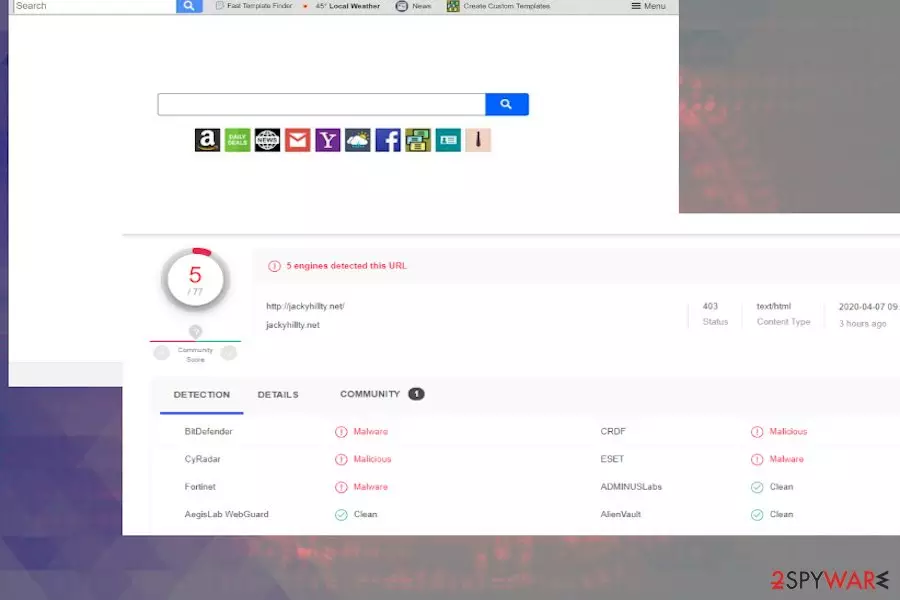
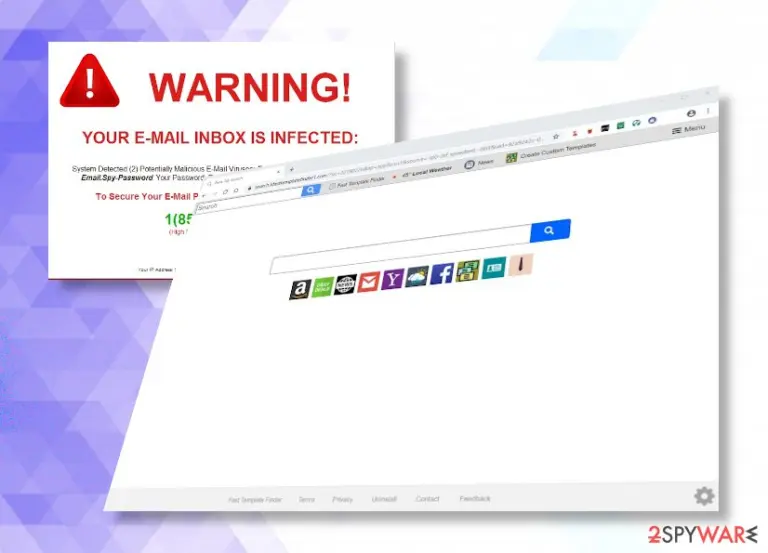
Jackyhillty.net is a potentially unwanted program[1](PUP) that initiates multiple advertising companies to increase visitors' rate to questionable websites. A more specific classification of this domain name would be a browser hijacker. If it manages to infiltrate the system via software bundles[2]or other shady means, it drops a potentially malicious plug-in into Chrome, Firefox, Safari, and other web browsers corrupt default start page and search engine. Besides,jackyhillty.net virus fills web browser with third-party related cookies that start accumulating and transmitting web-browsing-related information.
Jackyhillty.net domain cannot be accessed by adding it to the browser's address bar. However, do not fall for thinking that it is not active. The only way to get access to this suspicious page is to install a PUP and get your web browser infected. Therefore, if you noticed that the default start page had been changed from Google to jackyhillty.net, you should better not browse the net before it gets removed.
Name
Jackyhillty.net
Type
Browser hijacker
Category
Potentially Unwanted Program (PUP)
Symptoms
Compromised web browser's settings, i.e. start page changes, unknown search engine set by default, multiple toolbars. Besides, search engine displays doubtful search results and generates a considerably more ads, banners, software download offers, initiates redirects and similar activities.
Distribution
Software bundles
Damage
The Jackyhillty.net virus can hardly damage the system itself. However, it may expose people to potentially dangerous websites and stimulate to install dangerous viruses.
Removal
Both manual and automatic available. Manual removal guideline is provided at the end of this post. Automatic removal tool can be downloaded here: SpyHunterCombo Cleaner or MalwarebytesMalwarebytes.
Repair
Software bundles can initiate much more problems that people think. Instead of one program, people end up with several unwanted tools that may run in the background and negative affect system's performance. To restore normal performance, we recommend trying FortectIntego tool.
Despite the fact that the jackyhillty.net hijacker is not malicious on its own, it features a handful of suspicious traits. These are the following:
Download and install without authorisation;
modification of browsers' settings without permission;
delivery of untrustworthy search results;
unknown banners, setting options and other functions;
usage of tracking cookies in the background;
Jacky Hillty redirect virus initiates multiple changes and severely disrupts web browsing activities. At the moment, it is compatible with Google Chrome, Mozilla Firefox, Internet Explorer, Microsoft Edge, and Safari browsers. Unfortunately, it is not enough to remove jackyhillty.net plug-in from the browser since it is directly related to PUP that silently resides in the program's list. Therefore, people who consider their browsers to be hijacked should install a reliable antimalware program or update the one that is already installed and then run a full system scan with it. If you do not have security software, then we recommend trying SpyHunterCombo Cleaner or MalwarebytesMalwarebytes.
As we have already pointed out, the jackyhillty.net malware is not malicious if compared to spyware or ransomware. However, sometimes reputable antivirus programs recognise it as a Trojan. While such classification is not accurate, there is a serious ground to block jackyhillty.net and related websites because some of them can include suspicious content, including questionable adds, banners, downloads of pirated software, and similar.
The main goal of jackyhillty.net virus is to make people visiting third-party domains. The more visitors, the more clicks – the more profit gets the developers of the hijacker. Therefore, even though you may get used to jackyhillty.net, using it poses a risk of downloading other malware, landing on unknown domains, and seeing distorted search results all the time.
Jackyhillty.net virus is also known for using tracking cookies and web beacons. These are small tracking software apps that can accumulate targeted information all the time and transmit it to remote serves when required. Even though most websites use cookies, the Personal Data Protection Actregulates that people must be informed about cookies and provide consent to use them. Therefore, the tracking activity of the jackyhillty.net hijacker may be considered illegal. Even though such cookies can hardly collect sensitive information like names, banking account, passwords, and similar, it may gather and leak commonly visited websites, search queries, IP address, PC type, OS type, and similar.
Browsing-related information reveals peoples' habits, which is why third parties can generate more attractive advertisements. Thus, to stop annoying activities, jackyhillty.net removal is the only solution.
In some of the cases, the jackyhillty.net redirect virus does not compromise search engines or any other browser's settings or, at least, visible ones. It may even return Google-based search results that may not seem compromised. However, you should be extra careful because of the catch software download offers, personalized ads, irrelevant redirects, or similar.
You should remove jackyhillty.net virus from Windows or Mac right away and restore the system to the previous version. Our security experts have prepared a detailed manual jackyhillty.net removal guideline, though we strongly recommend performing this process with a reliable antimalware tool, such as SpyHunterCombo Cleaner. Automatic malware removal will ensure the full elimination of PUP. If, after malware elimination, the system exhibits other alterations, try fixing them with software such as FortectIntego.
PUPs often have official websites and can be downloaded directly. However, more experienced PC users fall for installing suspicious programs on purpose. The vast majority of PC users who have been dealing with a browser hijacker confess downloading third-party software for free from websites like Softonic,com, soft32.com, download.com, or torrents.
As virukset.fi[ref en-3[3]] team of cybersecurity experts claim, the main reason of why people end up with jackyhillty.net malware and similar PUPs is not the installation of freeware itself. It's the installation process, which is not being implemented correctly. It is essential to opt for Advanced or Custom installation options because they reveal the list of additional programs and allow deselecting them.
We'd also like to stress the fact that PUPs like adware and hijackers can be disseminated via bundled ads, which, once clicked, start downloading unwanted programs. While these cases are rarer, experts advise keeping a reliable ad-blocker installed. However, a sole ad-blocker will not ensure PCs' safety. Make sure to install and update the most reliable antivirus program and create duplicates of essential data on the cloud or other storage.
A full guide explaining how to remove jackyhillty.net browser hijacker
If the jackyhillty.net virus has ruined your everyday web browsing experience, do not wait any longer, and perform PUP removal. The first thing that you should do is to terminate the process of Chrome, Firefox, or another web browser.
After that, decide whether you will remove jackyhillty.net virus with the help of antivirus or manually. If you have enough time to analyze the system's peculiarities, you can scroll down and find a manual jackyhillty.net removal guide.
Those who save their time and better assign PC's security issues to antimalware software can install SpyHunterCombo Cleaner, MalwarebytesMalwarebytes, or other software and run a full system scan with it. To finish up with the jackyhillty.net removal, don't forget to restore the web browser's default settings. Otherwise, the unwanted search engine and other compromised configuration will remain undeleted.
Uninstall from Windows
Uninstall from Windows 10/8:
Type Control Panel into the Windows search box and open the result.
Under Programs, select Uninstall a program.
Uninstall from Windows 7/XP:
Click on Windows Start > Control Panel (Windows XP users should click on Add/Remove Programs).
In Control Panel, select Programs > Uninstall a program.
Remove the unwanted program:
In the Programs and Features window, look for any recently installed suspicious entries, select them, and click Uninstall.
If User Account Control appears, click Yes to confirm, then complete the removal.
Delete from macOS
Remove the unwanted application:
From the menu bar, select Go > Applications.
In the Applications folder, look for any suspicious entries, then drag them to Trash (or right-click and pick Move to Trash).
Delete leftover files and folders:
Select Go > Go to Folder.
Enter /Library/Application Support and remove any suspicious folders related to the unwanted program.
Repeat the same check in the /Library/LaunchAgents and /Library/LaunchDaemons folders, deleting any suspicious entries.
Finally, empty the Trash to permanently remove the leftovers.
Reset Internet Explorer
Remove dangerous add-ons:
Open Internet Explorer, click on the Gear icon (IE menu) on the top-right corner of the browser
Pick Manage Add-ons.
You will see a Manage Add-ons window. Here, look for suspicious plugins. Click on these entries and select Disable.
Change your homepage if it was altered:
Open IE and click on the Gear icon.
Select Internet Options.
In the General tab, delete the Home page address and replace it by your preferred one (for example, Google.com).
Click Apply and then select OK.
Delete temporary files:
Press on the Gear icon and select Internet Options.
Under Browsing history, click Delete...
Select relevant fields and press Delete.
Reset Internet Explorer:
Click on Gear icon > Internet options and select Advanced tab.
Select Reset.
In the new window, check Delete personal settings and select Reset.
Remove from Microsoft Edge
Delete unwanted extensions from MS Edge:
Select Menu (three horizontal dots at the top-right of the browser window) and pick Extensions.
From the list, pick the extension and click on the Gear icon.
Click Remove.
Clear cookies and other browser data:
Click on the Menu (three horizontal dots at the top-right of the browser window) and select Settings > Privacy, search, and services..
Under Clear browsing data, pick Choose what to clear.
Select Cookies and other site data and Cached images and files. (apart from passwords, although you might want to include Media licenses as well, if applicable) and click on Clear.
Restore new tab and homepage settings:
Click the menu icon and choose Settings.
Then find On startup section.
Click Remove next to any suspicious startup page.
Reset MS Edge if the above steps did not work:
Press on Ctrl + Shift + Esc to open Task Manager.
Click on More details arrow at the bottom of the window.
Select Details tab.
Now scroll down and locate every entry with Microsoft Edge name in it. Right-click on each of them and select End Task to stop MS Edge from running.
Instructions for Chromium-based Edge
Delete extensions from MS Edge (Chromium):
Open Edge and click select Settings > Extensions.
Delete unwanted extensions by clicking Remove.
Clear cache and site data:
Click on Menu and go to Settings.
Select Privacy, search and services.
Under Clear browsing data, pick Choose what to clear.
Under Time range, pick All time.
Select Clear now.
Reset Chromium-based MS Edge:
Click on Menu and select Settings.
On the left side, pick Reset settings.
Select Restore settings to their default values.
Confirm with Reset.
This will disable extensions and reset startup pages but will not delete bookmarks, saved passwords, or browsing history.
Remove from Mozilla Firefox (FF)
Remove dangerous extensions:
Open Mozilla Firefox browser and click on the Menu (three horizontal lines at the top-right of the window).
Select Add-ons.
In here, select the unwanted extension and click Remove.
Reset the homepage:
Click three horizontal lines at the top right corner to open the menu.
Choose Settings.
Under Home, set your preferred homepage and new tab settings.
Clear cookies and site data:
Click Menu and pick Settings.
Go to Privacy & Security section.
Scroll down to locate Cookies and Site Data.
Click on Clear Data...
Select Cookies and Site Data and Temporary cached files and pages, then click Clear.
Reset Mozilla Firefox
If clearing the browser as explained above did not help, reset Mozilla Firefox:
Open Mozilla Firefox browser and click the Menu.
Go to Help and then choose Troubleshooting Information.
Under Give Firefox a tune up section, click on Refresh Firefox...
Once the pop-up shows up, confirm the action by pressing on Refresh Firefox.
Remove from Google Chrome
Delete malicious extensions from Google Chrome:
Open Google Chrome, click on the Menu (three vertical dots at the top-right corner) and select More tools > Extensions.
In the newly opened window, you will see all the installed extensions. Uninstall all suspicious extensions related to the unwanted program by clicking Remove.
Clear cache and web data from Chrome:
Click on Menu and pick Settings.
Under Privacy and security, select Clear browsing data.
Select Browsing history, Cookies and other site data, as well as Cached images and files.
Click Clear data.
Change your homepage:
Click menu and choose Settings.
Look for a suspicious site in the On startup section.
Click on Open a specific or set of pages and click on three dots to find the Remove option.
Reset Google Chrome:
If the previous methods did not help you, reset Google Chrome to eliminate all the unwanted components:
Click on Menu and select Settings.
In the Settings, scroll down and click Advanced.
Scroll down and locate Reset and clean up section.
Now click Restore settings to their original defaults.
Confirm with Reset settings.
Delete from Safari
Remove dangerous extensions:
Open Safari, click Safari in the menu at the top-left of the screen, and select Preferences.
Go to the Extensions tab, look for any suspicious entries, and click Uninstall to remove them.
Clear history and website data:
Click Safari in the menu and pick Clear History.
Set Clear to all history and confirm with Clear History.
Reset Safari:
Click Safari in the menu and select Preferences > Advanced.
Enable Show Develop menu in menu bar.
From the menu bar, click Develop and select Empty Caches.






















































Be the first to comment