

Why do I see Jazz Spot ads in my web browser?
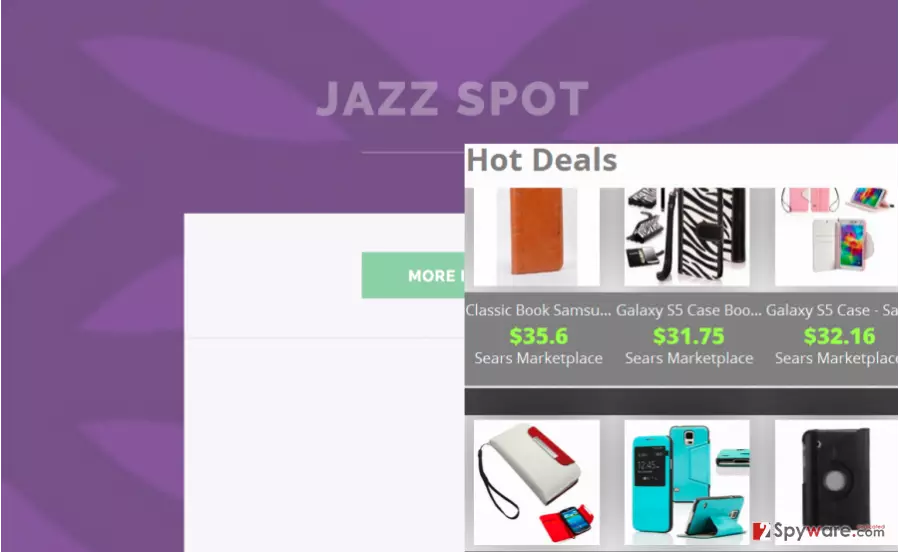
If you have been suffering from Jazz Spot ads while browsing the Internet, you are dealing with the PUP (potentially unwanted program). Such programs can also be added to “adware” category because the main thing what they seek is to show people commercial ads, trick them into clicking these advertisements and then redirect them to sponsored websites. Just like analogs of this PUP, Sharp Angle or Facts Right, Jazz Spot program belongs to a “well known” SuperWeb LLC. SuperWeb company has already created hundreds of identical potentially unwanted programs. All of the them are said to improve the internet users’ browsing quality but, actuality, they lack the functionality they claim to provide. Jazz Spot virus often poses as a legitimate and useful application, providing its users with the “best tools to enhance the browsing experience”. However, it is a deceptive program causing more inconvenience than benefit.
One of the suspicious facts related to this adware is its ability to tracks its victims. According to PC security experts, Jazz Spot spies on its users’ and collects information related to their browsing activity. Typically, it gathers information about users’ search queries, visited sites, pages, user’s IP addresses, unique identifier numbers and other. Some of the Jazz Spot’s collected data can be identified as personal and may be transferred to untrusted third parties, which use it to generate revenue. It is highly recommended considering Jazz Spot removal from your system as soon as possible. For that, check the guide, which is given on the next page of this post.
How could this adware affect my system without my knowledge?
Usually, Jazz Spot is spread with the help of its official website. This site is set to present the application as a very useful tool dedicated for shopping. However, we can’t guarantee that this adware-type program will help you to save a dollar because all what it seeks is showing people sponsored ads. Besides, it can also be installed on your computer through the so-called “bundling” distribution method. In this case, it can be added to each of web browsers without your knowledge or consent. Since it is bundled with other software programs, the user may not notice that the PUP was installed and may be convinced that he or she is dealing with the virus. To avoid getting infected with “Jazz Spot virus”, you have to be attentive while you are installing free software on your computer and thoroughly follow all the steps of the installation. “Advanced/Custom” installation settings should be used to disclose the possible PUP’s that may be bundled with your desired software. In case you have made a mistake, or you did not know safe installation rules before, you should remove Jazz Spot from your computer. Proceed to the next page to find needed uninstall instructions.
Jazz Spot removal procedure:
Even though ads by Jazz Spot and price comparisons may seem useful, beware that this program generates its notifications regardless the user wants to see them or not. Along with numerous pop-ups, banners, full-page, transitional and other advertisements, this program may also start tracking its victim for getting more knowledge about his or hers interests. Finally, its appearance on your computer may significantly slow down your browser’s performance. When clicked, these ads may cause Jazz Spot redirect issue on each of your web browsers.
That’s why you should think about the removal of this adware. To make sure that each of its files is eliminated, you should opt for automatic removal option. Of course, you can also remove Jazz Spot virus with the help of manual removal option. In this case, you should follow every step given below. Please, be attentive when using this removal option and perform every step in the right order!
Uninstall from Windows
Uninstall from Windows 10/8:
- Type Control Panel into the Windows search box and open the result.
- Under Programs, select Uninstall a program.


Uninstall from Windows 7/XP:
- Click on Windows Start > Control Panel (Windows XP users should click on Add/Remove Programs).
- In Control Panel, select Programs > Uninstall a program.


Remove the unwanted program:
- In the Programs and Features window, look for any recently installed suspicious entries, select them, and click Uninstall.
- If User Account Control appears, click Yes to confirm, then complete the removal.


Delete from macOS
Remove the unwanted application:
- From the menu bar, select Go > Applications.
- In the Applications folder, look for any suspicious entries, then drag them to Trash (or right-click and pick Move to Trash).


Delete leftover files and folders:
- Select Go > Go to Folder.
- Enter /Library/Application Support and remove any suspicious folders related to the unwanted program.
- Repeat the same check in the /Library/LaunchAgents and /Library/LaunchDaemons folders, deleting any suspicious entries.

- Finally, empty the Trash to permanently remove the leftovers.

Remove from Microsoft Edge
Delete unwanted extensions from MS Edge:
- Select Menu (three horizontal dots at the top-right of the browser window) and pick Extensions.
- From the list, pick the extension and click on the Gear icon.
- Click Remove.


Clear cookies and other browser data:
- Click on the Menu (three horizontal dots at the top-right of the browser window) and select Settings > Privacy, search, and services..
- Under Clear browsing data, pick Choose what to clear.
- Select Cookies and other site data and Cached images and files. (apart from passwords, although you might want to include Media licenses as well, if applicable) and click on Clear.


Restore new tab and homepage settings:
- Click the menu icon and choose Settings.
- Then find On startup section.
- Click Remove next to any suspicious startup page.
Reset MS Edge if the above steps did not work:
- Press on Ctrl + Shift + Esc to open Task Manager.
- Click on More details arrow at the bottom of the window.
- Select Details tab.
- Now scroll down and locate every entry with Microsoft Edge name in it. Right-click on each of them and select End Task to stop MS Edge from running.


Instructions for Chromium-based Edge
Delete extensions from MS Edge (Chromium):
- Open Edge and click select Settings > Extensions.
- Delete unwanted extensions by clicking Remove.


Clear cache and site data:
- Click on Menu and go to Settings.
- Select Privacy, search and services.
- Under Clear browsing data, pick Choose what to clear.
- Under Time range, pick All time.
- Select Clear now.


Reset Chromium-based MS Edge:
- Click on Menu and select Settings.
- On the left side, pick Reset settings.
- Select Restore settings to their default values.
- Confirm with Reset.
- This will disable extensions and reset startup pages but will not delete bookmarks, saved passwords, or browsing history.


Remove from Mozilla Firefox (FF)
Remove dangerous extensions:
- Open Mozilla Firefox browser and click on the Menu (three horizontal lines at the top-right of the window).
- Select Add-ons.
- In here, select the unwanted extension and click Remove.


Reset the homepage:
- Click three horizontal lines at the top right corner to open the menu.
- Choose Settings.
- Under Home, set your preferred homepage and new tab settings.
Clear cookies and site data:
- Click Menu and pick Settings.
- Go to Privacy & Security section.
- Scroll down to locate Cookies and Site Data.
- Click on Clear Data...
- Select Cookies and Site Data and Temporary cached files and pages, then click Clear.


Reset Mozilla Firefox
If clearing the browser as explained above did not help, reset Mozilla Firefox:
- Open Mozilla Firefox browser and click the Menu.
- Go to Help and then choose Troubleshooting Information.

- Under Give Firefox a tune up section, click on Refresh Firefox...
- Once the pop-up shows up, confirm the action by pressing on Refresh Firefox.



Remove from Google Chrome
Delete malicious extensions from Google Chrome:
- Open Google Chrome, click on the Menu (three vertical dots at the top-right corner) and select More tools > Extensions.
- In the newly opened window, you will see all the installed extensions. Uninstall all suspicious extensions related to the unwanted program by clicking Remove.


Clear cache and web data from Chrome:
- Click on Menu and pick Settings.
- Under Privacy and security, select Clear browsing data.
- Select Browsing history, Cookies and other site data, as well as Cached images and files.
- Click Clear data.


Change your homepage:
- Click menu and choose Settings.
- Look for a suspicious site in the On startup section.
- Click on Open a specific or set of pages and click on three dots to find the Remove option.
Reset Google Chrome:
If the previous methods did not help you, reset Google Chrome to eliminate all the unwanted components:
- Click on Menu and select Settings.
- In the Settings, scroll down and click Advanced.
- Scroll down and locate Reset and clean up section.
- Now click Restore settings to their original defaults.
- Confirm with Reset settings.


Delete from Safari
Remove dangerous extensions:
- Open Safari, click Safari in the menu at the top-left of the screen, and select Preferences.
- Go to the Extensions tab, look for any suspicious entries, and click Uninstall to remove them.


Clear history and website data:
- Click Safari in the menu and pick Clear History.
- Set Clear to all history and confirm with Clear History.


Reset Safari:
- Click Safari in the menu and select Preferences > Advanced.
- Enable Show Develop menu in menu bar.
- From the menu bar, click Develop and select Empty Caches.


Did this guide help?
4 comments
fredo
Sneaky malware that hits your screen with tons of pop-ups! It is so obvious that these ads are dangerous, you should not click on them! I am afraid that they have redirected me to some virus pages, so I am getting anti-malware now to scan my computer just in case these sites seamlessly injected some threats to my computer!
OpOLO7
Could not uninstall it for a while. It took some time to figure out what should I click and where to remove one or another component of this spyware. But thanks, these instructions helped me to solve this problem and i have already removed this suspicious program from my computer.
Oviro9
uninstall guide worked, thanks
Mannie874
Just got Spyhunter, my PC works better after the removal of computer threats! I have even noticed that it performs faster now. Really good application, thank you for recommendations