

I did not install Koyote Soft Toolbar, so why has it appeared on my browser’s menu bar? I also receive various coupons, price comparisons, discount codes and other similar promotional content while browsing the web. It is kind of annoying… What does it mean?
How did Koyote Soft Toolbar hijack your computer system?
Koyote Soft Toolbar is a deceptive browser extension, which can be installed on each of your web browsers without your knowledge. In fact, it is even assigned to potentially unwanted programs’ (PUPs) list. Such programs are mostly distributed in an indirect way, which is called bundling. A bundled software is a program that has several additional applications attached to it. Unfortunately, the most of the people who use computers and install free programs from the Internet tend to do it carelessly; in most of the cases, they do not read software’s Terms of Use and Privacy Policy documents; on top of that, they choose to install software using Default or Standard installation mode. If you tend to act this way, you risk ending up with optional freeware on your computer, and such software might be infectious. To avoid installing unwanted programs, you SHOULD read the aforementioned documents; however, if you are still unwilling to do that, you should choose Advanced or Custom software installation option and then deselect the agreements to install optional freeware.
How does Koyote Soft Toolbar work?
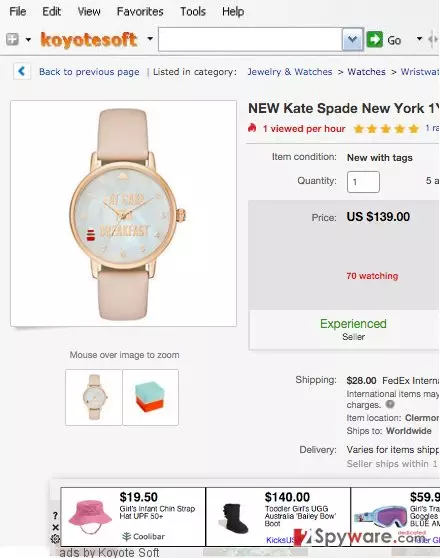
If the user accidentally installs this program, this is what happens – it attaches a browser add-on on the Internet browsers (IE, Mozilla Firefox, Google Chrome, and others), ads a browser toolbar and tracks whatever the user does while browsing the Internet. Basically, Koyote Soft Toolbar PUP tracks your search queries, websites visited, clicks, and other browsing activity. Then it connects to its server and searches for ads that are related to your interests. It chooses particular ads and then delivers them to you as pop-up windows or banners placed on the websites that you visit. No matter how catchy these ads would look, do not click on them! Remember that Koyote Soft Toolbar is an adware program, and it seeks to advertise its partners by making people visit their websites by force.
Therefore, it inserts deceptive hyperlinks to Koyote Soft Toolbar ads, so clicking on them can result in redirects to a variety of pre-determined websites. While some of the promoted sites may be safe, others may be not. According to our research, Koyote Soft ads can lead to high-risk third-party websites that seek to promote questionable software. You should never agree to install software from such unreliable web sources because you cannot know whether the software is safe or not. If you are a security-minded person, bypass any offers to install freeware from web sources that you accidentally end up on.
These statements did not convince you to remove Koyote Soft Toolbar adware? Maybe this fact will do. If this software is active, it notably slows down computer speed. If you do not want to experience system slowdowns, freezes or even crashes, we recommend removing this software using a professional anti-spyware software (for instance, FortectIntego). However, you can try to delete this software manually – the manual Koyote Soft Toolbar removal guide is given on page 2.
Koyote Soft Toolbar removal methods
As you can see, this questionable application is not useful; it causes interruptions, system slowdowns, and other inconveniences for you. Who would want to experience such interferences? Obviously, no one. That is why we provide even two removal options for those who wish to eliminate Koyote Soft Toolbar virus from their computers. You can use the automatic removal technique and delete this PC intruder via an anti-spyware program, or you can follow the step-by-step manual removal guide and terminate it by yourself.
Uninstall from Windows
Uninstall from Windows 10/8:
- Type Control Panel into the Windows search box and open the result.
- Under Programs, select Uninstall a program.


Uninstall from Windows 7/XP:
- Click on Windows Start > Control Panel (Windows XP users should click on Add/Remove Programs).
- In Control Panel, select Programs > Uninstall a program.


Remove the unwanted program:
- In the Programs and Features window, look for any recently installed suspicious entries, select them, and click Uninstall.
- If User Account Control appears, click Yes to confirm, then complete the removal.


Delete from macOS
Remove the unwanted application:
- From the menu bar, select Go > Applications.
- In the Applications folder, look for any suspicious entries, then drag them to Trash (or right-click and pick Move to Trash).


Delete leftover files and folders:
- Select Go > Go to Folder.
- Enter /Library/Application Support and remove any suspicious folders related to the unwanted program.
- Repeat the same check in the /Library/LaunchAgents and /Library/LaunchDaemons folders, deleting any suspicious entries.

- Finally, empty the Trash to permanently remove the leftovers.

Remove from Microsoft Edge
Delete unwanted extensions from MS Edge:
- Select Menu (three horizontal dots at the top-right of the browser window) and pick Extensions.
- From the list, pick the extension and click on the Gear icon.
- Click Remove.


Clear cookies and other browser data:
- Click on the Menu (three horizontal dots at the top-right of the browser window) and select Settings > Privacy, search, and services..
- Under Clear browsing data, pick Choose what to clear.
- Select Cookies and other site data and Cached images and files. (apart from passwords, although you might want to include Media licenses as well, if applicable) and click on Clear.


Restore new tab and homepage settings:
- Click the menu icon and choose Settings.
- Then find On startup section.
- Click Remove next to any suspicious startup page.
Reset MS Edge if the above steps did not work:
- Press on Ctrl + Shift + Esc to open Task Manager.
- Click on More details arrow at the bottom of the window.
- Select Details tab.
- Now scroll down and locate every entry with Microsoft Edge name in it. Right-click on each of them and select End Task to stop MS Edge from running.


Instructions for Chromium-based Edge
Delete extensions from MS Edge (Chromium):
- Open Edge and click select Settings > Extensions.
- Delete unwanted extensions by clicking Remove.


Clear cache and site data:
- Click on Menu and go to Settings.
- Select Privacy, search and services.
- Under Clear browsing data, pick Choose what to clear.
- Under Time range, pick All time.
- Select Clear now.


Reset Chromium-based MS Edge:
- Click on Menu and select Settings.
- On the left side, pick Reset settings.
- Select Restore settings to their default values.
- Confirm with Reset.
- This will disable extensions and reset startup pages but will not delete bookmarks, saved passwords, or browsing history.


Remove from Mozilla Firefox (FF)
Remove dangerous extensions:
- Open Mozilla Firefox browser and click on the Menu (three horizontal lines at the top-right of the window).
- Select Add-ons.
- In here, select the unwanted extension and click Remove.


Reset the homepage:
- Click three horizontal lines at the top right corner to open the menu.
- Choose Settings.
- Under Home, set your preferred homepage and new tab settings.
Clear cookies and site data:
- Click Menu and pick Settings.
- Go to Privacy & Security section.
- Scroll down to locate Cookies and Site Data.
- Click on Clear Data...
- Select Cookies and Site Data and Temporary cached files and pages, then click Clear.


Reset Mozilla Firefox
If clearing the browser as explained above did not help, reset Mozilla Firefox:
- Open Mozilla Firefox browser and click the Menu.
- Go to Help and then choose Troubleshooting Information.

- Under Give Firefox a tune up section, click on Refresh Firefox...
- Once the pop-up shows up, confirm the action by pressing on Refresh Firefox.



Remove from Google Chrome
Delete malicious extensions from Google Chrome:
- Open Google Chrome, click on the Menu (three vertical dots at the top-right corner) and select More tools > Extensions.
- In the newly opened window, you will see all the installed extensions. Uninstall all suspicious extensions related to the unwanted program by clicking Remove.


Clear cache and web data from Chrome:
- Click on Menu and pick Settings.
- Under Privacy and security, select Clear browsing data.
- Select Browsing history, Cookies and other site data, as well as Cached images and files.
- Click Clear data.


Change your homepage:
- Click menu and choose Settings.
- Look for a suspicious site in the On startup section.
- Click on Open a specific or set of pages and click on three dots to find the Remove option.
Reset Google Chrome:
If the previous methods did not help you, reset Google Chrome to eliminate all the unwanted components:
- Click on Menu and select Settings.
- In the Settings, scroll down and click Advanced.
- Scroll down and locate Reset and clean up section.
- Now click Restore settings to their original defaults.
- Confirm with Reset settings.


Delete from Safari
Remove dangerous extensions:
- Open Safari, click Safari in the menu at the top-left of the screen, and select Preferences.
- Go to the Extensions tab, look for any suspicious entries, and click Uninstall to remove them.


Clear history and website data:
- Click Safari in the menu and pick Clear History.
- Set Clear to all history and confirm with Clear History.


Reset Safari:
- Click Safari in the menu and select Preferences > Advanced.
- Enable Show Develop menu in menu bar.
- From the menu bar, click Develop and select Empty Caches.


Did this guide help?
5 comments
Iphea
bad, bad, bad toolbar! I would not recommend installing it! It is definitely a cause of millions of annoying ads. If you do not want to waste your time closing them one by one, do not install Koyote Toolbar!
bailando
looks like a normal extension, but is malicious! promotes infectious pages/ keysoft toolbar is a crap...
Barsi86
yes, definitely, the keysoft ads made me visit some stupid website that asked to install java update, glad that I have refused to do it! lucky me i have found this article before exploring these ads.
Jamsons
I cannot remove the ads... what is the problem??????
Messi8
I do not agree that it is malicious. It is not harmful unless you use it; I dont think it is considered to be MALICIOUS.