

Should you be alerted when you see Lamzap ads?
Once Lamzap virus gets into your computer, your browsing quality might deteriorate. We would like to assure that it is not a serious cyber threat. This application acts as adware-type software. Thus, its sole purpose is to display diverse advertisements to lure you into respective websites. Unfortunately, they might not always be secure. You should remove Lamzap without delay or hesitation. If you didn’t encounter similar potentially unwanted programs before, you might not be aware of what damage they can cause. Thus, let us explain the main features of this adware and suggest Lamzap removal options. One of them is to run the system scan with FortectIntego.
There is a broad variety of similar programs. Rarely, they cause a great deal of trouble and system wreckage. Nonetheless, its presence on the computer should not be ignored. One of the peculiarities of this application is that it might bear an alternative title. Thus, detecting it from the first attempt on the computer might not be successful. Such flexible form allows the PUP to roam across the computer unstoppable. However, it still reveals its presence after a while. The excessive amount of Lamzap ads suggests of the PUP’s existence. If you happen to shop online regularly, some of its commercial offers or daily offers might attract your attention.
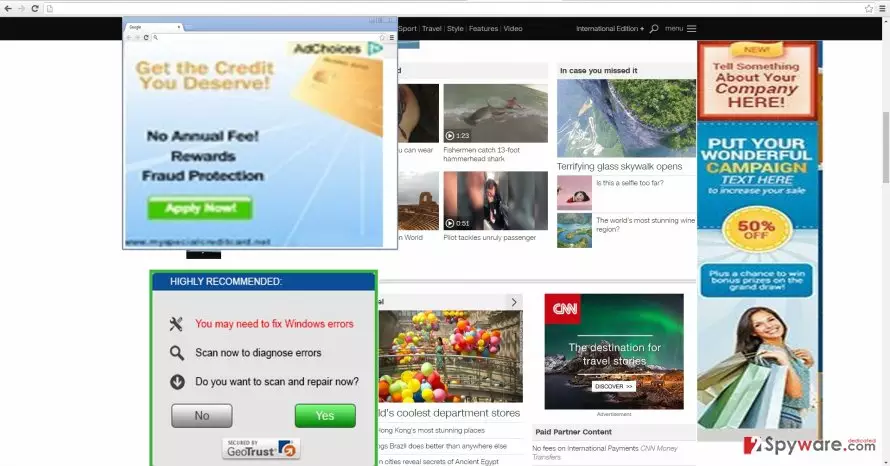
If you happen to shop online regularly, some of its commercial offers or daily offers might attract your attention. We would like to warn you not to get deceived by the content of such banners and offers, especially suggestions to install software. Lamzap is supported by unknown advertising companies. Thus, you cannot trust their websites, not to mention their products. You can download a fake PC optimizer or insecure virtual shopping assistant. These programs often do more harm than good. They might be enhanced with malignant elements as well. In addition, Lamzap redirect should not be disregarded. As previously mentioned, the ads generated by this PUP might lead you to the websites infected with malware. If it manages to sneak into your computer, you might waste a lot of time identifying the cause of fake system errors.
When did the adware slither into the PC?
The distribution techniques of this adware might be interesting for some users. The crooks have polished a profitable strategy to distribute such programs without users easily detecting them. They attach the PUPs to freeware. Since few users take a look at the installation stages, not to mention terms of use, the pre-marked add-ons pave their way into the victims’ computers. If you do not want to get into the victim list again and experience Lamzap hijack again, follow these recommendations each time you install a new application. Instead of usually chosen “Recommended” settings, shift to ”Advanced” mode. Be aware that some PUP developers hide the optional ad irrelevant add-ons under these settings as well. Only when you ensure that no irrelevant programs will be installed, continue with the installation process.
The instructions to eliminate the adware
Install an anti-spyware application for it to complete Lamzap removal. Make sure the program receives newest virus definitions. Otherwise, it might not detect all adware elements. After it deals with the PUP, the ads and pop-ups cease emerging. In general, similar security application proves to be a reliable guardian of the entire computer. Its protective shields dodge serious cyber threats as well. Alternatively, you can remove Lamzap permanently by following the steps of the manual guide. To sum up, not only proper security programs guarantee that no adware or malware sneak into the computer, your role is crucial as well. Be vigilant while installing new applications. Avoid staying too long in the websites overcrowded with ads. Run regular scans. These prevention measures will decrease the possibility of encountering Lamzap virus or similar annoying pest in the future.
Uninstall from Windows
Uninstall from Windows 10/8:
- Type Control Panel into the Windows search box and open the result.
- Under Programs, select Uninstall a program.


Uninstall from Windows 7/XP:
- Click on Windows Start > Control Panel (Windows XP users should click on Add/Remove Programs).
- In Control Panel, select Programs > Uninstall a program.


Remove the unwanted program:
- In the Programs and Features window, look for any recently installed suspicious entries, select them, and click Uninstall.
- If User Account Control appears, click Yes to confirm, then complete the removal.


Delete from macOS
Remove the unwanted application:
- From the menu bar, select Go > Applications.
- In the Applications folder, look for any suspicious entries, then drag them to Trash (or right-click and pick Move to Trash).


Delete leftover files and folders:
- Select Go > Go to Folder.
- Enter /Library/Application Support and remove any suspicious folders related to the unwanted program.
- Repeat the same check in the /Library/LaunchAgents and /Library/LaunchDaemons folders, deleting any suspicious entries.

- Finally, empty the Trash to permanently remove the leftovers.

Remove from Microsoft Edge
Delete unwanted extensions from MS Edge:
- Select Menu (three horizontal dots at the top-right of the browser window) and pick Extensions.
- From the list, pick the extension and click on the Gear icon.
- Click Remove.


Clear cookies and other browser data:
- Click on the Menu (three horizontal dots at the top-right of the browser window) and select Settings > Privacy, search, and services..
- Under Clear browsing data, pick Choose what to clear.
- Select Cookies and other site data and Cached images and files. (apart from passwords, although you might want to include Media licenses as well, if applicable) and click on Clear.


Restore new tab and homepage settings:
- Click the menu icon and choose Settings.
- Then find On startup section.
- Click Remove next to any suspicious startup page.
Reset MS Edge if the above steps did not work:
- Press on Ctrl + Shift + Esc to open Task Manager.
- Click on More details arrow at the bottom of the window.
- Select Details tab.
- Now scroll down and locate every entry with Microsoft Edge name in it. Right-click on each of them and select End Task to stop MS Edge from running.


Instructions for Chromium-based Edge
Delete extensions from MS Edge (Chromium):
- Open Edge and click select Settings > Extensions.
- Delete unwanted extensions by clicking Remove.


Clear cache and site data:
- Click on Menu and go to Settings.
- Select Privacy, search and services.
- Under Clear browsing data, pick Choose what to clear.
- Under Time range, pick All time.
- Select Clear now.


Reset Chromium-based MS Edge:
- Click on Menu and select Settings.
- On the left side, pick Reset settings.
- Select Restore settings to their default values.
- Confirm with Reset.
- This will disable extensions and reset startup pages but will not delete bookmarks, saved passwords, or browsing history.


Remove from Mozilla Firefox (FF)
Remove dangerous extensions:
- Open Mozilla Firefox browser and click on the Menu (three horizontal lines at the top-right of the window).
- Select Add-ons.
- In here, select the unwanted extension and click Remove.


Reset the homepage:
- Click three horizontal lines at the top right corner to open the menu.
- Choose Settings.
- Under Home, set your preferred homepage and new tab settings.
Clear cookies and site data:
- Click Menu and pick Settings.
- Go to Privacy & Security section.
- Scroll down to locate Cookies and Site Data.
- Click on Clear Data...
- Select Cookies and Site Data and Temporary cached files and pages, then click Clear.


Reset Mozilla Firefox
If clearing the browser as explained above did not help, reset Mozilla Firefox:
- Open Mozilla Firefox browser and click the Menu.
- Go to Help and then choose Troubleshooting Information.

- Under Give Firefox a tune up section, click on Refresh Firefox...
- Once the pop-up shows up, confirm the action by pressing on Refresh Firefox.



Remove from Google Chrome
Delete malicious extensions from Google Chrome:
- Open Google Chrome, click on the Menu (three vertical dots at the top-right corner) and select More tools > Extensions.
- In the newly opened window, you will see all the installed extensions. Uninstall all suspicious extensions related to the unwanted program by clicking Remove.


Clear cache and web data from Chrome:
- Click on Menu and pick Settings.
- Under Privacy and security, select Clear browsing data.
- Select Browsing history, Cookies and other site data, as well as Cached images and files.
- Click Clear data.


Change your homepage:
- Click menu and choose Settings.
- Look for a suspicious site in the On startup section.
- Click on Open a specific or set of pages and click on three dots to find the Remove option.
Reset Google Chrome:
If the previous methods did not help you, reset Google Chrome to eliminate all the unwanted components:
- Click on Menu and select Settings.
- In the Settings, scroll down and click Advanced.
- Scroll down and locate Reset and clean up section.
- Now click Restore settings to their original defaults.
- Confirm with Reset settings.


Delete from Safari
Remove dangerous extensions:
- Open Safari, click Safari in the menu at the top-left of the screen, and select Preferences.
- Go to the Extensions tab, look for any suspicious entries, and click Uninstall to remove them.


Clear history and website data:
- Click Safari in the menu and pick Clear History.
- Set Clear to all history and confirm with Clear History.


Reset Safari:
- Click Safari in the menu and select Preferences > Advanced.
- Enable Show Develop menu in menu bar.
- From the menu bar, click Develop and select Empty Caches.


Did this guide help?
2 comments
Kyle
Where does that app hide in?
Bonnie
Luckily, its not some kind of ransomware...