

Three reasons why you should remove Linkidoo app
Due to its characteristics, IT researchers have deemed Linkidoo virus as adware. Thus, like other samples of this kind, it is programmed to display advertisements, banners, commercial offers, etc. The main negative aspects of this PUP are its tendency to spy on your online activities and excessive advertising. Moreover, it might install other adware on the computer. If you consider such behavior inappropriate, you should proceed to Linkidoo removal right away. FortectIntego is the program which will ensure complete elimination.
Firstly, the adware is highly disturbing for its ability to stuff your browser with constant popping-ads. They emerge in every visited website and even cover the online content. Moreover, the ads of Linkidoo redirect you to unknown domains. Though in most cases you might find yourself in a website with advertising content, sometimes you might even get mislead to web pages full of infected hyperlinks. They might hide various types of viruses deviating in their level of damage. If you give in to curiosity and remain in those redirect websites, the probability that the malware infects your device greatly increases.
Secondly, Linkidoo ads might also lead you to the websites which offer to update your security programs or install some questionable PC optimizers. Needless to say, ignore such suggestions as you may install not malware removal tools but malware “downloaders.” In short, these programs might be infected with malevolent files. Linkidoo might also install other adware type programs on the computer which diminish the overall process of the PC.
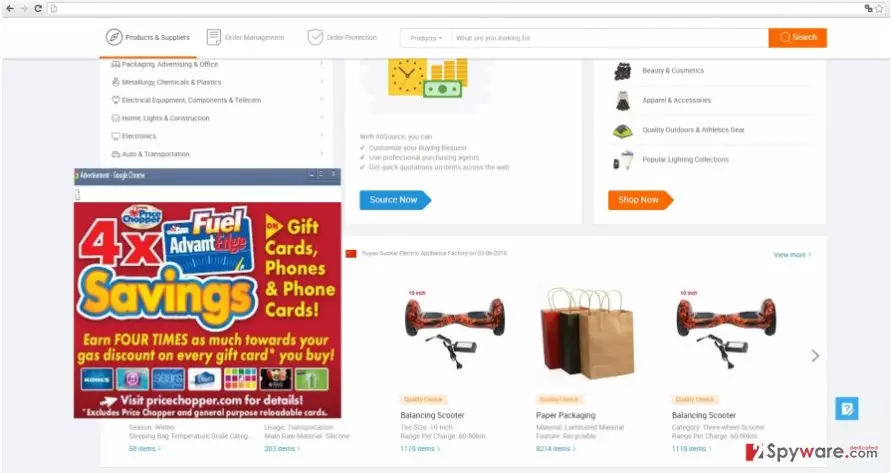
Thirdly, the PUP spies on your online activities by keeping the record of your visited domains, frequent search entries. It also detects your location by identifying IP address. This data, known as non-personally identifiable information. is of great value for the developers of Linkidoo, which might trade it with advertising companies. As a consequence of such deal, your browser might be flooded with more advertisements. Thus, if you already get enough of these negative effects, remove Linkidoo at once.
When did I come across this adware?
This adware spreads in a sly way by attaching itself to popular freeware. When a user downloads such program, he often ignores the fact that his downloaded a pdf viewer might contain a “bonus” application. Within it, the adware hides. Thus, if you want to escape Linkidoo hijack in the future, keep in mind these recommendations we are about to give you. Develop a habit of installing new programs only from their official domains. Before installing a program, check its publisher whether it matches the original one. After initiating the installation, opt for “Advanced” settings and then check look for additionally pre-marked programs. If they seem unnecessary, untick them.
How can I complete Linkidoo removal?
Luckily, the elimination of this adware does not pose any trouble. You can get rid of Linkidoo virus automatically and manually. If you opt for the latter, make sure to follow the instructions carefully. It is important to root out the adware without leaving any traces for future hijacks. Thus, thoroughly following the instructions might take up too much time and patience. That is why you might consider automatic elimination. The anti-spyware program is able to locate and remove Linkidoo within a glimpse. It ensures that no files, which might threaten the PC security, remain.
Uninstall from Windows
Uninstall from Windows 10/8:
- Type Control Panel into the Windows search box and open the result.
- Under Programs, select Uninstall a program.


Uninstall from Windows 7/XP:
- Click on Windows Start > Control Panel (Windows XP users should click on Add/Remove Programs).
- In Control Panel, select Programs > Uninstall a program.


Remove the unwanted program:
- In the Programs and Features window, look for any recently installed suspicious entries, select them, and click Uninstall.
- If User Account Control appears, click Yes to confirm, then complete the removal.


Delete from macOS
Remove the unwanted application:
- From the menu bar, select Go > Applications.
- In the Applications folder, look for any suspicious entries, then drag them to Trash (or right-click and pick Move to Trash).


Delete leftover files and folders:
- Select Go > Go to Folder.
- Enter /Library/Application Support and remove any suspicious folders related to the unwanted program.
- Repeat the same check in the /Library/LaunchAgents and /Library/LaunchDaemons folders, deleting any suspicious entries.

- Finally, empty the Trash to permanently remove the leftovers.

Remove from Microsoft Edge
Delete unwanted extensions from MS Edge:
- Select Menu (three horizontal dots at the top-right of the browser window) and pick Extensions.
- From the list, pick the extension and click on the Gear icon.
- Click Remove.


Clear cookies and other browser data:
- Click on the Menu (three horizontal dots at the top-right of the browser window) and select Settings > Privacy, search, and services..
- Under Clear browsing data, pick Choose what to clear.
- Select Cookies and other site data and Cached images and files. (apart from passwords, although you might want to include Media licenses as well, if applicable) and click on Clear.


Restore new tab and homepage settings:
- Click the menu icon and choose Settings.
- Then find On startup section.
- Click Remove next to any suspicious startup page.
Reset MS Edge if the above steps did not work:
- Press on Ctrl + Shift + Esc to open Task Manager.
- Click on More details arrow at the bottom of the window.
- Select Details tab.
- Now scroll down and locate every entry with Microsoft Edge name in it. Right-click on each of them and select End Task to stop MS Edge from running.


Instructions for Chromium-based Edge
Delete extensions from MS Edge (Chromium):
- Open Edge and click select Settings > Extensions.
- Delete unwanted extensions by clicking Remove.


Clear cache and site data:
- Click on Menu and go to Settings.
- Select Privacy, search and services.
- Under Clear browsing data, pick Choose what to clear.
- Under Time range, pick All time.
- Select Clear now.


Reset Chromium-based MS Edge:
- Click on Menu and select Settings.
- On the left side, pick Reset settings.
- Select Restore settings to their default values.
- Confirm with Reset.
- This will disable extensions and reset startup pages but will not delete bookmarks, saved passwords, or browsing history.


Remove from Mozilla Firefox (FF)
Remove dangerous extensions:
- Open Mozilla Firefox browser and click on the Menu (three horizontal lines at the top-right of the window).
- Select Add-ons.
- In here, select the unwanted extension and click Remove.


Reset the homepage:
- Click three horizontal lines at the top right corner to open the menu.
- Choose Settings.
- Under Home, set your preferred homepage and new tab settings.
Clear cookies and site data:
- Click Menu and pick Settings.
- Go to Privacy & Security section.
- Scroll down to locate Cookies and Site Data.
- Click on Clear Data...
- Select Cookies and Site Data and Temporary cached files and pages, then click Clear.


Reset Mozilla Firefox
If clearing the browser as explained above did not help, reset Mozilla Firefox:
- Open Mozilla Firefox browser and click the Menu.
- Go to Help and then choose Troubleshooting Information.

- Under Give Firefox a tune up section, click on Refresh Firefox...
- Once the pop-up shows up, confirm the action by pressing on Refresh Firefox.



Remove from Google Chrome
Delete malicious extensions from Google Chrome:
- Open Google Chrome, click on the Menu (three vertical dots at the top-right corner) and select More tools > Extensions.
- In the newly opened window, you will see all the installed extensions. Uninstall all suspicious extensions related to the unwanted program by clicking Remove.


Clear cache and web data from Chrome:
- Click on Menu and pick Settings.
- Under Privacy and security, select Clear browsing data.
- Select Browsing history, Cookies and other site data, as well as Cached images and files.
- Click Clear data.


Change your homepage:
- Click menu and choose Settings.
- Look for a suspicious site in the On startup section.
- Click on Open a specific or set of pages and click on three dots to find the Remove option.
Reset Google Chrome:
If the previous methods did not help you, reset Google Chrome to eliminate all the unwanted components:
- Click on Menu and select Settings.
- In the Settings, scroll down and click Advanced.
- Scroll down and locate Reset and clean up section.
- Now click Restore settings to their original defaults.
- Confirm with Reset settings.


Delete from Safari
Remove dangerous extensions:
- Open Safari, click Safari in the menu at the top-left of the screen, and select Preferences.
- Go to the Extensions tab, look for any suspicious entries, and click Uninstall to remove them.


Clear history and website data:
- Click Safari in the menu and pick Clear History.
- Set Clear to all history and confirm with Clear History.


Reset Safari:
- Click Safari in the menu and select Preferences > Advanced.
- Enable Show Develop menu in menu bar.
- From the menu bar, click Develop and select Empty Caches.


Did this guide help?
3 comments
Alex
Shame that I got fooled by this adware....
Nicole
Luckily, my anti-virus app still works if it detects such minor pests as this one.
James
I suppose, the creators of this adware are still brats.